If you’ve ever stared down a form that asked for your name, address, company size, budget range, project timeline and a brief life story all on the same page, you already understand the problem this post is here to solve.
Long forms kill conversions.
Not because people are lazy, but because seeing a wall of fields triggers an instinctive urge to close the tab and move on.
Multi-step forms fix that by spreading the experience across bite-sized screens so you focus on one thing at a time instead of everything at once.
In this guide, we’ll walk you through what multi-step forms are, when you should use them, why they can perform better and how to build one using SureForms without writing a single line of code
What Is a Multi-Step Form?
A multi-step form (also called a multi-page form) breaks a single long form into a series of shorter screens that users move through one step at a time.
Instead of presenting 20 fields upfront, you show 4 or 5 at a time, grouped logically, with navigation buttons to move forward and backward.
In WordPress, this is achieved through a page break mechanism.
You build your form fields as normal, then insert a page break where you want one step to end and the next to begin.
Everything before the break becomes Step 1, everything after becomes Step 2, and so on.
A well-built multi-step form also includes a progress indicator, either a bar or a step counter, so users always know how far they’ve gone and how much is left.
That sense of momentum matters.
When someone can see they’re 60% of the way through, they’re far more likely to finish than if the end feels invisible.
SureForms lets you customize the progress indicator on your multi-step form, giving users a clear visual guide through each stage of the form.
You can display it as a progress bar, a step counter, or hide it entirely, depending on what works best for your audience.
When You Should Use a Multi-Step Form
Not every form needs to be multi-step. A simple contact form with three fields works perfectly well on one page or for simple forms.
The multi-step format earns its place when the volume or variety of information you’re collecting starts to create friction.
Here’s when switching to multi-step makes the most sense:
- Lead generation and quote requests. When you need details like service type, timeline and budget alongside contact information. A multi-step layout lets you ask progressively without front-loading the intimidating stuff.
- Job applications. Personal details, work history, education and optional questions are natural groupings for separate steps. Users can focus without losing their place.
- Event registrations. Attendee information, ticket selection, dietary requirements, and payment all benefit from being separated into logical stages.
- Onboarding flows. When a new user signs up for a product or service, walking them through setup one section at a time feels like guidance rather than interrogation.
- Surveys and assessments. Longer surveys with multiple topic areas are easier to complete when they’re grouped by theme, and users are less likely to abandon midway through.
- Checkout and payment forms. Splitting billing details, shipping, and payment into steps reduces cognitive load at the most friction-prone point in any conversion.
The common thread in all of these is complexity. If your form has more than 7 to 10 fields, or if the fields cover meaningfully different subjects, multi-step almost always outperforms single-page.
Just remember to let users save their entries, just in case!
Benefits of Using Multi-Step Forms
There are concrete reasons they perform better and it’s worth understanding each one so you can apply the thinking beyond just form design.
- Higher completion rates. When users aren’t confronted with an endless form, they’re more willing to start and starting is half the battle. Breaking longer forms into manageable steps guides visitors through your form one step at a time, increasing completion rates.
- Reduced form fatigue. Scrolling through dozens of fields, even when they’re simple, creates a sense of effort that erodes motivation. Shorter screens feel light and achievable, so users don’t hit that mental wall mid-way through.
- Better data quality. When people aren’t rushing to get through a long form as quickly as possible, they tend to give more accurate, thoughtful answers.
- Partial submission capture. Some multi-step setups can capture the data entered in earlier steps even if a user abandons the form before finishing. That means you don’t necessarily lose everything when someone drops off at Step 3.
- Logical grouping improves clarity. Separating “Personal Details” from “Project Requirements” from “Budget” isn’t just visually cleaner, it genuinely helps users understand what each section is asking of them and why.
- A more polished user experience. A well-designed multi-step form with a progress bar, clear labels and smooth navigation signals professionalism. It communicates that the form, and by extension the business behind it, has been built with care.
How To Create Multi-Step Forms in WordPress (The Easiest Way)
SureForms is a WordPress form builder that works inside the native block editor, so there’s no separate interface to learn.
And you can make a multi-step form in seconds using the built-in block that SureForms provides. You just need to drag and drop the block where necessary; there’s no complex setup to go through.
Here’s a walkthrough of how to get one live on your site. You can also watch the full video tutorial below for a visual guide:

Step 1: Install and Activate SureForms
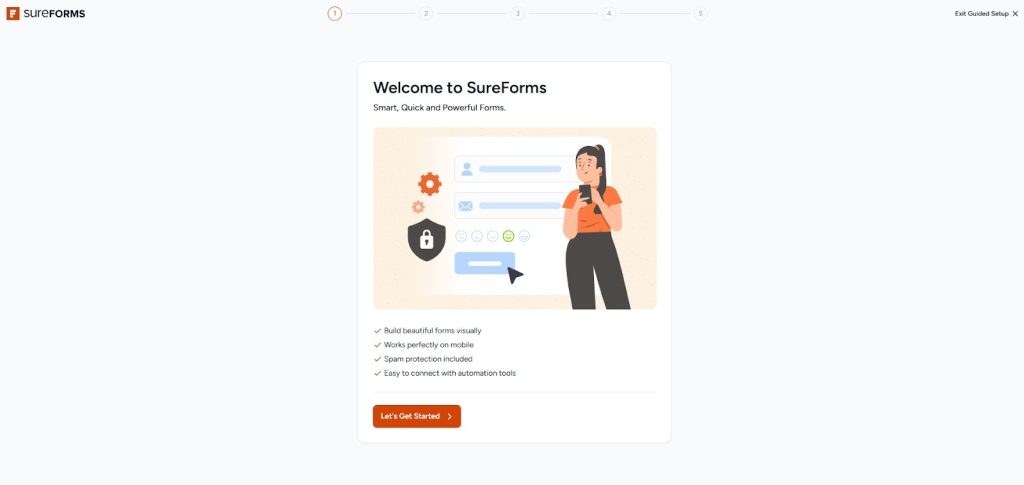
If you haven’t already, install SureForms from the WordPress plugin directory or upload the premium version through your dashboard.
Once activated, you’ll see a SureForms option in your WordPress admin menu.
Step 2: Create a New Form
Go to your WordPress dashboard and click on the Create New Form option under your SureForms dashboard.
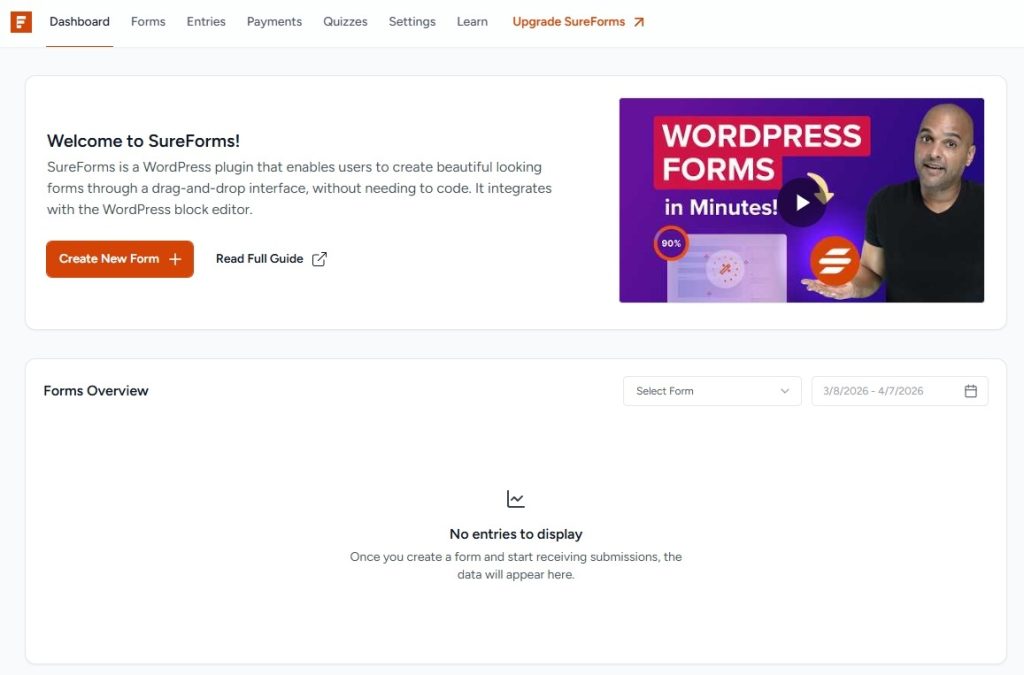
You can create a form from scratch or create a form with AI.
AI is faster and easier, while building from scratch gives you full control over your layout and structure.
Step 3: Add Your Fields
Start adding the fields you need using the block editor.
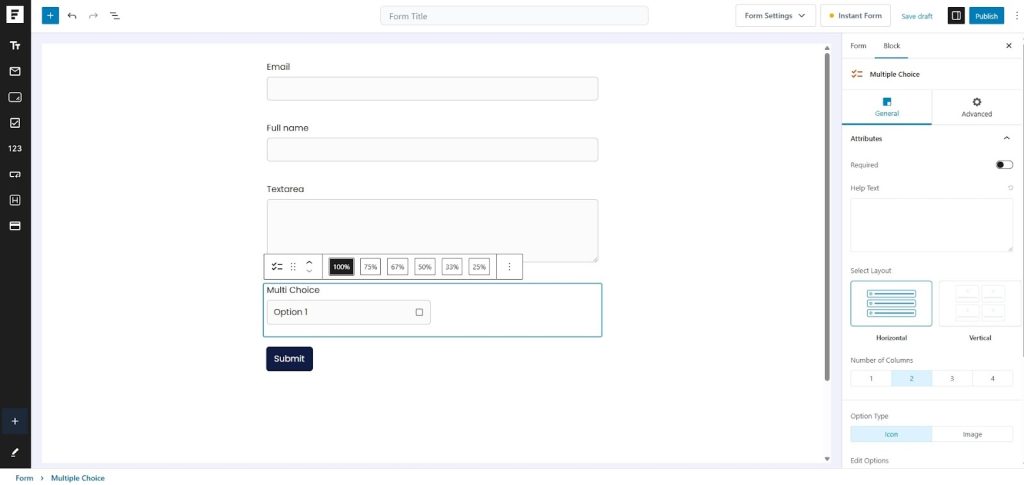
Click the “+” icon to insert a field or drag it in from the quick action bar. Add all the fields you want in your first step, then stop before inserting the page break.
Step 4: Insert a Page Break Block
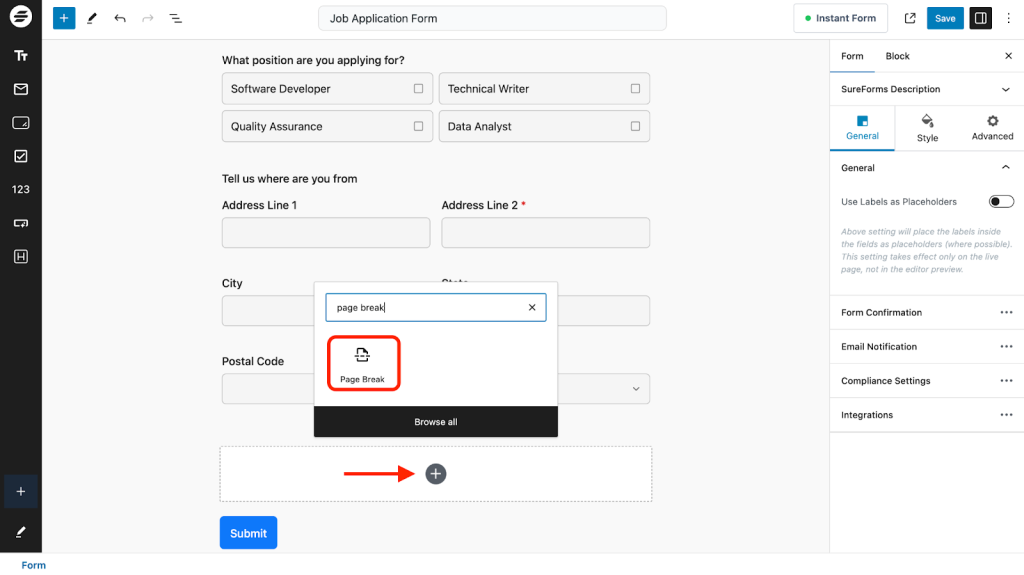
When you have enough fields for one page and want to continue on another, add a Page Break block.
This will split your form into multiple pages. Fields you add after the page break will automatically appear on the next page of the form.
Repeat this process, adding more fields and then inserting another Page Break block each time you want to start a new step.
Step 5: Customize Your Progress Indicator
Go to Form > General in your SureForms editor and open the “Page Break” dropdown. Under “Progress Indicator”, select which progress indicator you want to display on your multi-step form.
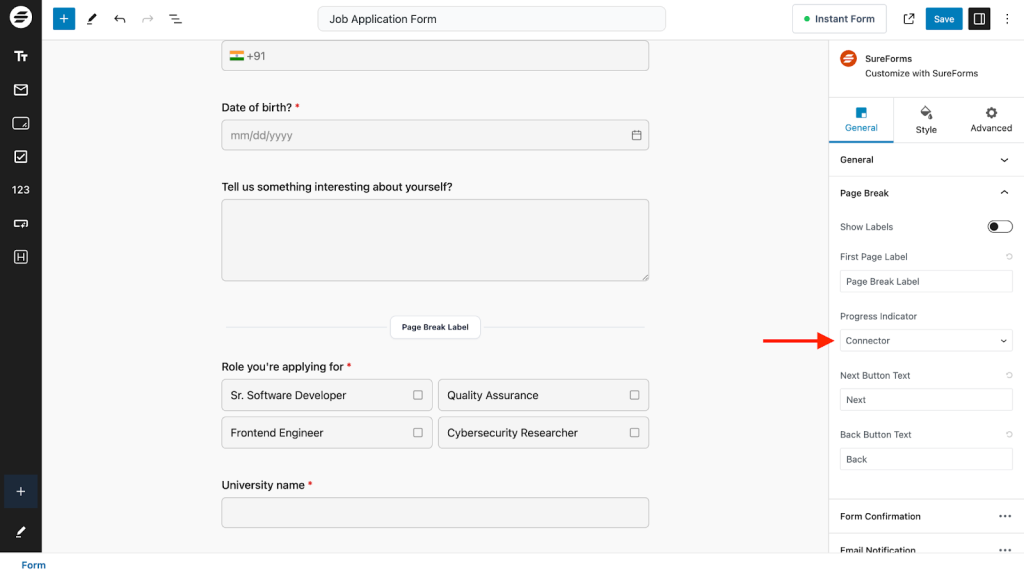
Options include a progress bar, step-style navigation, or no indicator at all.
Step 6: Add Page Labels
Labels help users know what each page in a multi-step form is for. For example, labels like “Personal Information,” “Education,” and “Qualifications” make it clear what each page is asking for.
You can enable these under the Show Labels setting in the Page Break options.
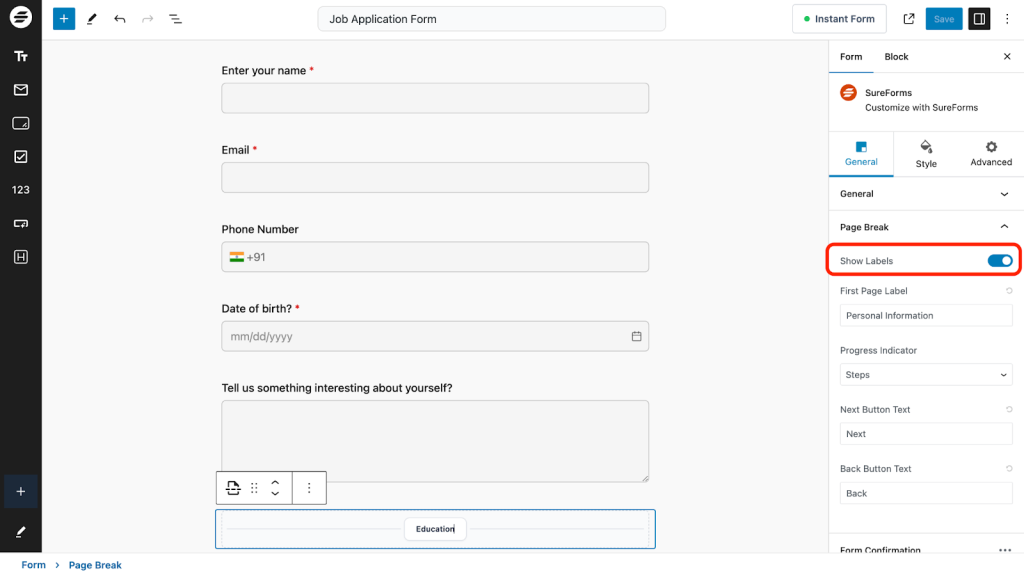
Then customize the labels according to your preference.
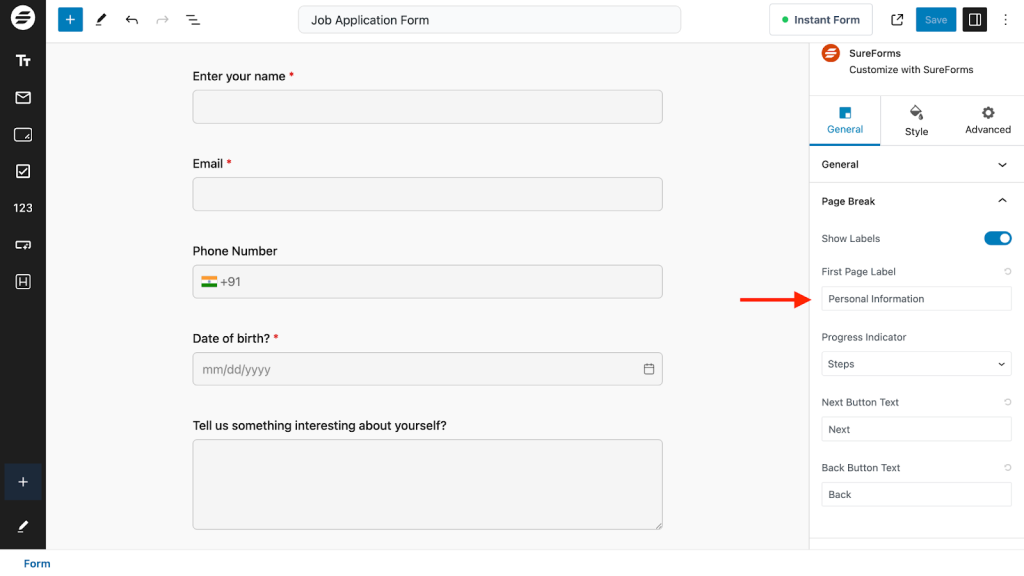
Step 7: Set Navigation Button Text
Go to either Next Button Text or Previous Button Text and add your desired text in these text boxes.
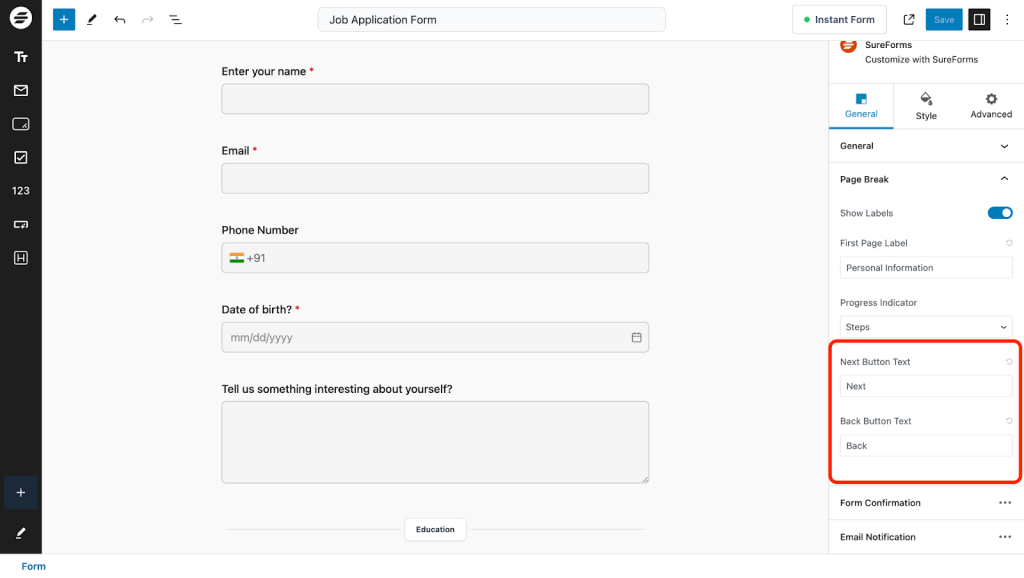
Click the Save button in the editor to save these changes.
Customizing these from generic defaults like “Next” to something more specific, like “Continue to Step 2,” adds a small but meaningful touch of clarity.
Step 8: Optionally Add a Welcome Screen
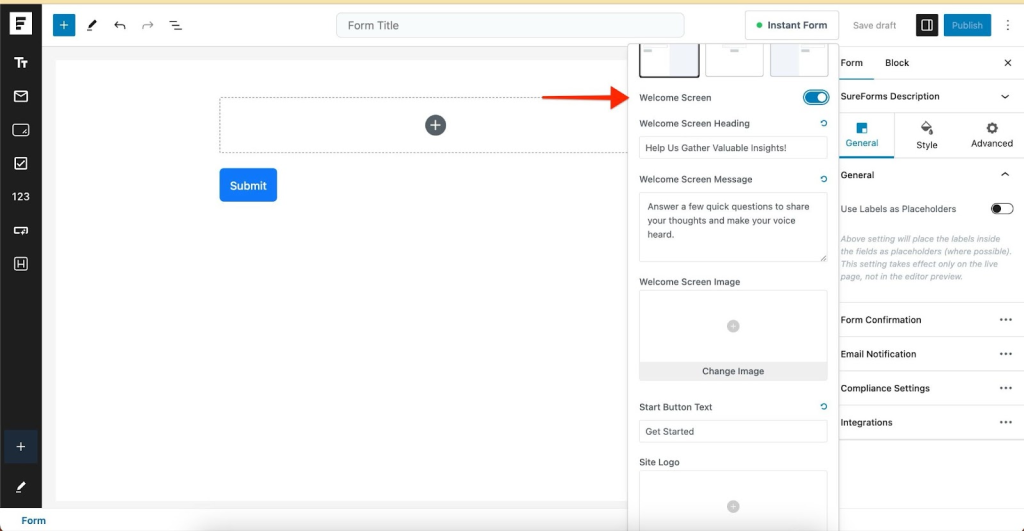
Adding a welcome screen to your form enhances user engagement by providing an introductory message before they proceed.
You can set a heading, add a brief message explaining what the form is for, upload an image from the ‘Instant Form‘ option in the top-right bar of your form editor.
Step 9: Publish Your Form
Once you’re happy with the layout, save your form. You can embed it on any page or post using the SureForms block or shortcode.
You can also use the Instant Form option to make it live instantly.
👉 To learn about these settings in more detail, check out our documentation on this feature.
Conclusion
Multi-step forms are an honest way to collect information, one that acknowledges how people actually behave when they encounter a long list of questions.
By breaking the experience into focused, manageable steps, you reduce friction, improve data quality and make it far easier for the people filling out your form to actually finish.
SureForms makes the whole process straightforward.
The Page Break block handles the technical side, the progress indicator settings handle the user experience side and the label and navigation customization options let you fine-tune how the form feels to move through.
No code required, no third-party addons needed.
If you’ve been losing leads or sign-ups to form abandonment, a multi-step layout is one of the highest-leverage changes you can make.
Give it a try with SureForms and see the difference for yourself!
👉 You can try creating a Multi-Step Form using SureForms on a demo site, with no setup required.
FAQs
What’s the difference between a multi-step form and a multi-page form?
They’re the same thing referred to by different names. Both describe a form where the fields are distributed across multiple screens or pages, with navigation buttons to move between them. “Multi-step” tends to be the more common term in the context of WordPress form builders.
Do multi-step forms work on mobile?
Yes. SureForms ensures your forms look great on all devices, providing a consistent experience for users regardless of the device they’re using. Multi-step layouts are particularly well-suited to mobile because users only see a small number of fields at once, making the form much easier to complete on a smaller screen.
Do I need SureForms Pro to create multi-step forms?
Multi-step forms are available with SureForms Business, which unlocks the page break and progress indicator features. Check the current pricing page to see which plan fits your needs.
Can I use conditional logic with multi-step forms?
Yes. SureForms makes advanced features like conditional logic and multi-step forms simple to use through a no-code interface. You can show or hide fields within any step based on how a user has answered earlier questions, making the form adaptive without any coding.
How many steps should my form have?
There’s no fixed rule, but most forms work best with between 2 and 5 steps. The goal is grouping logically related fields together, not splitting arbitrarily. If two fields naturally belong together, keep them on the same step. If you find yourself creating steps with only one or two fields, consider whether those can be merged.
Can I add a welcome screen before the first step?
Yes. SureForms lets you add a Welcome Screen with a heading, introductory message, image, and customizable start button text. It’s a good way to set context before a user commits to starting, particularly for longer or more detailed forms.