A visitor lands on your services page with one question: how much will this cost? A pricing table answers it in general terms. A calculator form answers it for that visitor, using their own numbers, before they have filled in a contact form or spoken to anyone.
In the latest version of SureForms, you can build calculators inside the same form builder you use for every other form. You add fields, give your choices numeric values, write a formula, and the result updates as the visitor changes their answers.
This guide walks through the whole process: three ways to start, a complete build from scratch, the formula rules that trip people up, how conditional logic affects a calculation, how to show the result, how to capture leads or charge for the calculated amount, and what to check when a result does not behave. This guide is based on SureForms templates, documentation and release notes.
- What Is a Calculator Form in WordPress?
- What You Need Before You Start
- Three Ways to Start a Calculator in SureForms
- How to Build a Calculator Form from Scratch (Step-by-Step)
- Writing Formulas That Work
- Choosing the Right Field Types
- Calculators and Conditional Logic
- Showing the Result
- Capturing Leads and Charging for the Result
- The Five Official Calculator Templates
- Troubleshooting Calculator Forms
- Conclusion
- FAQ
What Is a Calculator Form in WordPress?
A calculator form takes numbers or priced choices from a visitor, applies a formula, and shows the answer in a result field. In SureForms the result updates as the visitor types, so nothing has to be submitted to see it.
That is the difference from a regular form. A contact form collects answers and sends them somewhere. A calculator form gives something back straight away, and when the visitor submits, the form can save their answers and the calculated result as an entry.
Typical examples are price estimators, loan repayment calculators, BMI checkers, ROI and savings calculators, and shipping cost estimators. SureForms’ own feature page shows live examples, including a trip budget planner, a BMI checker and a paint coverage calculator, if you want to try one before building your own.
What You Need Before You Start
SureForms Premium. Calculations are a Premium feature, and they are included in every Premium plan. Plans differ only in how many sites you can use them on. The pricing page always shows the current plans and prices.
See SureForms Premium plans and pricing
The building blocks that come with the free plugin. Number fields, Dropdowns and Multi-Choice fields are all in the free plugin, and so is the option that gives choices a numeric value. That makes it easy to design your fields first. The calculation itself needs Premium.
The Calculations switch. In the latest version of SureForms, open SureForms → Settings → Manage Features → Premium and make sure the Calculations switch is turned on. This is the feature-level switch. If you turn it off, SureForms lists the forms that use Calculations and asks you to confirm by selecting Turn off anyway. Separately, each field that displays a calculation has its own Enable Calculation toggle in the field settings.
A payment gateway, only if you want to charge. Connect Stripe or PayPal before you add a payment step. That is covered later in this guide.
Three Ways to Start a Calculator in SureForms
| Starting option | Best for |
|---|---|
| Choose a template | The fastest start for a common calculator |
| Create with AI | Describing the calculator in plain words |
| Start from scratch | Full control over every field and formula |
Start From an Official Template
When you select Choose a template on the How do you want to start? screen, SureForms opens its template library. It includes five calculator templates in a Calculators category. Filter the template library by the Calculators category, find the calculator you want, and click Use this template. You can then edit the fields and the formula like any other form. The templates are covered in detail in a later section.
Generate It With AI
Open a new form and, on the How do you want to start? screen, select Create with AI. Choose the Calculations form type, describe the calculator in plain language and click Generate Form. SureForms creates the form as a draft, with the fields and formulas it thinks the calculator needs. SureForms’ documentation uses a loan calculator as its example, with fields for loan amount, interest rate and loan term.
For example: “A loan calculator with loan amount, interest rate and loan term that shows the monthly payment.”
The documentation adds a warning worth following: the AI-generated form may require manual review and adjustments, so verify all fields before publishing. Work out one result by hand and check that the form agrees.
Build It From Scratch
Building from scratch teaches you how every calculator works, including the ones you generate or start from a template. The next section walks through a complete example.
How to Build a Calculator Form from Scratch (Step-by-Step)
The example is a website quote calculator. The visitor picks what they need, says how many pages they want, ticks any add-ons, and sees an estimated price. Here is the plan before you start building:
| Field | Type | Slug | Values |
|---|---|---|---|
| What do you need? | Dropdown | service | Website 1500, Online store 3000, Landing page 600 |
| Number of pages | Number | pages | Minimum 1, maximum 50 |
| Add-ons | Multi-Choice (several answers allowed) | extras | Copywriting 300, SEO setup 400, Rush delivery 500 |
| Estimated price | Number (the result) | estimate | Calculated |
The formula will be:
{form:service} + {form:pages} * 100 + {form:extras}In words: the price of the service, plus 100 for each page, plus the add-ons.
Step 1: Create a New Form
Go to SureForms and select New Form. On the How do you want to start? screen, choose Start from scratch for this walkthrough.
Step 2: Add the Input Fields
Add a Dropdown field labelled “What do you need?”, a Number field labelled “Number of pages”, and a Multi-Choice field labelled “Add-ons”. On the Number field, set the Minimum Value to 1 and the Maximum Value to 50 so visitors cannot enter an impossible number of pages. On the Add-ons field, make sure more than one answer can be selected.
Step 3: Give Your Choices Numeric Values
A formula can only add up numbers, so each option needs one. On the Dropdown field, switch on Add Numeric Values to Options, then type a number beside each option: 1500 for Website, 3000 for Online store, 600 for Landing page. Do the same on the Add-ons field with 300, 400 and 500.
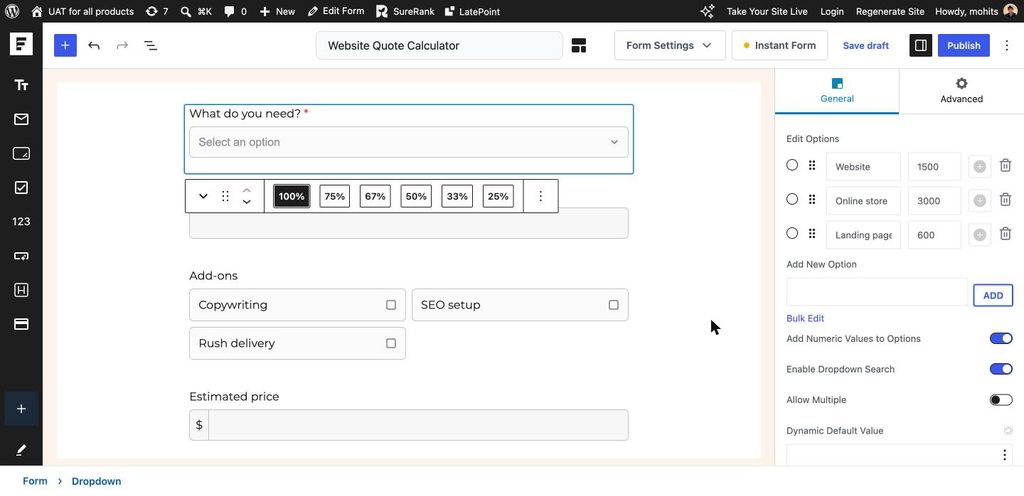
A Dropdown field in SureForms with Add Numeric Values to Options switched on and a number typed beside each option
Step 4: Check Each Field’s Slug
Formulas refer to fields by their slug. Select a field and look for the Field Slug option in the block settings on the right. Slugs are auto-generated on save if you leave the Field Slug option empty. You can also enter your own slug before writing the formula. Set the three input slugs to service, pages and extras so the formula stays short and readable.
Do this before you write the formula. If you change a slug afterwards, update every formula that uses it.
Step 5: Add the Result Field
Add a Number field labelled “Estimated price” and set its slug to estimate. Set its Prefix Label to the currency symbol you want to display. The result field is always non-editable, because it shows a computed value that the visitor cannot type over.
SureForms’ documentation also allows a Heading block as the result field, which is covered in the section on showing the result.
Step 6: Enable Calculations and Enter the Formula
Select the field that will display the result and switch on Enable Calculation. Then enter the formula:
{form:service} + {form:pages} * 100 + {form:extras}The Result Field in SureForms with Calculations switched on
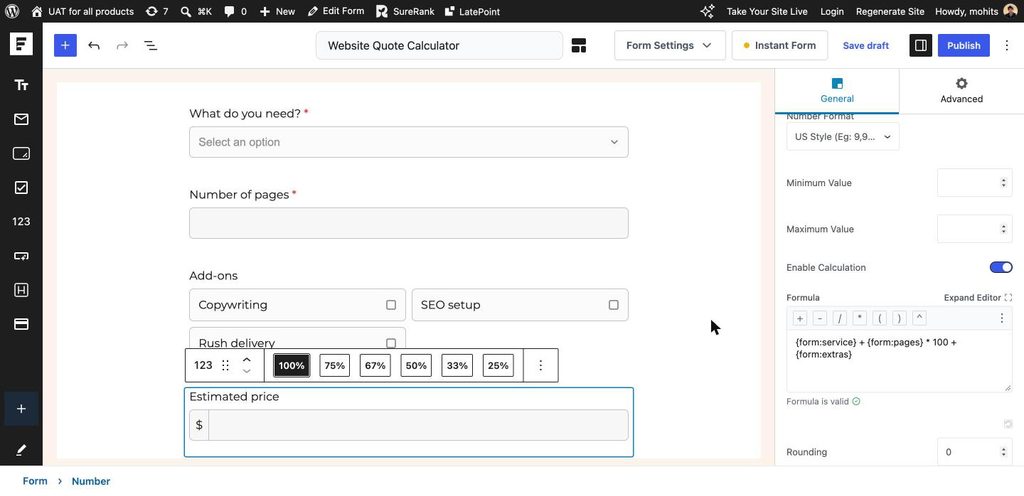
If the formula is wrong, SureForms shows an Invalid Formula error in real time, with a red border on the field. Fix it before you move on.
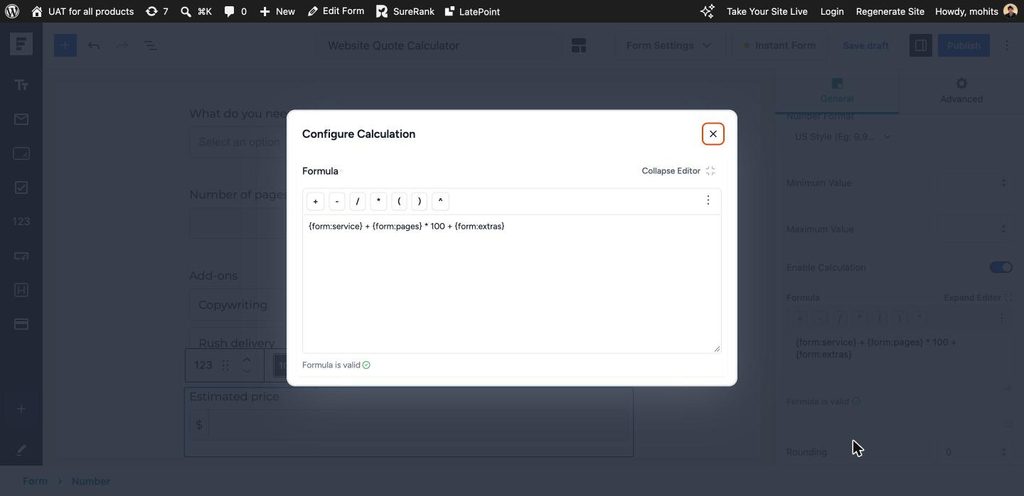
The formula entered in the Result Field of the quote calculator
Step 7: Set the Rounding
A Number result field has its own rounding setting that controls how many decimal places the result keeps. SureForms’ official templates use no decimals for a whole-number price estimate, one decimal place for BMI and two for repayments and shipping. For this quote, use none.
Step 8: Test It With a Number You Can Check
Open the form on the front end and choose Website, five pages, Copywriting and SEO setup. The result should be 2700:
- Website: 1500
- Five pages at 100 each: 500
- Copywriting: 300
- SEO setup: 400
Change one input at a time and confirm the result moves the way you expect.
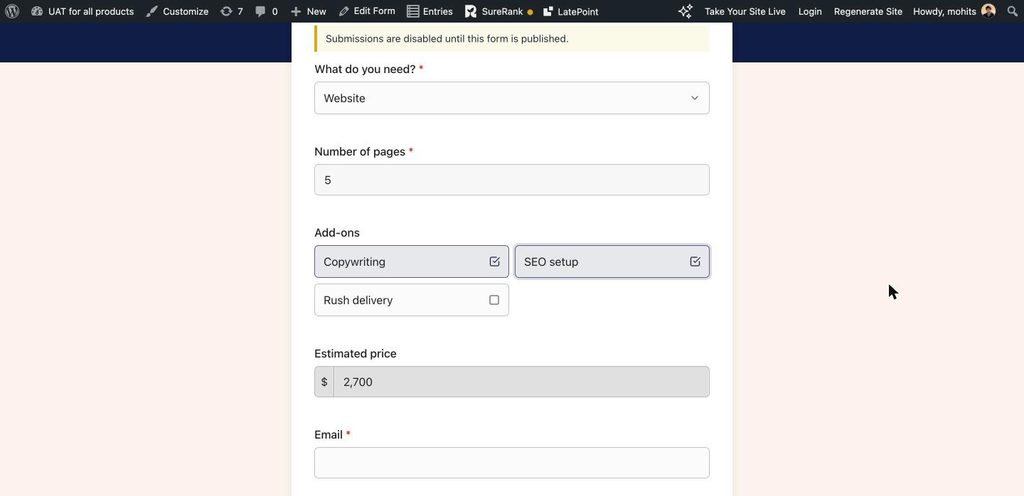
The finished quote calculator on the front end with options chosen and the estimated price showing
Step 9: Save and Publish
Save the form and embed it with the SureForms block, or use the shortcode SureForms gives you for any page or post. To share the calculator as a link on its own page, use an Instant Form.
Writing Formulas That Work
SureForms’ Calculation Formula Guide is the reference for syntax. These are the rules that matter most.
Referring to Fields
A field is written as {form:slug}, using the slug from the Field Slug option. A formula can read values from Number, Dropdown, Multi-Choice, Slider and Hidden fields. Heading and HTML blocks are output locations, not input fields, so formulas cannot read values from them.
Operators
| Operator | What it does |
|---|---|
+ - * / | Add, subtract, multiply, divide |
^ | Raise to a power, used in SureForms’ official loan template |
| % | Remainder of a division, for example {form:number1} % {form:number2} |
( ) | Control the order of operations |
Functions
Write functions without a Math. prefix. min() and max() accept one or more numbers separated by commas. mod() needs requires two: the number to divide and the number to divide by. round(x) rounds to the nearest whole number, and round(x, 2) rounds to two decimal places. The other functions take a single value.
| Supported functions |
|---|
min, max, round, abs, sqrt, floor, ceil, mod |
This returns 10, the smallest value:
min(10, 20, 30)This returns 30, the largest value:
max(10, 20, 30)This returns 2, the remainder of 17 divided by 5:
mod(17, 5)For example,
ceil({form:number1})works, but
Math.ceil({form:number1})does not. Only use the functions listed above; other functions return Invalid Formula.
Rounding Is Two Different Things
The round() function rounds to the nearest integer, and round(x, 2) is also supported when you need to round to two decimal places. For a consistent display across your calculator, the Result Field’s Rounding setting is still the recommended way to control the number of decimal places. When rounding is above zero, SureForms adds trailing zeros, so a result of 193.3 displays as 193.30 at two decimal places.
Formulas in Practice
Whole units, such as paint cans or boxes, need rounding up:
ceil({form:area} / {form:coverage})A remainder, such as leftover minutes, can use the % operator:
{form:minutes} % 60You can also use the mod() function:
mod({form:minutes}, 60)A real loan repayment. This is the structure SureForms’ official Loan Repayment template uses, with the annual rate entered as a percentage:
{form:loan-amount} * ({form:interest-rate} / 1200) * (1 + ({form:interest-rate} / 1200)) ^ ({form:term-years} * 12) / ((1 + ({form:interest-rate} / 1200)) ^ ({form:term-years} * 12) - 1)For a loan of 10000 at 6 percent over 5 years, this gives a monthly repayment of 193.33 at two decimals.
This is an illustrative estimate. It does not include fees, insurance or other charges a lender may add.
The formula needs a positive interest rate. At 0% it divides by zero and cannot return a result. SureForms’ official Loan Repayment template prevents this with input limits on its Number fields, and you should set the same limits:
- Annual interest rate: minimum 0.1, maximum 50
- Loan term: minimum 1, maximum 40 years
- Loan amount: minimum 100, maximum 10,000,000
If you need to offer interest-free loans, handle that case separately, where the monthly payment is the loan amount divided by the number of months.
{form:loan-amount} / ({form:term-years} * 12)Choosing the Right Field Types
SureForms supports Number, Dropdown, Multi-Choice, Slider and Hidden fields as calculation inputs. Calculation results can be displayed in Number, Heading, HTML and Hidden fields.
Number Fields
The Number field is your main input. Its settings include a Prefix Label and Suffix Label for units such as a currency symbol or a percent sign, a Minimum Value, a Maximum Value, a Default Value, and a Number Format of either US Style (Eg: 9,999.99) or EU Style (Eg: 9.999,99). A default value is useful for showing a result immediately: with a default of 10 and a multiplier of 5, the result field shows 50 before the visitor touches anything.
Slider Fields
A number slider is a friendlier input for ranges such as a budget or a team size. You can set a left label and right label, a tooltip prefix and suffix, a minimum, a maximum and a step increment. SureForms’ documentation gives a pricing calculator as the example: a budget slider from 0 to 10000 in steps of 500. Sliders are a Premium field.
Dropdown and Multi-Choice Fields
These carry priced options. Switch on Add Numeric Values to Options, then give each option a number. In the formula, a Dropdown or a single-answer Multi-Choice field contributes the value of the option the visitor picked. For add-ons, use a Multi-Choice field that allows several answers: SureForms’ official Instant Quote template does this, and the values of the selected add-ons count toward the total.
Heading and HTML Fields
A Heading field can display a calculated value instead of a Number result field. An HTML field can also display a calculation result, which is useful when you want to present the result in a styled layout.
Hidden Fields
A Hidden field can be used both as a calculation input and as a place to store a calculation result. This lets you use values in formulas or include calculated values in messages and entries without displaying them on the form. These are supported field uses, not limitations specific to the ROI template.
Calculators and Conditional Logic
Conditional logic keeps a calculator focused: show the fields that apply, hide the rest. There is one rule you must know before you combine them.
A field hidden by conditional logic counts as empty, which is 0 in a formula. SureForms’ official templates rely on this. In the Instant Quote template, the number of pages appears only for a website or an online store, and each service has its own add-ons field. The formula adds all of them, and only the visible ones contribute because the hidden ones count as 0.
That makes conditional calculators simple to write: add every possible field to the formula and let the hidden ones drop out.
It also creates one trap. If a field that is hidden by conditional logic or left empty is used as a divisor, the formula divides by zero. The official BMI template guards against this by adding a tiny 0.0001 to the divisor, which changes a real result by far less than its rounding.
Showing the Result
In the Result Field
The Result Field updates as the visitor changes any input. Give it a clear label and a Prefix Label or Suffix Label so the number reads as a price, a percentage or a unit.
In a Heading
For a more prominent result, enable Calculations on a Heading block, enter the formula, and write the sentence around the {calculation-result} smart tag, for example “Your estimated price: {calculation-result}”. The heading updates live as the visitor interacts with the form.
In the Confirmation Message
You can show the result after submission by adding the result field’s slug tag, such as {form:estimate}, to the form’s confirmation message. The saved answer does not include the prefix, so type the currency symbol yourself in front of the tag. SureForms’ official Instant Quote template does exactly this.
Without a Submit Button
Some calculators only need to show a number. To remove the submit button, click outside the form, open Styles → Button, and switch on Hide Button.
Capturing Leads and Charging for the Result
Capture the Lead
If the calculator is a lead generation tool, add Name and Email fields below the result. When Entries are enabled and the result is shown in a Number or Hidden field, the saved entry includes the visitor’s inputs and the calculated result, so you can see exactly what they calculated before you follow up. A result shown only in a Heading or HTML block is not saved as a field by default.
Integrations are a Premium feature, and the integrations page lists what SureForms connects to.
Charge for the Calculated Amount
A calculator can also set the price someone pays.
- Connect your payment gateway first. SureForms’ guides cover connecting Stripe and connecting PayPal. PayPal needs SureForms Premium.
- Add the Payment block to the form, as described in SureForms’ payment form guide.
- Set the Amount Type to Dynamic Amount and choose your result field as the source. SureForms’ guide says a dynamic amount can come from dropdowns, calculations or a custom input field.
- Set a Minimum Amount as a floor.
- In the Payment block settings, map your Customer Email field, which is mandatory. Depending on your gateway and whether you use subscriptions, you may also need to map a Customer Name field.
- Test the whole flow in your gateway’s test mode before you publish.
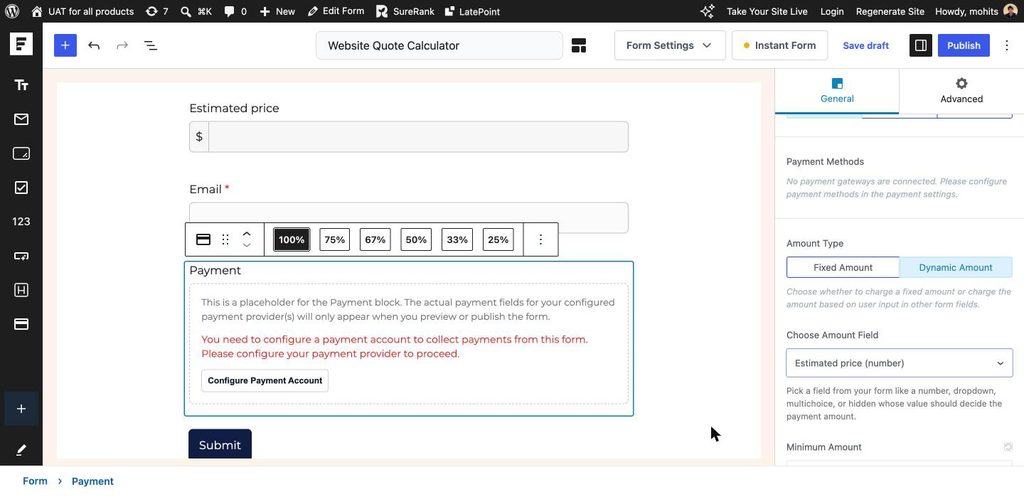
The Payment block in SureForms with Dynamic Amount selected and the calculator result chosen as the amount source
When a calculation sets the amount, SureForms recalculates and validates it on the server rather than relying only on the value the browser submits.. If the server cannot work the amount out, the payment is refused with the message “Payment amount could not be verified for this form. Please edit and re-save the form, then try again.” This can happen if a field that is hidden by conditional logic or left empty is used as a divisor, causing division by zero. It can also happen if the formula uses the infix a mod b syntax. For remainders, use {form:a} % {form:b} or mod({form:a}, {form:b}) instead. Re-save the form and check the formula before testing the payment again.
Card details are collected by the Payment block itself. Never ask for card numbers or security codes in ordinary form fields. For gateway fees, see SureForms’ guide to payment processing fees.
The Five Official Calculator Templates
SureForms includes five calculator templates, all of which need Premium. They use the currency set in your SureForms payment settings.
| Template | What it does |
|---|---|
| Instant Quote Calculator | Shows a price estimate as visitors pick options, then captures the lead |
| Loan Repayment Calculator | Calculates the monthly repayment and total interest on a loan |
| BMI Calculator | Calculates BMI and offers a personalized plan, with metric or imperial units |
| ROI / Savings Calculator | Shows how much time and money your product could save a prospect in a year |
| Shipping Cost Estimator | Estimates shipping by destination, weight and speed, then follows up with a booking |
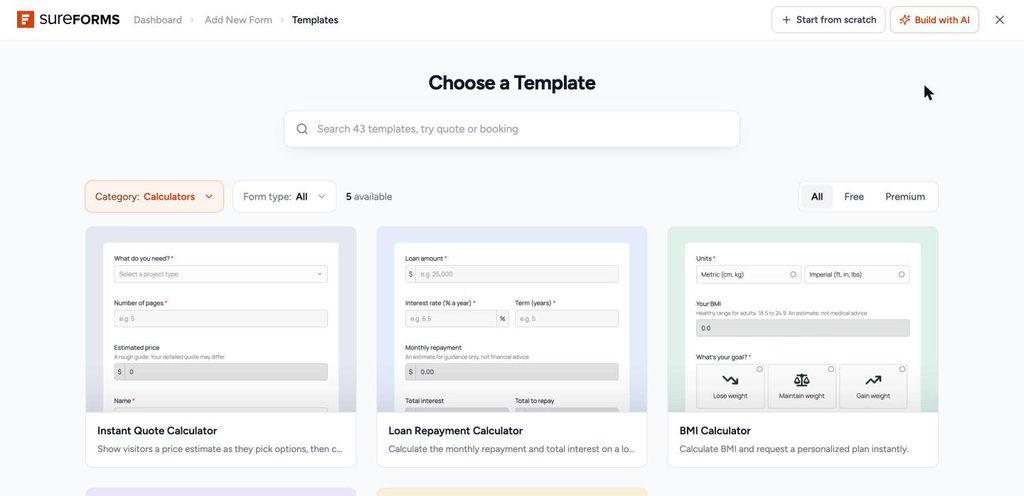
The SureForms template library filtered to the Calculators category
Templates are also the best way to learn. Open one, look at how its fields are set up, and read its formula in the Result Field. If you are not sure what to build, SureForms’ Calculator Ideas Generator suggests calculators for your business type.
Troubleshooting Calculator Forms
If a result is missing or wrong, work through these checks in order.
The Result Never Appears
Calculations are part of SureForms Premium, so check that Premium is active on the site. Then open SureForms → Settings → Manage Features → Premium and confirm that the Calculations switch is turned on. Separately, select the field that should display the result and confirm that its Enable Calculation toggle is on. If you turn off Calculations from Manage Features, SureForms lists the forms that use it and asks you to confirm with Turn off anyway.
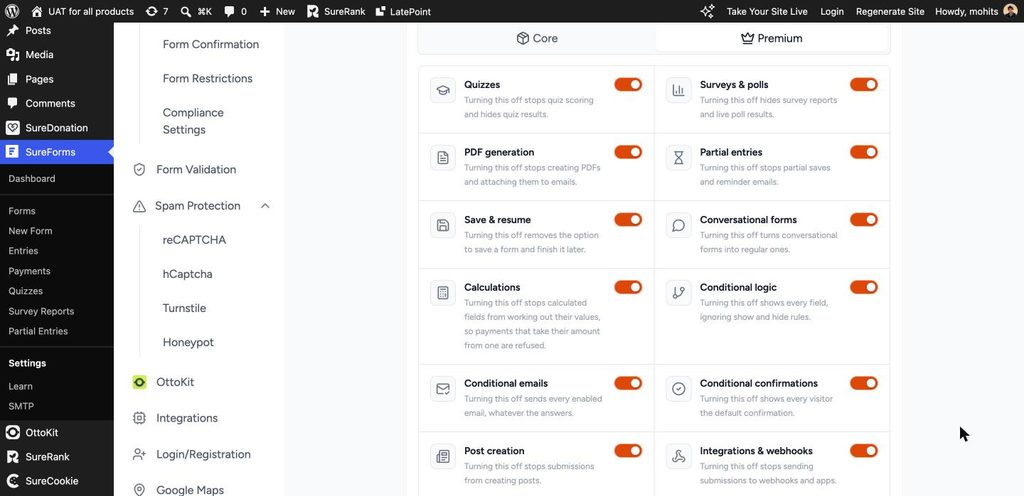
SureForms Manage Features, Premium tab, with the Calculations switch visible
You See an Invalid Formula Error
A red border and an Invalid Formula message mean the formula cannot be read. Check the parentheses, make sure functions are written as function(x), and remove any Math. prefix. Use only the supported functions: min, max, round, abs, sqrt, floor, ceil and mod. The two-argument form round(x, 2) is supported.
A Choice Adds Nothing to the Total
Dropdown and Multi-Choice options only count when Add Numeric Values to Options is switched on and each option has a number. Open the field and check that every option has a value.
The Formula Cannot Find a Field
Formulas use slugs. If you changed a field’s slug after writing the formula, the formula still points at the old one. Remember that Heading and HTML fields are result-display options, not calculation inputs. Also, a Number field inside a Repeater cannot be used for calculations. SureForms’ slug guide says that changing a slug after a form is in use can cause problems, and to update every place the old slug was used. Update the formula, or restore the original slug.
The Result Is Too Low After Using Conditional Logic
Hidden fields count as 0. Check whether a field that should be contributing is hidden by one of your rules.
The Decimals Are Wrong
round(x, 2) is supported, but the Result Field’s Rounding setting is the recommended way to control displayed decimal places.
A Payment Cannot Be Verified
Re-save the form and check the formula, as described in the payments section. Also check whether a field that is hidden by conditional logic or left empty is being used as a divisor, causing division by zero. Make sure you use
{form:a} % {form:b}Alternatively,
mod({form:a}, {form:b})rather than the infix a mod b form. Either issue can prevent the server from verifying the payment amount.
You Are Not on the Latest Version
SureForms has fixed several calculation problems over time. Version 1.6.2 fixed calculation issues in multi-step forms, and version 2.1.0 made results append trailing zeros when rounding is above 0. Keep SureForms current.
Conclusion
A calculator form answers the question a visitor came with, using their own numbers, and it stays inside the form builder you already know. The pattern is the same every time: fields with numeric values, a result field with Enable Calculation switched on, and a formula you can check by hand.
Start with the official template closest to what you need, or describe the calculator to the AI, then test one result by hand before you publish. Add conditional logic to keep it focused, show the result where visitors will notice it, and capture the lead or charge the calculated amount when you are ready.
Calculator forms are included in every SureForms Premium plan.
If you want to try a calculator first, you can try SureForms on a demo site with no setup, or explore the Calculator Form feature page.