Think about the last time you filled out a form that asked you a string of questions that clearly didn’t apply to you.
Maybe you selected “individual” as your account type and then got asked for your company’s annual revenue.
Or you said you’d never used a product before and were still shown three follow-up questions about your experience with it.
It’s a small thing, but it leaves an impression.
A form that ignores your answers and barrels ahead with irrelevant questions feels careless and that reflects on the business behind it.
Personalization fixes this. When a form responds to the person filling it out, showing only what’s relevant and skipping what isn’t, the experience feels considered.
Completion rates go up, data quality improves and the person on the other side doesn’t feel like they’re filling out a bureaucratic checklist.
Conditional logic is the mechanism that makes form personalization possible.
This guide explains what it is, why it matters, how to use it well and how SureForms makes it straightforward to set up on any WordPress site.
What Is Conditional Logic in Forms?
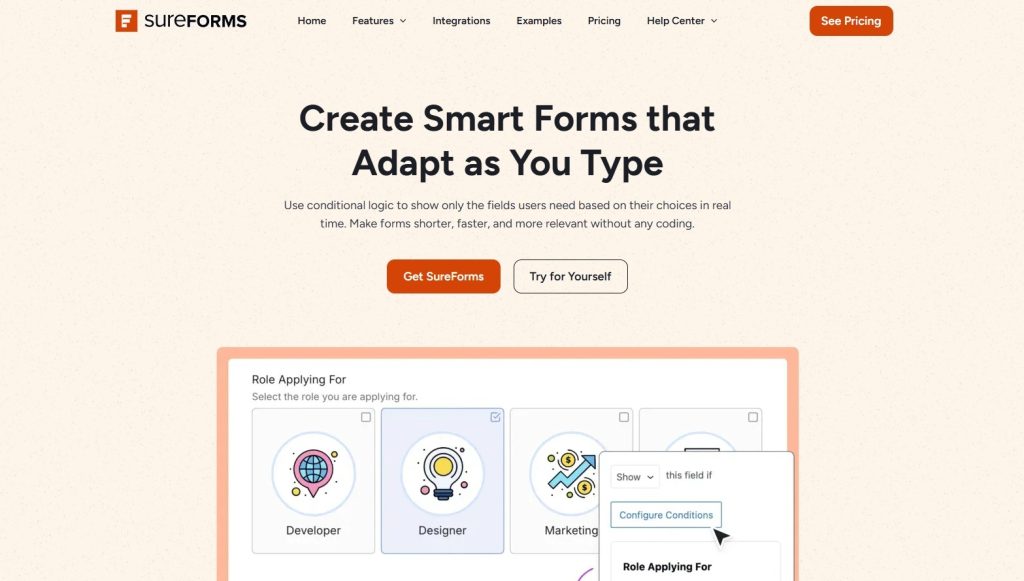
Conditional logic is a rule-based system that tells your form what to do based on what a user has already entered.
It’s a series of “if/then” instructions: if a user answers a question in a certain way, then show (or hide) a specific field, section, or page.
Here’s a simple example. Say you’re running a contact form that serves both individuals and businesses.
A standard form would show every field to everyone.
A form with conditional logic would show the “company name” and “job title” fields only to users who identify as a business contact, keeping the form cleaner for everyone else.
The logic can operate at different levels.
You can show or hide individual fields, entire sections of a form, or even whole pages in a multi-step form.
You can trigger actions based on a single answer or build more complex rules that depend on combinations of answers.
Common triggers include things like:
- Dropdown selections
- Radio button choices
- Checkbox ticks
- Number ranges
- Text inputs
The resulting actions are usually showing or hiding content.
In more advanced implementations, conditional logic can also change where a form submission goes, what confirmation message a user sees, or which notification email gets sent.
At its core, conditional logic turns a static document into a responsive experience.
The form adapts to the person, rather than making the person adapt to the form.
The Difference Between Show Logic and Hide Logic
Most form builders let you set conditions in one of two ways.
- Show logic means a field is hidden by default and only appears when a condition is met.
- Hide logic means a field is visible by default and disappears when a condition is met.
Both approaches achieve the same outcome but differ in how you structure the rules.
Show logic tends to be cleaner in practice because you start with a minimal form and layer in complexity as needed, rather than building a full form and then trying to subtract from it.
👉 Experience a Conditional logic Form made with SureForms
What Are the Benefits of Using Conditional Logic?
Conditional logic isn’t just the latest buzzword or a feature added for the sake of it, it has genuine uses.
Shorter, More Focused Forms
The most immediate benefit is that forms get shorter for each individual user.
A form with 20 fields that uses conditional logic might only ever show any given respondent 8 to 12 of those fields.
That’s a meaningful reduction in the perceived effort required to complete it, which directly affects your completion rate.
Research consistently shows that form length is one of the biggest drivers of abandonment.
Conditional logic lets you collect comprehensive data without forcing every user through every question.
Better Data Quality
When users only see questions that apply to them, they’re less likely to provide placeholder answers just to get through the form.
“N/A,” blank fields and nonsensical responses tend to show up when people hit questions that don’t make sense in their context.
Remove those questions and you remove the noise in your data.
A More Professional Experience
A form that responds intelligently to user input shows that the business behind it has put thought into the experience.
That’s particularly important for lead generation forms, application forms and onboarding flows where first impressions carry real weight.
More Relevant Follow-up
When conditional logic determines what confirmation message a user sees, or what notification email your team receives, you can tailor the next step of the process to match the user’s specific situation.
A new customer gets a welcome message or an existing customer asking about a specific product gets directed to the right support path.
The form becomes the beginning of a conversation rather than just a data collection tool.
Better Segmentation
The answers that trigger conditional logic are also valuable data points in their own right.
If a user selects “enterprise” in a company size dropdown, that answer has already started segmenting them before they’ve even finished the form.
That information can feed directly into your CRM, email marketing platform or sales process.
Reduced Cognitive Load
Long forms feel overwhelming partly because users can see everything they’ll need to complete all at once.
When conditional logic hides irrelevant sections, the visible form is less intimidating.
Users focus on what’s in front of them rather than scanning ahead and deciding it’s too much effort.
How To Add Conditional Logic in WordPress Forms
SureForms makes it easy to add conditional logic to forms.
You don’t need to write code, configure scripts or dig into your theme files. Everything happens inside the familiar block editor.
Let’s take a look at how easily you can set up Conditional Logic in SureForms.
Before the step-by-step guide, if you prefer a visual walkthrough, check out this tutorial on setting up Conditional Logics 👇
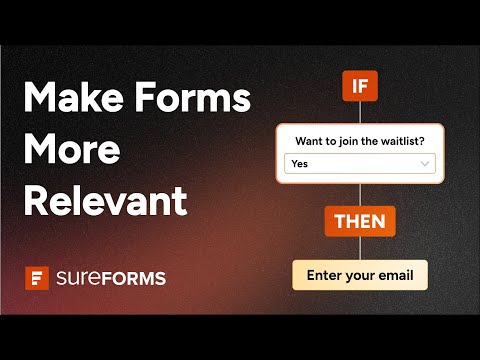
Now let’s go into details:
Step 1: Build Your Form
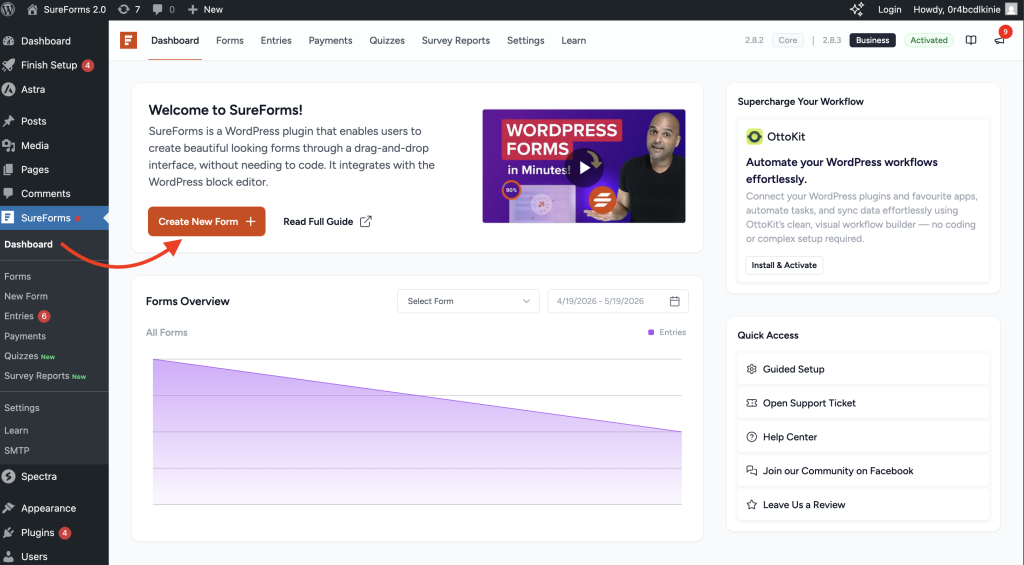
Start by creating your form in the SureForms builder.
Build with just a prompt using AI or drag in the fields you need, including the ones that should only appear based on specific answers.
Don’t worry about hiding anything yet. Get the complete set of fields in place first.
Step 2: Select the Field You Want To Control
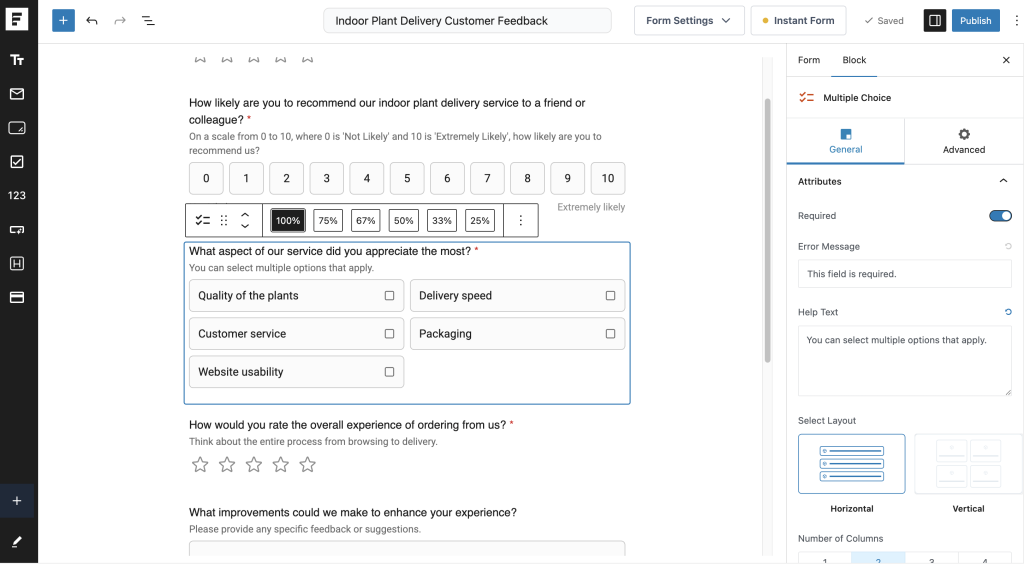
Click on the field you want to show or hide conditionally. In the block settings panel on the right, look for the “Conditional Logic” section.
Step 3: Enable Conditional Logic for That Field
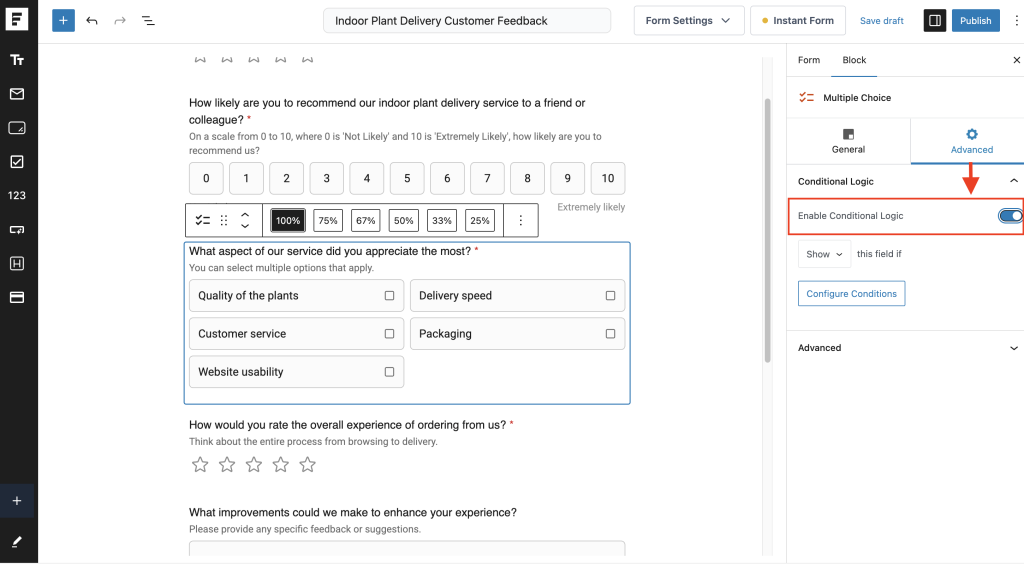
Toggle the conditional logic setting on for the selected field. You’ll then see options to set up your rules.
Step 4: Define Your Condition
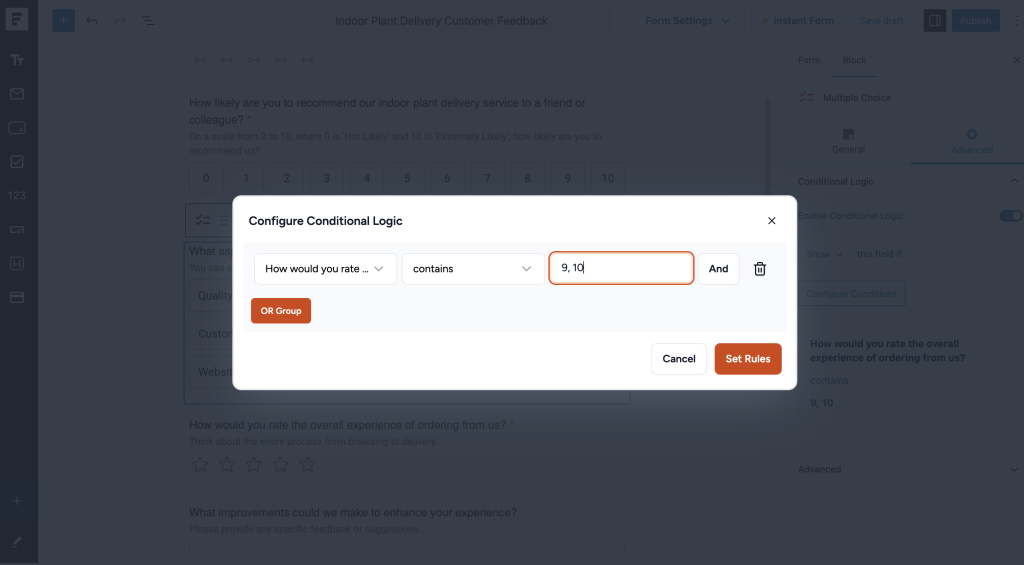
Choose the source field (the one whose answer will trigger the behavior), the operator (such as “is equal to,” “contains,” or “is greater than”), and the value that triggers the rule.
For example: if the “account type” field is equal to “business,” show this field.
You can learn more about the conditions from our documentation.
Step 5: Add Additional Rules if Needed
You can stack multiple conditions using AND or OR logic.
- AND means all conditions must be true for the rule to trigger.
- OR means any one of the conditions being true is enough.
Step 6: Choose Show or Hide
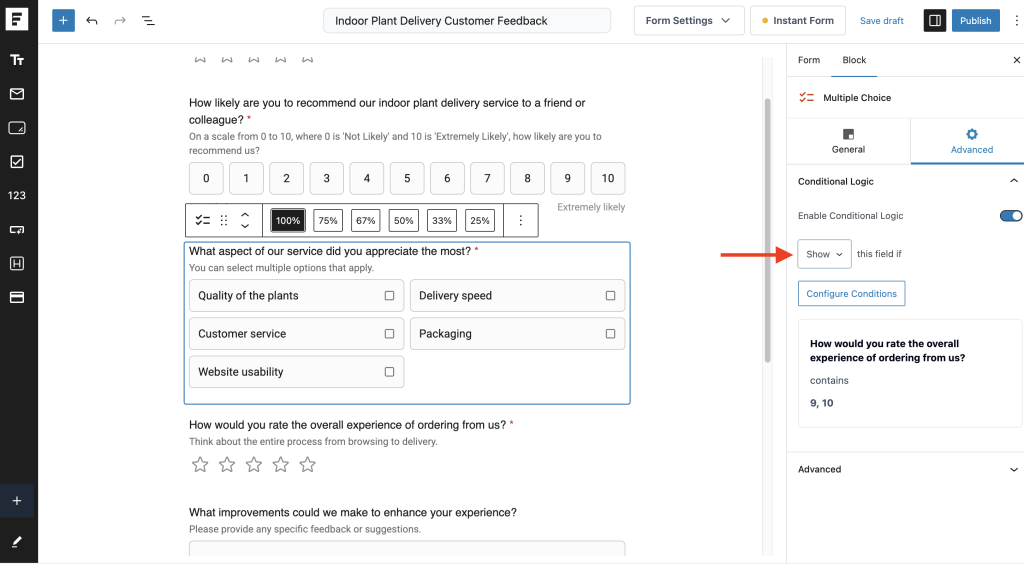
Set whether the field should appear or disappear when the condition is met.
For most use cases, show logic (hidden by default, appears when triggered) is the cleaner approach.
Step 7: Save and Test
Preview your form and run through the different answer paths to make sure each condition behaves as expected.
Test every combination you’ve configured, including edge cases where a user might change a previous answer.
SureForms also lets you apply conditional logic to multi-step forms, which is particularly powerful.
You can show or hide entire pages of a form based on earlier answers, which keeps each step focused and eliminates the experience of clicking through pages that don’t apply.
For teams using SureForms alongside OttoKit, conditional logic can extend beyond the form itself.
Different answer paths can trigger different automation workflows, sending data to different destinations or kicking off different follow-up sequences depending on what the user selected.
Best Practices for Using Conditional Logic
Here are a few tips we picked up along the way for using conditional logic in forms:
Start With a Clear Logic Map
Before you touch the form builder, sketch out the decision tree you’re trying to create.
Which answers should trigger which fields? What are the possible paths a user might take?
Having this mapped out in advance makes the build much faster and helps you catch gaps before they become live form errors.
A simple flowchart or even a bulleted list of “if X then Y” rules works fine. The goal is to have a reference to build from rather than making it up as you go.
Don’t Over-Engineer It
Conditional logic is powerful, but more complexity isn’t always better.
If you find yourself building deeply nested conditions with many layers of dependencies, take a step back.
Users who take an unexpected path through the form might end up in a broken state and debugging complex logic trees is genuinely tedious.
As a rule, keep any individual condition simple. If the logic requires a paragraph to explain, it probably needs to be simplified.
Test Every Path
The most common mistake with conditional logic is testing only the expected user journey.
Run through every answer combination you’ve configured, including the paths you don’t expect most users to take.
A field that appears when it shouldn’t, or fails to appear when it should, creates a broken experience that’s hard to diagnose after the fact.
Use It To Improve Multi-Step Forms
Multi-step forms already break content into manageable sections.
Conditional logic makes them significantly more powerful by letting you skip steps that aren’t relevant to a particular user.
If step three of your form is only relevant to users who selected a specific option in step one, there’s no reason to make everyone else click through it.
Combine It With Smart Confirmation Messages
Don’t stop at showing and hiding fields. Use conditional logic to serve different confirmation messages or redirect users to different pages based on their answers.
A user who indicates they’re ready to buy deserves a different next step than one who said they’re just browsing.
The form can make that distinction automatically.
Keep Default States Clean
Whatever your conditional logic does, the starting state of your form should make sense on its own.
A user who somehow bypasses or misloads your conditional logic shouldn’t see a confusing collection of fields that seem out of order or unrelated.
Build the base form to be coherent, then layer the conditions on top.
Document Your Logic
If you’re managing forms for a client or as part of a team, write down what conditions you’ve set up and why.
It’s surprisingly easy to forget the reasoning behind a specific rule six months later and that documentation becomes essential when someone needs to edit the form.
Conclusion
A well-designed form respects the person filling it out.
It asks relevant questions, skips the ones that don’t apply, and guides the user to the right outcome without unnecessary friction.
Conditional logic is what makes that possible.
The mechanics are straightforward. An answer triggers a rule. The rule shows or hides a field. The form responds.
But the cumulative effect of getting this right across a full form, or a suite of forms, is a measurably better experience and cleaner data to work with on the back end.
SureForms gives you the tools to build that kind of intelligent form without any technical setup.
Whether you’re building a lead generation form, a customer survey, a multi-step application, or an onboarding flow, conditional logic is worth using from the start.
👉 You can try the Conditional Logic in SureForms on a demo site with no setup required.
FAQs
What Is Conditional Logic in Forms and How Does It Work?
Conditional logic is a feature that allows a form to respond dynamically to a user’s answers. It works by creating simple “if/then” rules. For example, if a user selects “Business” as their account type, the form can automatically display fields for company name and job title. If they select “Individual,” those fields remain hidden. This makes forms more personalized, shorter, and easier to complete while ensuring you only collect information that is relevant to each user.
How Do I Show or Hide Form Fields Based on a Previous Answer?
To show or hide fields based on previous answers, first add all the fields you need to your form. Then select the field you want to control and enable conditional logic in the form builder. Choose the field that will act as the trigger, set a condition such as “is equal to,” and specify the value that should trigger the action. Finally, decide whether the field should be shown or hidden when the condition is met. This allows you to create forms that reveal additional questions only when they are relevant.
Why Is My Conditional Logic Not Working (Fields Not Showing or Hiding Correctly)?
Conditional logic usually fails because of incorrect rule settings or incomplete testing. Common causes include selecting the wrong trigger field, using an incorrect operator, mismatched values, or conflicting conditions. It’s also important to test every possible answer path, especially if users can change earlier responses. In most cases, reviewing the condition settings and previewing the form will quickly identify the issue.
How Do I Combine Multiple Conditions Using AND/OR Rules in One Form?
Most advanced form builders let you combine several conditions using AND and OR logic. AND means all conditions must be true before the rule is triggered. OR means the rule will trigger if any one of the conditions is true. For example, you might show a field only if a user selects “Business” AND enters more than 50 employees. Or you might show the field if they select “Business” OR “Agency.” This gives you much more flexibility when creating personalized form experiences.
Can I Apply Conditional Logic to Entire Pages or Sections, Not Just Individual Fields?
Yes, many form builders, including SureForms, allow you to apply conditional logic to entire sections or pages in multi-step forms. This means you can skip entire steps that are not relevant to a particular user based on their earlier answers. For example, if only business users need to complete a tax information section, that entire page can be shown exclusively to them. This keeps multi-step forms shorter, more focused, and much easier to complete.