If you’ve ever filled out an online form and paused at “Address Line 2,” wondering what’s actually supposed to go there, you’re not alone.
It’s one of those fields that most people either ignore or misuse and when it shows up on forms you’ve built, users often make the same mistakes.
Getting address fields right matters more than it might seem.
A poorly designed address section can cause failed deliveries, mismatched records in your CRM and a frustrating experience for the people filling out your form.
Clear, well-structured address fields make your data cleaner and users’ lives easier.
In this guide, you’ll learn exactly what address line 1 and address line 2 mean, when each one applies, the most common mistakes to watch for and how to add address fields to your forms quickly and correctly using SureForms.
This may seem an odd topic for a blog post, but from the number of questions we get, it’s well worth covering!
What Is Address Line 1?
Address line 1 is the primary location identifier in any address form.
It captures the most specific and essential piece of a person’s address. The part that a mail carrier, delivery driver, or logistics system needs to find the exact building or property.
In practice, this means the house or apartment number and street name.
For most residential and business addresses in the U.S., address line 1 will look something like:
– 742 Evergreen Terrace
– 1600 Pennsylvania Avenue NW
– 350 Fifth Avenue
This field should always be required on any form that needs a physical or mailing address.
Without it, the rest of the address is essentially useless for delivery or verification purposes.
Address line 1 is the anchor that tells the postal system where to go first.
It’s worth noting that in some international address formats, the structure differs.
In parts of Asia and Europe, the convention may place the building number after the street name, or use a different ordering entirely.
If your form collects addresses from users in multiple countries, it’s worth thinking carefully about how you label and structure these fields to avoid confusion.
What Is Address Line 2?
Address line 2 is a supplementary field that provides additional detail to help locate a specific unit, space, or recipient within a broader building or property.
Address line 1 gets you to the building. Address line 2 gets you to the right door inside that building.
Common entries for address line 2 include:
- Apartment numbers (Apt. 4B)
- Suite numbers (Suite 200)
- Unit designations (Unit 12)
- Floor numbers (Floor 3)
- Building names or identifiers within a larger complex
- P.O. Box numbers (when combined with a street address)
- Mail stop codes in large corporate or government facilities
This field is almost always optional and for good reason. Many addresses don’t need it.
A standalone house, a single-floor office, or a small business at a unique street address rarely has secondary location information to add.
Making address line 2 mandatory would force users to leave it blank or enter a placeholder, which makes your data messy.
When Should You Use Address Line 2?
Only when the address genuinely requires it.
Address line 2 earns its place when a user lives in an apartment complex, works in a multi-tenant office building, or needs to specify a suite, unit, or floor to ensure their mail or parcel actually reaches them.
For ecommerce checkouts, event registrations, service bookings or any form that ships physical goods or sends correspondence, address line 2 gives apartment dwellers and business tenants the space to give accurate information.
For standard residential addresses, users should leave it blank.
For businesses in a large commercial building, it’s where they’d put their suite number. For military addresses, it can capture the unit or squadron number.
One thing to keep in mind is that address line 2 isn’t an overflow for address line 1.
If someone’s street name is long, the answer isn’t to continue it on line 2.
Each field has a distinct purpose and mixing them causes problems for automated address verification systems and anyone trying to parse the data later.
Common Mistakes People Make With Address Fields
Address fields look simple but they generate a surprising amount of bad data.
Here are the mistakes that come up most often.
Treating Address Line 2 as a Continuation of Address Line 1
When users run out of space in line 1, they naturally spill over into line 2. This produces addresses where line 2 holds half a street name, which breaks address validation and causes delivery failures.
Clear placeholder text in each field goes a long way toward preventing this.
Making Address Line 2 Required
This one is a form design mistake rather than a user mistake. When line 2 is marked as required, users who don’t have a unit or suite number either get stuck or enter meaningless text like “N/A” or a dash.
Always keep it optional.
Labeling the Field Poorly
Vague labels like “Address 2” or “Additional Address” leave users guessing.
A more descriptive label such as “Apartment, suite, unit, floor (optional)” tells users exactly what belongs there and removes ambiguity instantly.
Combining Address Lines Into a Single Field
Some forms try to simplify by offering one large text box for the full address.
This creates real problems for data processing, API integrations and address verification tools, which typically expect street address and supplementary details to be in separate, structured fields.
Skipping Country or State Fields
Address line 1 and 2 mean nothing without context. You should also include a city, state, ZIP (postal) code and country fields, otherwise you’ll create incomplete records that can’t be used reliably for anything beyond casual reference.
Not Validating Format
Allowing users to enter anything in address line 1 without any format guidance means you’ll end up with PO Box numbers where street addresses should be, city names entered in the wrong field and other data quality issues.
Placeholder text and field-level helper text reduce these errors significantly.
Easily Add Address Fields Properly in Forms
SureForms makes it easy to build forms with well-structured address fields, without writing a single line of code.
Here’s how to get it right.
Step 1: Create a New Form
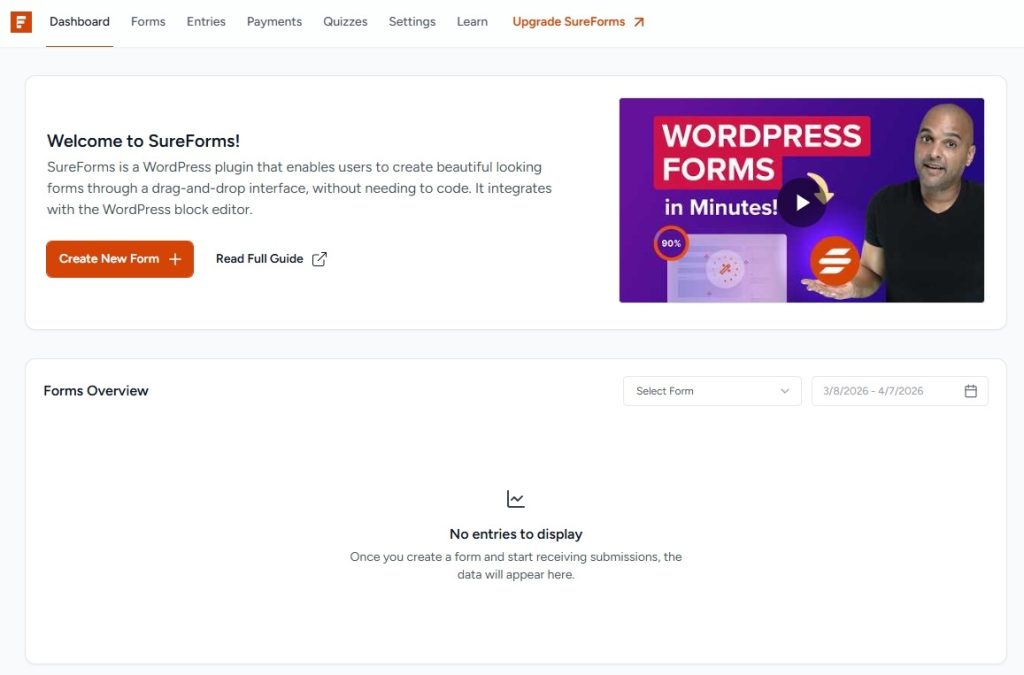
In your WordPress dashboard, go to SureForms and click Create New Form.
You can start from a blank canvas, choose from a pre-built template or use the AI form builder to generate a starting point in seconds.
Step 2: Add the Address Field
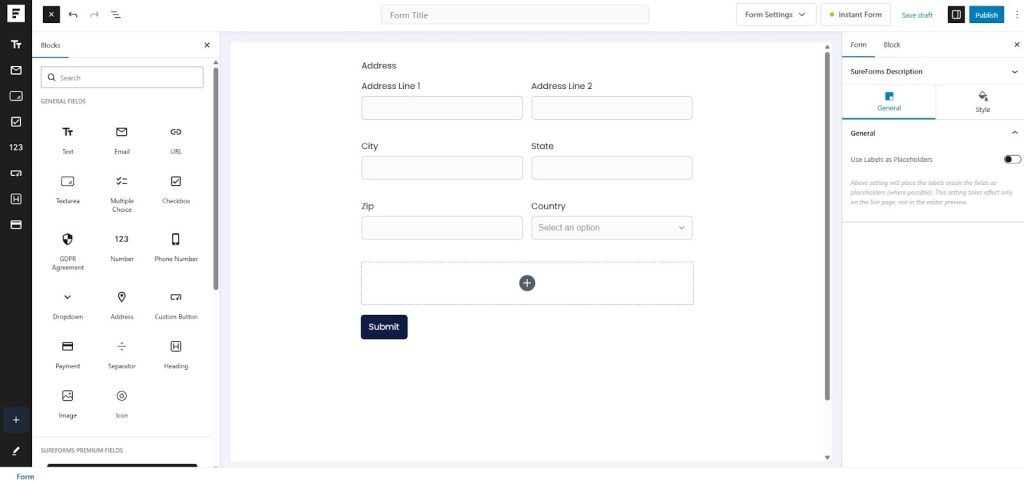
In the SureForms drag and drop editor, locate the Address field in the field panel on the left and drag it into your form.
SureForms includes a dedicated address field that automatically creates the structured layout you need, including address line 1, address line 2, city, state/province, ZIP/postal code and country.
Step 3: Configure Address Line 1
Click the address line 1 sub-field to open its settings.
Add a clear label (“Street Address”), set it as required, and add helpful placeholder text such as “123 Main Street.”
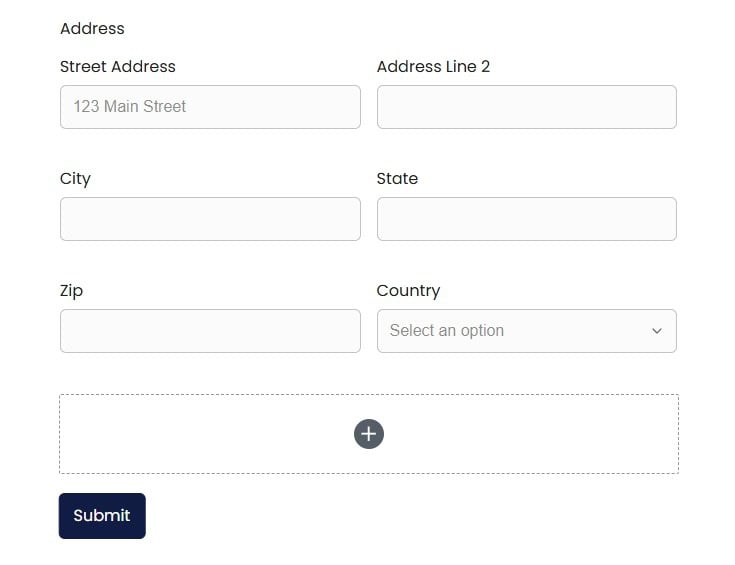
This tells users exactly what format is expected.
Step 4: Configure Address Line 2
Click the address line 2 sub-field.
Set the label to something descriptive, like “Apartment, suite, or unit (optional)” and make sure it’s marked as optional.
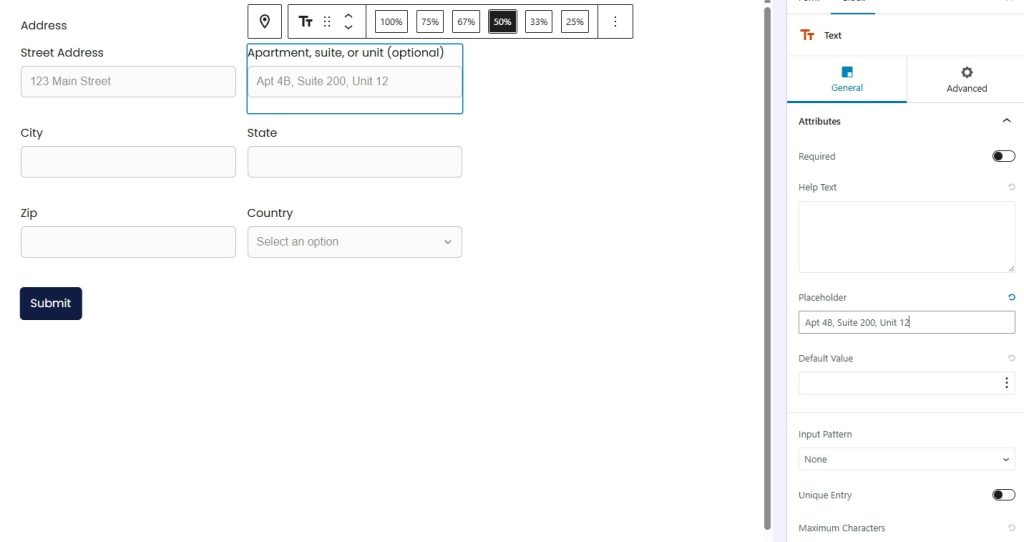
Add placeholder text that reinforces what should go here, such as “Apt 4B, Suite 200, Unit 12.”
Step 5: Use Conditional Logic if Needed
If your form targets primarily U.S. users but you also accept international submissions, SureForms’ conditional logic feature lets you show or hide fields based on the selected country.
This keeps your form clean for the majority of users while still capturing the right data from everyone.
Step 6: Preview and Test
Use live preview to see how the address section looks and works on both desktop and mobile.
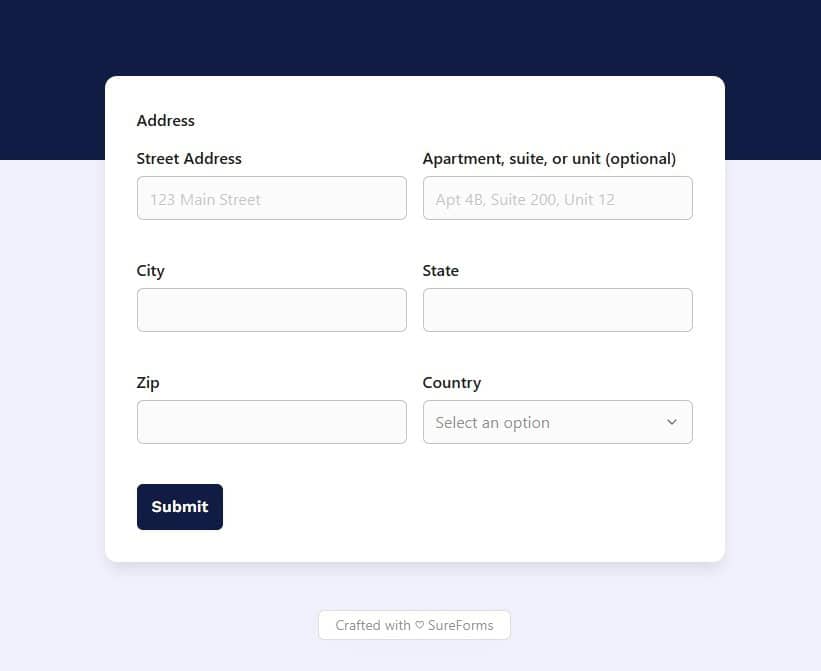
Fill out the form yourself with a real address to confirm the field order, labels and validation all behave as expected before you publish.
👉 You can try this out with SureForms on a demo site with no setup required.
One more tip: if you’re collecting addresses to feed into a CRM, email marketing tool, or order management system, check that your integrations map address line 1 and address line 2 to the correct fields in the connected app.
SureForms integrates with hundreds of tools through OttoKit and mapping your address sub-fields correctly at setup saves you a lot of cleanup work later.
Conclusion
Address line 1 holds the street-level information that identifies a property, the house or building number and the street name.
Address line 2 captures the secondary detail that pinpoints a specific unit, apartment, or suite within that property.
Together, they form a complete, precise address when both are needed and a clean, uncluttered entry when only one is.
Getting these fields right in your forms reduces delivery errors, keeps your data structured, and removes friction for your users.
Clear labels, sensible placeholder text and keeping address line 2 optional are the fundamentals that make the biggest difference.
With SureForms, you can build forms with properly structured address fields in minutes, whether you’re starting from scratch or using AI to get a head start.
If you haven’t tried it yet, start today and see how much easier form building can be!
FAQs
What is address line 1?
– Address Line 1 is the main part of your address. It includes your house or building number and the street name. For example: 123 Main Street. This is the most important part needed to locate your address.
What is an address line 2?
– Address Line 2 is used for extra details within a building, like an apartment, suite, or unit number. For example: Apt 4B or Suite 200. It helps pinpoint the exact location inside a larger property.
What do line 1 and line 2 mean in the address?
– Address Line 1 identifies the main location, like the building or house. Address Line 2 adds extra information to help locate a specific unit or section within that building.
What are examples of address line 1 and 2?
– Here’s a simple example:
Address Line 1: 123 Main Street
Address Line 2: Apt 4B
In this case, Address Line 1 shows the main building location, and Address Line 2 specifies the exact apartment inside that building.
How to fill in the address line 1?
– In Address Line 1, enter your street address clearly. Include your house number and street name. Avoid adding extra details like apartment numbers here, as those belong in Address Line 2.
How to fill in the address line 2?
– Only fill in Address Line 2 if you have additional details like an apartment, suite, unit, or floor number. If your address does not have these, you can leave it blank.