Most people underestimate how much a form shapes someone’s experience of a brand.
It’s not just a data collection tool, it’s often the moment someone decides to trust you with their email address, payment details or their time.
A poorly designed form can compromise a conversion rate that everything else in your funnel worked so hard to build.
The good news? AI can now do a lot of the heavy lifting, but only if you know how to ask.
With SureForms, you can use AI prompts to generate forms that are genuinely well-structured, thoughtfully worded and designed to encourage completion.
These 10 ai prompt examples cover the most common form types, each written to give you a ready-to-use result without extra back and forth.
- 1. Lead Generation Form for a Service Business
- 2. Event Registration Form
- 3. Contact Form With Intelligent Routing
- 4. Job Application Form
- 5. Customer Feedback Form
- 6. Newsletter Sign-Up Form With Preference Selection
- 7. Quote Request Form for a Trade Business
- 8. Onboarding Form for a New Client
- 9. Booking Form for an Appointment-Based Service
- 10. Product Feedback and Feature Request Form
- The Best Way to Generate a Form With AI in WordPress
- Getting More From Your Prompts
- FAQ
1. Lead Generation Form for a Service Business
“Create a lead generation form for a B2B marketing agency. Include fields for full name, business email, company name, monthly ad spend (dropdown with ranges), and a short text field asking what their biggest marketing challenge is. Keep the form to one page, use friendly but professional microcopy, and include a submit button that says ‘Get my free strategy call’.”
Why it works: Specifying the microcopy and button text upfront means you get a form that already sounds like your brand, not generic placeholder text.
2. Event Registration Form
“Build a registration form for an in-person workshop on content strategy. Collect attendee name, email, job title, company size (dropdown) and dietary requirements. Add a yes/no toggle for whether they’d like to receive future event updates. The tone should be warm and welcoming and the confirmation message should thank them by first name and tell them what to expect next.”
Why it works: Including the confirmation message in the prompt means the post-submission experience is considered from the start, not added as an afterthought.
3. Contact Form With Intelligent Routing
“Design a contact form for a SaaS company that routes enquiries based on purpose. Include a ‘What can we help with?’ dropdown with options: Sales, Technical Support, Billing, and Partnership Enquiry. Based on the selection, show relevant follow-up fields. For Sales, ask for company size and current tool being used. For Technical Support, ask for their plan type and a short description of the issue.”
Why it works: Conditional logic built into the prompt means users only see fields relevant to them, which reduces friction and improves completion rates.
4. Job Application Form
“Create a job application form for a junior graphic designer role. Collect full name, email, phone number, portfolio URL, a dropdown for years of experience (0-1, 1-3, 3-5, 5+), and a file upload field for their CV. Add a short text area asking them to describe a project they’re proud of in 150 words or fewer. Keep the language encouraging and accessible, not corporate.”
Why it works: Setting a word limit in the brief prompt tells the AI to include that constraint in the field instructions, saving you from having to edit later.
5. Customer Feedback Form
“Build a post-purchase feedback form for an online homeware store. Use a star rating field for overall satisfaction, individual ratings for product quality, delivery speed and packaging and an open text field for comments. Include a Net Promoter Score question (‘How likely are you to recommend us?’) using a 0-10 scale. Keep it short, mobile-friendly and end with a thank-you message that includes a 10% discount code field placeholder.”
Why it works: Naming specific field types like NPS scales and star ratings helps the AI understand exactly what kind of inputs you need, not just generic text fields.
6. Newsletter Sign-Up Form With Preference Selection
“Create a newsletter sign-up form that lets users personalise what they receive. Include email address, first name, and a multi-select checkbox group asking which topics interest them: Industry news, Product updates, Tips and tutorials, and Case studies. Add a frequency preference: weekly or monthly. Use reassuring microcopy below the email field confirming no spam and easy unsubscribing.”
Why it works: Preference-based sign-up forms consistently outperform generic ones because they give subscribers a sense of control from the very first interaction.
7. Quote Request Form for a Trade Business
“Design a quote request form for a landscaping company. Collect customer name, email, phone number, property postcode and a dropdown for service type: Garden Design, Lawn Care, Patio and Decking, Fencing, or Other. Add a text area for additional details, a file upload field for photos if available and a preferred contact method toggle (email or phone). The tone should be straightforward and efficient.”
Why it works: Trade businesses often deal with high call volumes from under-qualified leads. A detailed form upfront filters those out and gives the team the context they need before making contact.
8. Onboarding Form for a New Client
“Build a client onboarding form for a freelance web designer. Include sections for: company overview (business name, website URL, industry), project details (project type dropdown, goals, target audience), technical preferences (preferred CMS, hosting provider if known) and timeline and budget (launch date, budget range dropdown). Divide the form into clearly labelled steps to avoid overwhelming the client.”
Why it works: Multi-step forms that group related fields significantly reduce drop-off on longer forms. Naming the steps in your prompt helps the AI structure the flow logically.
9. Booking Form for an Appointment-Based Service
“Create an appointment booking form for a private physiotherapy clinic. Include fields for full name, email, phone number, appointment type (Initial Consultation, Follow-Up, or Sports Injury Assessment), a date picker, a preferred time dropdown (Morning, Afternoon, Evening) and a notes field for anything relevant to their appointment. Include a GDPR-compliant consent checkbox with a brief explanation of how their data is used.”
Why it works: Being explicit about compliance requirements like GDPR means those elements are included from the start rather than needing to be retrofitted.
10. Product Feedback and Feature Request Form
“Build a product feedback form for a project management SaaS. Include a dropdown asking which part of the product they’re giving feedback on (Dashboard, Task Management, Reporting, Integrations, or Other), a star rating for satisfaction with that area, a text area for specific feedback and a toggle for whether they’d like to be contacted about their response. Add an optional field asking what one feature they’d most like to see added.”
Why it works: Including the optional “one feature request” field turns a passive feedback form into an active product research tool without adding meaningful friction.
SureForms delivers some of the best AI-generated form results available in WordPress today. Let’s see how easy it is to create a complete form from a simple prompt.
The Best Way to Generate a Form With AI in WordPress
If you already know what you want your form to do, there is no reason to build it field by field.
With SureForms, you can describe your form in plain English and let AI generate the entire structure for you in seconds.
Specify what kind of form you need: payment form, survey, quiz, or conversational. SureForms AI takes care of the fields, labels, and layout automatically.
Here is a sneak peek at how it works 👇

Creating a form with AI in SureForms is simple.
If you haven’t got the plugin yet, install SureForms first in your WordPress site for free.
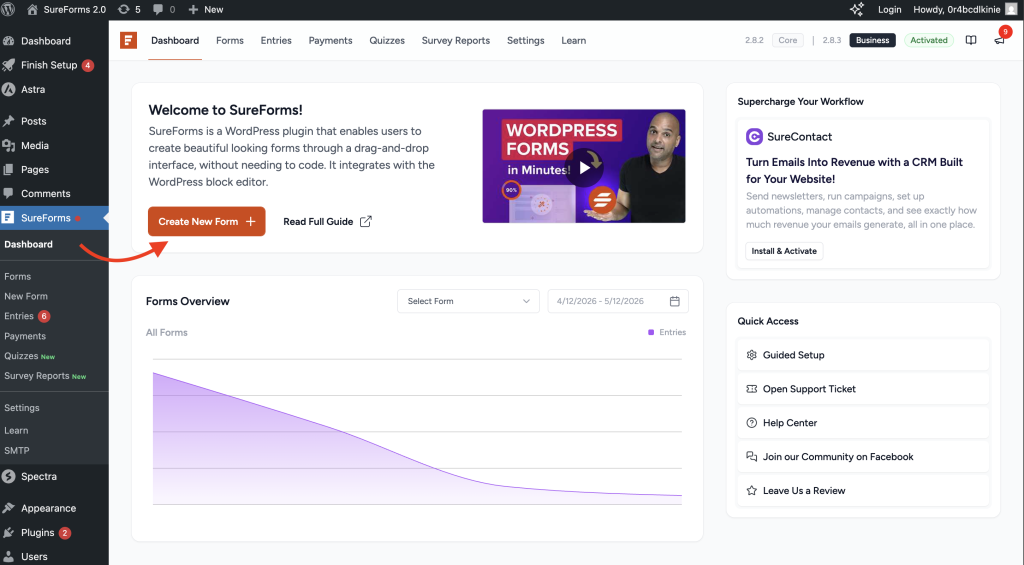
Then, go to SureForms → Create New Form in your WordPress dashboard.
On the next screen, simply describe the form you want in plain English.
If you’re creating a specific type of form, such as a payment form, survey, quiz, or calculator, you can also select the relevant form type option shown on the screen to help the AI generate even better results.
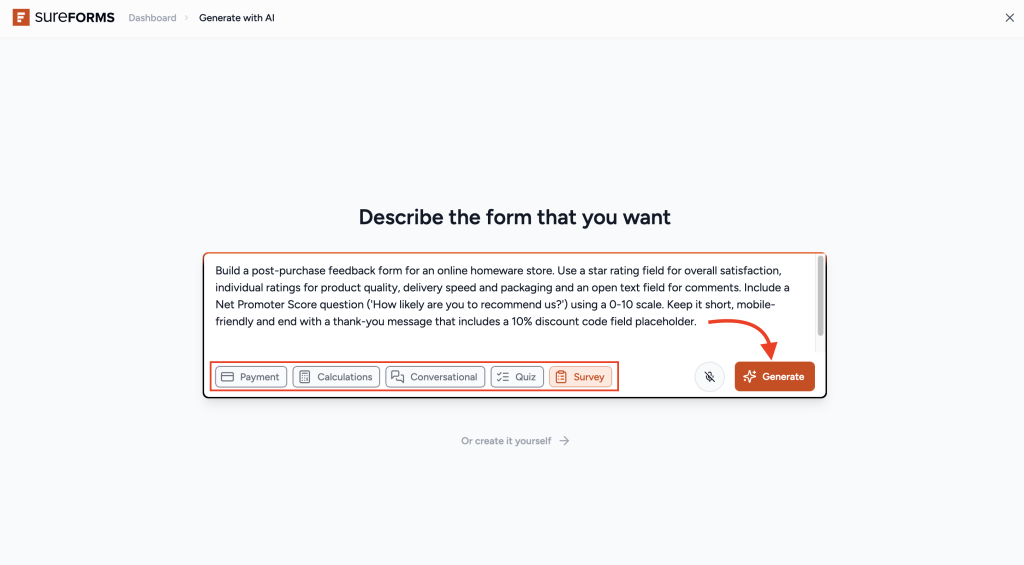
Then just click on ‘Generate’ and wait for the AI to do the heavy tasks for you.
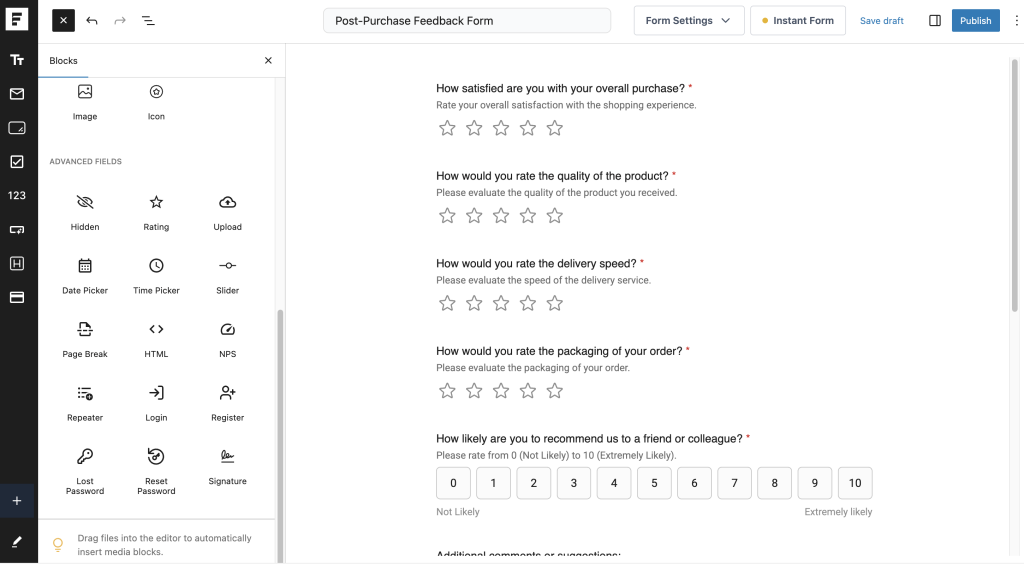
Though AI will create the form with smart field suggestion, it’s a good practice to review the generated form once and make any changes you like.
Finally, if required, customise the styling however you like and just publish your form.
SureForms uses native Gutenberg blocks for its form editor, so there is no new interface to learn. Just install the plugin and start publishing forms in WordPress within minutes.
Your entire form should be ready from prompt to deployment in just a few minutes.
The better your prompt, the better the result. Include the type of form, required fields, tone of voice, and any special features you want, and SureForms will handle the heavy lifting.
Getting More From Your Prompts
A few things consistently improve results across all of these prompts.
First, always name your brand voice. “Professional,” “warm,” “direct,” or “encouraging” all produce meaningfully different output.
Second, specify what the submit button should say, since this is often left as “Submit” by default but has a real impact on click-through.
Third, mention the device context where you can. Telling the AI the form should be mobile-friendly changes how fields and dropdowns get structured.
The more context you give, the less editing you’ll do at the end. Think of your prompt less as an instruction and more as a brief. The clearer it is, the better the result.
FAQ
How do I create a form using AI in WordPress?
– You can create a form in WordPress using AI by using a plugin like SureForms. Simply describe your form in plain English, and the AI generates a complete form with fields, structure, and layout automatically.
Can AI really build a WordPress form for me?
– Yes, AI can build fully functional WordPress forms. With SureForms, you just enter a prompt describing your form, and it generates lead forms, surveys, payment forms, quizzes, and more in seconds.
What is the best AI form builder for WordPress?
– SureForms is one of the best AI form builders for WordPress because it allows you to generate complete forms from prompts, customise them visually, and publish directly inside the WordPress block editor.
How do I create a contact form with AI in WordPress?
– To create a contact form with AI, open SureForms, go to ‘Create New Form’ and type a prompt like “Create a simple contact form with name, email, and message fields.” The form is generated instantly.
Can I customise AI-generated forms in WordPress?
– Yes, AI-generated forms in SureForms are fully customizable. You can edit fields, change layouts, adjust styling, and add advanced features like payments, surveys, or conditional logic.
Is AI form generation better than manual form building?
– AI form generation is faster and reduces setup time significantly. Instead of manually adding fields, AI builds a structured form for you, which you can then refine and publish.