Most businesses think they understand their audience. Very few actually take the time to truly understand them.
Surveys come in for those very few.
A well-placed survey can tell you what your customers think, what they want next, and what might be quietly frustrating them.
And if you think you need complicated tools or a separate platform to run surveys, you actually don’t.
If you’re running a WordPress site, it’s actually quite easy to create, share, and analyze surveys in minutes.
Let’s break down everything you need to know about WordPress Surveys.
Why You Should Try a Survey
Surveys are one of the simplest ways to turn guesses into real insights.
Instead of relying on assumptions or scattered feedback, you can directly ask your users what they think. This gives you clear, honest answers that you can actually use.
Here’s how a survey helps:
- Understand what your users really want: You might think your users care about one feature, but a survey might reveal something completely different.
- Improve your product or service: Feedback shows you what’s working and what’s not. This helps you focus on changes that actually matter.
- Measure customer satisfaction easily: With options like NPS, you can quickly understand how happy your users are and how likely they are to recommend you.
- Make better business decisions: Instead of guessing, you can rely on real data from real users.
Now here’s the best part. If you already have a WordPress site and you are using a form plugin like SureForms, you don’t need to depend on external survey tools. You can:
- Create a survey in minutes using SureForms
- See results in simple graphs instantly
- Even share those results with real-time data
And we’ll show you exactly how to do that next. Before we start, if you want to see how a survey built with SureForms feels, you can try these examples 👇
The Easiest Ways to Create a WordPress Survey
Creating a Survey in WordPress doesn’t have to be complicated or time-consuming.
With SureForms, you can go from idea to a fully working survey in just a few steps. So, if you don’t have the plugin installed yet, install it before following these next steps.
Also, before going into details, you can have a peek at how Survey works in SureForms from here 👇
Now, let’s build one together, here is step-by-step instructions on how to do it:
1. Built with A Prompt (The Fastest Way)
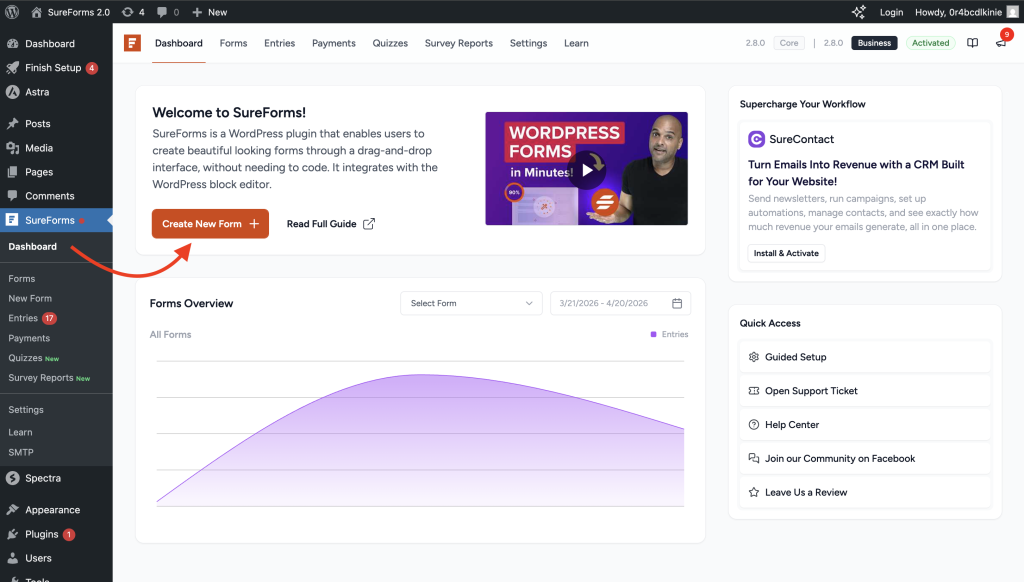
After installing SureForms, you can build a form or survey manually by clicking on ‘Create New Form’ from the dashboard, but using AI is much faster.
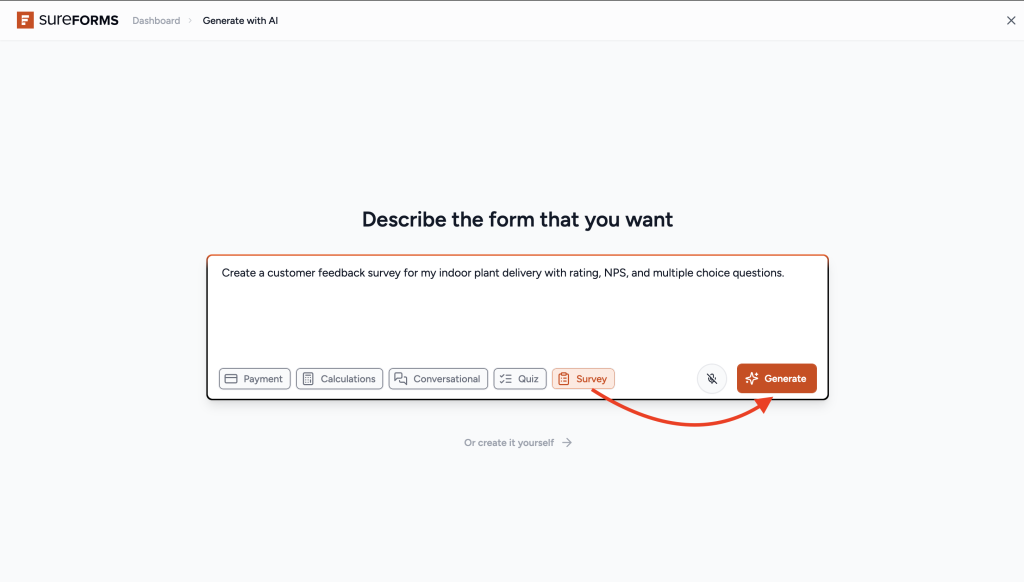
All you need to do is describe what kind of survey you want and click on ‘Generate.’
For example:
“Create a customer feedback survey for my indoor plant delivery with rating, NPS, and multiple choice questions.”
Based on your input, the AI will generate a complete survey with the right structure and questions. Also, for creating a survey, make sure to click on the ‘Survey’ button before generating.
Tip: The clearer your prompt, the better your survey will be.
2. Customize Your Survey (Optional)
Once the survey is generated, you can easily adjust it from the form editor if you want.
You can:
- Change question text
- Rename fields
- Add or remove questions
- Adjust colors and layout to match your brand and etc.
You’re always in control, even if AI does the initial work.
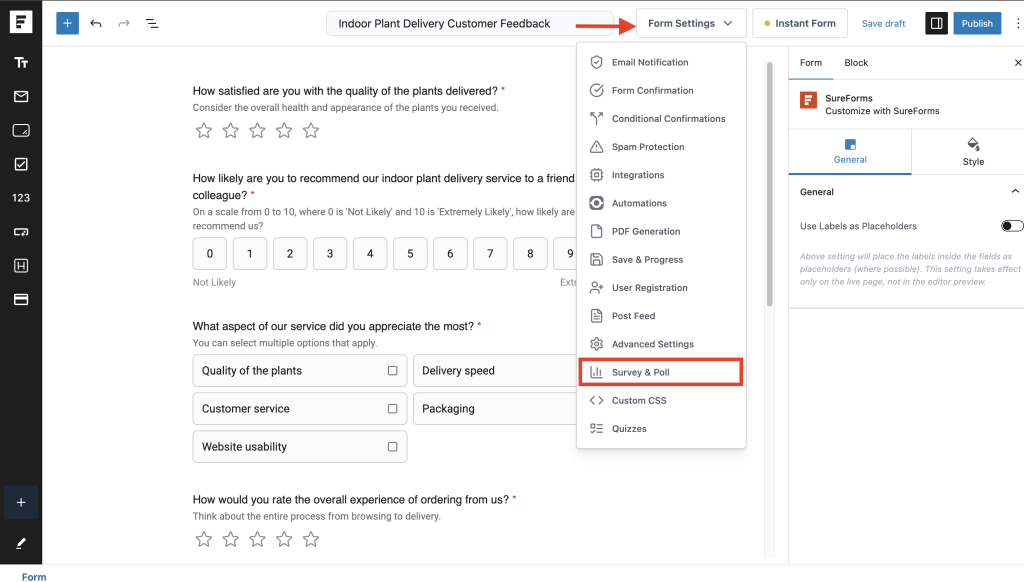
Inside Form Settings > Survey & Poll, you can also enable options like showing results to users after submission.
3. Publish Your Survey
Once your survey is ready, you can publish it in two simple ways:
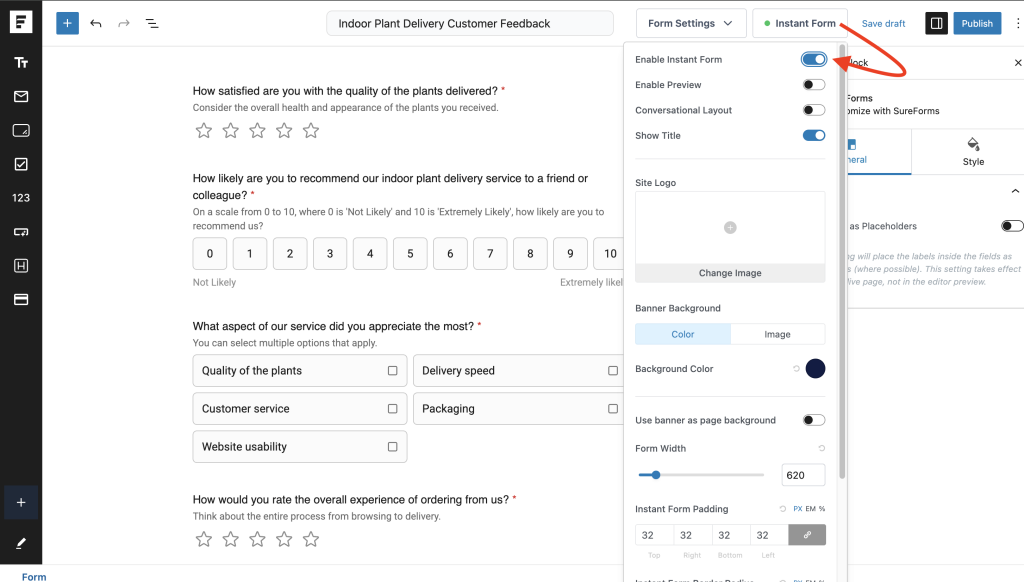
- Share it as a standalone page: Using Instant Forms, you get a clean link that you can send anywhere. Email, social media, or even messaging apps. It’s like a Google Form but with better benefits.
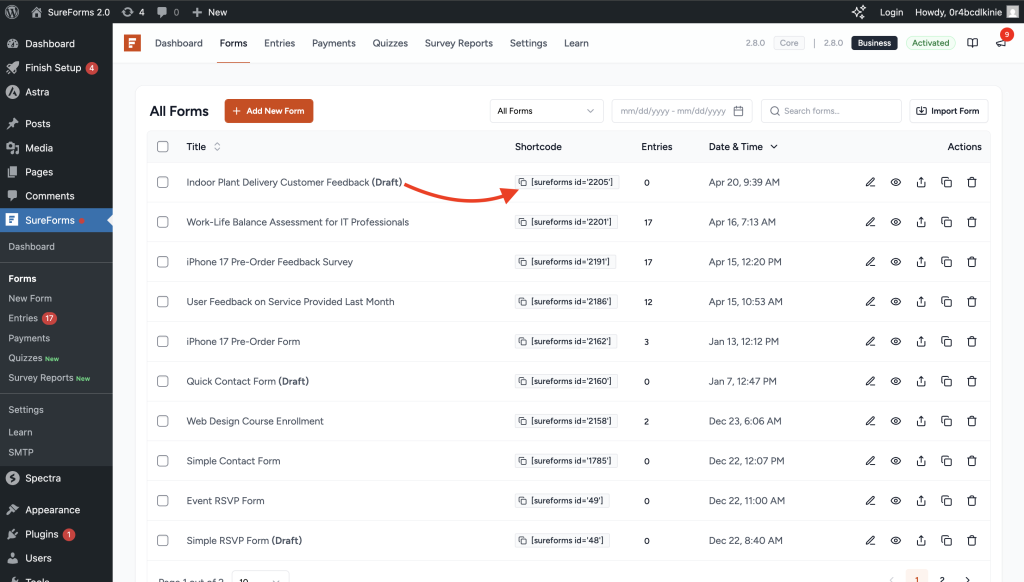
- Embed it on your website: Add the survey to any page or blog post using the shortcode in the WordPress editor.
This flexibility lets you use your survey however you want.
4. Track Results Easily
As people start responding, you don’t have to do anything manually.
SureForms automatically organizes the data and shows it in:
- Visual graphs
- Easy-to-read charts
- Clear summaries for each question
You can find all of this inside the Survey Reports section in SureForms.
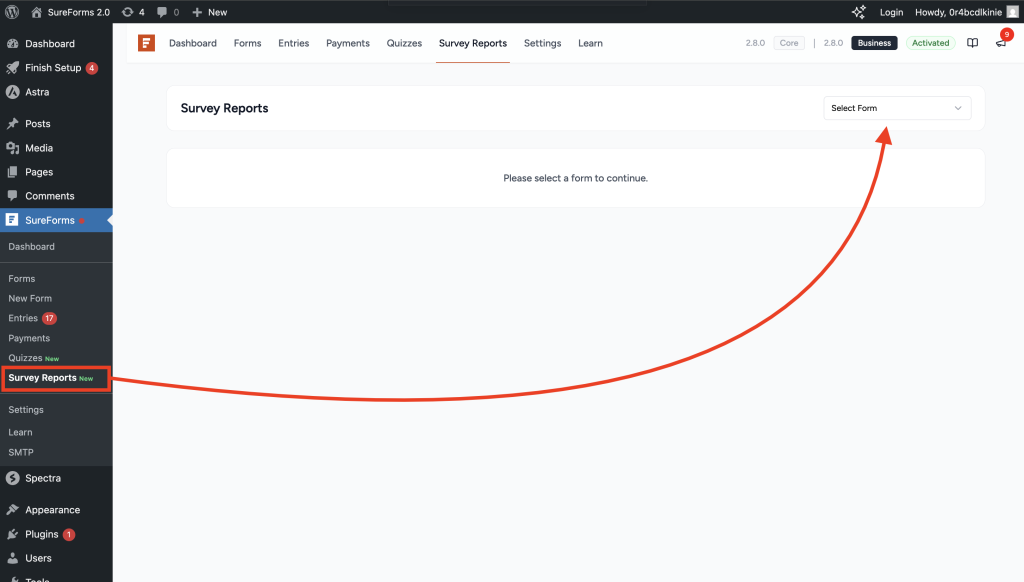
This means you don’t have to export data to analyze it yourself. You can directly do it from the plugin’s dashboard.
Presenting Your WordPress Survey Results in Real Time
Collecting responses is just one part of the process.
Showing those results in a clear and engaging way makes your survey even more useful.
Show Results Right After Submission
From the form editor, you can enable the “Show Results After Submission” option from Form Settings > Survey & Poll to show results immediately after someone submits the survey.
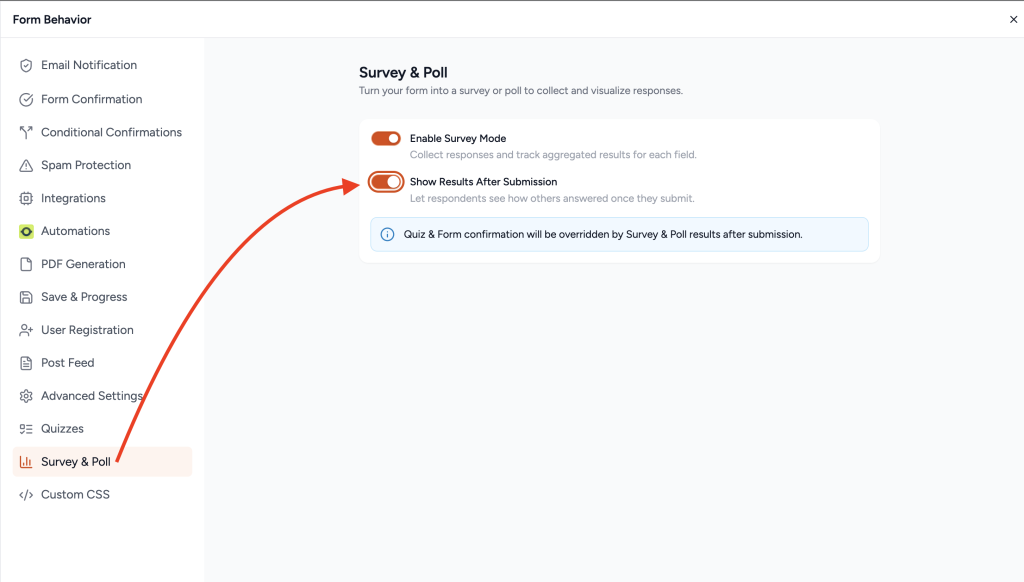
This helps users feel more involved, as they can instantly see how others have responded.
But here is a Pro Tip 👇
Display Real-time Results in a Dedicated Page or Blog
SureForms gives you a shortcode for each survey question.
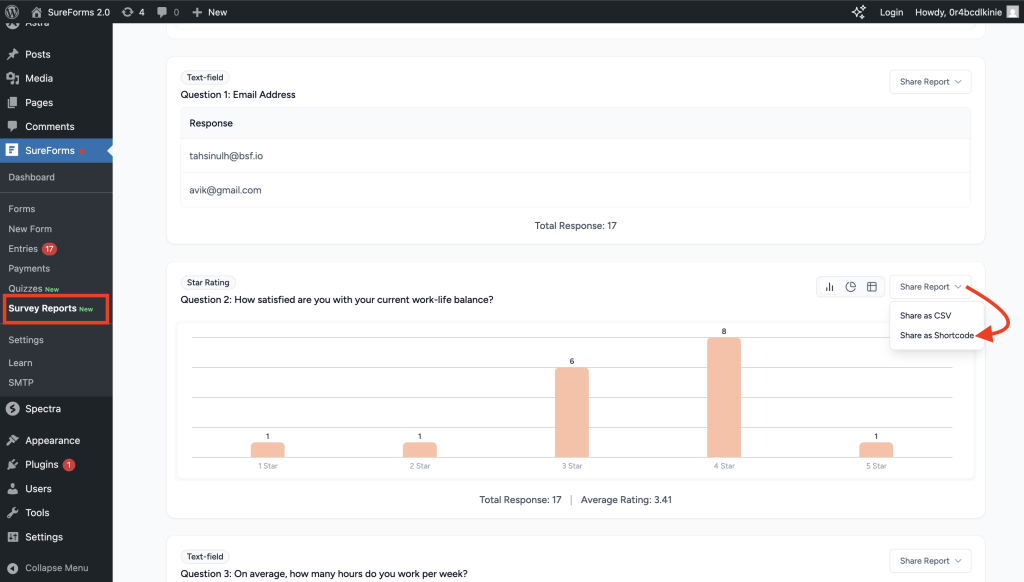
This means you can:
- Show results on a blog post
- Create a dedicated results page
- Highlight specific insights on landing pages
Each question’s result can be displayed separately.
Grab the shortcode for the question you want to display, then paste it into any blog post or page on your site, wherever you want the results to appear.
The data updates automatically on the page or blog in real time. You don’t need to refresh or update anything.
Then, you can also redirect users to a results page after submission from:
Form Editor > Form Settings > Form Confirmation
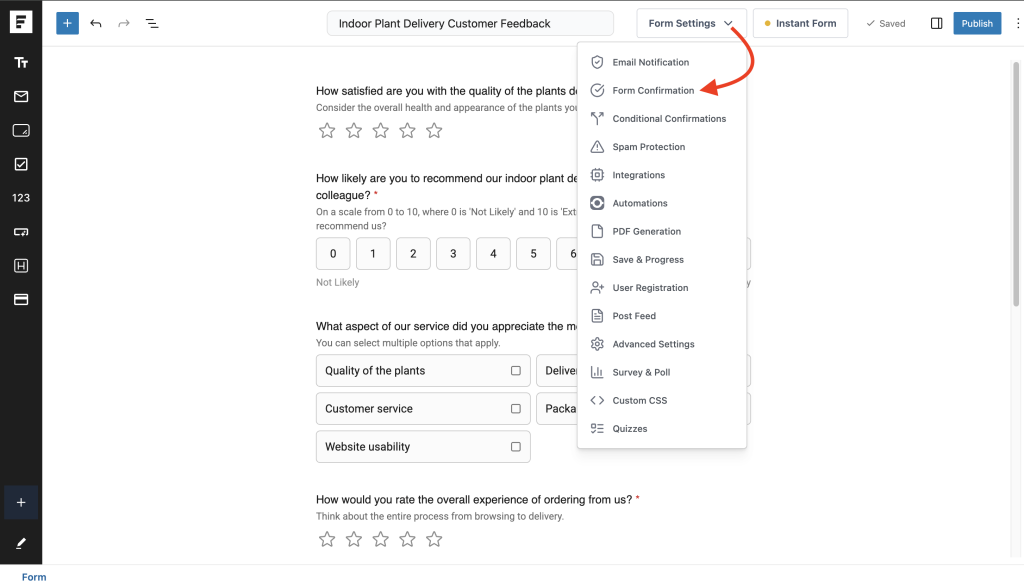
Then select the “Redirect” option and choose the page or blog where you want to send your audience.
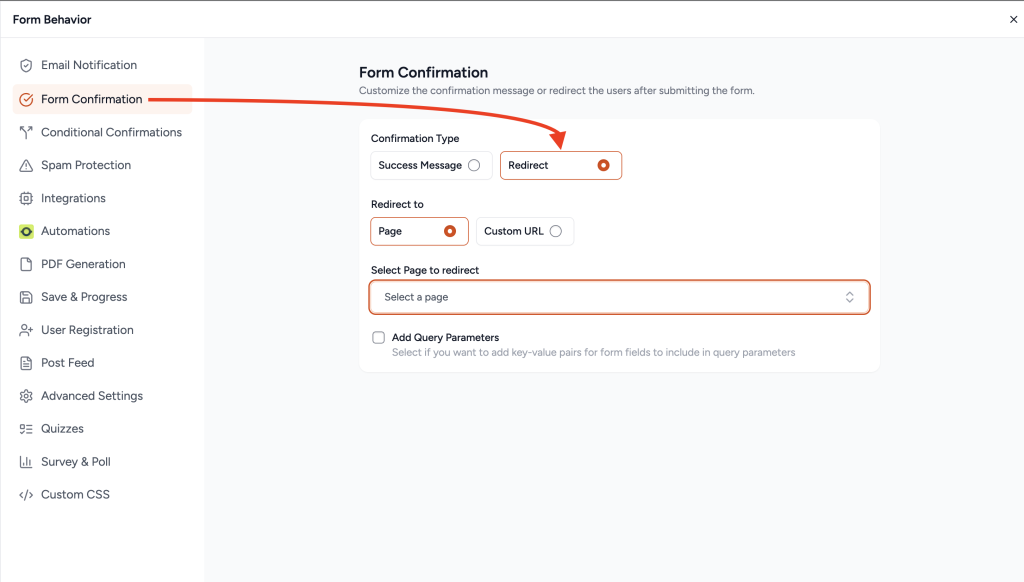
This creates a smooth and interactive experience.
👉 You can try the Survey feature in SureForms on a demo site with no setup required.
Benefits of Using SureForms for Your Survey
Using SureForms for your WordPress survey keeps everything simple and streamlined.
Instead of using multiple tools, you can create, share, and analyze surveys all in one place.
Here’s what makes it useful:
- Fast setup: Create a complete survey in minutes using AI or the visual builder. No need to start from scratch.
- Clear, visual reporting: Responses are automatically turned into graphs and charts, so you can quickly understand what your users are saying.
- Easy sharing with your branding: Use Instant Forms to generate a shareable link and send it anywhere, while keeping everything on your own domain.
- Live results display: Show real-time results anywhere on your site using shortcodes. The data updates automatically as new responses come in.
- All-in-one workflow: From building the survey to viewing results, everything stays inside WordPress. No extra tools or complicated setup.
Overall, it saves time, reduces manual work, and helps you get better insights faster.
Tips to Create Better Targeted Surveys
A good survey is not just about asking questions. It’s about asking the right questions in the right way.
Here are some practical tips to make your WordPress survey more effective:
Keep it short and focused
People are more likely to complete a survey that feels quick and easy. If it looks long, many will drop off halfway. Focus only on what you really need to know.
Ask clear and simple questions
Avoid complicated wording or double meanings. If a question needs to be read twice to understand, it probably needs to be simplified.
Use the right question types
Different questions serve different purposes.
- Use ratings for quick feedback
- Use multiple choice for structured answers
- Use open-ended questions when you want detailed opinions
Focus on one goal per survey
Don’t try to gather every possible insight in a single survey. A focused survey gives you better and more reliable answers.
Make it easy to complete
A smooth experience matters. Clean design, simple navigation, and fewer steps all help increase completion rates.
Use NPS for quick insights
If you want a fast way to measure customer satisfaction, NPS is a great option. It gives you a clear idea of how loyal your users are with just one question.
Test before sharing
Before sending your survey out, fill it out yourself. This helps you catch confusing questions or unnecessary steps.
Conclusion
Creating a WordPress survey is no longer something that requires time, effort, or multiple tools.
With SureForms, you can:
- Build a complete survey in minutes
- Collect meaningful and structured feedback
- Understand responses instantly with visual reports
- Even share results in real time with your audience
All of this happens right inside your WordPress site.
If you’ve been relying on guesswork or scattered feedback, a simple survey can change that completely. Try SureForms today!
FAQs
- How do I create a survey in WordPress without coding?
– Use a form plugin like SureForms, choose a survey template or generate one with AI, customize questions, and publish via shortcode or shareable link. - Can I show survey results in real time on my WordPress site?
– Yes. You can enable post-submission results and use survey shortcodes to display live question-by-question results on pages or blog posts. - What question types should I use in a WordPress survey?
– Use rating scales for quick sentiment, multiple-choice for structured insights, and open-ended fields for detailed feedback. Mix them based on your survey goal. - How can I increase WordPress survey completion rates?
– Keep surveys short, ask clear single-purpose questions, reduce unnecessary fields, and optimize for mobile users to minimize drop-offs. - Should I use a WordPress survey plugin or an external tool like Google Forms?
– If you want branding control, native WordPress workflow, and on-site reporting, a WordPress plugin is usually better. External tools can be faster for simple standalone use cases. - How do I analyze survey responses and turn them into action?
Track trends by question, segment responses by user type, identify top pain points, and prioritize updates based on frequency and business impact.