
- Creating and Publishing a Form
- Conversational Form
- Create Multi Step Forms In WordPress
- Using Calculations in SureForms: A Step-by-Step Guide
- Calculation Formula Guide
- SureForms Login Block – Step-by-Step Guide
- SureForms Registration Block – Step-by-Step Guide
- SureForms – PDF Generation Feature
- GDPR Compliant Forms
- Create WordPress Forms With Conditional Logic
- Adjust Form Notification Emails
- Form Confirmation
- Entries Management Feature Guide
- How to Add Query Parameters to Form Redirects
- How to Fetch Query Parameters from URL
- Set the “From Email” in SureForms
- Setting Up “Reply-To” Email Using Form Input Tags – SureForms
- Restrict Form Entries in SureForms
- Form Scheduling in SureForms
- Conditional Confirmations in SureForms
- How to Connect Your Stripe Account with SureForms
- How to Connect PayPal in SureForms
- How to Create a Payment Form in SureForms
- SureForms Payments
- How Refunds Work in SureForms Payments
- Understanding Payment Processing Fees
- How to Display the Payment Dashboard on the Frontend (SureForms)
- Enable One-Time Payment and Subscription in a Single Form
- SureForms Integration with ActiveCampaign
- SureForms Integration with AgileCRM
- SureForms Integration with Airtable
- SureForms Integration with LatePoint
- SureForms Integration with FluentCRM
- Connect SureForms To Zapier
- WordPress Forms with the Custom App Builder
- SureForms Integration with Telegram
- SureForms Integration with Breeze
- SureForms Integration with Brevo
- SureForms Integration with GetResponse
- SureForms Integration with Drip
- Integrating SureForms with OttoKit
- Webhooks
- Webhook Conditional Logic
- SureForms Integration with Salesflare
- SureForms Integration with Hostinger Reach
- SureForms Integration with MailPoet
- SureForms Integration with Mailchimp
- Conditional Logic with Integrations
- SureForms Integration with Zoho CRM
- SureForms Integration with Keap
- SureForms Integration with MailerPress
- SureForms Integration with Google Sheets
- SureForms Integration with Notion
- SureForms Integration with WP Fusion
- SureForms Integration with Kit
- SureForms Integration with Mailjet
- SureForms Integration with MailerLite
- HubSpot Integration in SureForms
- SureForms Integration with Klaviyo
- SureForms Integration with Constant Contact
- SureForms Integration with Bigin by Zoho CRM
- How to Sell Membership Access Using a SureForms Payment Form
- Unable to Upload SureForms ZIP: File Unzipped On Download
- Browser Support for SureForms
- Not Getting Update Notifications
- How To Rollback to Previous SureForms Versions
- Publishing Failed: Invalid JSON Response
- Troubleshooting Email Sending In SureForms
- SureForm Submissions Marked as Spam – How to Fix
- API Request Failed – Nonce Verification Error
- Fixing the “Destination folder already exists” Error When Installing SureForms
- How to Set Up SureForms with Caching Plugins
- srfm_enable_redirect_activation
- sureforms_plugin_action_links
- srfm_quick_sidebar_allowed_blocks
- srfm_integrated_plugins
- srfm_suretriggers_integration_data_filter
- srfm_form_submit_response
- srfm_enable_gutenberg_post_types
- srfm_languages_directory
- srfm_form_template
- srfm_disable_nps_survey
SureForms Integration with Google Sheets
This guide explains how to integrate SureForms with Google Sheets to automatically send form submission data to a Google Sheet.
Global Settings
Step 1: Access SureForms Settings
- From your WordPress dashboard, navigate to SureForms → Form Settings.
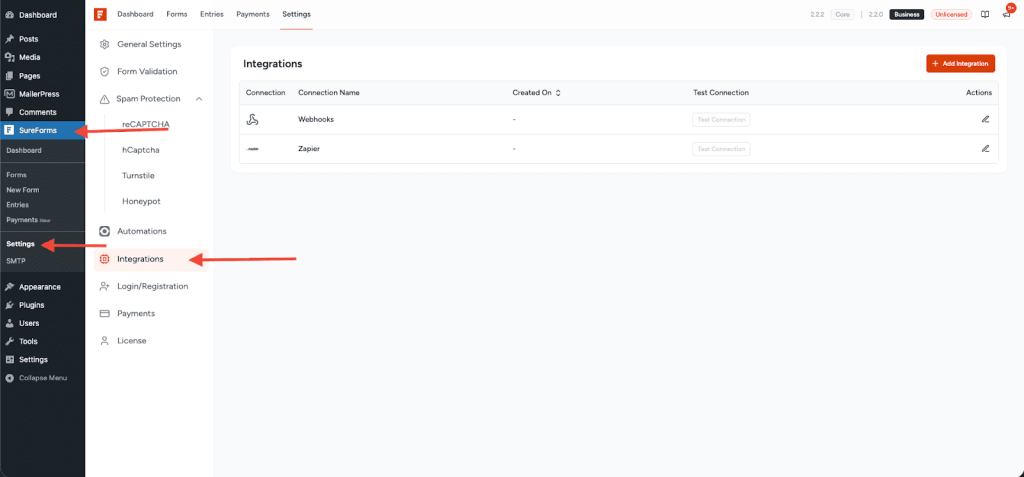
- Click on the Integrations tab.
Step 2: Add Google Sheets
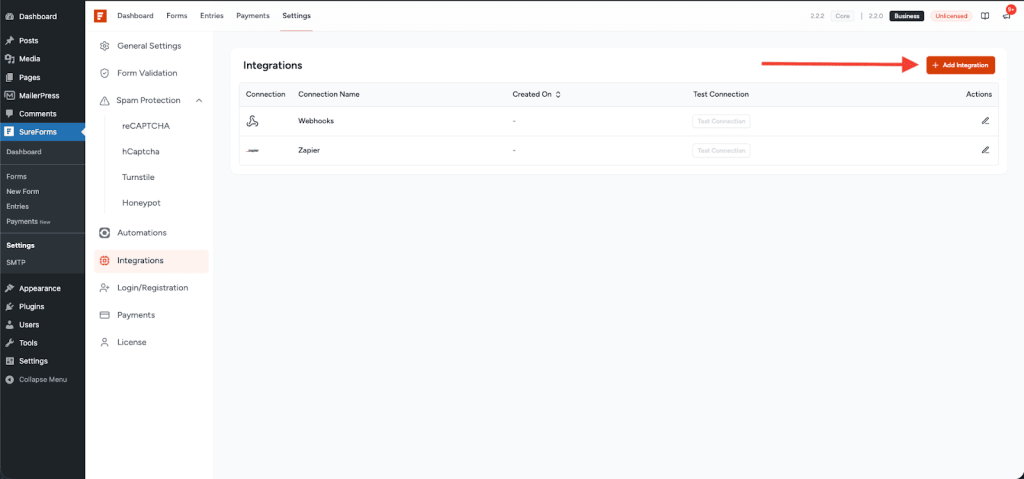
- Click the Add Integration button.
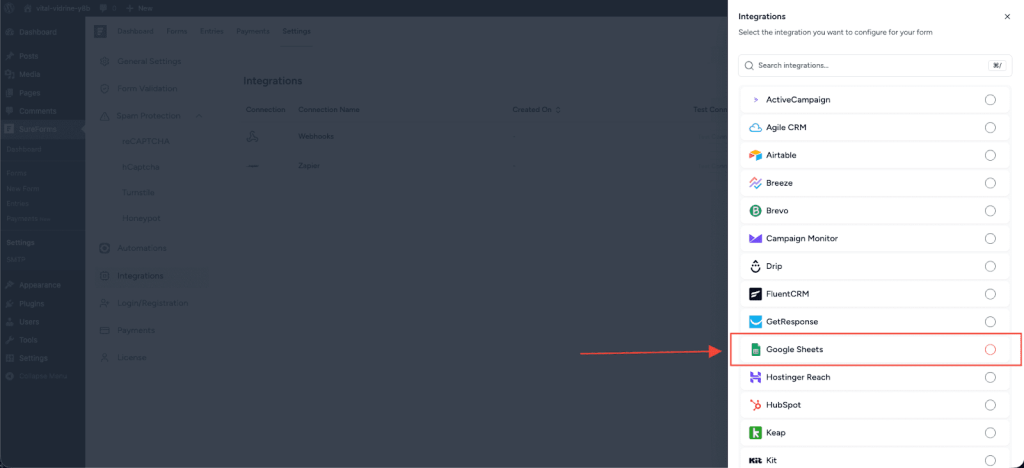
- From the list of available integrations, select Google Sheets.
You can also use the search bar to find it quickly.
Step 3: Connect Google Sheets
Follow the steps below to generate the Client ID and Client Secret required to connect Google Sheets with the plugin.
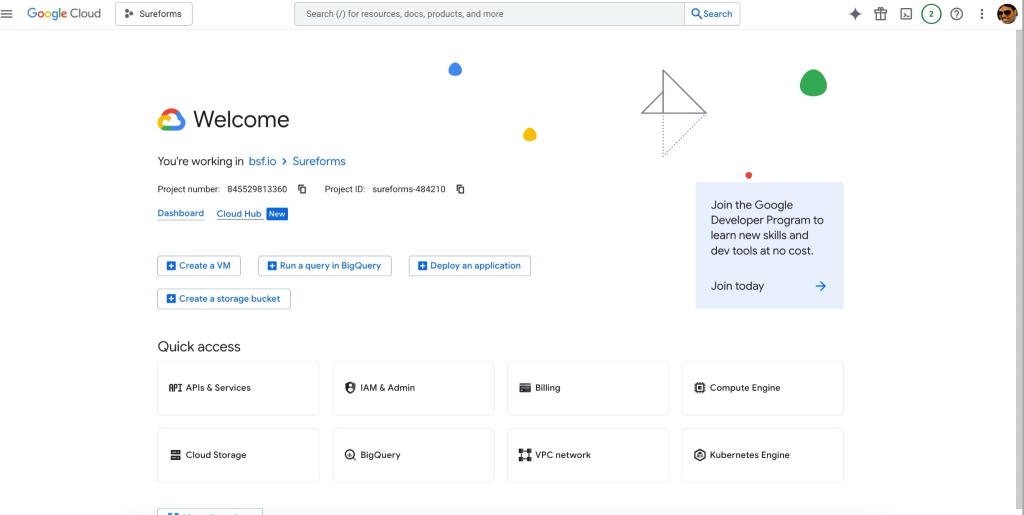
Step 3.1: Go to Google Cloud Console
Navigate to the Google Cloud Console.
Step3.2: Create a New Project
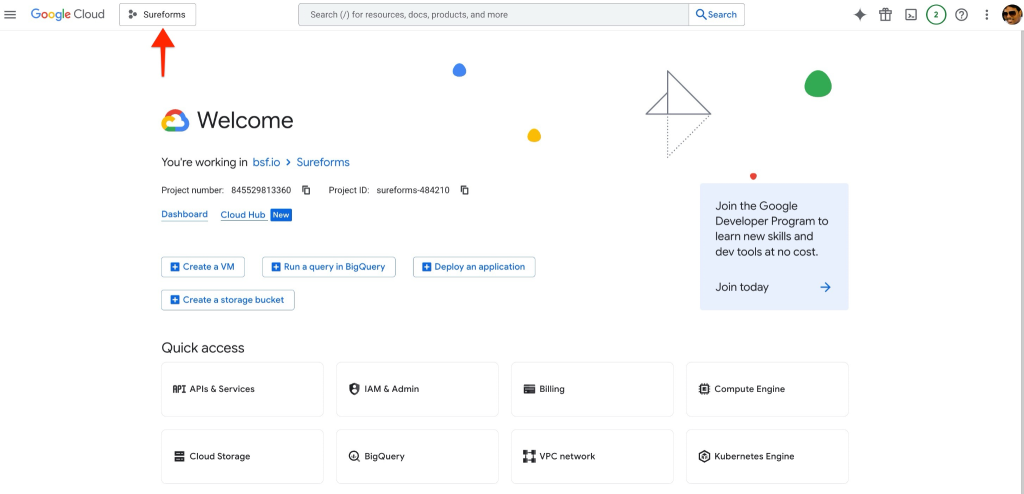
- Click on Select a Project.
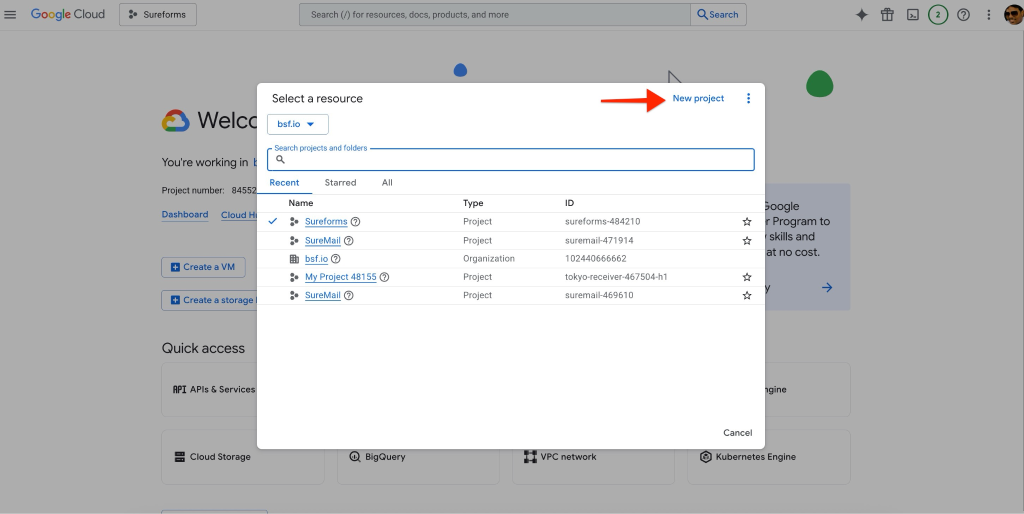
- Click New Project.
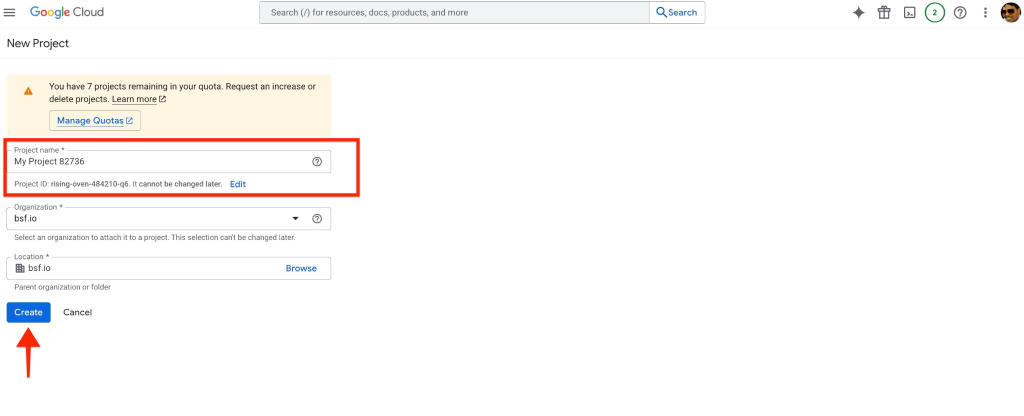
- Enter a project name (for example: Site name).
- Click Create.
Step 3.3: Select the Project
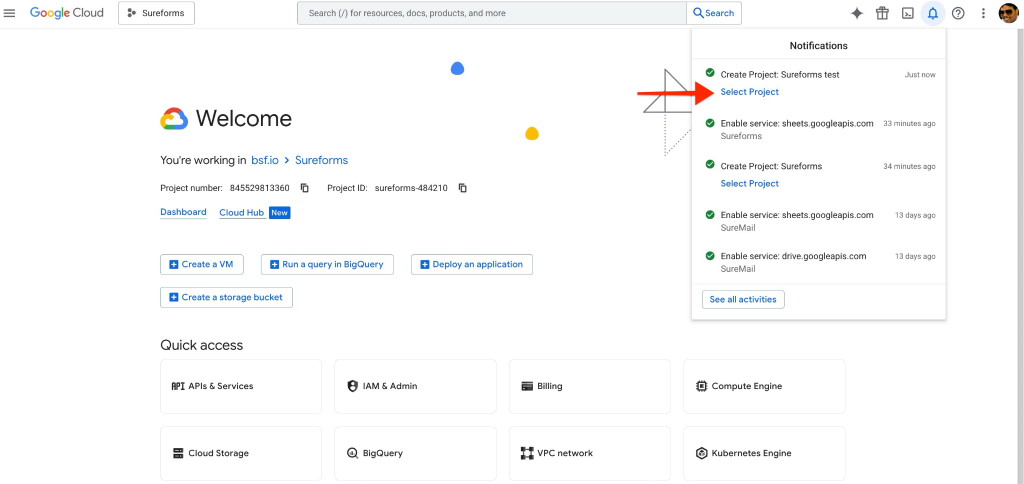
Once the project is created:
- Select the newly created project from the project list.
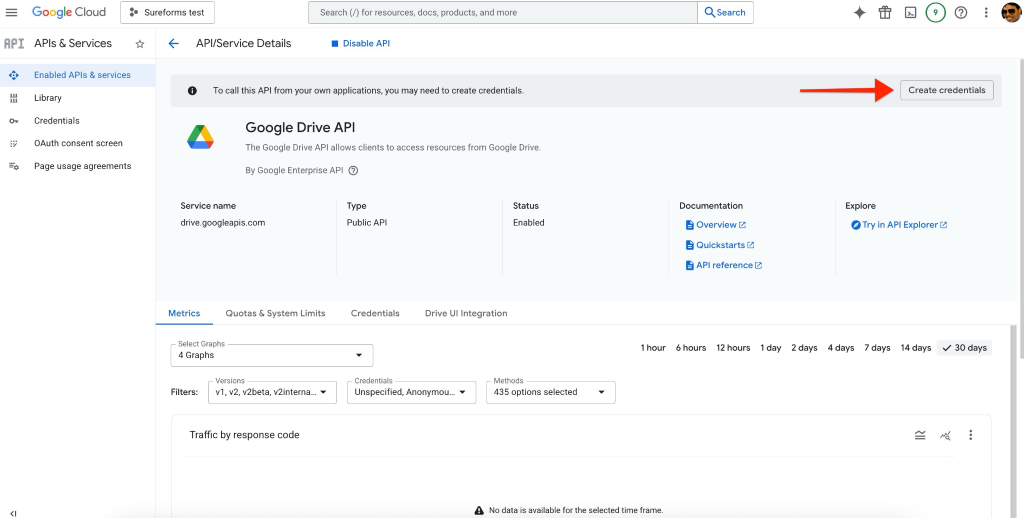
Step 3.4: Enable Google Sheets API, Drive
- Go to APIs & Services → Library.
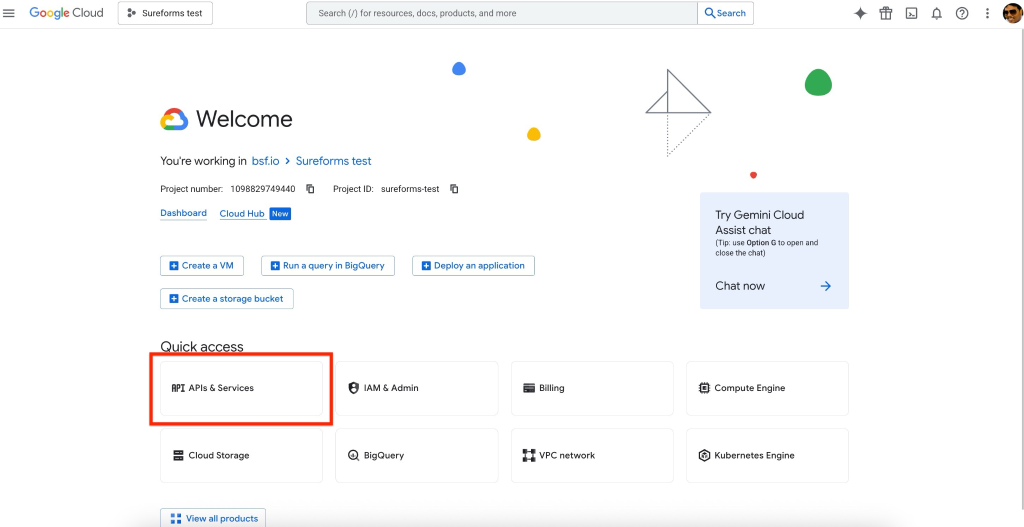
- Click Enable APIs & Services.
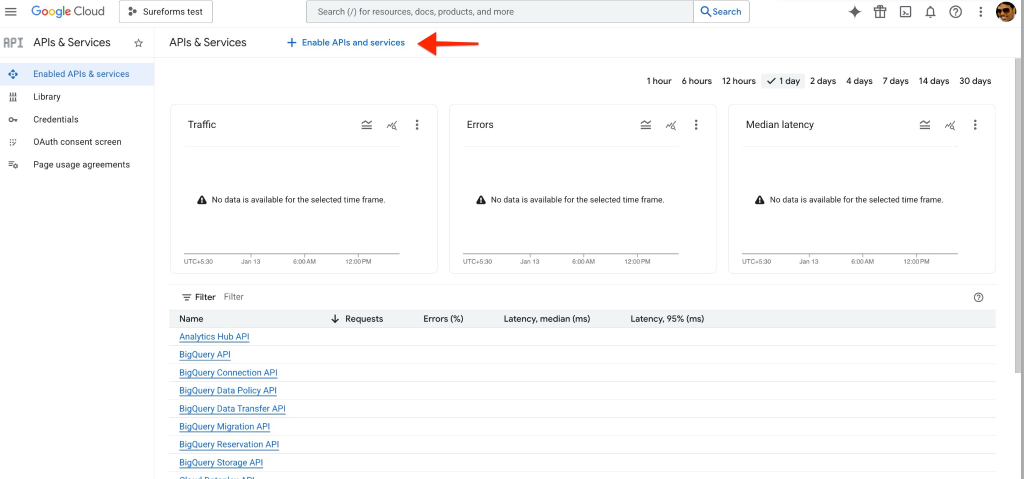
- Search for Google Sheets API.
- Open it and click Enable.
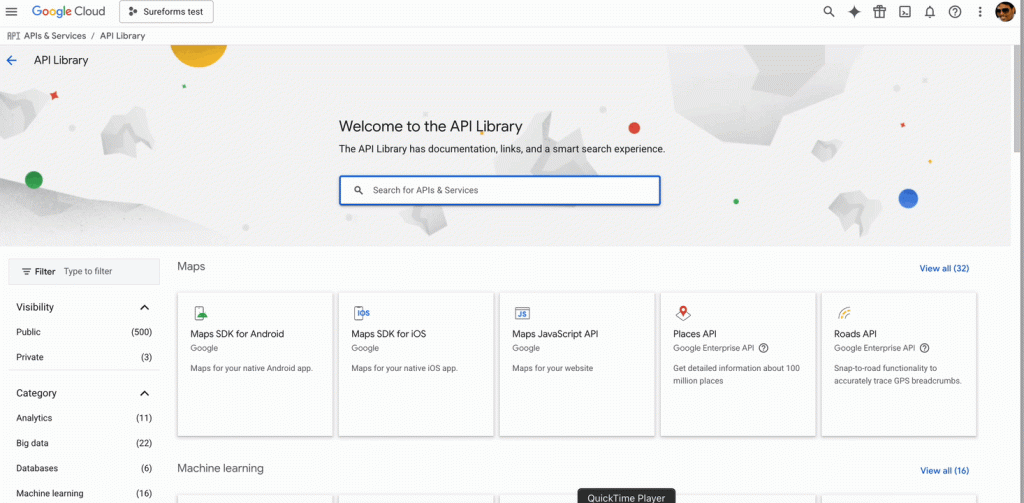
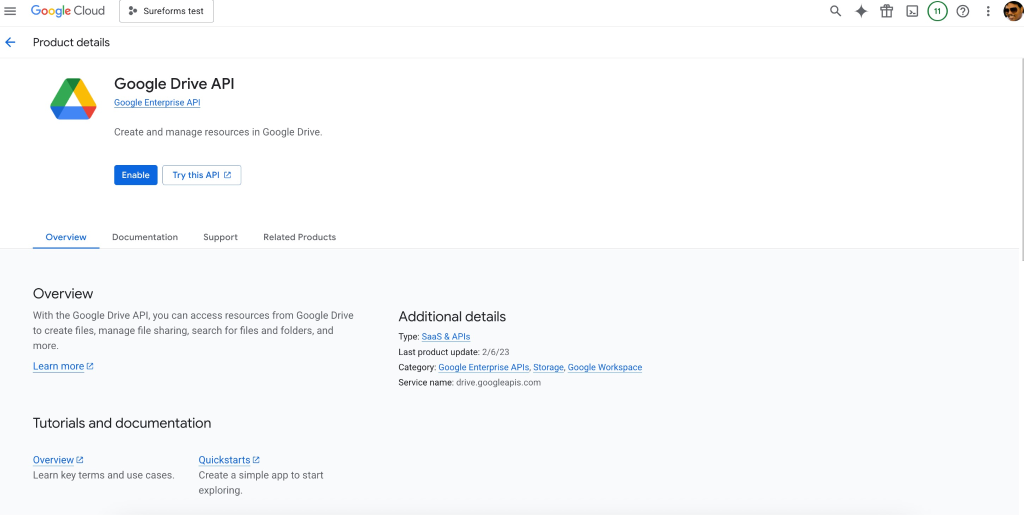
- Search for Google Drive API.
- Open it and click Enable.
Step 3.5: Create Credentials
- After enabling the API, click Create Credentials.
- Select Google Sheets API.
- Choose User Data.
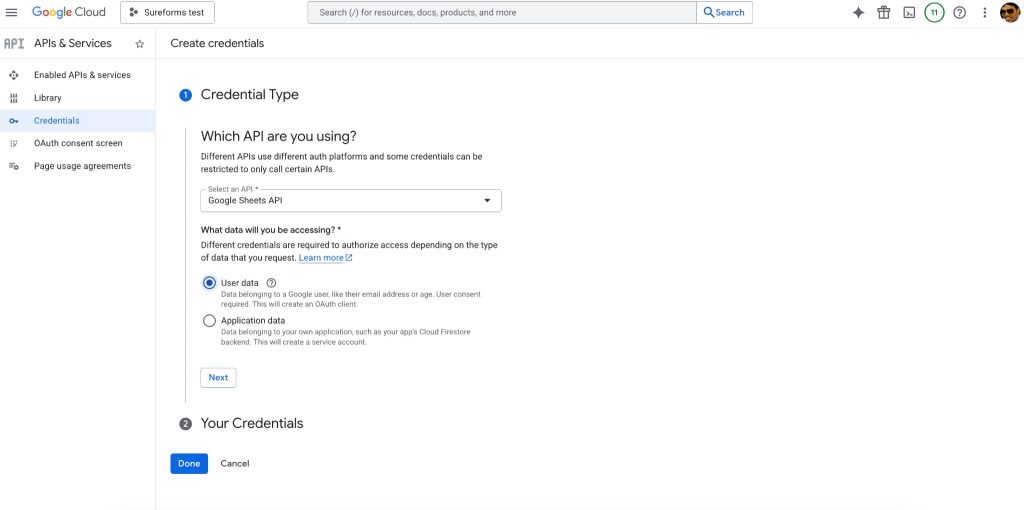
- Click Next.
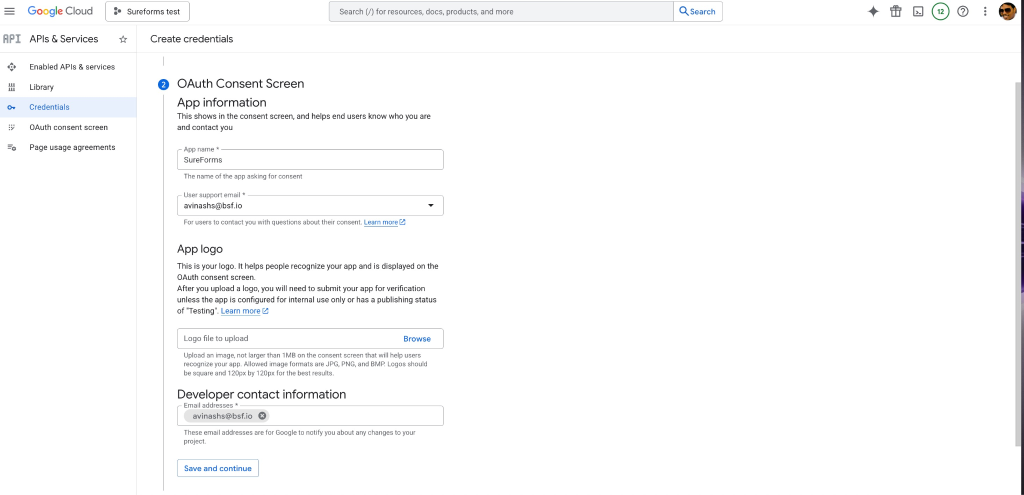
Step 3.6: Configure OAuth Consent Screen
- Enter the app name (for example: SureForms).
- Add a User Support Email.
- Add a Developer Contact Email.
- Click Save and Continue.
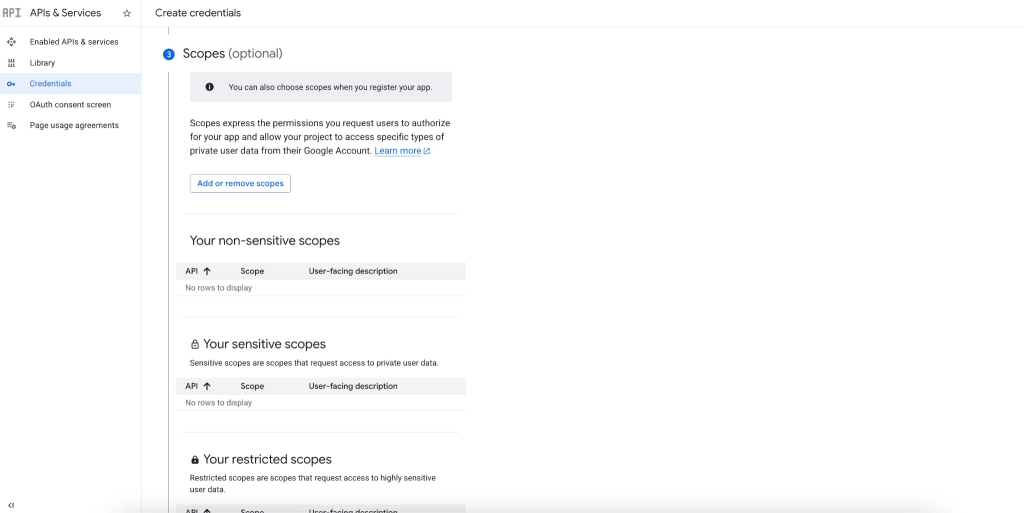
- Skip scopes (optional) and continue.
Step 3.7: Create OAuth Client ID
- Choose Web Application as the application type.
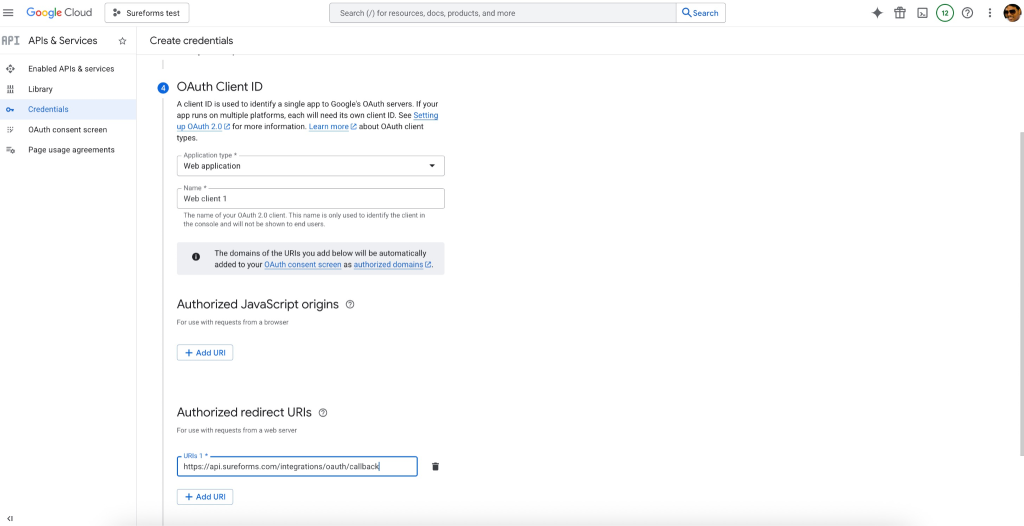
- Add the Authorized Redirect URI.
- Copy this URI from the Form Settings page in your plugin.
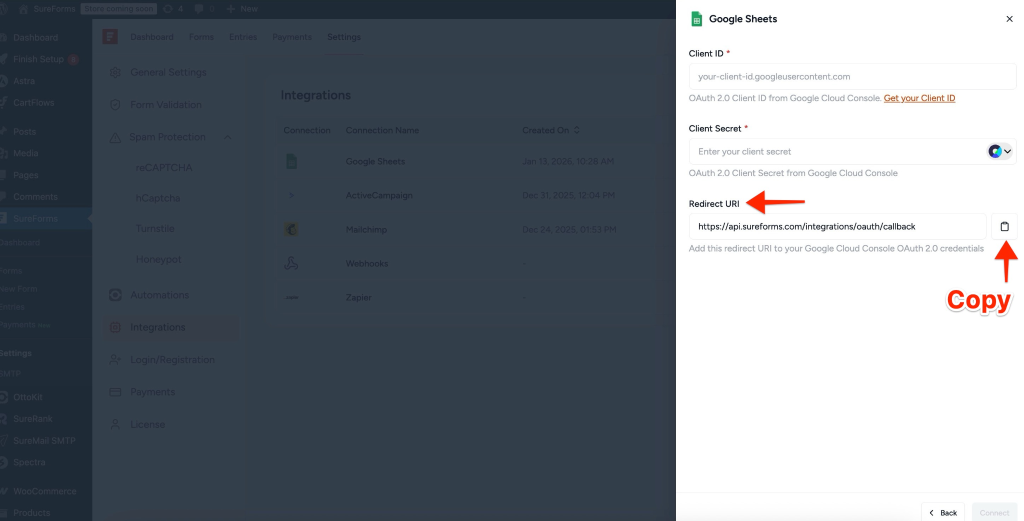
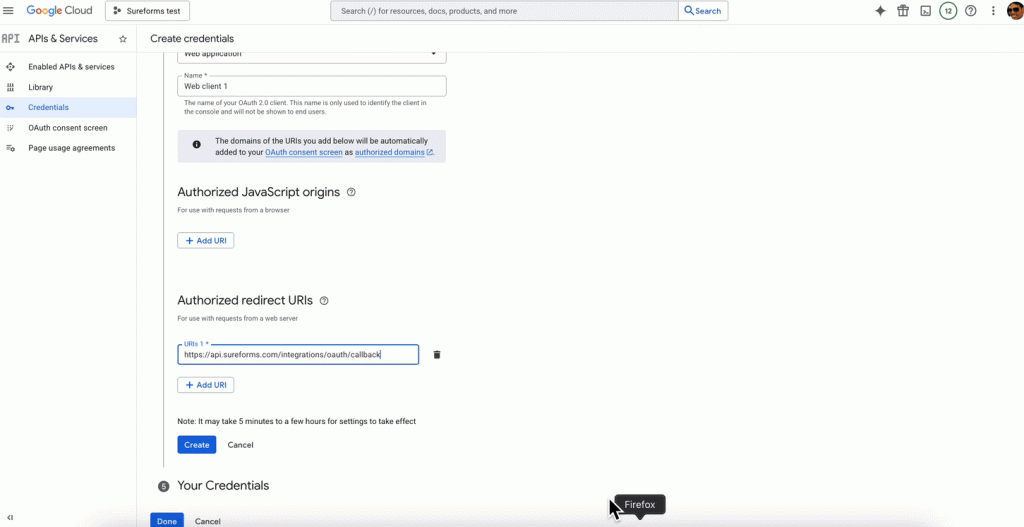
- Click Create.
Step 3.8: Copy Client ID
Once created:
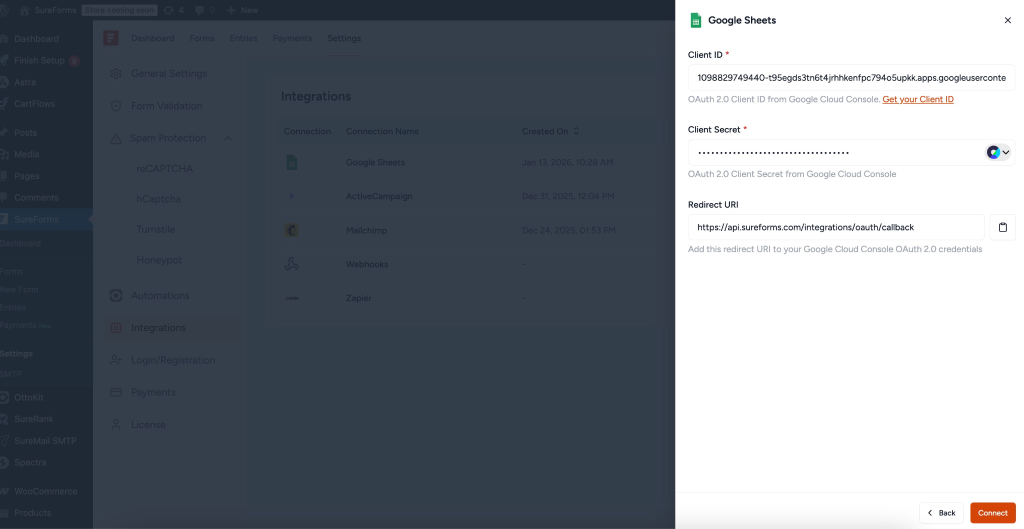
- Copy the Client ID.
- Paste it into the required field in the plugin settings.
- Click Done.
Step 3.9: Copy Client Secret
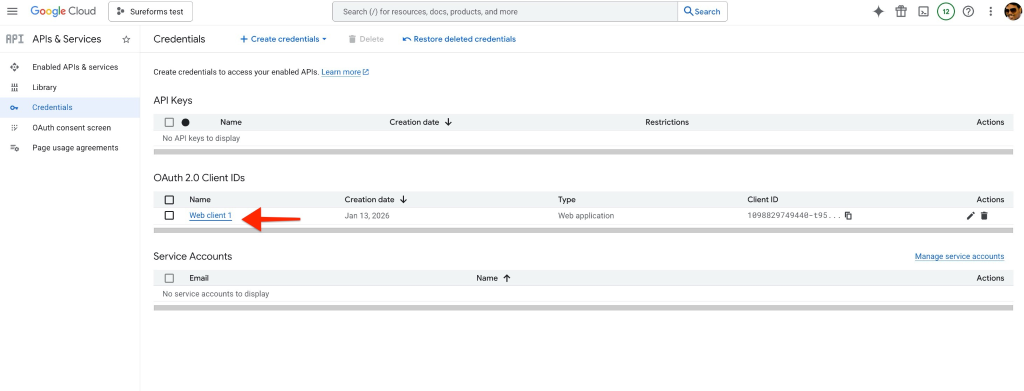
- Go to APIs & Services → Credentials.
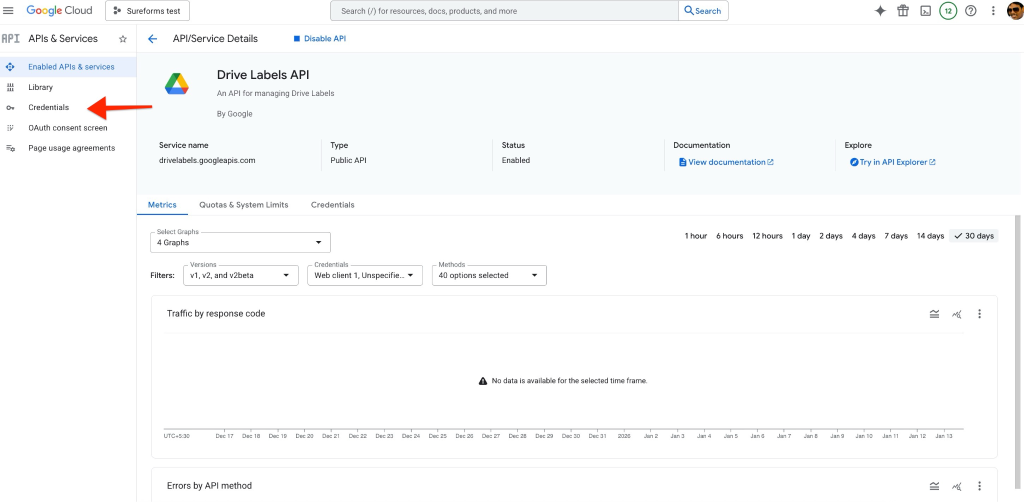
- Click on the Web Client ID.
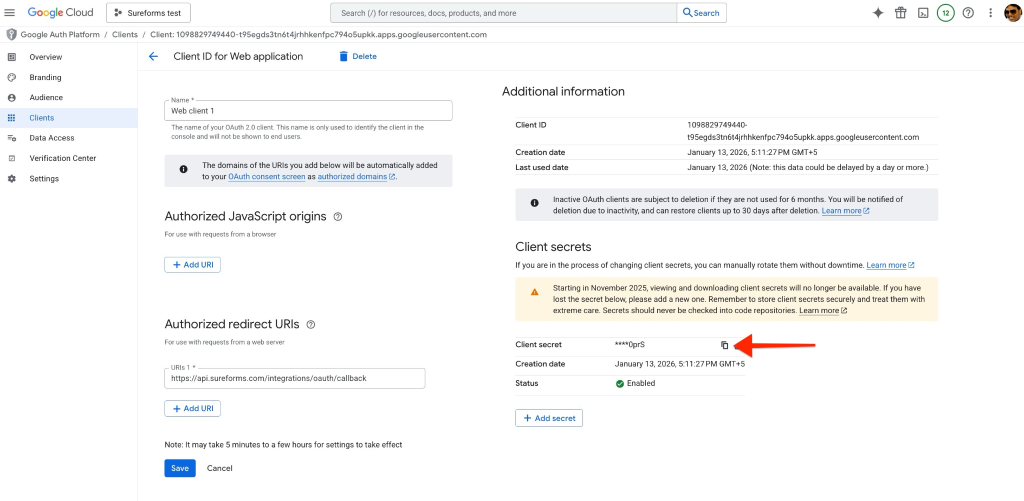
- Copy the Client Secret.
- Paste it into the plugin settings.
Step 3.10: Save Settings
After adding both the Client ID and Client Secret, click the Connect button, and it will authenticate with you google account.
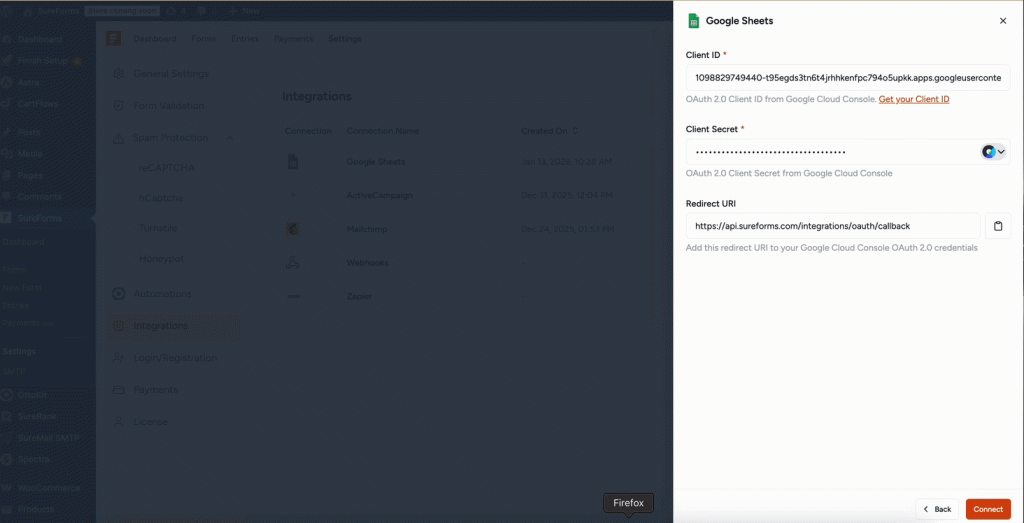
Once connected successfully, you’ll see the confirmation message: OAuth authentication successful!
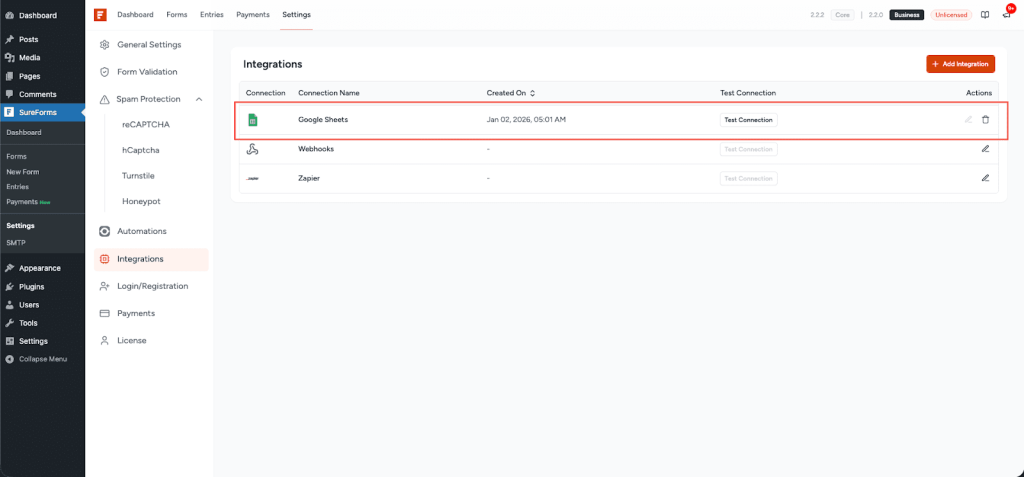
Google Sheets will now appear in your global integrations list.
Form Settings
Step 1: Open the Form Editor
- Go to SureForms → Forms.
- Open the form you want to connect with Google Sheets.
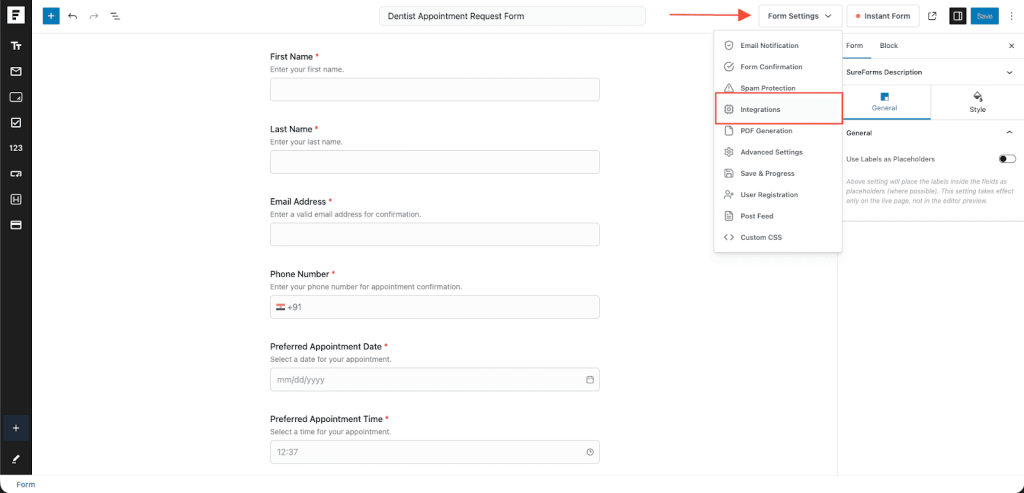
Step 2: Add Google Sheets to the Form
- Open the Integrations tab from the dropdown options.
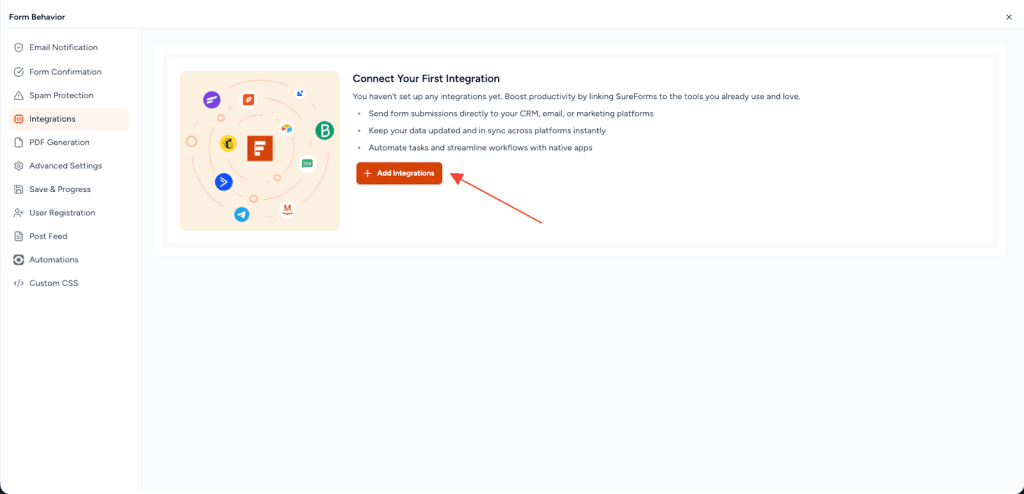
- Click Add Integration.
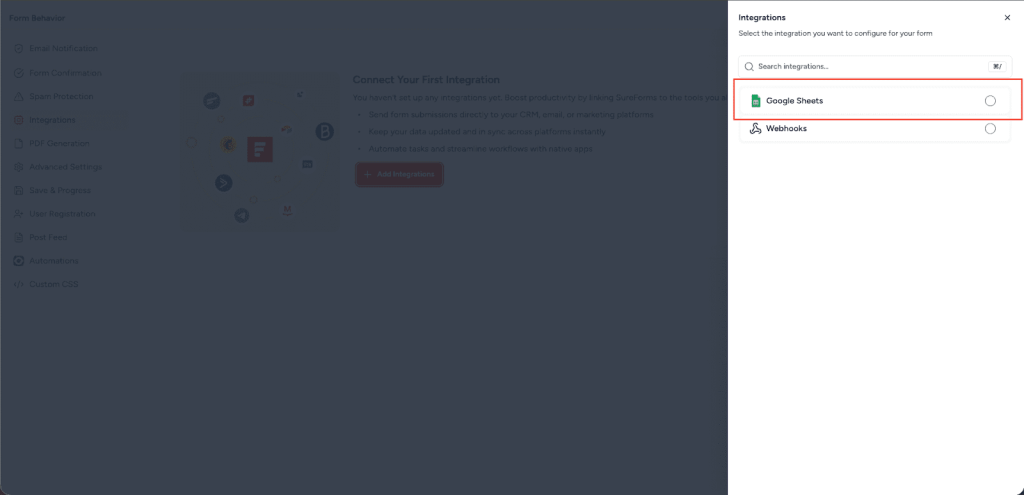
- Select Google Sheets from the list of global integrations.
Step 3: Configure Google Sheets Integration
The Google Sheets integration setup contains three tabs:
Select, Configure, and Test.
1. Select Tab
Provide the workflow details:
- Workflow Name – Required
- Action – Required
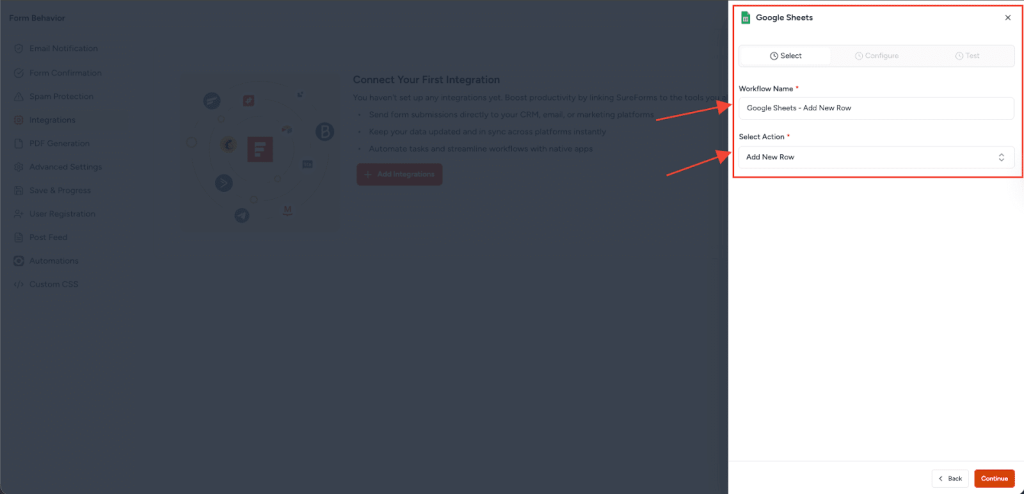
Available Action:
- Add Row
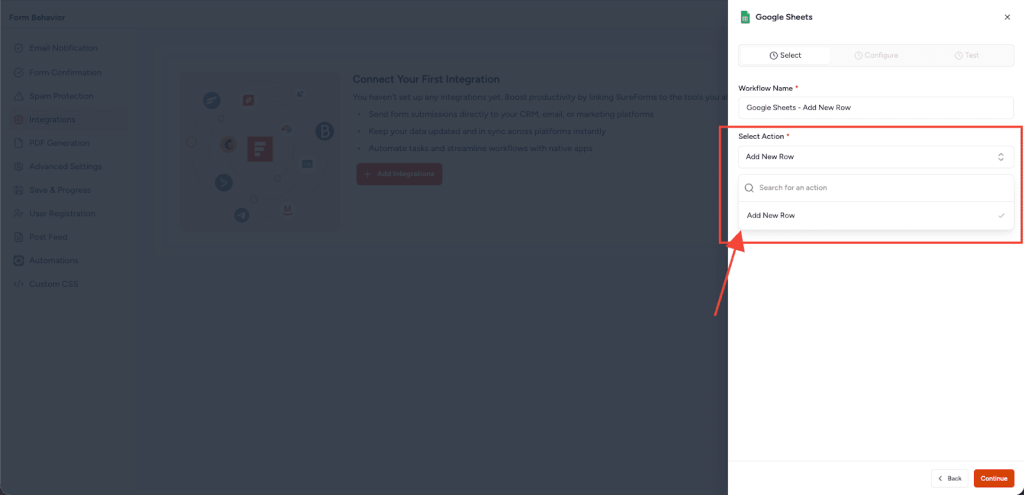
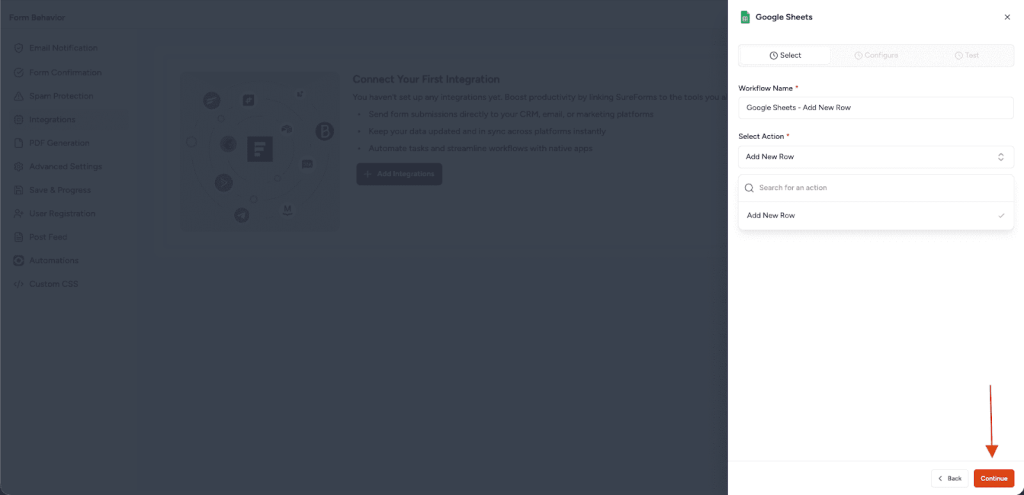
After selecting the action, click Continue.
2. Configure Tab
In this step:
- Select the Google Spreadsheet where data should be stored.
- Choose the Worksheet (tab) inside the spreadsheet.
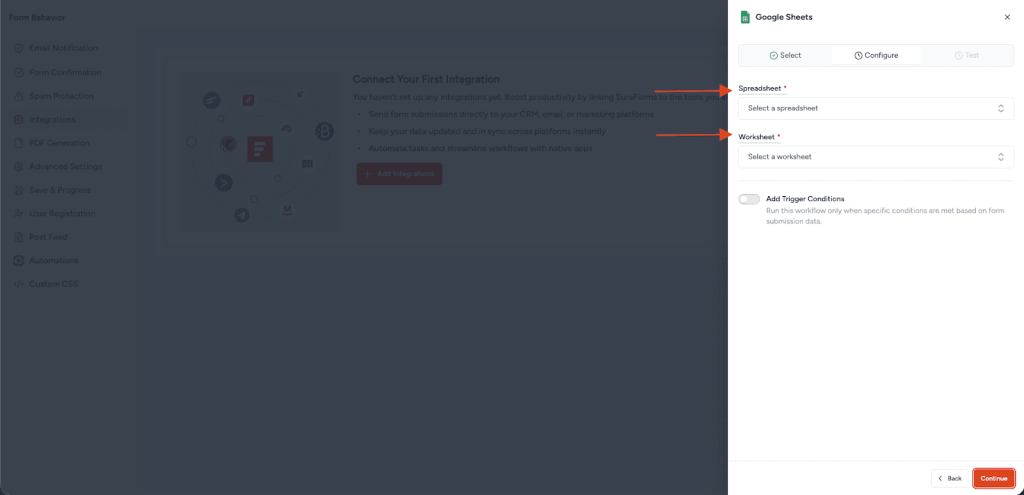
- Map SureForms fields to the corresponding Google Sheets columns.
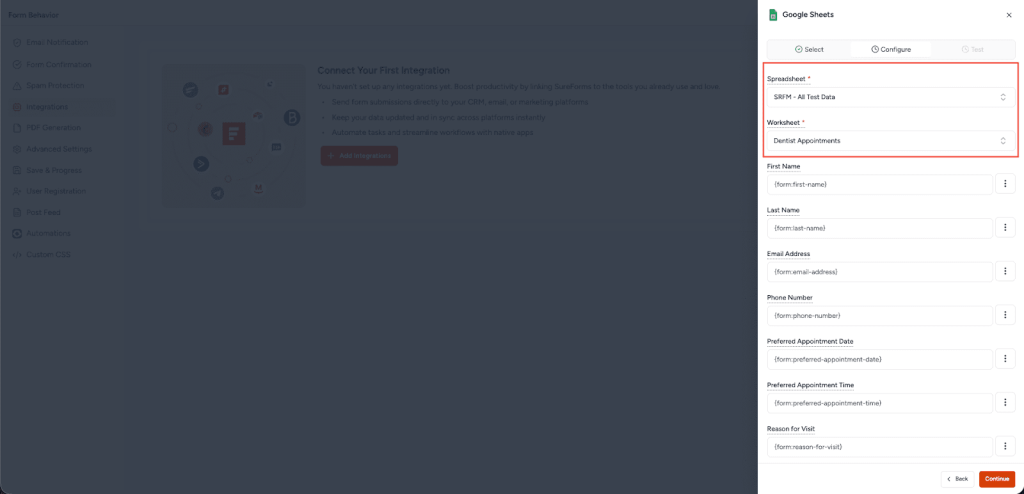
Ensure the first row of your sheet contains column headers for accurate mapping.
Once all required fields are mapped, click Continue.
3. Test Tab
- Click Test Workflow to verify the integration.
- A success message such as:
WordPress plugin workflow “Google Sheets – Add Row” tested successfully!
confirms that the integration is working. - Click Save Changes to complete the setup.
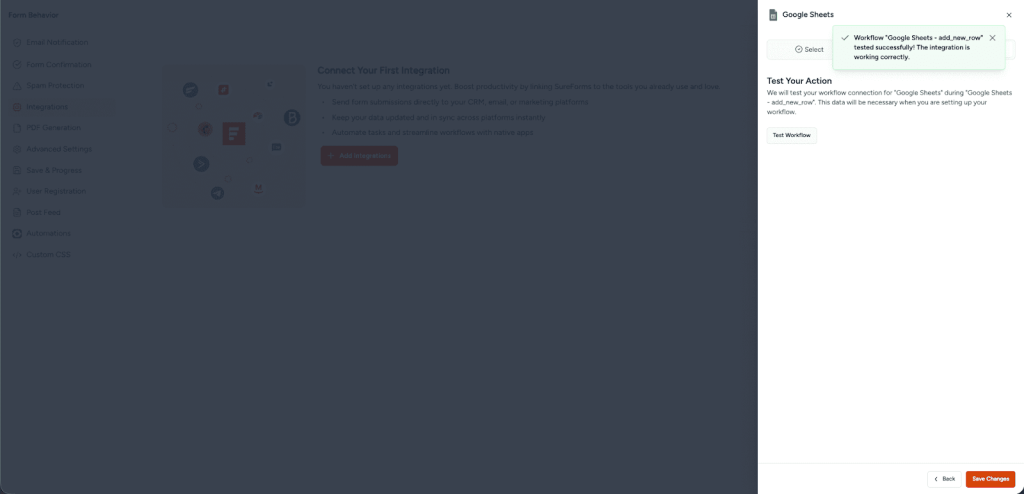
Integration Complete
Your form is now successfully connected to Google Sheets.
Each form submission will automatically add a new row to your selected Google Sheet, making it easy to track, analyze, and manage form data in real time.
We don't respond to the article feedback, we use it to improve our support content.