
- Creating and Publishing a Form
- Conversational Form
- Create Multi Step Forms In WordPress
- Using Calculations in SureForms: A Step-by-Step Guide
- Calculation Formula Guide
- SureForms Login Block – Step-by-Step Guide
- SureForms Registration Block – Step-by-Step Guide
- SureForms – PDF Generation Feature
- GDPR Compliant Forms
- Create WordPress Forms With Conditional Logic
- Adjust Form Notification Emails
- Form Confirmation
- Entries Management Feature Guide
- How to Add Query Parameters to Form Redirects
- How to Fetch Query Parameters from URL
- Set the “From Email” in SureForms
- Setting Up “Reply-To” Email Using Form Input Tags – SureForms
- Restrict Form Entries in SureForms
- Form Scheduling in SureForms
- Conditional Confirmations in SureForms
- How to Connect Your Stripe Account with SureForms
- How to Connect PayPal in SureForms
- How to Create a Payment Form in SureForms
- SureForms Payments
- How Refunds Work in SureForms Payments
- Understanding Payment Processing Fees
- How to Display the Payment Dashboard on the Frontend (SureForms)
- Enable One-Time Payment and Subscription in a Single Form
- SureForms Integration with ActiveCampaign
- SureForms Integration with AgileCRM
- SureForms Integration with Airtable
- SureForms Integration with LatePoint
- SureForms Integration with FluentCRM
- Connect SureForms To Zapier
- WordPress Forms with the Custom App Builder
- SureForms Integration with Telegram
- SureForms Integration with Breeze
- SureForms Integration with Brevo
- Unable to Upload SureForms ZIP: File Unzipped On Download
- Browser Support for SureForms
- Not Getting Update Notifications
- How To Rollback to Previous SureForms Versions
- Publishing Failed: Invalid JSON Response
- Troubleshooting Email Sending In SureForms
- SureForm Submissions Marked as Spam – How to Fix
- API Request Failed – Nonce Verification Error
- Fixing the “Destination folder already exists” Error When Installing SureForms
- How to Set Up SureForms with Caching Plugins
- srfm_enable_redirect_activation
- sureforms_plugin_action_links
- srfm_quick_sidebar_allowed_blocks
- srfm_integrated_plugins
- srfm_suretriggers_integration_data_filter
- srfm_form_submit_response
- srfm_enable_gutenberg_post_types
- srfm_languages_directory
- srfm_form_template
- srfm_disable_nps_survey
How to Add a Color Picker Field in SureForms
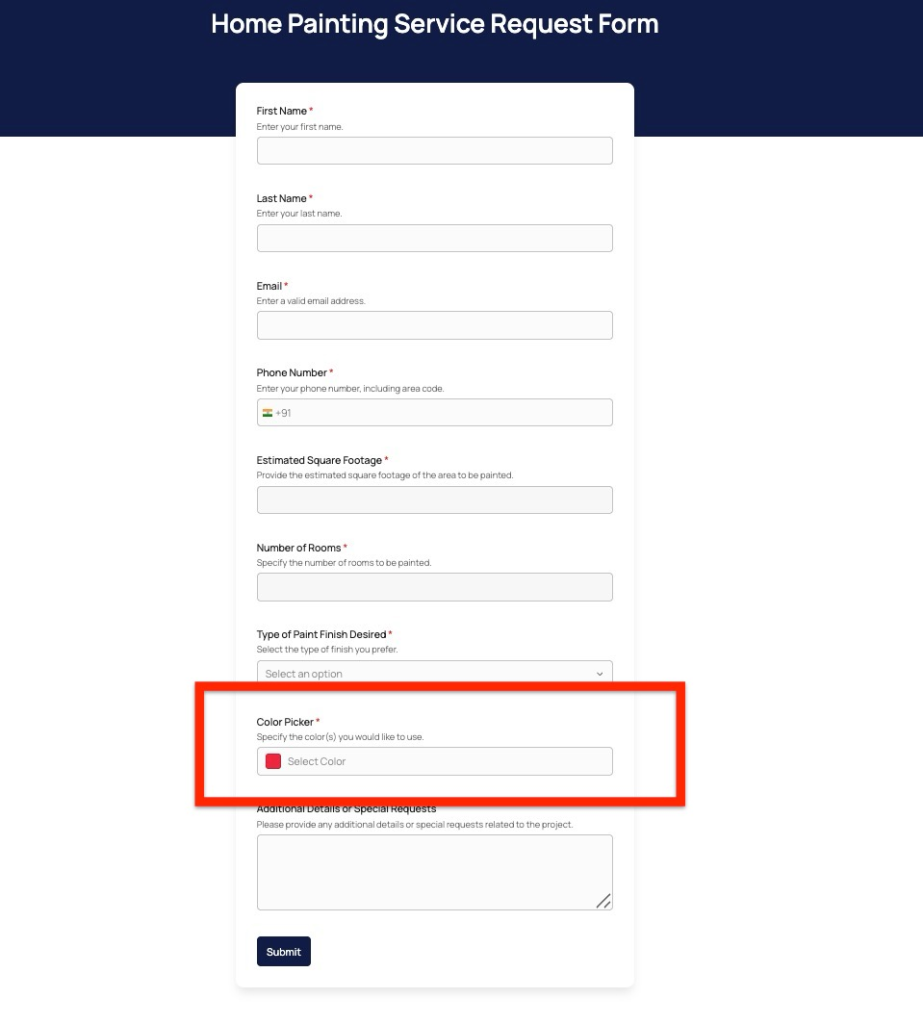
The Color Picker field lets users select and submit a color value (as a hex code) directly from your form, useful for brand onboarding, product customization, design briefs, and more.
Adding a Color Picker Field
- Open the form you want to edit in SureForms.
- Click the Add Field button.
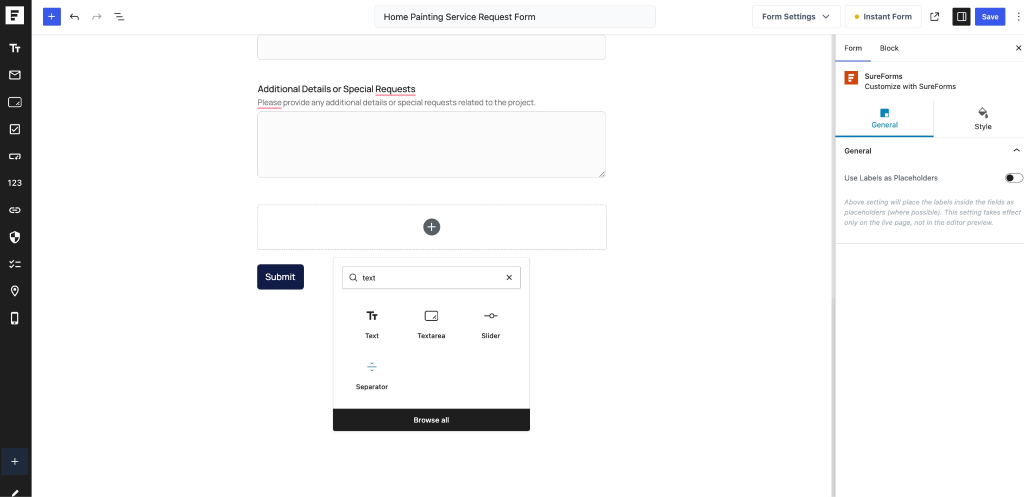
- Search for and add a Text Box field.
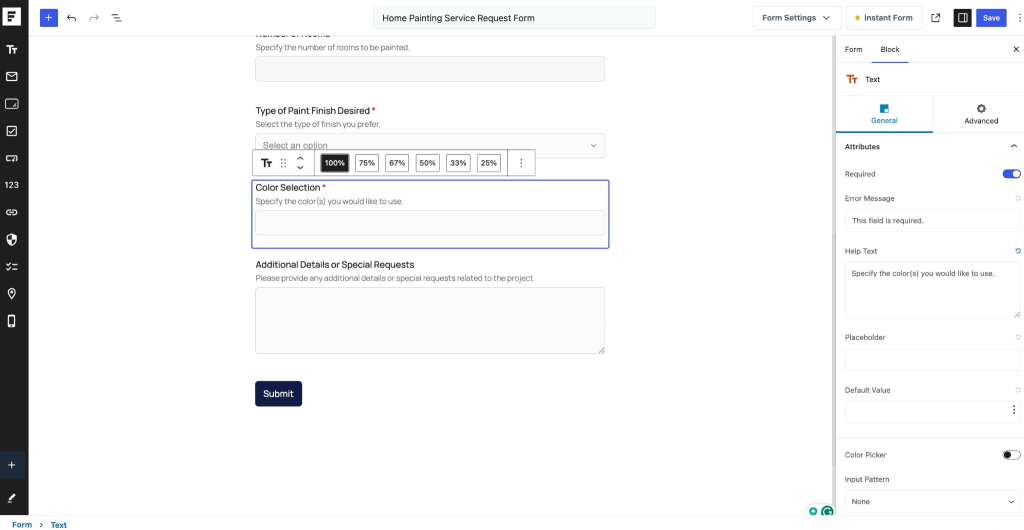
- Select the Text Box field to open its settings.
- Enable the Color Picker option.
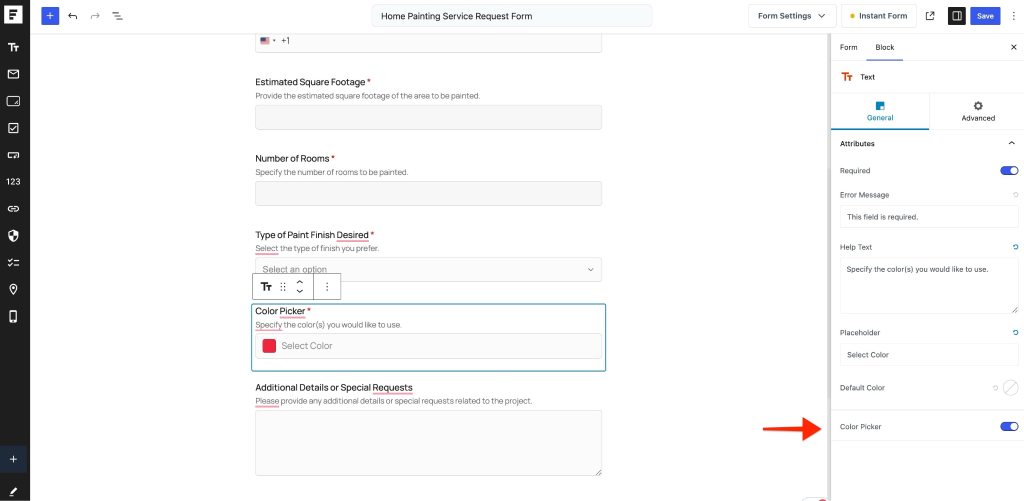
Once enabled, the Text Box field will automatically transform into a Color Picker field.
Note: The Color Picker is not a standalone field. It is built into the Text Box field and enabled via its settings.
Configuring the Color Picker Field
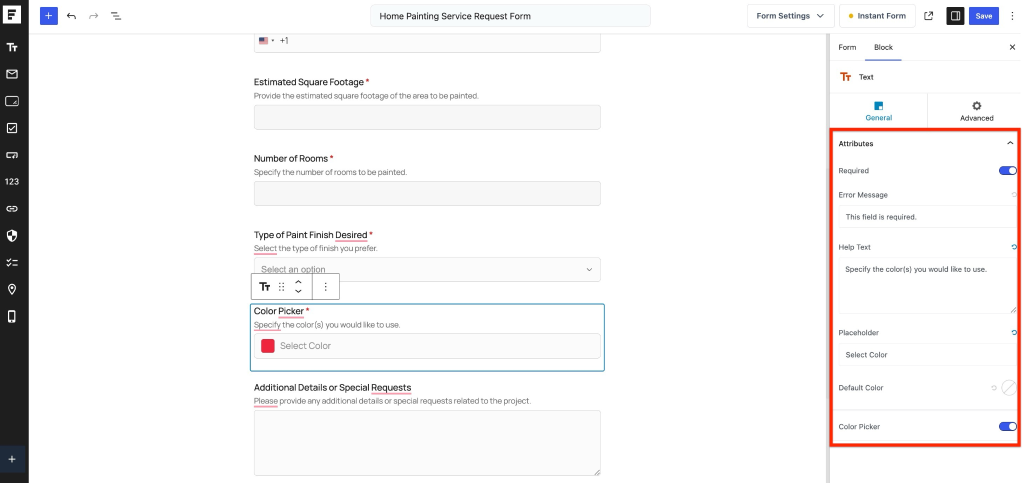
Mark the Field as Required
If users must select a color before submitting the form:
- Enable the Required option.
- Enter a custom error message if desired.
Example Error Message: Please select a color before submitting the form.
Add Help Text
Help text provides additional instructions to users.
Examples:
- Select your preferred brand color.
- Choose the color that best matches your design.
- Pick a color for your product customization.
Add a Placeholder
The placeholder helps guide users before they select a color.
Example Placeholder: Select a color
Set a Default Color
You can pre-select a color for users when the form loads.
- Click the Default Color option.
- Choose the color you want to use as the default value.
Examples:
- White (#FFFFFF)
- Black (#000000)
- Blue (#0000FF)
- Your company brand color
Publishing the Form
Once you have configured the Color Picker field:
- Save the form.
- Open the form on the front end to test the Color Picker.
- You can also embed the form on your website.
Users can click the field, choose a color, and submit their selection along with the rest of the form data.
Example Use Cases
1. Client Onboarding – Brand Color Collection: Agencies and designers can use the Color Picker during client onboarding to capture a client’s primary and secondary brand colors. Set the Default Color to white (#FFFFFF) as a neutral starting point, and add help text like “Select your primary brand color” to guide clients clearly.
2. Custom Product Orders (E-commerce): Online stores offering personalized products such as t-shirts, mugs, phone cases, or furniture can let customers choose their preferred color at the time of order. Mark the field as Required to ensure no order is submitted without a color selection, and use a placeholder like “Pick your product color.”
3. Website or App Design Briefs: Web developers and UI/UX designers can embed a project intake form that collects the client’s preferred color palette. Pair the Color Picker with a Text or Textarea field asking the client to describe the mood or style they want, giving the designer both a visual and written reference.
4. Event Decoration or Venue Styling: Event planners can use the Color Picker in booking forms to let clients specify their décor color scheme, for example, choosing table linen colors, floral arrangement tones, or balloon colors for weddings, parties, or corporate events.
5. Interior Design Consultation Forms: Interior designers can collect room color preferences during initial consultations. Add help text such as “Choose the wall color you have in mind” and set a neutral default like beige or white to represent a blank canvas.
6. User Interface Theme Preferences: SaaS products and dashboards can use the Color Picker in user preference or settings forms to let users choose their preferred accent or theme color. This is especially useful for apps that support custom UI theming.
7. Print & Merchandise Design Requests: Print shops, promotional product vendors, and marketing agencies can use the Color Picker in design request forms to capture exact hex values for business cards, banners, or branded merchandise, reducing back-and-forth over color choices.
8. School or Community Project Sign-ups: Schools, clubs, or community organizations can use the Color Picker to let participants choose team colors, jersey colors, or house/group colors when signing up for an event or competition.
9. Feedback & Mood Surveys: For more creative or UX research purposes, a Color Picker can serve as a qualitative data point asking users “What color represents your experience with our product today?” This adds an unconventional but engaging dimension to feedback forms.
10. Real Estate & Interior Paint Selection: Real estate developers or property management companies can include a Color Picker in renovation preference forms, allowing tenants or buyers to indicate their preferred wall or trim paint color from available options.
We don't respond to the article feedback, we use it to improve our support content.