
- Creating and Publishing a Form
- Conversational Form
- Create Multi Step Forms In WordPress
- Using Calculations in SureForms: A Step-by-Step Guide
- Calculation Formula Guide
- SureForms Login Block – Step-by-Step Guide
- SureForms Registration Block – Step-by-Step Guide
- SureForms – PDF Generation Feature
- GDPR Compliant Forms
- Create WordPress Forms With Conditional Logic
- Adjust Form Notification Emails
- Form Confirmation
- Entries Management Feature Guide
- How to Add Query Parameters to Form Redirects
- How to Fetch Query Parameters from URL
- Set the “From Email” in SureForms
- Setting Up “Reply-To” Email Using Form Input Tags – SureForms
- Restrict Form Entries in SureForms
- Form Scheduling in SureForms
- Conditional Confirmations in SureForms
- How to Connect Your Stripe Account with SureForms
- How to Connect PayPal in SureForms
- How to Create a Payment Form in SureForms
- SureForms Payments
- How Refunds Work in SureForms Payments
- Understanding Payment Processing Fees
- How to Display the Payment Dashboard on the Frontend (SureForms)
- Enable One-Time Payment and Subscription in a Single Form
- SureForms Integration with ActiveCampaign
- SureForms Integration with AgileCRM
- SureForms Integration with Airtable
- SureForms Integration with LatePoint
- SureForms Integration with FluentCRM
- Connect SureForms To Zapier
- WordPress Forms with the Custom App Builder
- SureForms Integration with Telegram
- SureForms Integration with Breeze
- SureForms Integration with Brevo
- Unable to Upload SureForms ZIP: File Unzipped On Download
- Browser Support for SureForms
- Not Getting Update Notifications
- How To Rollback to Previous SureForms Versions
- Publishing Failed: Invalid JSON Response
- Troubleshooting Email Sending In SureForms
- SureForm Submissions Marked as Spam – How to Fix
- API Request Failed – Nonce Verification Error
- Fixing the “Destination folder already exists” Error When Installing SureForms
- How to Set Up SureForms with Caching Plugins
- srfm_enable_redirect_activation
- sureforms_plugin_action_links
- srfm_quick_sidebar_allowed_blocks
- srfm_integrated_plugins
- srfm_suretriggers_integration_data_filter
- srfm_form_submit_response
- srfm_enable_gutenberg_post_types
- srfm_languages_directory
- srfm_form_template
- srfm_disable_nps_survey
Global Defaults in SureForms
The Global Defaults tab in SureForms helps you define default settings that are automatically applied whenever you create a new form.
Instead of configuring the same settings again and again, you can set them once here and reuse them across all new forms.
Overview
The Global Defaults section is divided into four main areas. Each one controls a different part of your form’s behavior.
- Email Notification
- Form Confirmation
- Form Restrictions
- Compliance Settings
Email Notification
This section allows you to set default email settings for form submissions. These emails are typically sent to the admin or site owner when a form is submitted.
Available Options
- Send Email To
- Subject
- Confirmation Message
- From Name
- From Email
- CC
- BCC
- Reply To
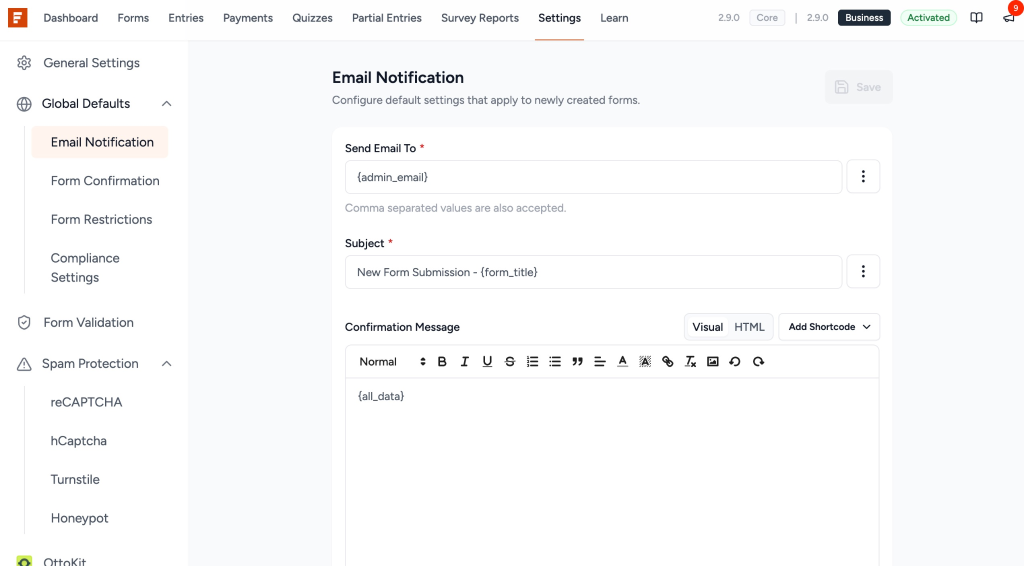
These settings are automatically applied to new forms, but you can still customize them later for each form if needed.
Form Confirmation
This section controls what users see or experience after they submit a form.
Available Options
- Confirmation Type
- Success Message
- Redirect
- Confirmation Message
- After Form Submission
- Hide Form
- Reset Form
- Redirect To
- Page
- Custom URL
- Select Page to redirect
- Query Parameters
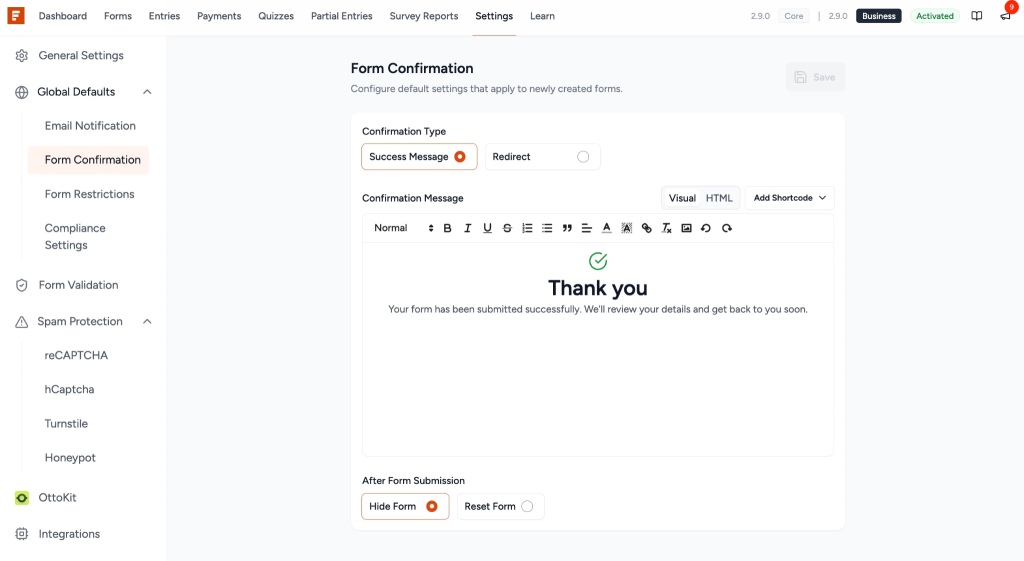
This helps you guide users after submission, such as showing a thank-you message or sending them to another page.
Form Restrictions
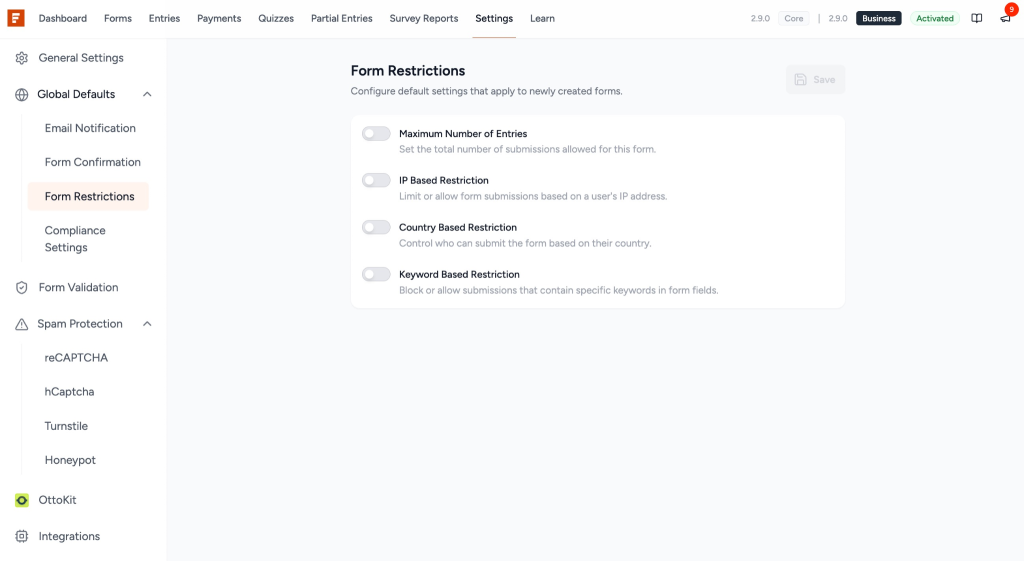
This section allows you to control how and when a form can be submitted.
Free Features
- Maximum Number of Entries – Limit how many submissions a form can accept
Pro Features (if enabled)
- IP-based Restriction – Allow or block specific IP addresses
- Country-based Restriction – Restrict submissions by country
- Keyword Based Restriction – Block submissions containing specific words
Each restriction can be turned on or off based on your needs.
Compliance Settings
This section helps you manage user data responsibly and stay compliant with privacy regulations.
Available Options
- Enable GDPR Compliance
- Never store entry data after form submission
- Automatically delete entries
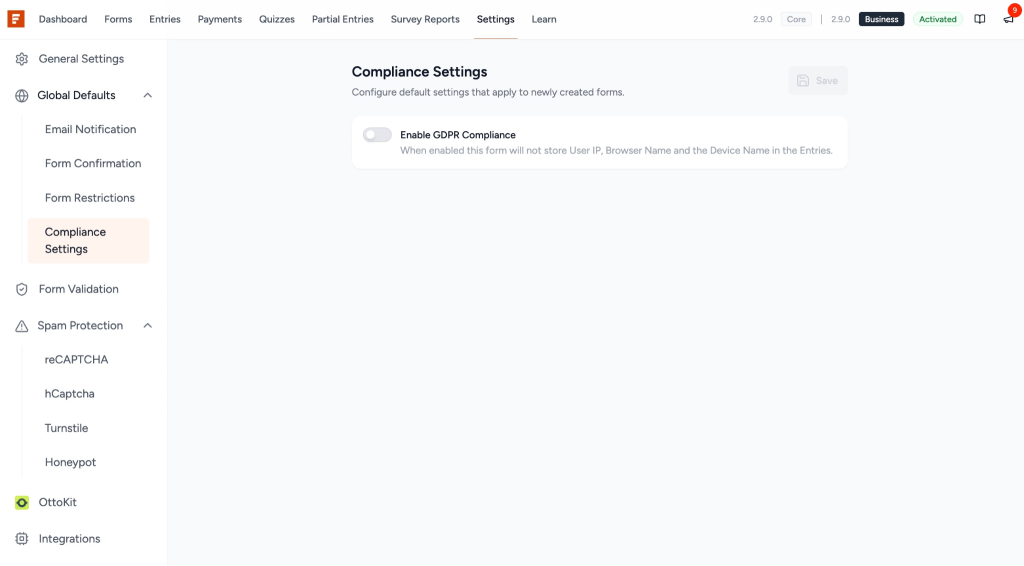
These settings are useful if you handle sensitive user data or need to follow privacy laws.
How It Works
When you create a new form:
- SureForms reads the settings from Global Defaults
- These settings are copied into the new form
- The form becomes independent and can be edited separately
This means:
- You can customize each form individually
- Changes in Global Defaults will not update existing forms
Pro Extension (Form Restrictions)
The Form Restrictions section can be extended in the Pro version with advanced controls.
Additional Features
- IP allow/block lists
- Country-based restrictions
- Keyword filtering
Each feature includes:
- Enable/disable toggle
- Custom message for users
- Flexible rule configuration
We don't respond to the article feedback, we use it to improve our support content.