
- Creating and Publishing a Form
- Conversational Form
- Create Multi Step Forms In WordPress
- Using Calculations in SureForms: A Step-by-Step Guide
- Calculation Formula Guide
- SureForms Login Block – Step-by-Step Guide
- SureForms Registration Block – Step-by-Step Guide
- SureForms – PDF Generation Feature
- GDPR Compliant Forms
- Create WordPress Forms With Conditional Logic
- Adjust Form Notification Emails
- Form Confirmation
- Entries Management Feature Guide
- How to Add Query Parameters to Form Redirects
- How to Fetch Query Parameters from URL
- Set the “From Email” in SureForms
- Setting Up “Reply-To” Email Using Form Input Tags – SureForms
- Restrict Form Entries in SureForms
- Form Scheduling in SureForms
- Conditional Confirmations in SureForms
- How to Connect Your Stripe Account with SureForms
- How to Connect PayPal in SureForms
- How to Create a Payment Form in SureForms
- SureForms Payments
- How Refunds Work in SureForms Payments
- Understanding Payment Processing Fees
- How to Display the Payment Dashboard on the Frontend (SureForms)
- Enable One-Time Payment and Subscription in a Single Form
- SureForms Integration with ActiveCampaign
- SureForms Integration with AgileCRM
- SureForms Integration with Airtable
- SureForms Integration with LatePoint
- SureForms Integration with FluentCRM
- Connect SureForms To Zapier
- WordPress Forms with the Custom App Builder
- SureForms Integration with Telegram
- SureForms Integration with Breeze
- SureForms Integration with Brevo
- Unable to Upload SureForms ZIP: File Unzipped On Download
- Browser Support for SureForms
- Not Getting Update Notifications
- How To Rollback to Previous SureForms Versions
- Publishing Failed: Invalid JSON Response
- Troubleshooting Email Sending In SureForms
- SureForm Submissions Marked as Spam – How to Fix
- API Request Failed – Nonce Verification Error
- Fixing the “Destination folder already exists” Error When Installing SureForms
- How to Set Up SureForms with Caching Plugins
- srfm_enable_redirect_activation
- sureforms_plugin_action_links
- srfm_quick_sidebar_allowed_blocks
- srfm_integrated_plugins
- srfm_suretriggers_integration_data_filter
- srfm_form_submit_response
- srfm_enable_gutenberg_post_types
- srfm_languages_directory
- srfm_form_template
- srfm_disable_nps_survey
How to Translate SureForms Forms Using WPML
If your site serves visitors in multiple languages, translating your forms ensures a seamless experience for every user. SureForms is compatible with WPML, allowing you to create multilingual forms and display them in your visitors’ preferred language.
This guide will show you how to translate your SureForms forms using WPML’s Translation Dashboard and Advanced Translation Editor.
Prerequisites
Before you begin, ensure the following plugins are installed and activated:
- WPML Multilingual CMS
- WPML String Translation
- SureForms
Additionally, ensure you have at least one secondary language configured in WPML before proceeding. If you haven’t set up WPML languages yet, Step 1 below will guide you through it.
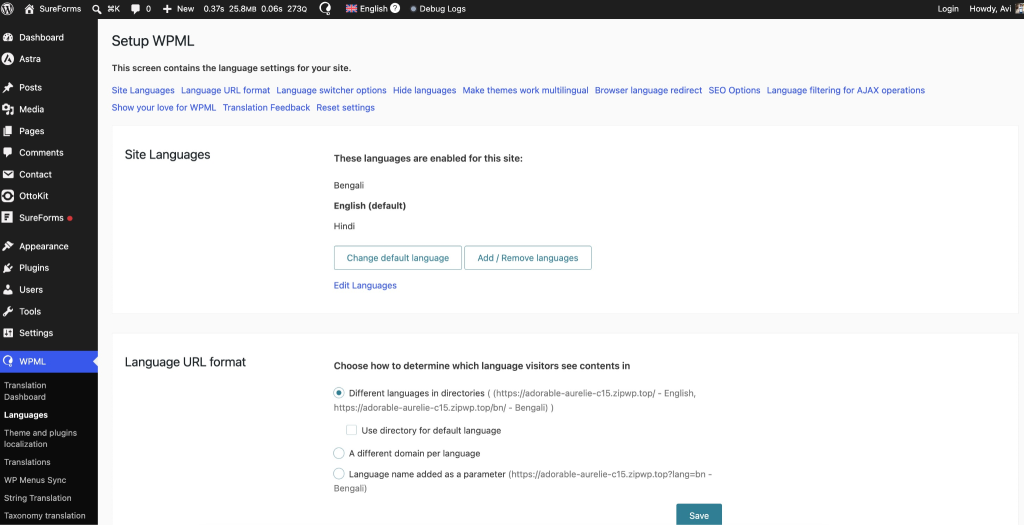
Step 1: Configure WPML Languages
Before translating your forms, configure the languages available on your website.
- Navigate to WPML → Languages.
- Select your site’s default language.
- Add the secondary languages you want to support.
- Save your changes.
Step 2: Open the WPML Translation Dashboard
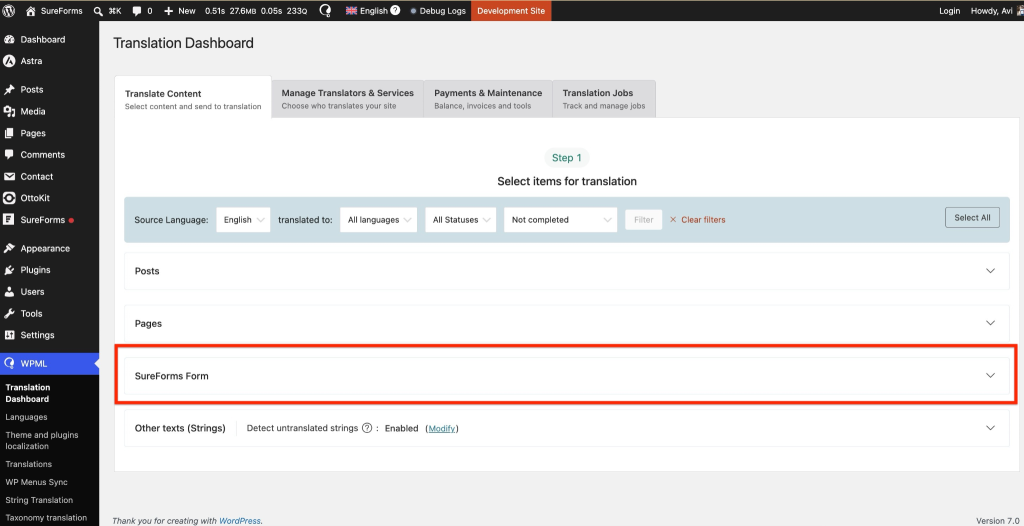
- Navigate to WPML → Translation Dashboard.
- In the dashboard, locate the available content types that can be translated.
Step 3: Select a SureForms Form for Translation
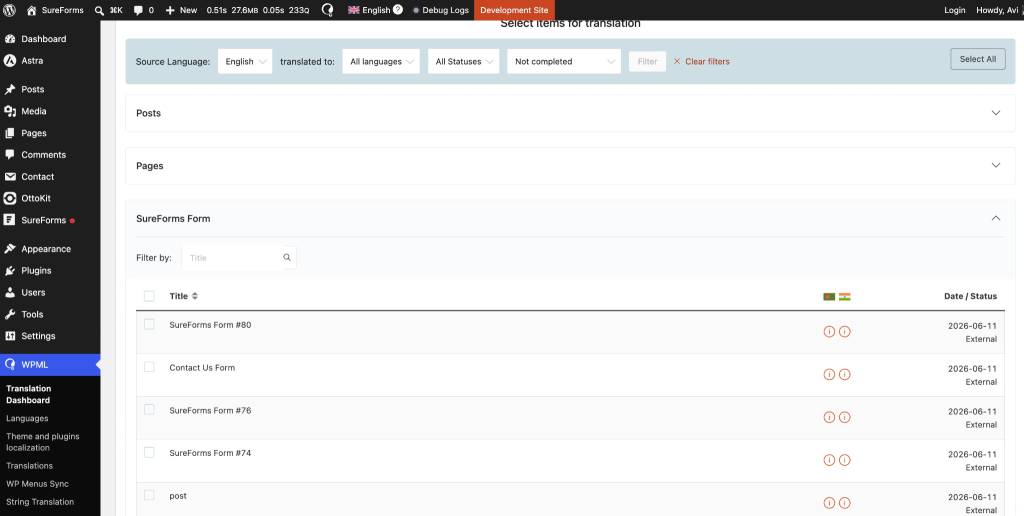
- Find SureForms in the list of translatable content.
- Click to expand the section.
- Select the form you want to translate.
Step 4: Choose a Translation Method
After selecting your form, choose how you would like to translate it.
Automatic Translation
- Select Translate Automatically.
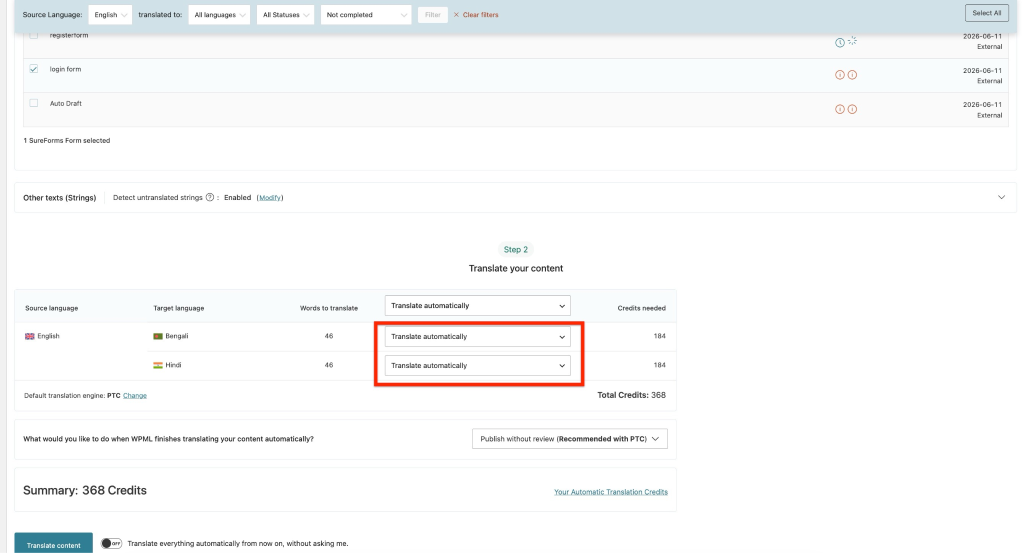
- Select the post-translation behavior from the options below:
| Option | Description |
| Publish without review | The translation is published immediately. |
| Wait for review | The translation remains unpublished until reviewed. |
| Publish and mark for review | The translation is published and flagged for later review. |
- Click Translate Content.
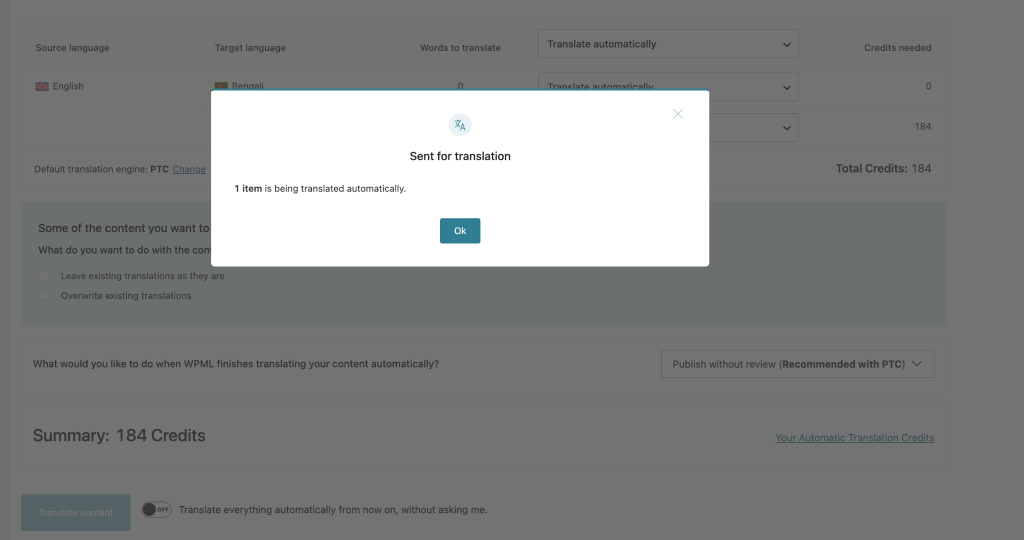
Manual Translation
If you prefer to translate the form yourself:
- Select Translate Myself.
- Click Translate Content.
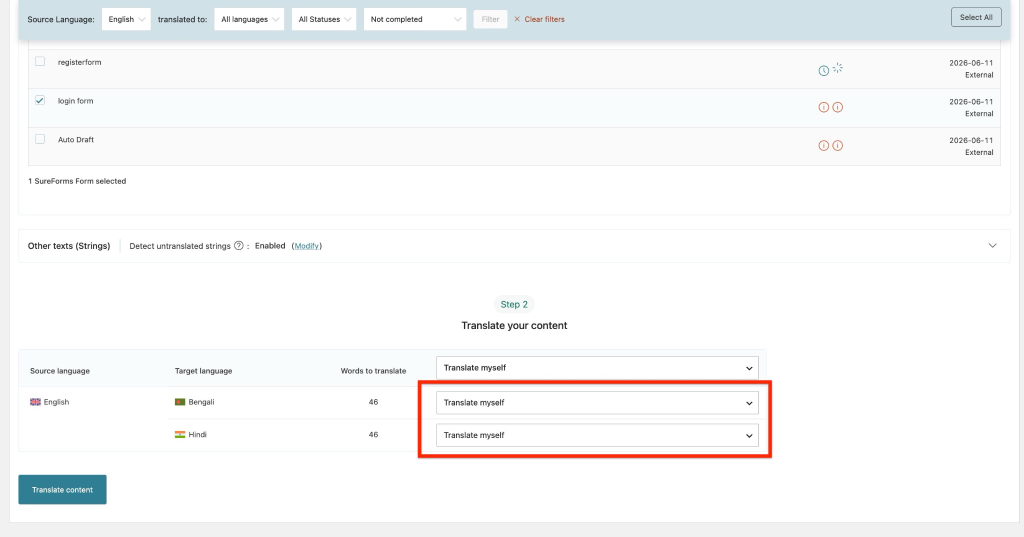
Step 5: Send the Form for Translation
After clicking Translate Content, WPML will create a translation task and display a confirmation message.
You can click the provided link or go to
WPML → Translations
to view the translation queue and track the status.
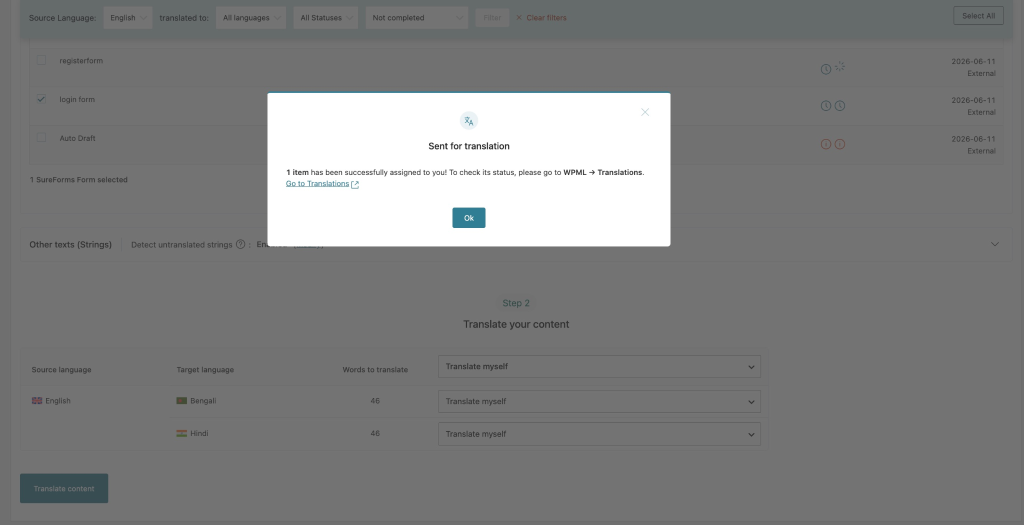
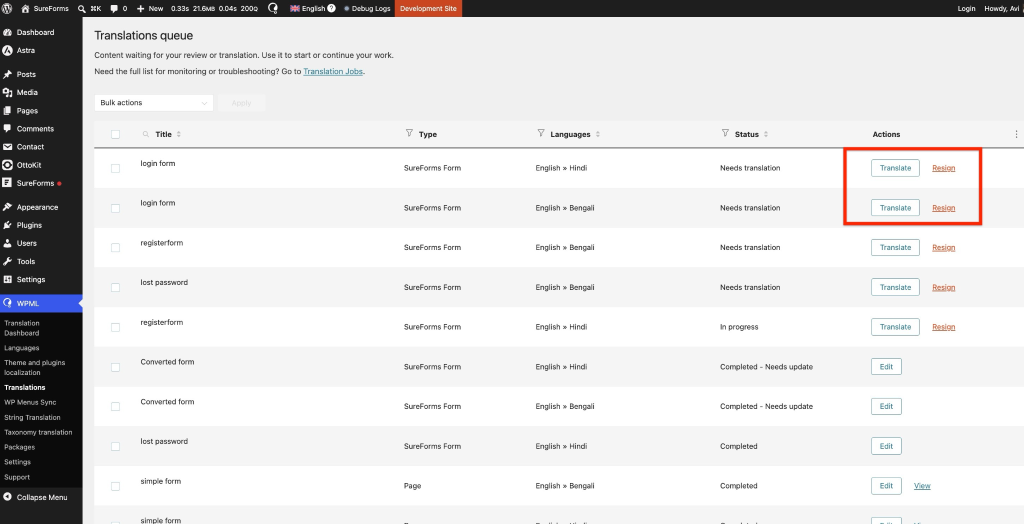
Step 6: Translate Form Content
- In the Translations queue, locate the translation task for your form.
- Click Translate.
WPML’s Advanced Translation Editor will open and display all translatable strings from your SureForms form.
Step 7: Complete the Translation
- Translate each form string into the target language.
- Review all translated content.
- Click Save and Complete when finished.
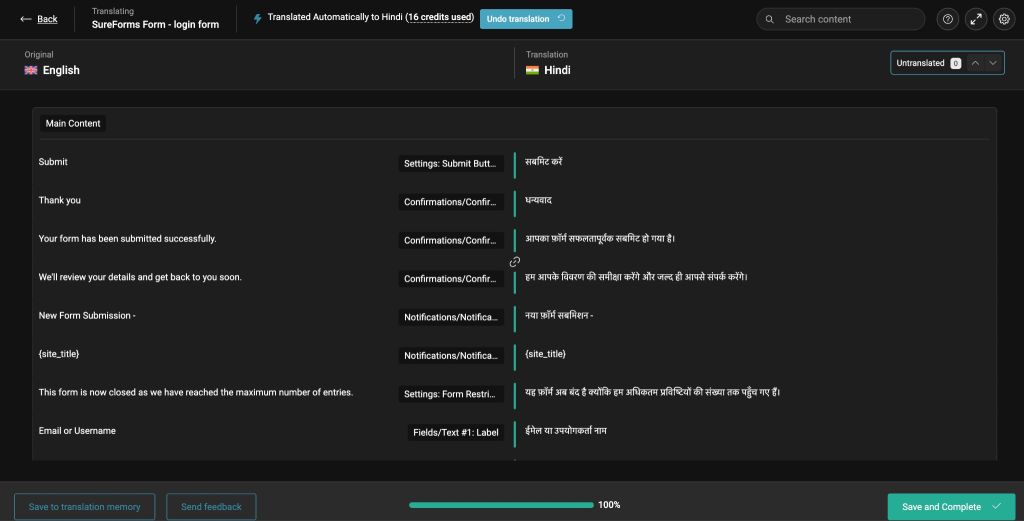
Step 8: Display the Translated Form on Your Website
Once the translation is complete:
- Embed the SureForms form on your page as usual.
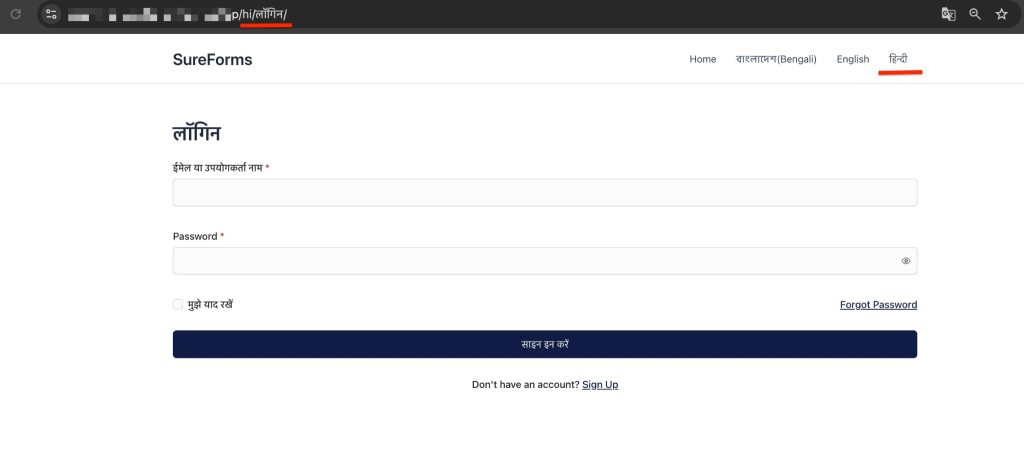
- Ensure your website includes a WPML language switcher in the header, footer, menu, or another location.
- When visitors switch languages, WPML will automatically display the translated version of the form.
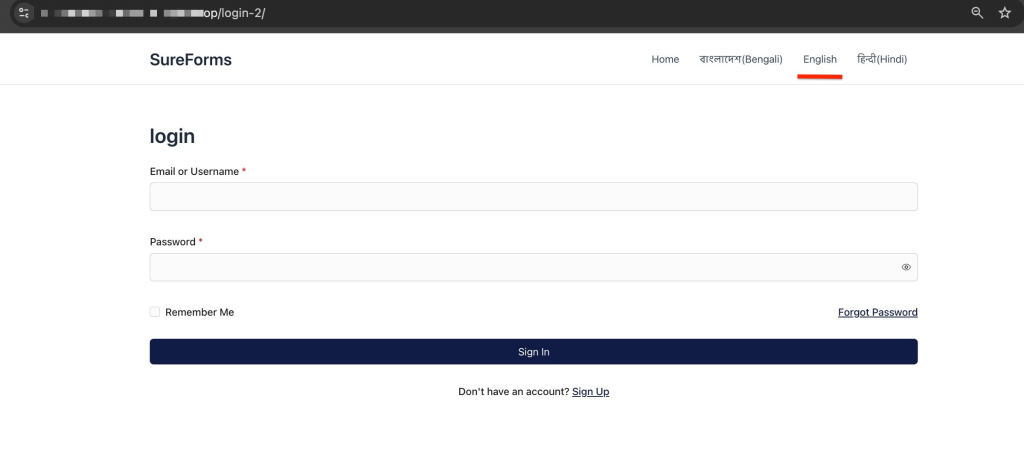
Troubleshooting
The form does not appear in the Translation Dashboard
- Ensure the form has been saved and published.
- Refresh the Translation Dashboard.
- Verify that WPML Multilingual CMS and WPML String Translation are activated.
- Confirm that SureForms is active and up to date.
The translation task is not visible
- Navigate to WPML → Translations and check for pending tasks.
- Refresh the page and try again.
- If the task still does not appear after refreshing, resend the form for translation from the Translation Dashboard.
The translated form is not displaying
- Verify that the page containing the form is available in the selected language.
- Confirm that the WPML language switcher is functioning correctly.
- Clear any website, server, or browser cache.
Result
Your SureForms form is now translated and will automatically display in the language selected by your visitors through WPML. To confirm it is working, switch languages using the WPML language switcher on the front end and verify that the translated form appears correctly.
We don't respond to the article feedback, we use it to improve our support content.