
- Creating and Publishing a Form
- Conversational Form
- Create Multi Step Forms In WordPress
- Using Calculations in SureForms: A Step-by-Step Guide
- Calculation Formula Guide
- SureForms Login Block – Step-by-Step Guide
- SureForms Registration Block – Step-by-Step Guide
- SureForms – PDF Generation Feature
- GDPR Compliant Forms
- Create WordPress Forms With Conditional Logic
- Adjust Form Notification Emails
- Form Confirmation
- Entries Management Feature Guide
- How to Add Query Parameters to Form Redirects
- How to Fetch Query Parameters from URL
- Set the “From Email” in SureForms
- Setting Up “Reply-To” Email Using Form Input Tags – SureForms
- Restrict Form Entries in SureForms
- Form Scheduling in SureForms
- Conditional Confirmations in SureForms
- How to Connect Your Stripe Account with SureForms
- How to Connect PayPal in SureForms
- How to Create a Payment Form in SureForms
- SureForms Payments
- How Refunds Work in SureForms Payments
- Understanding Payment Processing Fees
- How to Display the Payment Dashboard on the Frontend (SureForms)
- Enable One-Time Payment and Subscription in a Single Form
- SureForms Integration with ActiveCampaign
- SureForms Integration with AgileCRM
- SureForms Integration with Airtable
- SureForms Integration with LatePoint
- SureForms Integration with FluentCRM
- Connect SureForms To Zapier
- WordPress Forms with the Custom App Builder
- SureForms Integration with Telegram
- SureForms Integration with Breeze
- SureForms Integration with Brevo
- Unable to Upload SureForms ZIP: File Unzipped On Download
- Browser Support for SureForms
- Not Getting Update Notifications
- How To Rollback to Previous SureForms Versions
- Publishing Failed: Invalid JSON Response
- Troubleshooting Email Sending In SureForms
- SureForm Submissions Marked as Spam – How to Fix
- API Request Failed – Nonce Verification Error
- Fixing the “Destination folder already exists” Error When Installing SureForms
- How to Set Up SureForms with Caching Plugins
- srfm_enable_redirect_activation
- sureforms_plugin_action_links
- srfm_quick_sidebar_allowed_blocks
- srfm_integrated_plugins
- srfm_suretriggers_integration_data_filter
- srfm_form_submit_response
- srfm_enable_gutenberg_post_types
- srfm_languages_directory
- srfm_form_template
- srfm_disable_nps_survey
Upload Form Files and Signatures to Dropbox with SureForms
SureForms allows you to automatically upload files and signature submissions directly to Dropbox. This integration helps you store uploaded documents securely in cloud storage instead of relying solely on your website’s server storage.
Whether you’re collecting contracts, resumes, signed agreements, identification documents, or other files, Dropbox integration provides a centralized and organized storage solution.
Benefits of Using Dropbox Integration
Using Dropbox with SureForms offers several advantages:
- Reduce storage usage on your website server.
- Store uploaded files securely in your Dropbox account.
- Automatically organize form uploads in specific folders.
- Access files from anywhere using Dropbox.
- Keep signed documents and uploaded files together.
- Simplify document management for teams and businesses.
- Create a reliable backup of important form submissions.
Prerequisites
Before you begin, make sure you have:
- SureForms installed and activated.
- A Dropbox account.
- A form containing either:
- File Upload field
- Signature field
- Or both
Step 1: Connect Dropbox in SureForms Settings
The Dropbox connection is configured globally and can be reused across multiple forms.
Navigate to Integrations
- Go to SureForms > Settings.
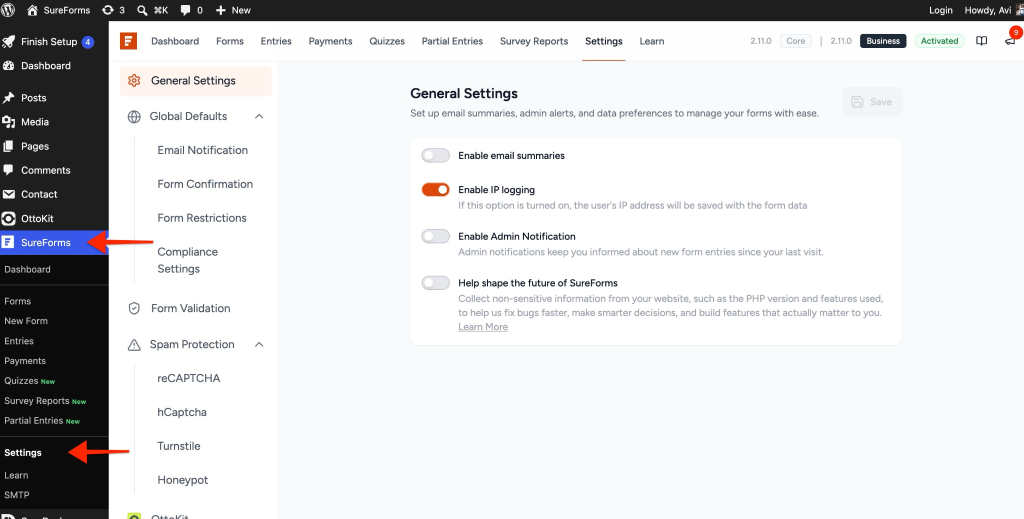
- Open the Integrations tab.
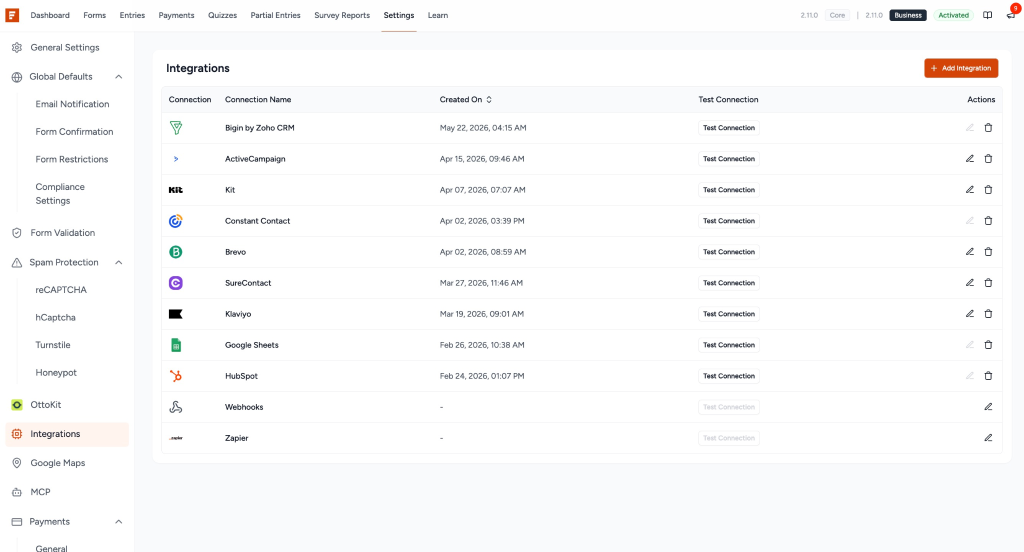
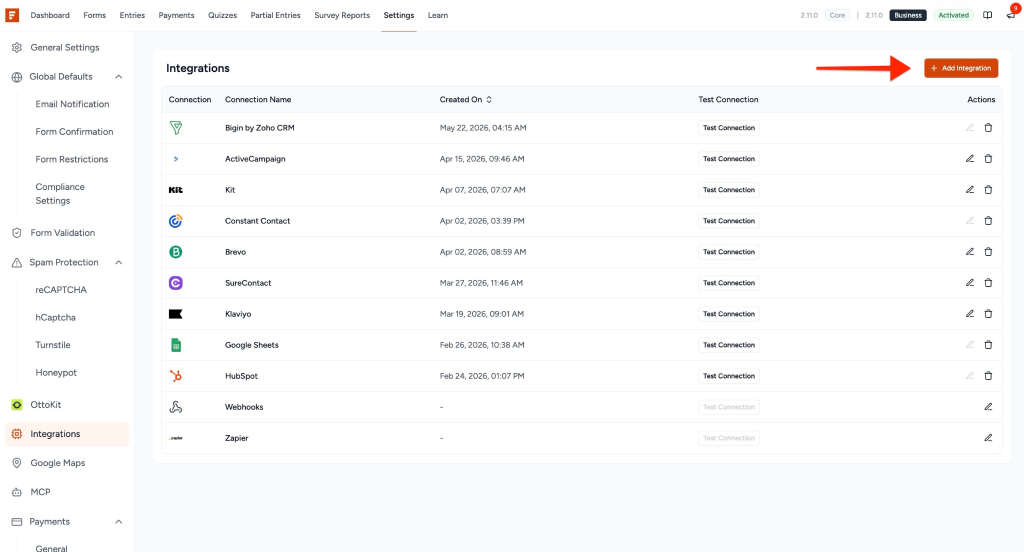
- Click Add Integration.
Search for Dropbox
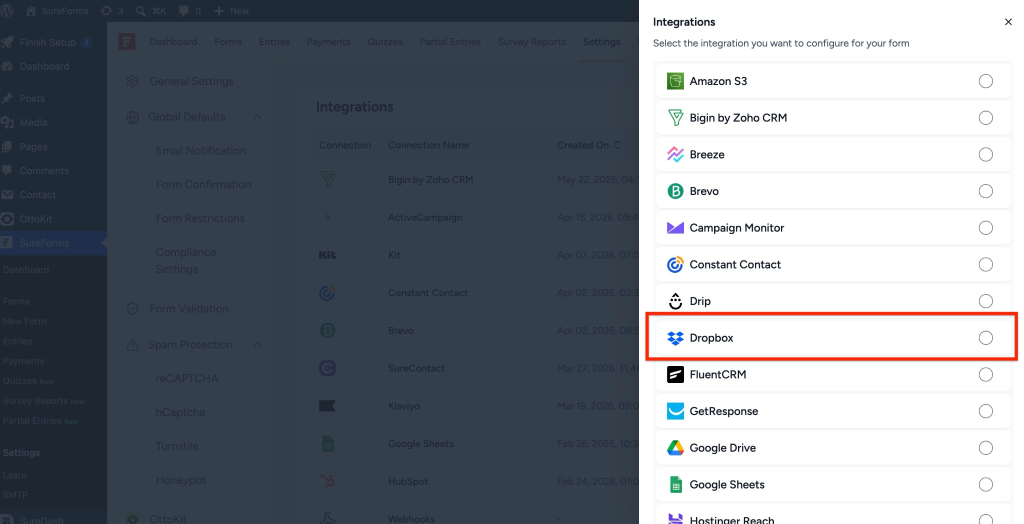
- Search for Dropbox.
- Select the Dropbox integration option.
Authenticate Your Dropbox Account
- A Dropbox login window will appear.
- Sign in to your Dropbox account.
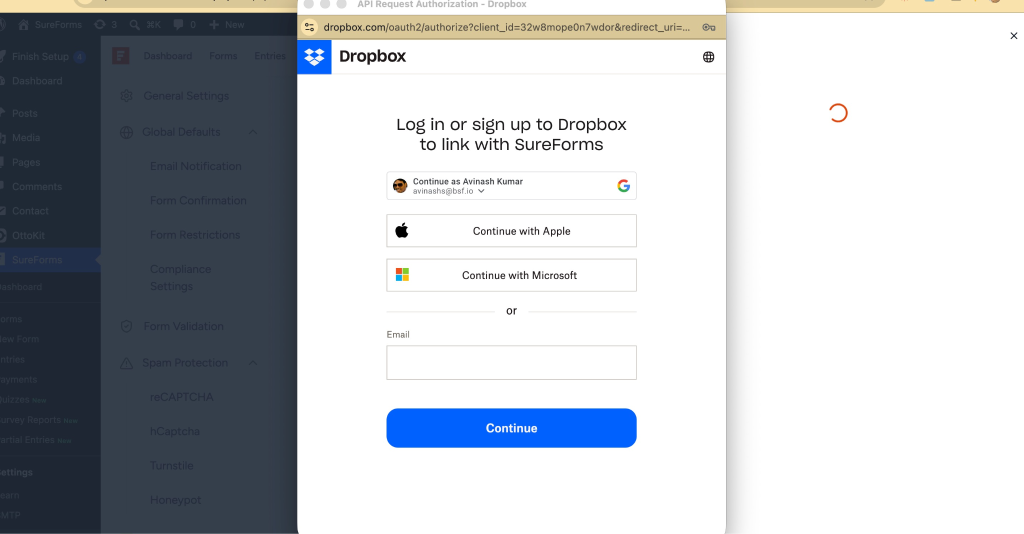
- Grant the required permissions.
If you are already logged into Dropbox in your browser, the connection may be authorized automatically.
Once authentication is complete, SureForms will create the Dropbox connection.
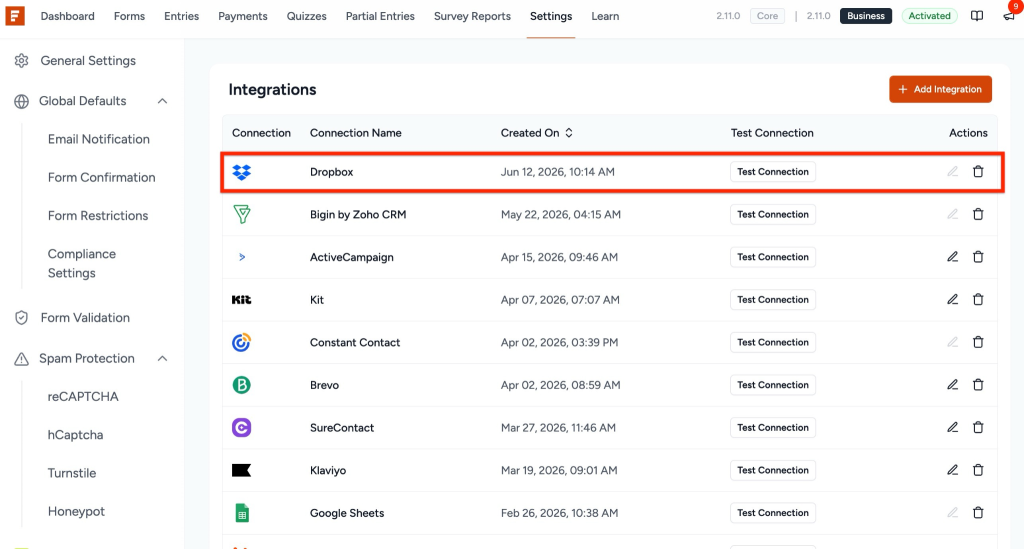
Verify the Connection
After successful authentication, the Dropbox connection will appear in your integrations list and will be available for use in your forms.
Step 2: Create a Form with File Upload or Signature Fields
To send files to Dropbox, your form must contain at least one supported field.
Supported fields:
- File Upload
- Signature
Add a File Upload Field
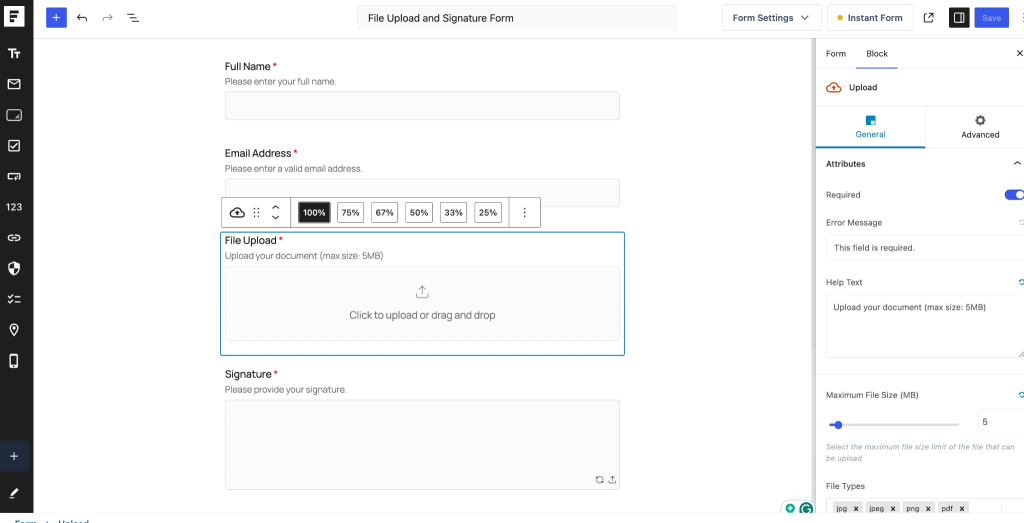
- Create a new form or edit an existing form.
- Add a File Upload field.
- Configure:
- Allowed file types
- Maximum file size
- Number of files allowed
Since uploaded files will be stored in Dropbox, you can define file size limits according to your requirements.
Add a Signature Field (Optional)
If you collect signed agreements or consent forms, add a Signature field to your form.
Any signature captured through the form can also be automatically uploaded to Dropbox.
Step 3: Configure Dropbox at the Form Level
After creating your form, configure the Dropbox workflow.
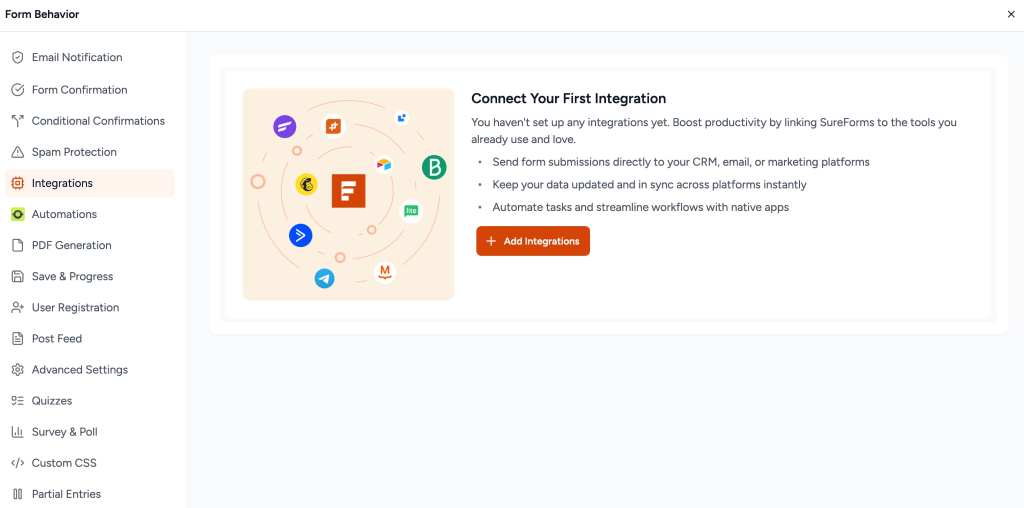
Open Form Integrations
- Edit the form.
- Navigate to Form Settings.
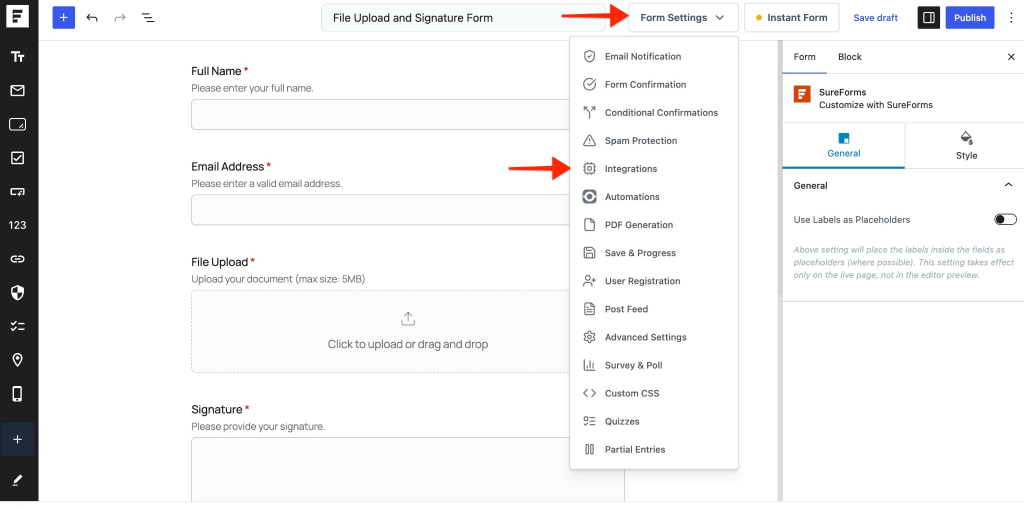
- Click Integrations.
- Click Add Integration.
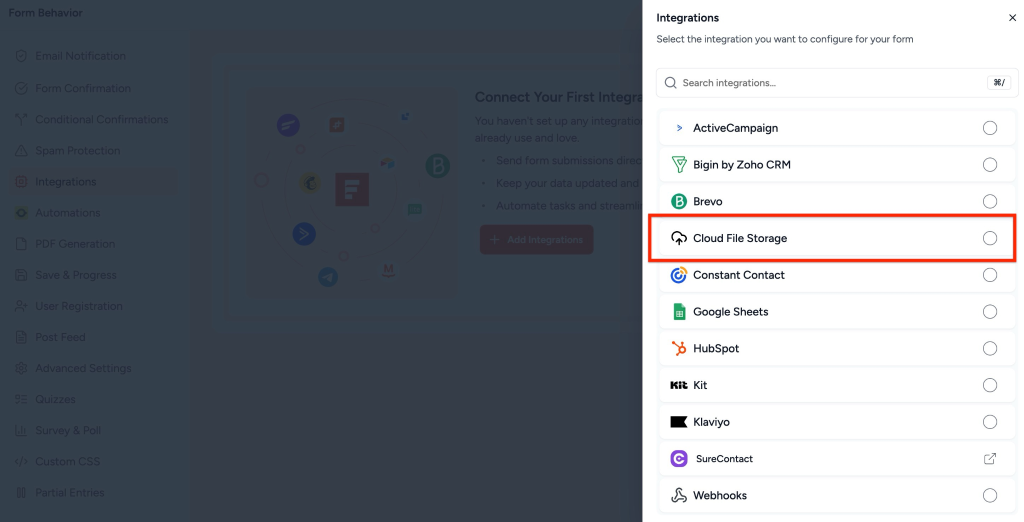
Select Cloud File Storage
- Choose Cloud File Storage from the available integrations.
- Enter a workflow name such as:
- Dropbox Upload
- Document Storage
- File Backup
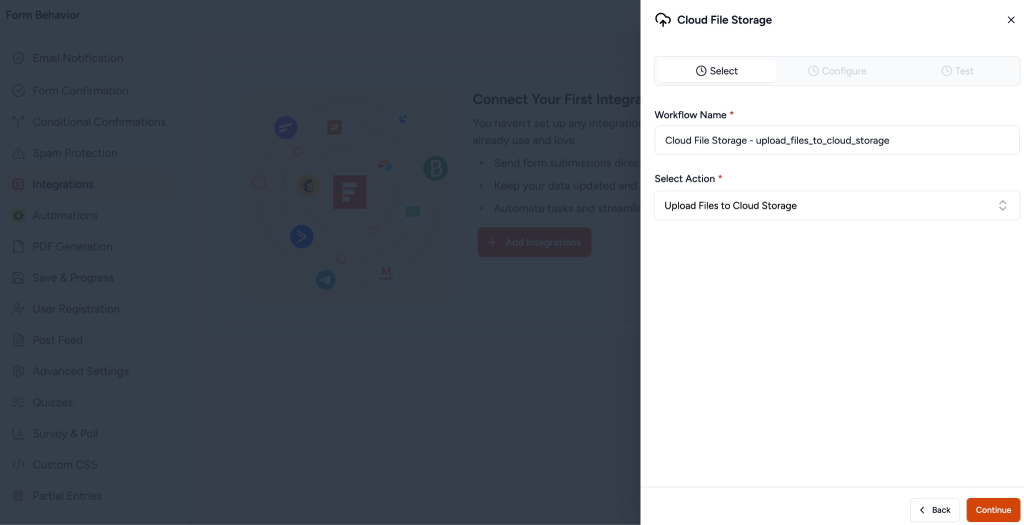
Choose the Action
- Select Upload File to Cloud as the action.
- Click Continue.
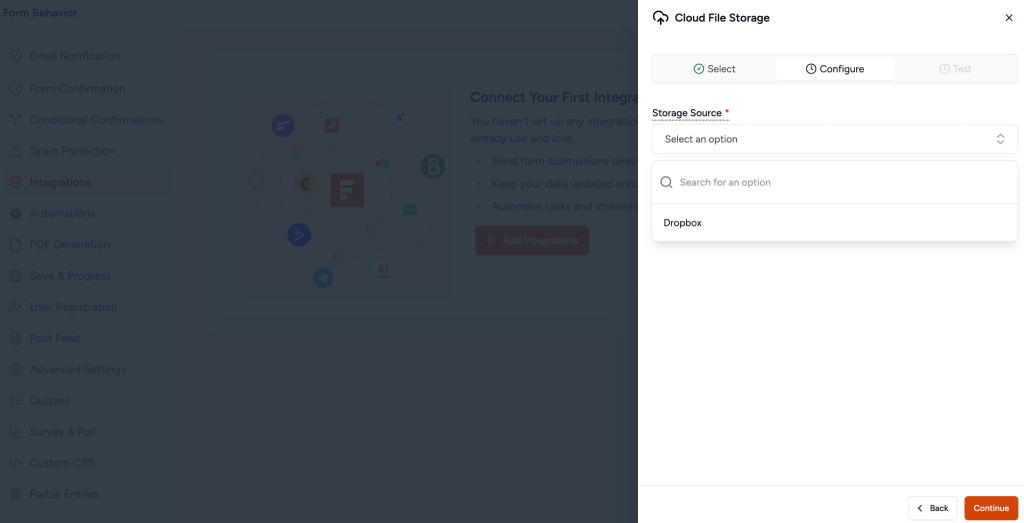
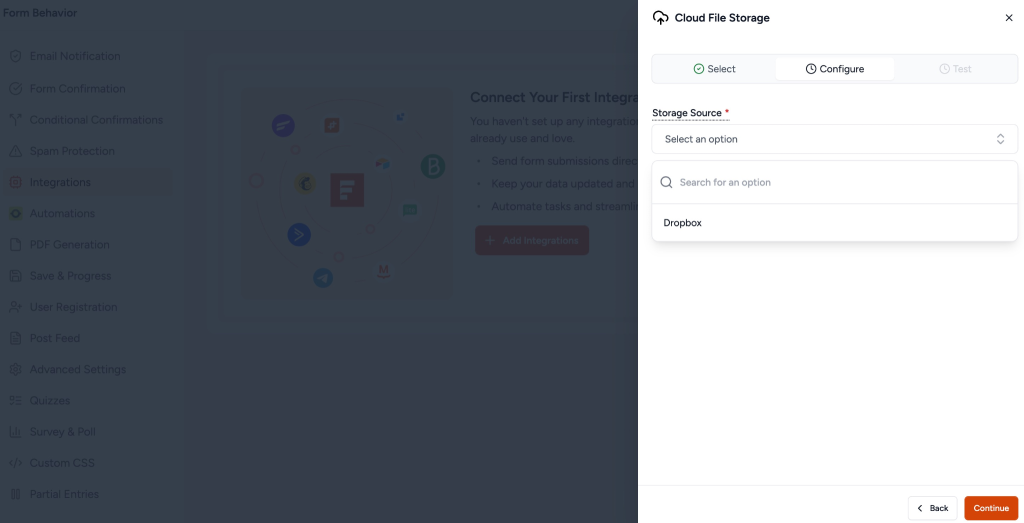
Select Dropbox as Storage Source
- From the Storage Source dropdown, select Dropbox.
- The Dropbox connection created earlier will be available for selection.
Configure Upload Folder
You can choose where files should be stored inside Dropbox.
Options include:
- Select an existing Dropbox folder.
- Create a new folder directly from SureForms.
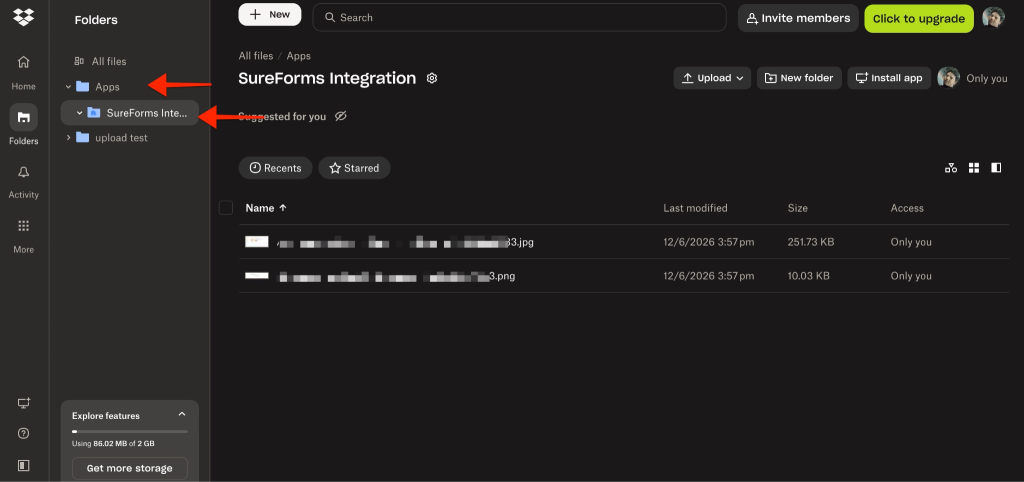
By default, files are stored within the SureForms application directory inside Dropbox.
For example:
Apps/
└── SureForms/
└── Form Uploads/
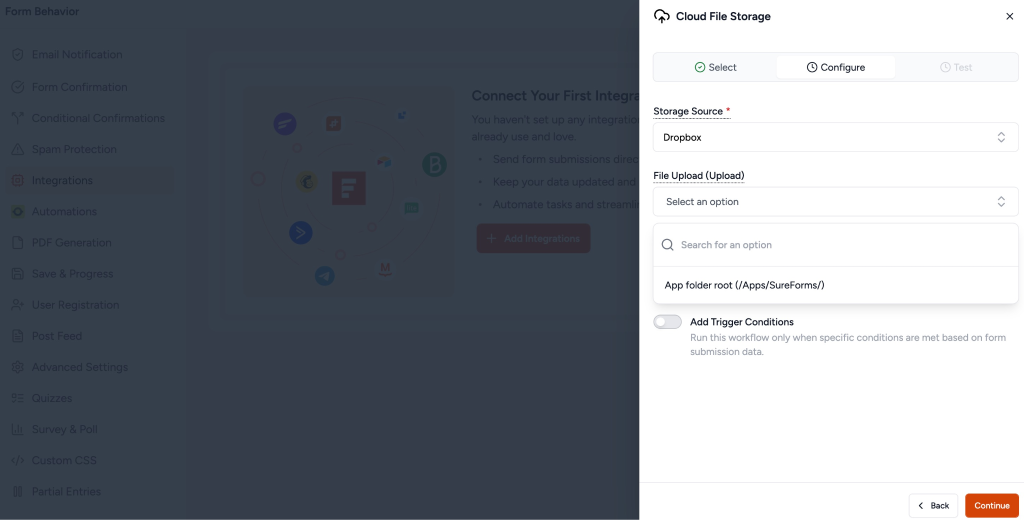
Map Upload Fields
Select the File Upload field(s) that should be sent to Dropbox.
If your form contains multiple upload fields, you can choose which files should be stored.
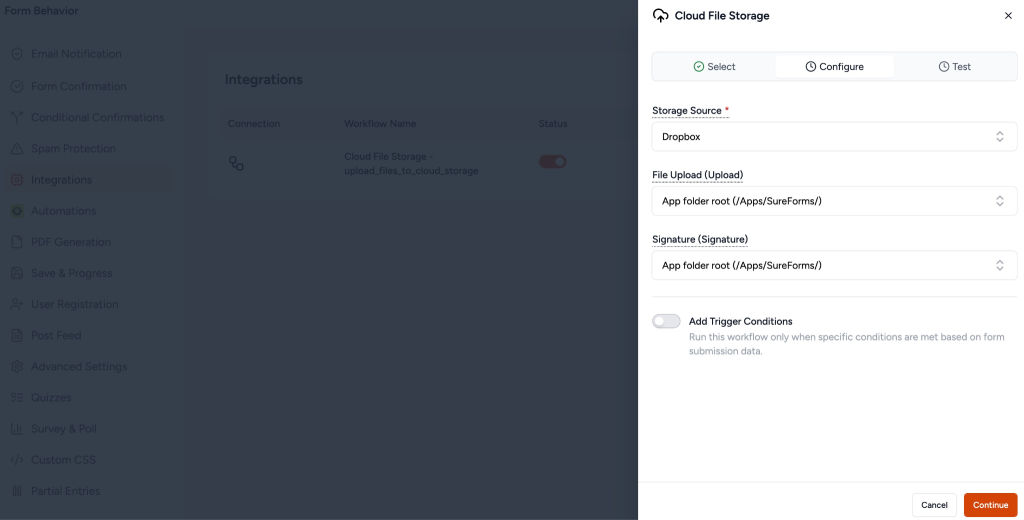
Map Signature Fields
If your form contains a Signature field:
- Select the signature field.
- Include it in the Dropbox upload workflow.
The captured signature image will also be uploaded to Dropbox automatically when the form is submitted.
Save the Integration
- Review the configuration.
- Click Continue or Save.
- Publish or update the form.
The Dropbox workflow is now active.
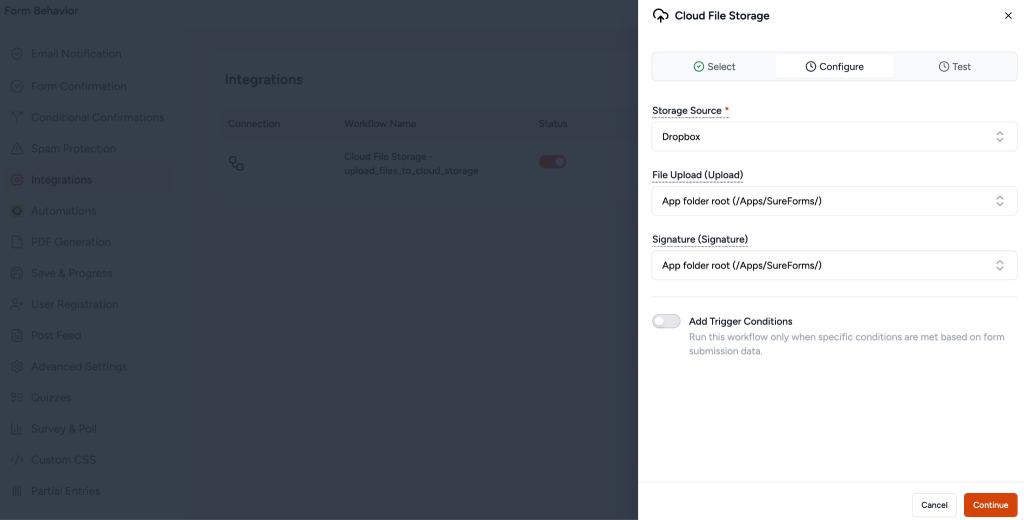
Step 4: Test the Integration
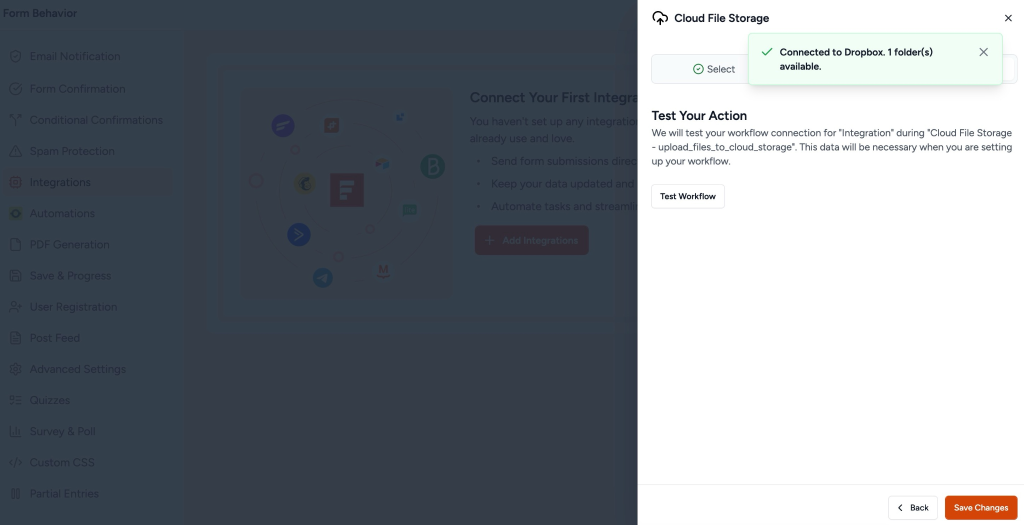
- Click Test Workflow
- If successful, a confirmation message appears
- Click Save Changes
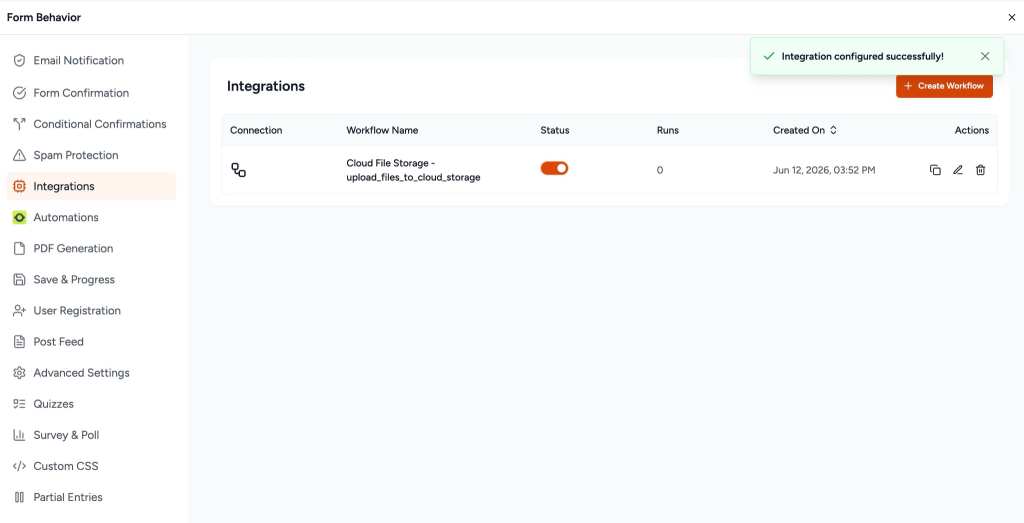
Integration Complete
Your form is now configured to upload the file.
Verify Successful Upload
There are two ways to confirm that the upload was successful.
Method 1: Check Dropbox
Navigate to your configured Dropbox folder and verify that the uploaded files and signatures are present.
Method 2: Check Form Entries
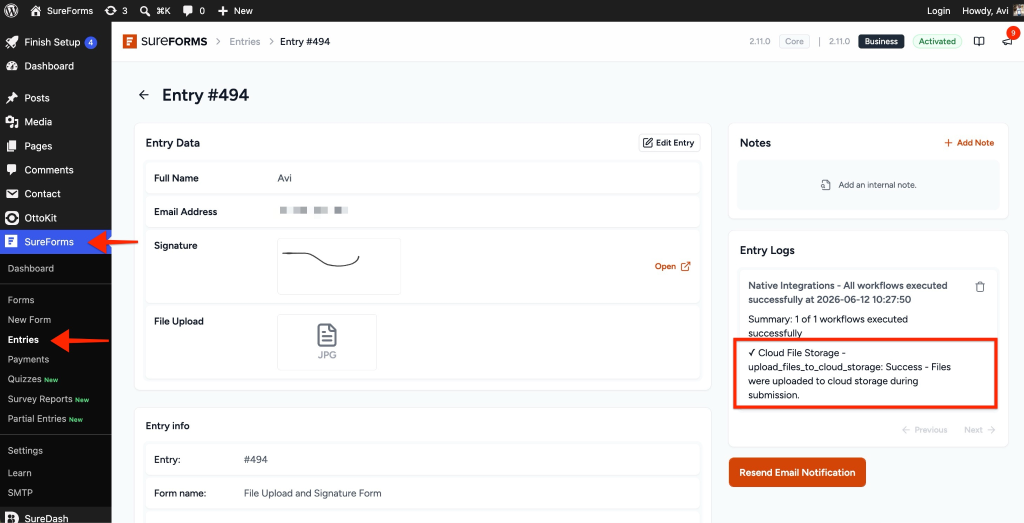
- Go to SureForms > Entries.
- Open the submitted entry.
- Review the integration logs.
A successful upload message will appear, indicating that the files were uploaded to cloud storage during form submission.
Troubleshooting
Dropbox Connection Not Appearing
- Reconnect Dropbox from SureForms Settings.
- Ensure authorization was completed successfully.
Files Not Uploading
- Verify the File Upload field is mapped correctly.
- Confirm the Dropbox workflow is enabled.
- Check file size restrictions.
Signature Not Uploading
- Ensure the Signature field is selected in the Cloud File Storage workflow.
- Submit a new test entry after updating the configuration.
Conclusion
The Dropbox integration allows SureForms to automatically store uploaded files and signatures in your Dropbox account. This helps reduce server storage usage, improves file management, and provides a secure cloud-based location for important form submissions.
Once configured, every new submission can automatically send selected files and signatures to Dropbox without any manual intervention.
We don't respond to the article feedback, we use it to improve our support content.