
- Creating and Publishing a Form
- Conversational Form
- Create Multi Step Forms In WordPress
- Using Calculations in SureForms: A Step-by-Step Guide
- Calculation Formula Guide
- SureForms Login Block – Step-by-Step Guide
- SureForms Registration Block – Step-by-Step Guide
- SureForms – PDF Generation Feature
- GDPR Compliant Forms
- Create WordPress Forms With Conditional Logic
- Adjust Form Notification Emails
- Form Confirmation
- Entries Management Feature Guide
- How to Add Query Parameters to Form Redirects
- How to Fetch Query Parameters from URL
- Set the “From Email” in SureForms
- Setting Up “Reply-To” Email Using Form Input Tags – SureForms
- Restrict Form Entries in SureForms
- Form Scheduling in SureForms
- Conditional Confirmations in SureForms
- How to Connect Your Stripe Account with SureForms
- How to Connect PayPal in SureForms
- How to Create a Payment Form in SureForms
- SureForms Payments
- How Refunds Work in SureForms Payments
- Understanding Payment Processing Fees
- How to Display the Payment Dashboard on the Frontend (SureForms)
- Enable One-Time Payment and Subscription in a Single Form
- SureForms Integration with ActiveCampaign
- SureForms Integration with AgileCRM
- SureForms Integration with Airtable
- SureForms Integration with LatePoint
- SureForms Integration with FluentCRM
- Connect SureForms To Zapier
- WordPress Forms with the Custom App Builder
- SureForms Integration with Telegram
- SureForms Integration with Breeze
- SureForms Integration with Brevo
- Unable to Upload SureForms ZIP: File Unzipped On Download
- Browser Support for SureForms
- Not Getting Update Notifications
- How To Rollback to Previous SureForms Versions
- Publishing Failed: Invalid JSON Response
- Troubleshooting Email Sending In SureForms
- SureForm Submissions Marked as Spam – How to Fix
- API Request Failed – Nonce Verification Error
- Fixing the “Destination folder already exists” Error When Installing SureForms
- How to Set Up SureForms with Caching Plugins
- srfm_enable_redirect_activation
- sureforms_plugin_action_links
- srfm_quick_sidebar_allowed_blocks
- srfm_integrated_plugins
- srfm_suretriggers_integration_data_filter
- srfm_form_submit_response
- srfm_enable_gutenberg_post_types
- srfm_languages_directory
- srfm_form_template
- srfm_disable_nps_survey
How to Use Auto-Advance to Next Step in SureForms
The Auto-Advance to Next Step feature in SureForms helps you create a smoother form-filling experience by automatically moving users to the next step after they select an option.
This is especially useful for Conversational Forms and Multi-Step Forms, where users answer one question at a time. Instead of clicking the Next button after every selection, SureForms can automatically display the next question.
How Auto-Advance Works
Auto-Advance works best with fields where the user makes a single selection, such as:
- Multi Choice fields configured for a single selection
- Dropdown fields configured for a single selection
When a user selects an option, SureForms automatically moves them to the next step.
Enable Auto-Advance in a Conversational Form
First, open the form you want to configure in the SureForms editor.
Click Instant Form at the top of the editor to open the Instant Form settings.
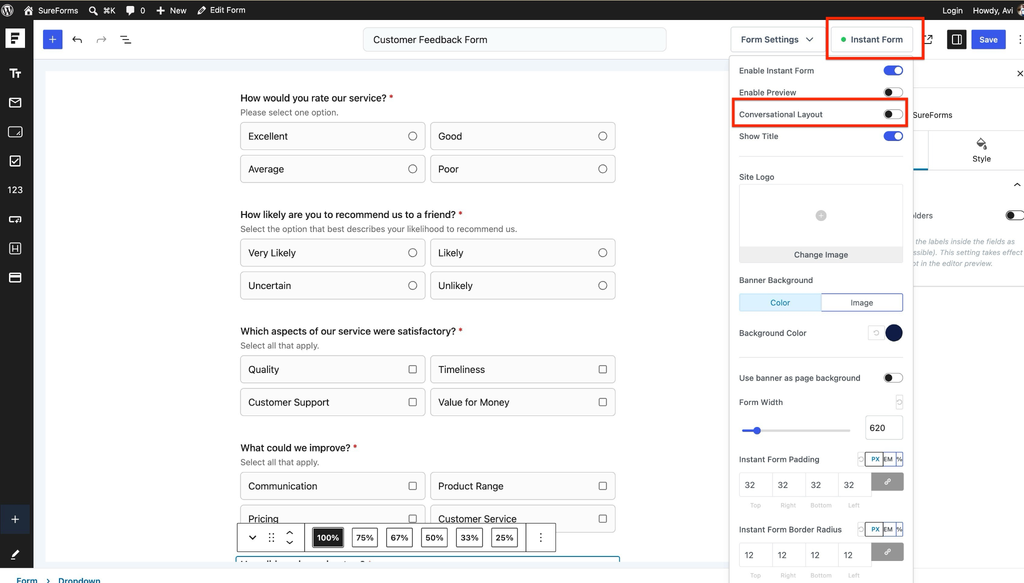
Enable the Conversational Layout option.
Once Conversational Layout is enabled, additional settings for the conversational form will become available.
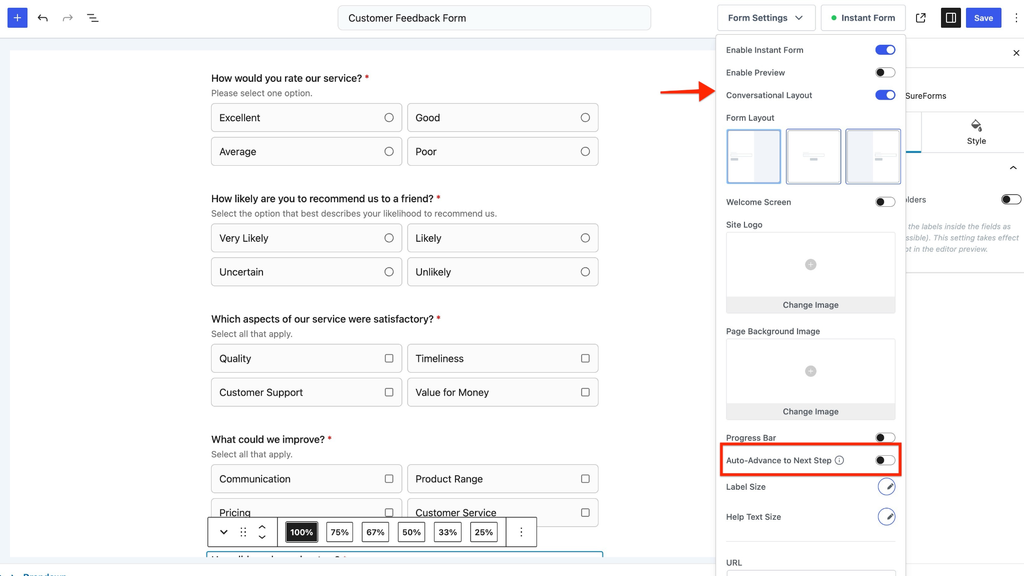
Scroll down and enable Auto-Advance to Next Step.
When this option is enabled, selecting an option from a supported single-choice field automatically takes the user to the next question.
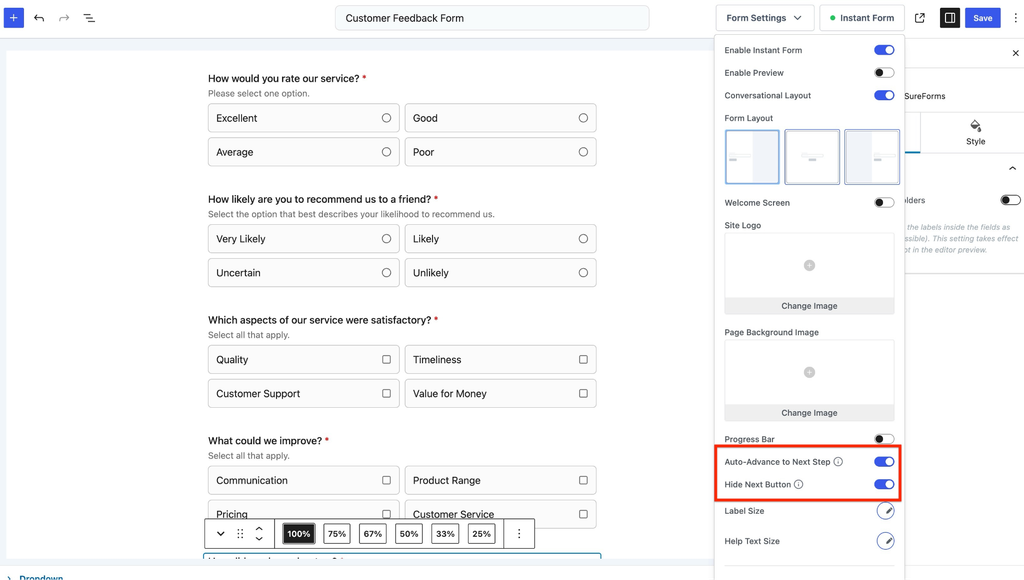
Hide the Next Button
After enabling Auto-Advance, you will also see the Hide Next Button option.
Enable this option if you want to remove the Next button and rely primarily on automatic navigation.
You can leave it disabled if you prefer to keep the Next button available to users.
Save or publish your changes once the configuration is complete.
How It Looks on the Front End
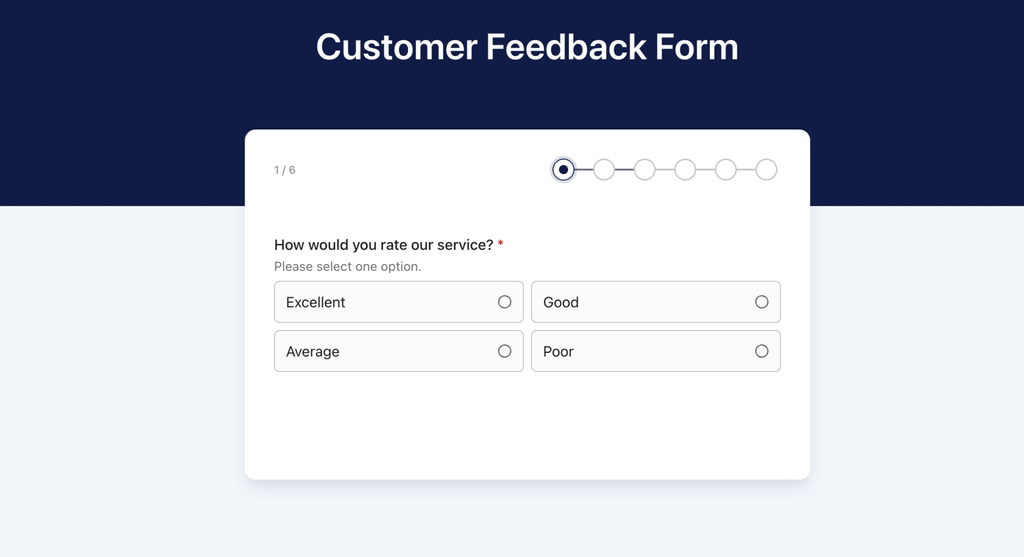
Open the form on the front end and select an option from a single-choice field.
SureForms will automatically display the next question without requiring the user to click Next.
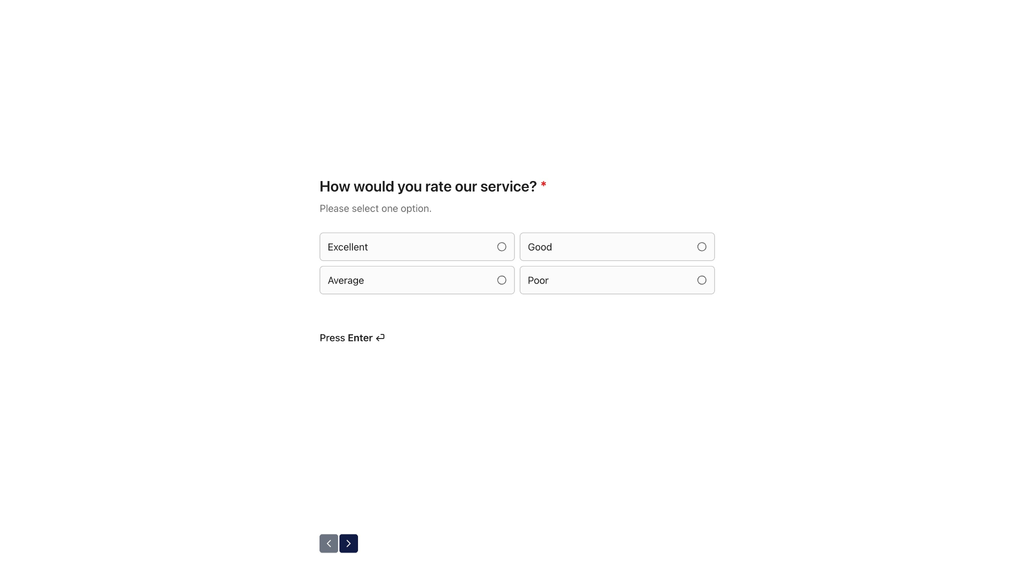
For example, if the first question contains radio options such as Excellent, Good, Average, and Poor, selecting one of these options automatically takes the user to the next question.
For a field that allows multiple selections, the user can select the required choices and then use the Next button to continue.
Similarly, selecting an option from a single-select Dropdown field automatically advances the form.
Note: Auto-Advance does not automatically submit the form. On the final step, the user must complete the required fields and submit the form using the Submit button.
Enable Auto-Advance in a Multi-Step Form
You can also use Auto-Advance with a regular Multi-Step Form.
To create separate steps, add a Page Break after the questions or fields where you want a new step to begin.
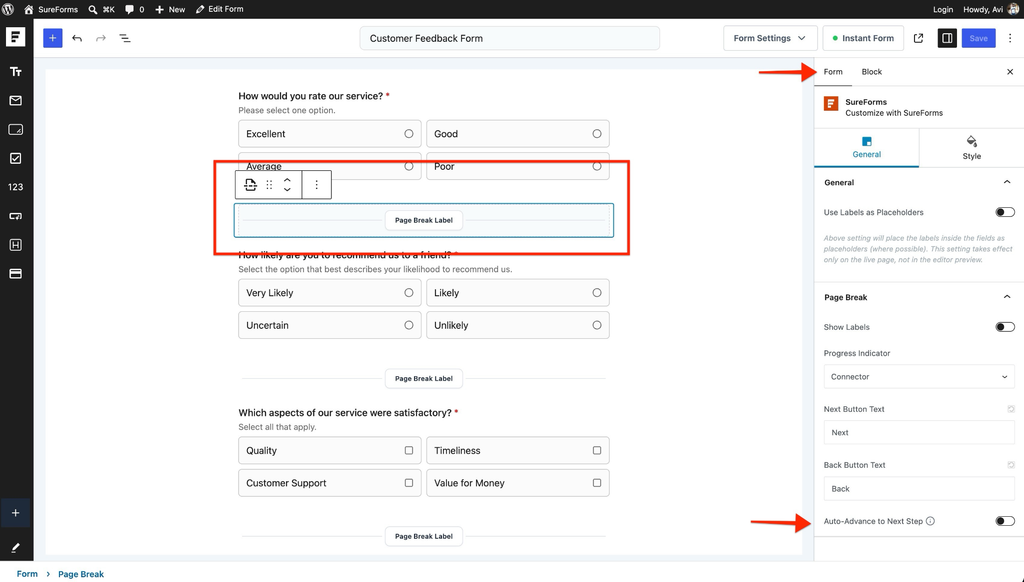
Select the Page Break block in the editor.
In the right sidebar, open the General settings. Under the Page Break settings, locate Auto-Advance to Next Step and enable it.
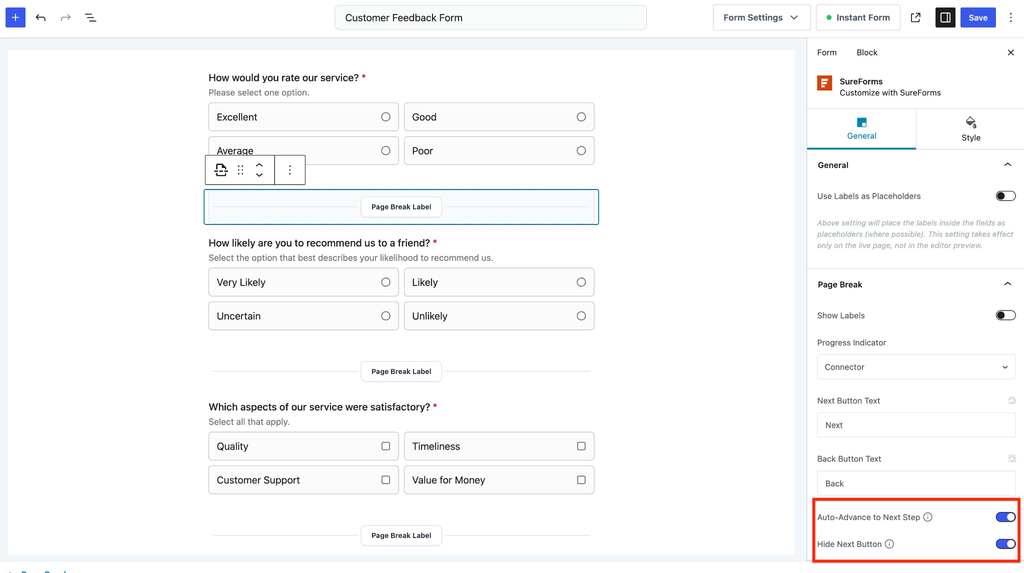
Once enabled, the Hide Next Button option becomes available. Enable it if you don’t want to display the Next button for that step.
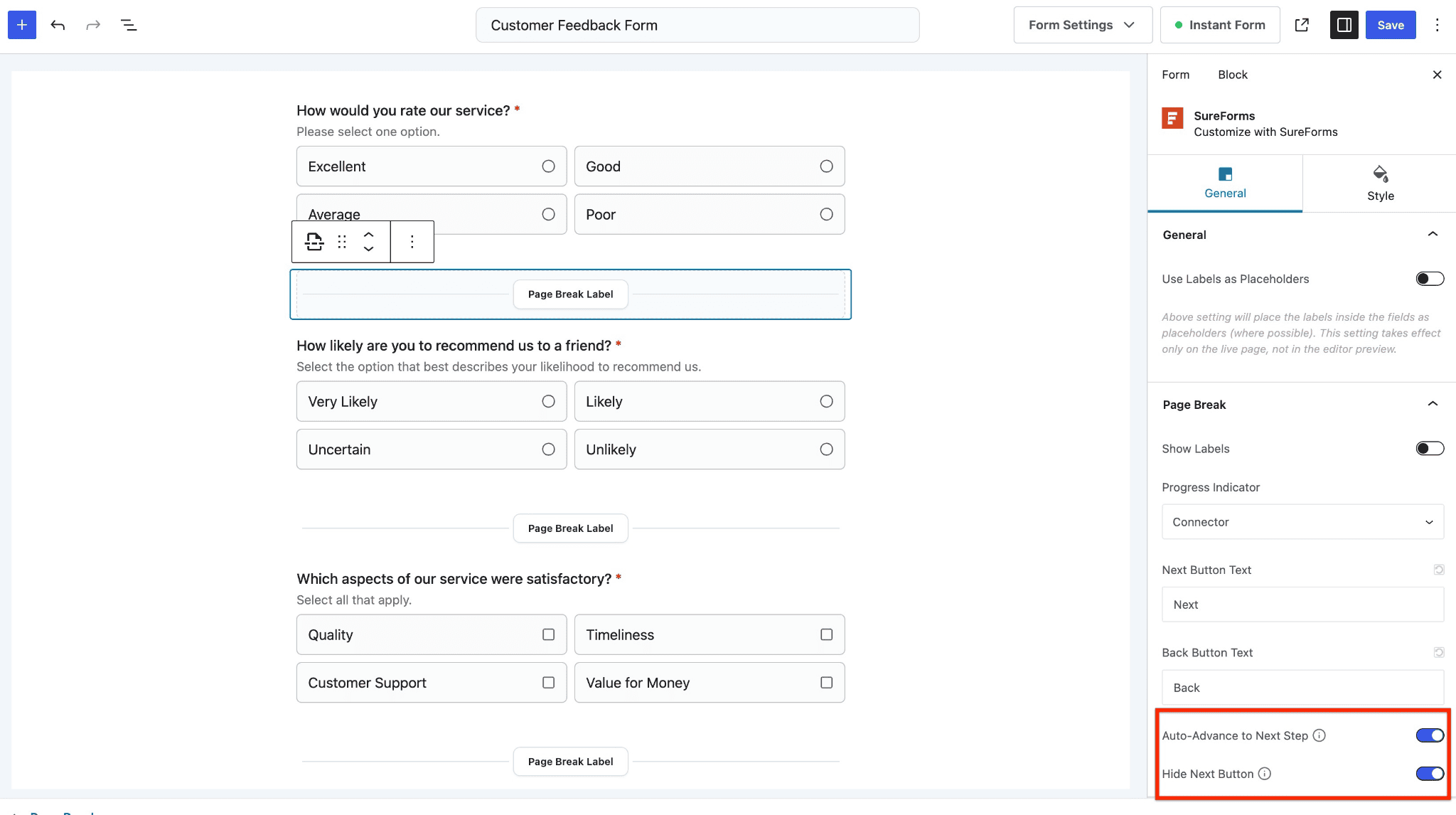
Repeat this configuration for other Page Breaks where you want Auto-Advance behavior.
Save your changes and test the form on the front end.
Customize the Auto-Advance Delay
By default, SureForms uses a predefined delay before moving to the next step. Developers can customize this delay using the srfm.autoAdvanceDelay JavaScript filter.
For example:
wp.hooks.addFilter( 'srfm.autoAdvanceDelay', 'my-site/auto-advance', ( delay, { formId, step } ) => {
      return formId === '123' ? 600 : delay; // 600ms for form 123, default elsewhere
} );In this example, Form ID 123 uses an Auto-Advance delay of 600 milliseconds. All other forms continue using the default delay.
You can replace 123 with the ID of the form where you want to customize the delay.
Auto-Advance is designed primarily for questions that require a single selection. Radio and single-select Dropdown fields can automatically move users forward as soon as an option is selected.
For fields where users may need to select multiple choices, users should complete their selections before moving to the next step. Keeping the Next button available is recommended for these fields.
The final step of the form still requires the user to complete the necessary fields and click the Submit button to submit their response.
That’s it! You can now use Auto-Advance to Next Step to create faster and more interactive Conversational and Multi-Step Forms in SureForms.
We don't respond to the article feedback, we use it to improve our support content.