
- Creating and Publishing a Form
- Conversational Form
- Create Multi Step Forms In WordPress
- Using Calculations in SureForms: A Step-by-Step Guide
- Calculation Formula Guide
- SureForms Login Block – Step-by-Step Guide
- SureForms Registration Block – Step-by-Step Guide
- SureForms – PDF Generation Feature
- GDPR Compliant Forms
- Create WordPress Forms With Conditional Logic
- Adjust Form Notification Emails
- Form Confirmation
- Entries Management Feature Guide
- How to Add Query Parameters to Form Redirects
- How to Fetch Query Parameters from URL
- Set the “From Email” in SureForms
- Setting Up “Reply-To” Email Using Form Input Tags – SureForms
- Restrict Form Entries in SureForms
- Form Scheduling in SureForms
- Conditional Confirmations in SureForms
- How to Connect Your Stripe Account with SureForms
- How to Connect PayPal in SureForms
- How to Create a Payment Form in SureForms
- SureForms Payments
- How Refunds Work in SureForms Payments
- Understanding Payment Processing Fees
- How to Display the Payment Dashboard on the Frontend (SureForms)
- Enable One-Time Payment and Subscription in a Single Form
- SureForms Integration with ActiveCampaign
- SureForms Integration with AgileCRM
- SureForms Integration with Airtable
- SureForms Integration with LatePoint
- SureForms Integration with FluentCRM
- Connect SureForms To Zapier
- WordPress Forms with the Custom App Builder
- SureForms Integration with Telegram
- SureForms Integration with Breeze
- SureForms Integration with Brevo
- Unable to Upload SureForms ZIP: File Unzipped On Download
- Browser Support for SureForms
- Not Getting Update Notifications
- How To Rollback to Previous SureForms Versions
- Publishing Failed: Invalid JSON Response
- Troubleshooting Email Sending In SureForms
- SureForm Submissions Marked as Spam – How to Fix
- API Request Failed – Nonce Verification Error
- Fixing the “Destination folder already exists” Error When Installing SureForms
- How to Set Up SureForms with Caching Plugins
- srfm_enable_redirect_activation
- sureforms_plugin_action_links
- srfm_quick_sidebar_allowed_blocks
- srfm_integrated_plugins
- srfm_suretriggers_integration_data_filter
- srfm_form_submit_response
- srfm_enable_gutenberg_post_types
- srfm_languages_directory
- srfm_form_template
- srfm_disable_nps_survey
How to Connect PayPal in SureForms
This guide explains how to connect PayPal with SureForms step by step.
This Feature Is Part of Premium Plan
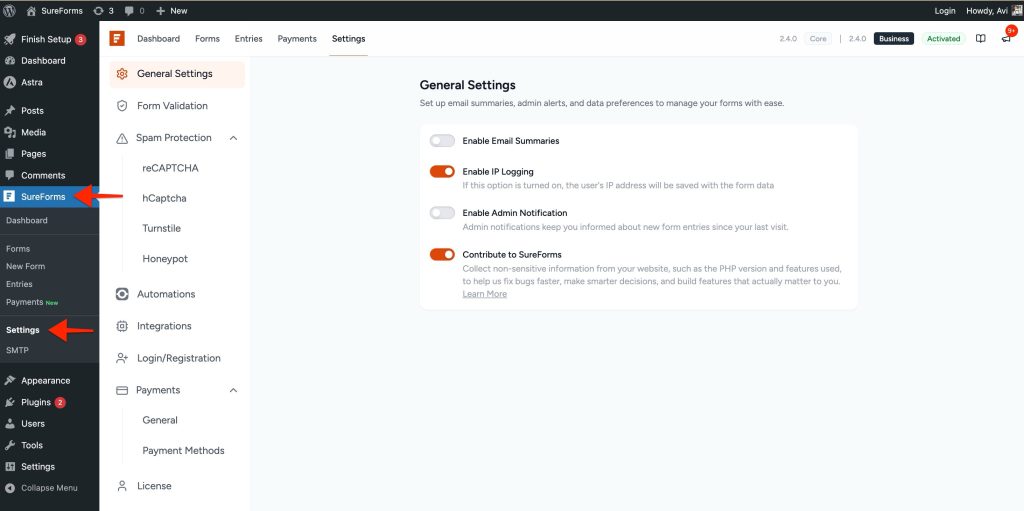
Step 1: Open SureForms Settings
- Log in to your WordPress dashboard.
- Go to SureForms.
- Click on Settings.
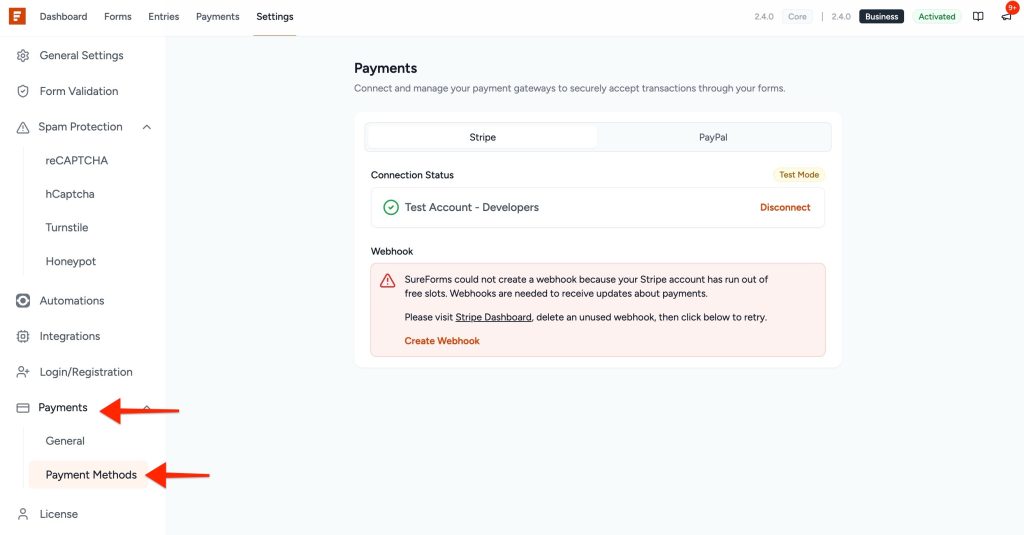
Step 2: Go to the Payments Section
- Inside Settings > Payments.
- Under Payments, you will see Payment Methods.
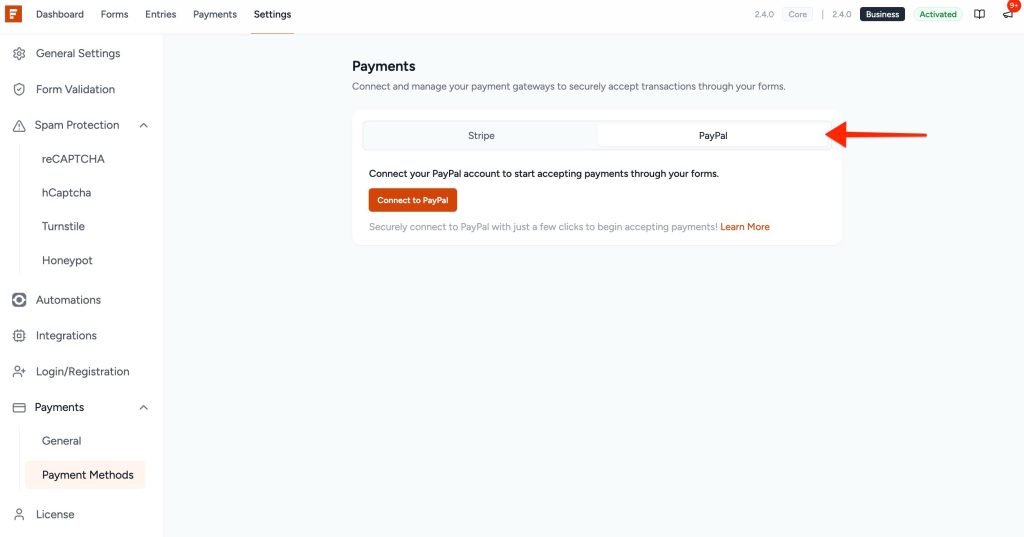
Step 3: Select PayPal
- In the Payment Methods section, you will see two options:
- Stripe
- PayPal
- Click on PayPal.
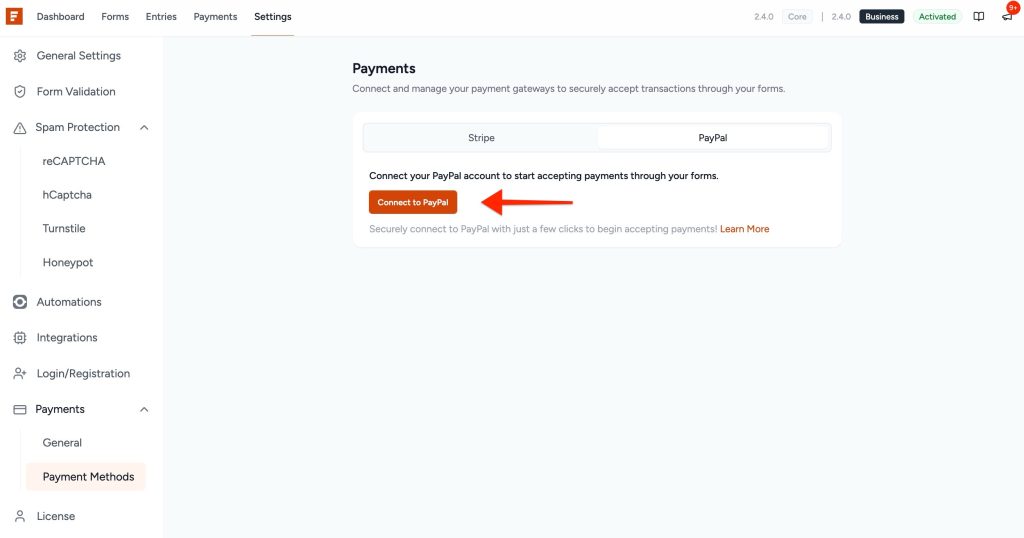
Step 4: Connect to PayPal
- Click the Connect to PayPal button.
- A pop-up window will appear, or it can open in a new tab.
- Enter your PayPal email address.
- Enter your PayPal password.
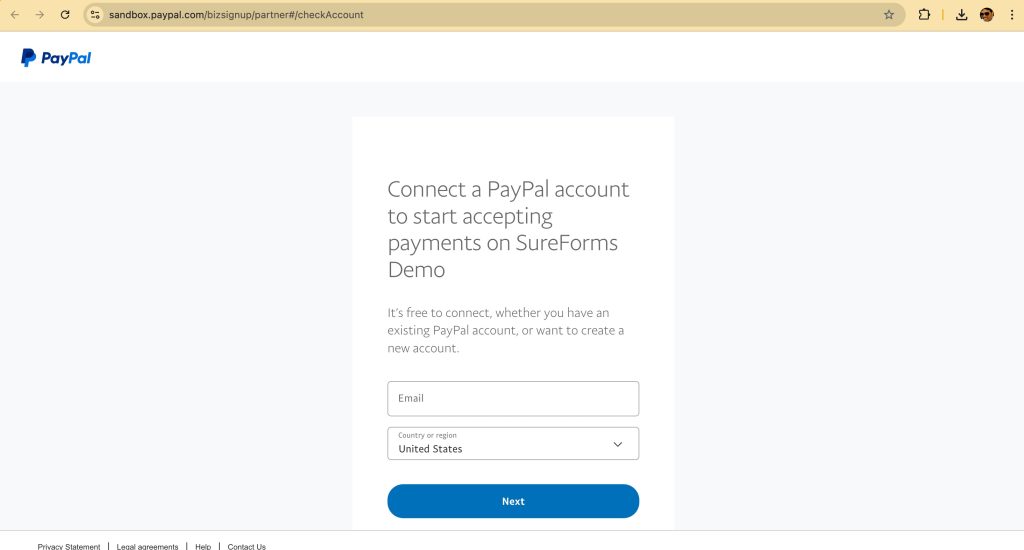
- Complete the PayPal login process.
Step 5: Confirm Connection
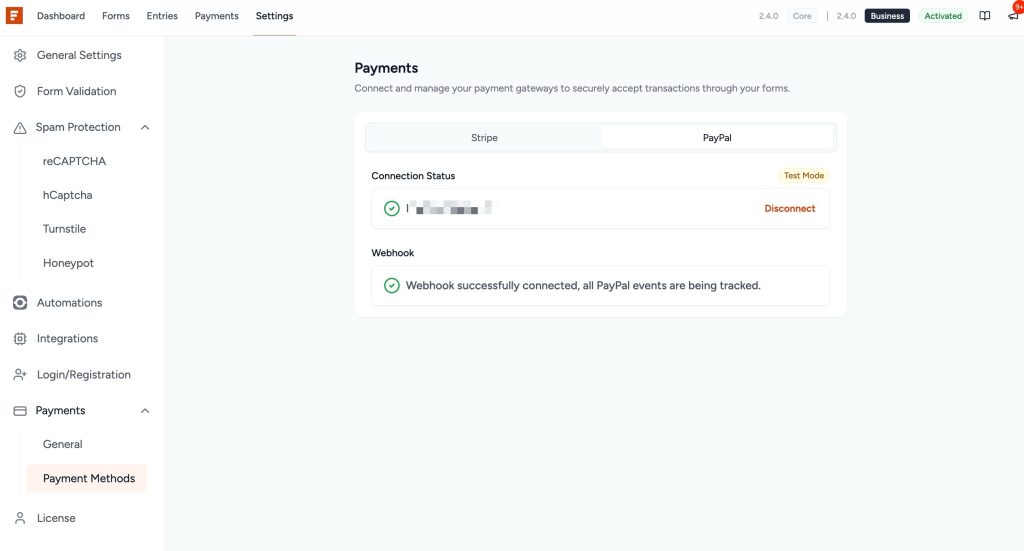
- After a successful login, click the Return button.
- You will be redirected back to the SureForms dashboard.
- A confirmation message will appear showing that the Webhook successfully connected, all PayPal events are being tracked.
That’s It
Your PayPal account is now connected with SureForms. You can start accepting payments through your forms.
If you need any further help, feel free to reach out to our support team. We’ll be happy to assist you.
Was this doc helpful?
What went wrong?
We don't respond to the article feedback, we use it to improve our support content.