
- Creating and Publishing a Form
- Conversational Form
- Create Multi Step Forms In WordPress
- Using Calculations in SureForms: A Step-by-Step Guide
- Calculation Formula Guide
- SureForms Login Block – Step-by-Step Guide
- SureForms Registration Block – Step-by-Step Guide
- SureForms – PDF Generation Feature
- GDPR Compliant Forms
- Create WordPress Forms With Conditional Logic
- Adjust Form Notification Emails
- Form Confirmation
- Entries Management Feature Guide
- How to Add Query Parameters to Form Redirects
- How to Fetch Query Parameters from URL
- Set the “From Email” in SureForms
- Setting Up “Reply-To” Email Using Form Input Tags – SureForms
- Restrict Form Entries in SureForms
- Form Restriction in SureForms
- Form Scheduling in SureForms
- How to Connect Your Stripe Account with SureForms
- How to Connect PayPal in SureForms
- How to Create a Payment Form in SureForms
- SureForms Payments
- How Refunds Work in SureForms Payments
- Understanding Payment Processing Fees
- How to Display the Payment Dashboard on the Frontend (SureForms)
- Enable One-Time Payment and Subscription in a Single Form
- SureForms Integration with ActiveCampaign
- SureForms Integration with AgileCRM
- SureForms Integration with Airtable
- SureForms Integration with LatePoint
- SureForms Integration with FluentCRM
- Connect SureForms To Zapier
- WordPress Forms with the Custom App Builder
- SureForms Integration with Telegram
- SureForms Integration with Breeze
- SureForms Integration with Brevo
- Unable to Upload SureForms ZIP: File Unzipped On Download
- Browser Support for SureForms
- Not Getting Update Notifications
- How To Rollback to Previous SureForms Versions
- Publishing Failed: Invalid JSON Response
- Troubleshooting Email Sending In SureForms
- SureForm Submissions Marked as Spam – How to Fix
- API Request Failed – Nonce Verification Error
- Fixing the “Destination folder already exists” Error When Installing SureForms
- How to Set Up SureForms with Caching Plugins
- srfm_enable_redirect_activation
- sureforms_plugin_action_links
- srfm_quick_sidebar_allowed_blocks
- srfm_integrated_plugins
- srfm_suretriggers_integration_data_filter
- srfm_form_submit_response
- srfm_enable_gutenberg_post_types
- srfm_languages_directory
- srfm_form_template
- srfm_disable_nps_survey
Manage Features in SureForms
Overview
Manage Features lets you switch off any SureForms feature you don’t use, so it stops loading on your site. It is available from SureForms 2.14.0.
Turning a feature off never deletes its data. When you turn it back on, your settings, forms, and stored data come back exactly as you left them.
The Core tab has four switches that come with free SureForms. The Premium tab has 13 more switches and appears when SureForms Premium is active.
Where to find it
Go to SureForms → Settings → Manage Features in your WordPress dashboard. Manage Features is in the Settings menu on the left, below MCP.
- In your WordPress dashboard, click SureForms.
- Click Settings in the top bar.
- In the left menu, click Manage Features.
The page opens on the Core tab. If SureForms Premium is active, click Premium to see its features.
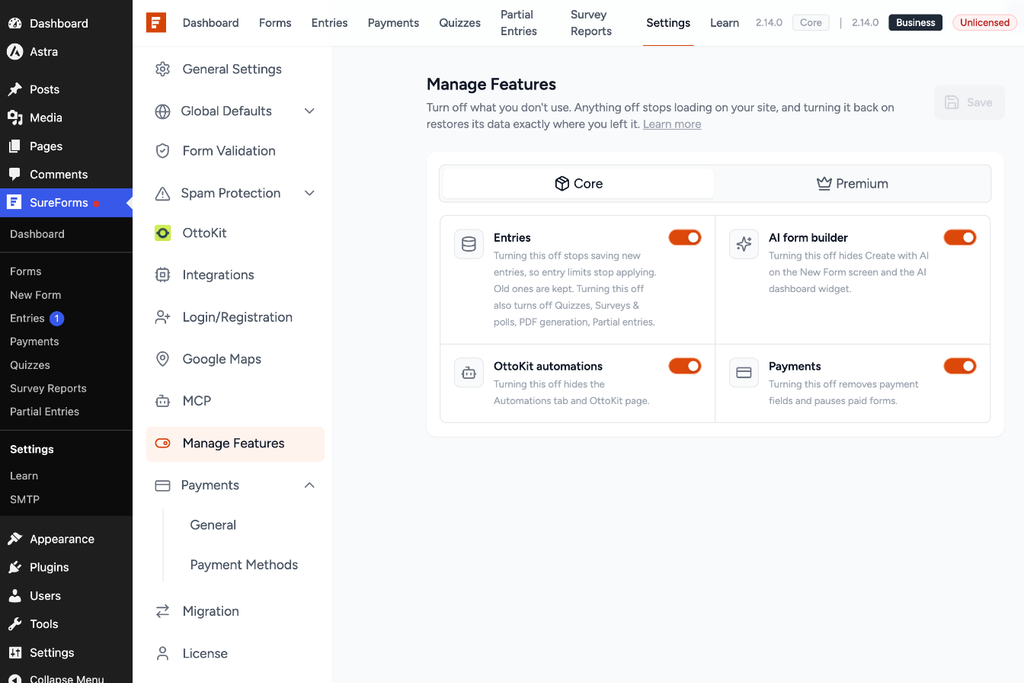
SureForms Settings with Manage Features selected in the left menu
Core features
The Core tab has four switches, all on by default.
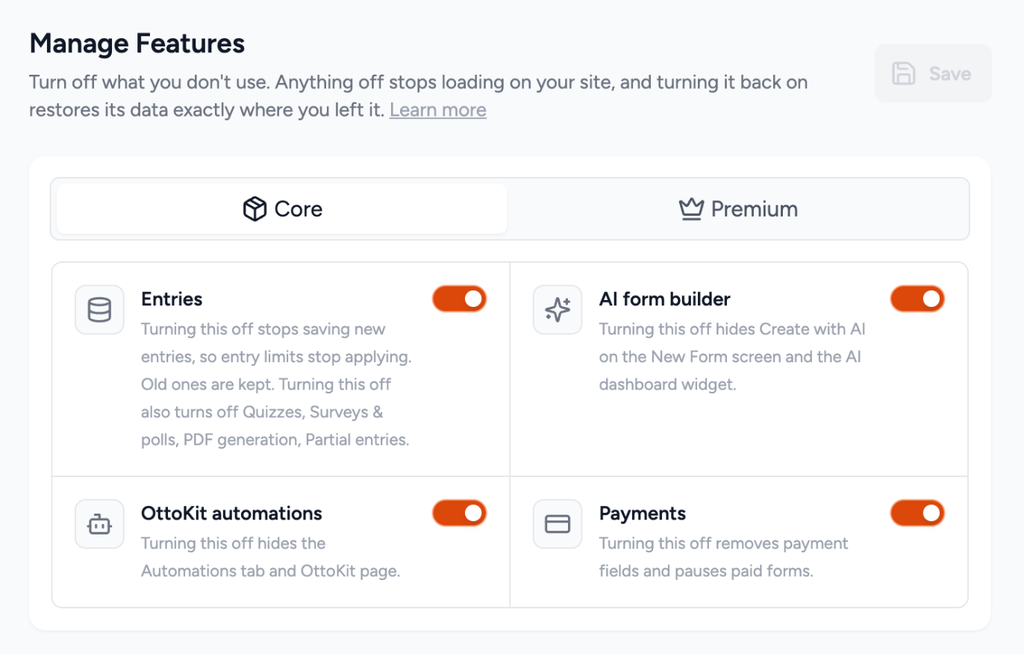
The Core tab with Entries, AI form builder, OttoKit automations and Payments switches
| Feature | What turning it off does | Also turns off |
| Entries | Stops saving new submissions, so entry limits stop applying. Forms still submit and show their confirmation. Entries you already have are kept. The Entries menu is hidden. | Email Summaries, Quizzes (Premium), Surveys & polls (Premium), PDF generation (Premium), Partial entries (Premium) |
| AI form builder | Hides Create with AI on the New Form screen, Build with AI in the template library, and the AI widget on the dashboard. | None |
| OttoKit automations | Hides the Automations tab and the OttoKit settings page. | None |
| Payments | Removes payment fields and pauses paid forms. A form with a payment field shows “This form is not accepting submissions right now.” The Payments menu, the Settings → Payments tab and the front-end Payment history block are hidden. Existing subscriptions keep renewing (see below). | None |
Premium features (SureForms Premium)
The Premium tab has 13 switches. Four of them need Entries: while Entries is off, they show as off, greyed out, and marked “Needs Entries”.
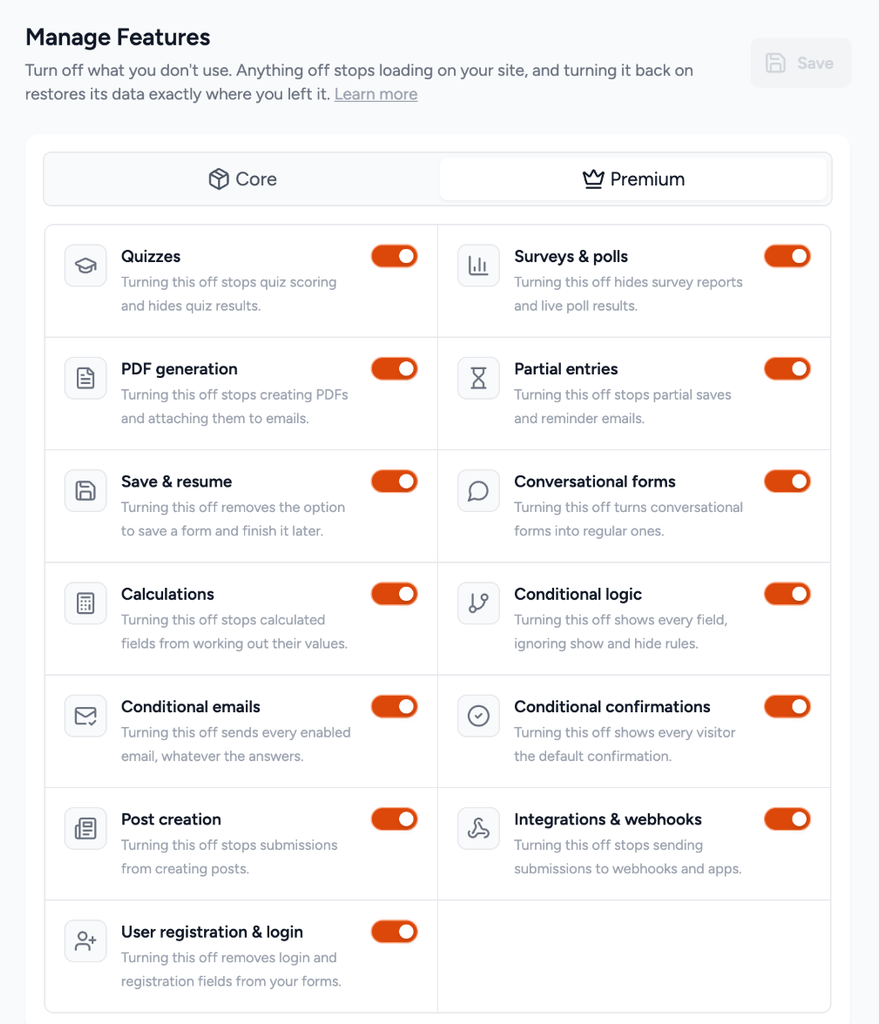
The Premium tab with 13 SureForms Premium feature switches
| Feature | What turning it off does | Needs Entries |
| Quizzes | Stops quiz scoring and hides quiz results. | Yes |
| Surveys & polls | Hides survey reports and live poll results. | Yes |
| PDF generation | Stops creating PDFs and attaching them to emails. | Yes |
| Partial entries | Stops partial saves and reminder emails. | Yes |
| Save & resume | Removes the option to save a form and finish it later. | No |
| Conversational forms | Turns conversational forms into regular ones. | No |
| Calculations | Stops calculated fields from working out their values. | No |
| Conditional logic | Shows every field, ignoring show and hide rules. Fields you hid on purpose become visible to visitors. | No |
| Conditional emails | Sends every enabled email, whatever the answers. | No |
| Conditional confirmations | Shows every visitor the default confirmation. | No |
| Post creation | Stops submissions from creating posts. | No |
| Integrations & webhooks | Stops sending submissions to webhooks and apps, and hides the Settings → Integrations tab. | No |
| User registration & login | Removes login and registration fields from your forms. | No |
Turn a feature off or on
Flip the switch, click Save, and confirm if SureForms warns you that a form uses that feature.
- Open SureForms → Settings → Manage Features.
- Pick the Core or Premium tab.
- Click the switch next to the feature. Orange means on, grey means off. You can change several switches before saving.
- Click Save in the top-right corner.
- If a form uses a feature you’re turning off, a yellow notice appears: “These forms use something you are turning off”. It lists each form that uses it, whether published, draft, pending, scheduled or private, and the reason, for example, “Donation Form (Payments: has a payment field)”. Click Turn off anyway to save, or Cancel to keep the feature on.
- Wait for the “Settings saved.” message.
- Reload the page to update the SureForms menus.
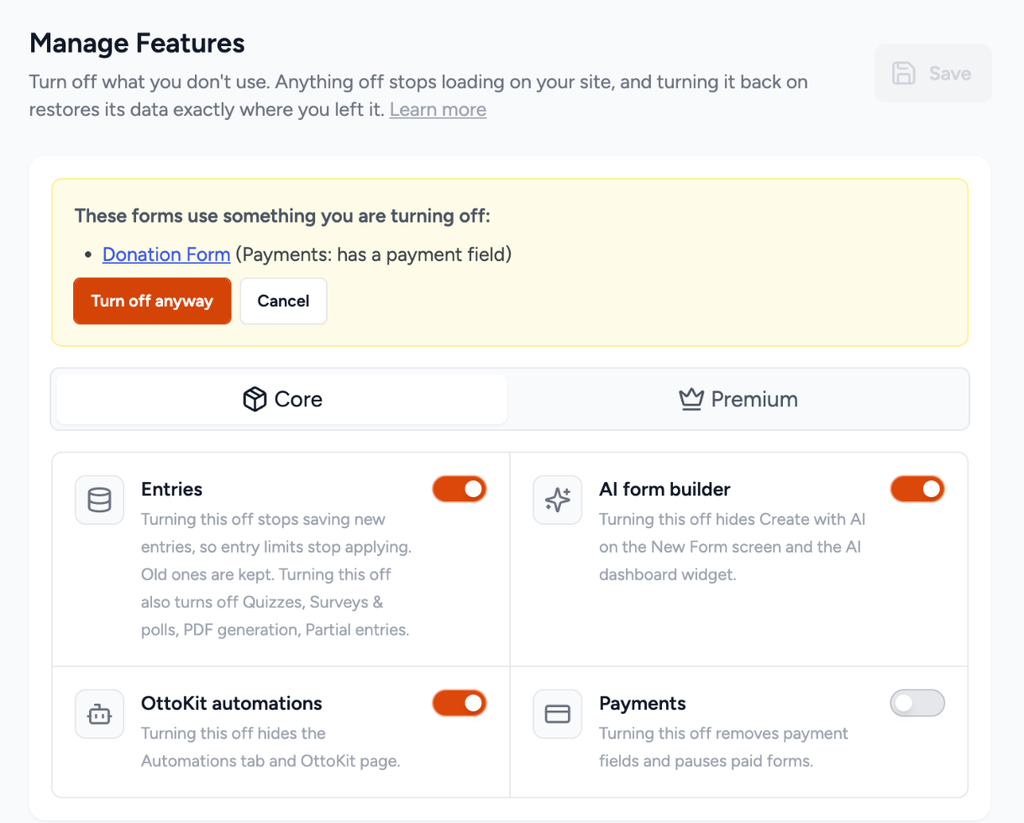
The notice listing forms that use a feature you are turning off
Not every switch warns you first. AI form builder, OttoKit automations, Calculations, Conditional logic, Conditional emails, Conditional confirmations and Integrations & webhooks save straight away with no notice, even if your forms use them. Check your forms before turning these off. For example, with Conditional logic off, every field you hid with a rule becomes visible to visitors.
To turn a feature back on, follow the same steps and set the switch to orange. A Premium feature that needs Entries can only be on while Entries is on, but you don’t need two saves: switch on Entries and the features that need it together, then click Save once. Features that need Entries also come back on automatically when you turn Entries back on.
Nothing is saved until you click Save. If you leave the page while the yellow notice is showing, your change is not saved.
What happens to your forms and data
Turning a feature off pauses it. It never deletes your forms, settings, or stored data.
- Entries off: visitors can still submit, but new submissions aren’t stored, and turning Entries back on won’t recover them. If an email notification also fails, that submission is lost. The SureForms dashboard shows a Form Checks warning when this happens. Email Summaries also stop until Entries is back on.
- Entries back on: your old entries are all there. Only submissions made while Entries was off are missing. Features that need Entries, such as Quizzes and PDF generation, come back on with it.
- Payments off: forms with a payment field stop taking submissions until Payments is back on, so no unpaid submissions get through. Existing subscriptions keep renewing, and SureForms still records the renewals it receives from Stripe or PayPal, but you can’t manage or refund payments in SureForms while Payments is off. The front-end Payment history block is also removed. To stop subscriptions, cancel them in Stripe or PayPal.
- Menus and pages: a turned-off feature’s menu items and settings tabs are hidden, for example Settings → Payments when Payments is off and Settings → Integrations when Integrations & webhooks is off. Opening one of its pages directly, such as the Entries page, takes you to Manage Features.
Before turning Entries off, make sure email notifications are working, or use an SMTP plugin such as SureMail, so submissions still reach you.
We don't respond to the article feedback, we use it to improve our support content.