
- Creating and Publishing a Form
- Conversational Form
- Create Multi Step Forms In WordPress
- Using Calculations in SureForms: A Step-by-Step Guide
- Calculation Formula Guide
- SureForms Login Block – Step-by-Step Guide
- SureForms Registration Block – Step-by-Step Guide
- SureForms – PDF Generation Feature
- GDPR Compliant Forms
- Create WordPress Forms With Conditional Logic
- How to Create Inline Forms in SureForms
- How to Add Smart Tags as Default Values in SureForms
- Adding Custom Posts Using SureForms
- Validate as Unique in SureForms
- How to Use Conditional Logic in SureForms
- How to Use OttoKit with Repeater Field in SureForms
- How to Duplicate a Form in SureForms
- Custom Lost Password and Reset Password Pages
- Quiz Feature in SureForms
- SureForms – Survey & Polls Feature
- Using the Google Maps API with SureForms
- How to Move a Published Form to Draft Mode
- Convert HTML Forms to SureForms
- Hide the Submit Button Using Conditional Logic
- Show Views and Conversion Rate
- How to Enable and Manage Form Abandonment in SureForms
- Creating Forms Using Templates and Changing a Form’s Template
- How to Create a Form from Scratch in SureForms
- Adjust Form Notification Emails
- Form Confirmation
- Entries Management Feature Guide
- How to Add Query Parameters to Form Redirects
- How to Fetch Query Parameters from URL
- Set the “From Email” in SureForms
- Setting Up “Reply-To” Email Using Form Input Tags – SureForms
- Restrict Form Entries in SureForms
- Form Scheduling in SureForms
- Conditional Confirmations in SureForms
- How to Connect Your Stripe Account with SureForms
- How to Connect PayPal in SureForms
- How to Create a Payment Form in SureForms
- SureForms Payments
- How Refunds Work in SureForms Payments
- Understanding Payment Processing Fees
- How to Display the Payment Dashboard on the Frontend (SureForms)
- Enable One-Time Payment and Subscription in a Single Form
- SureForms Integration with ActiveCampaign
- SureForms Integration with AgileCRM
- SureForms Integration with Airtable
- SureForms Integration with LatePoint
- SureForms Integration with FluentCRM
- Connect SureForms To Zapier
- WordPress Forms with the Custom App Builder
- SureForms Integration with Telegram
- SureForms Integration with Breeze
- SureForms Integration with Brevo
- Unable to Upload SureForms ZIP: File Unzipped On Download
- Browser Support for SureForms
- Not Getting Update Notifications
- How To Rollback to Previous SureForms Versions
- Publishing Failed: Invalid JSON Response
- Troubleshooting Email Sending In SureForms
- SureForm Submissions Marked as Spam – How to Fix
- API Request Failed – Nonce Verification Error
- Fixing the “Destination folder already exists” Error When Installing SureForms
- How to Set Up SureForms with Caching Plugins
- srfm_enable_redirect_activation
- sureforms_plugin_action_links
- srfm_quick_sidebar_allowed_blocks
- srfm_integrated_plugins
- srfm_suretriggers_integration_data_filter
- srfm_form_submit_response
- srfm_enable_gutenberg_post_types
- srfm_languages_directory
- srfm_form_template
- srfm_disable_nps_survey
Creating Forms Using Templates and Changing a Form’s Template
Building every form from a blank page takes time. With SureForms templates, you can start with a ready-made form for contact requests, bookings, payments, quizzes, calculators, and more.
Each template includes preconfigured fields, design, thank-you messages, and email notifications. If you have already started building a form, you can also switch it to another template using Change Template.
This guide explains how to browse the Template Library, preview and customize a template, create a form from a template, and change the template of an existing form.
Viewing the Template Library
To open the Template Library:
- From your WordPress dashboard, go to SureForms → New Form.
- On the How do you want to start? screen, click Browse templates under Choose a template.
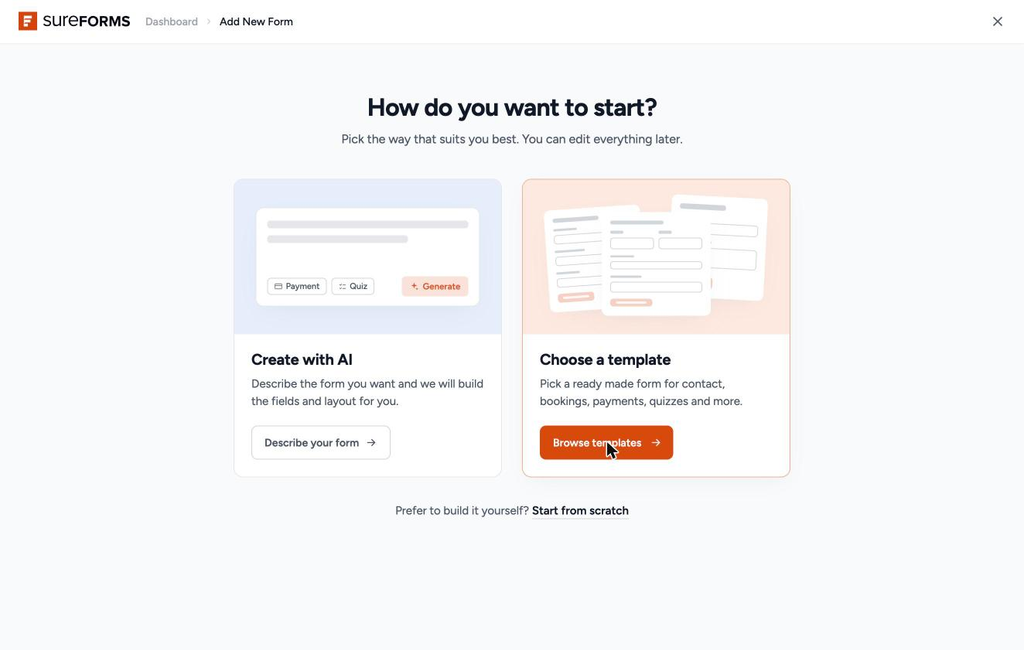
The Template Library opens and displays all available templates.
Finding a Template
You can use the following options to find a template quickly:
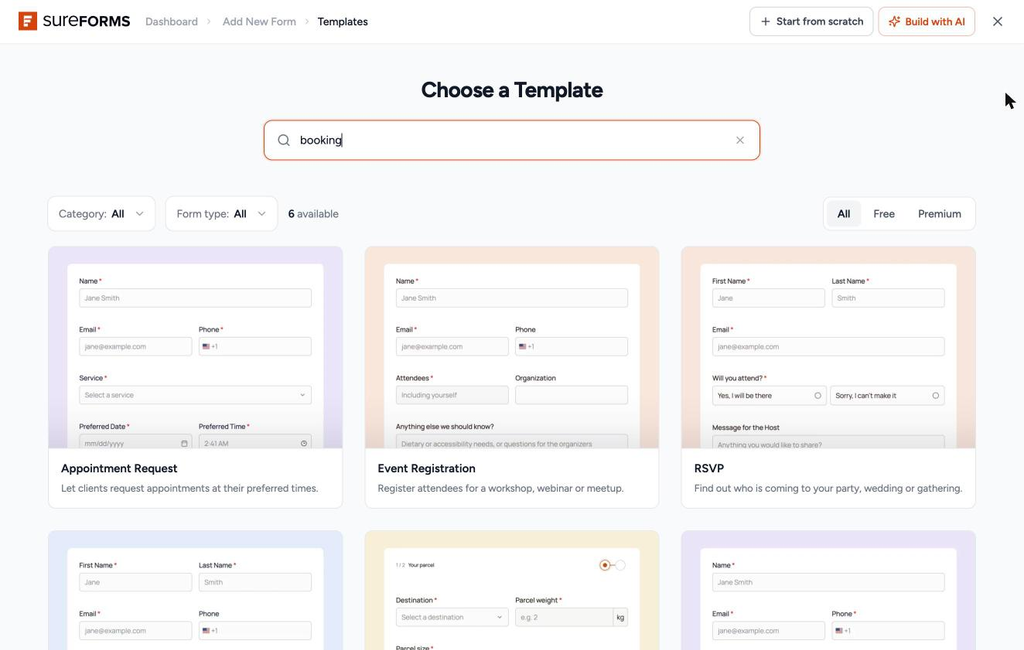
- Search: Enter a keyword such as quote, booking, or survey. Search looks through template names, descriptions, and keywords. Click × to clear the search.
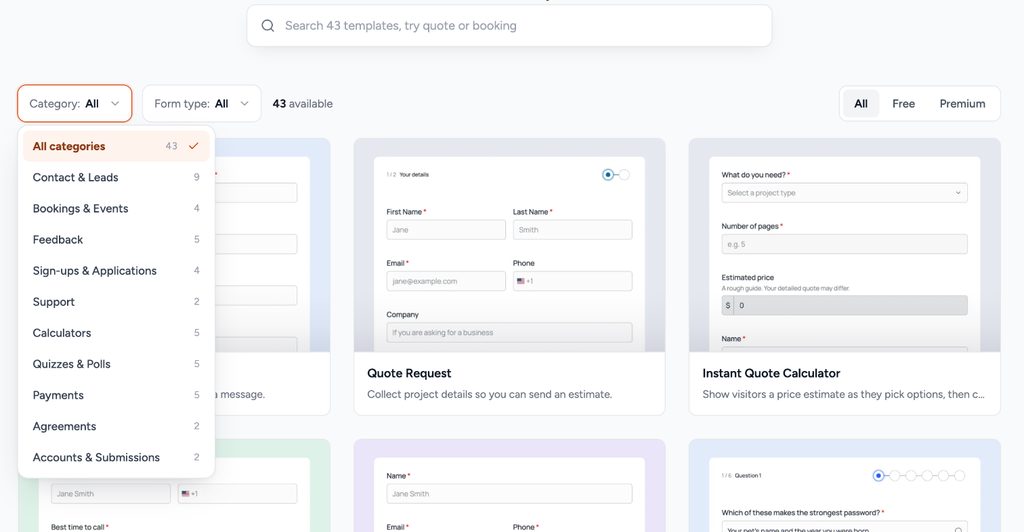
- Category: Select a category such as Contact & Leads, Calculators, Payments, or Quizzes & Polls. The number next to each category shows how many templates are available.
- Form Type: Filter templates by Single page, Multi-step, or Conversational forms.
- All / Free / Premium: Show all templates or filter them by availability.
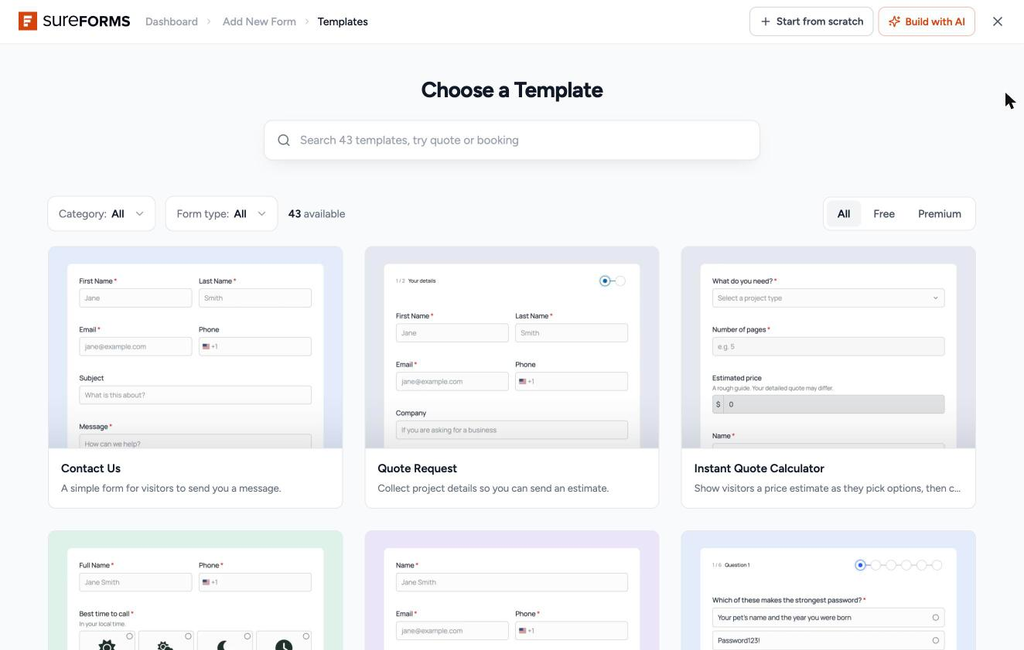
If you cannot find a suitable template, you can also click Build with AI to describe the form you want or select Start from scratch to build a form manually.
Previewing and Customizing a Template
Before creating a form, you can preview the template and customize its appearance.
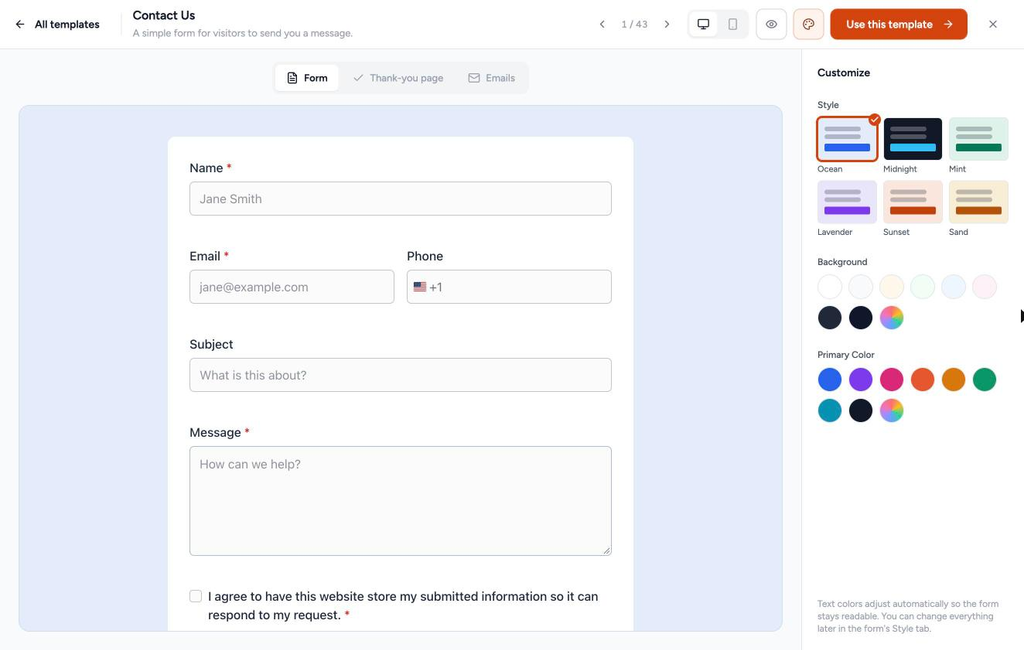
- Click any template card to open its live preview.
- In the Form tab, test the form by filling in fields, checking validation messages, and moving through multi-step pages when available.
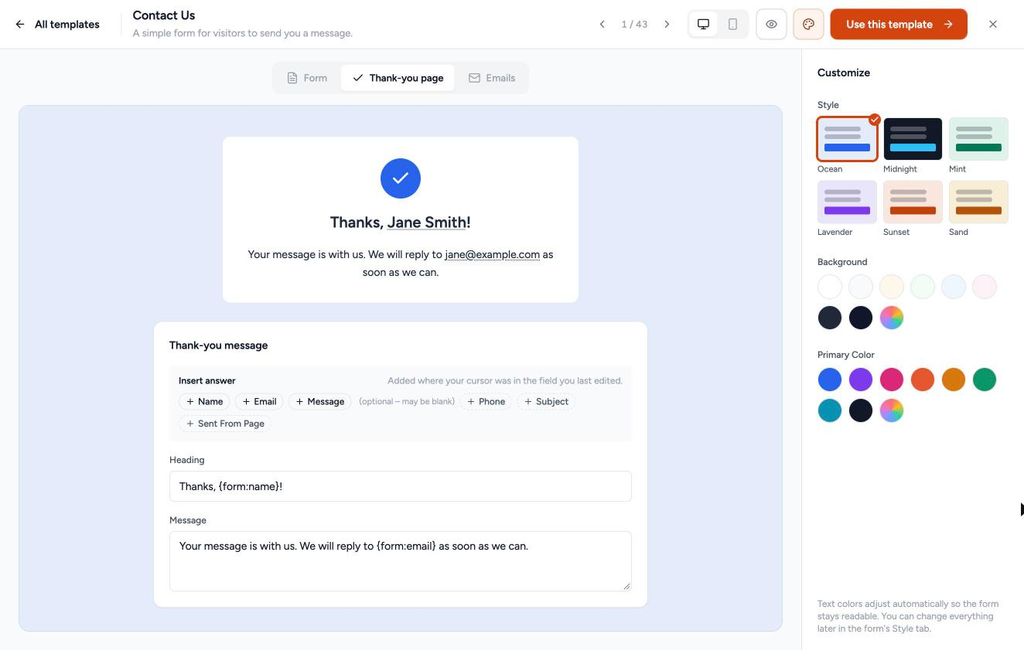
- Click the Thank-you page tab to preview the message displayed after form submission.
- Edit the Heading and Message if required.
- Use the Insert answer buttons to add submitted values, such as the user’s name.
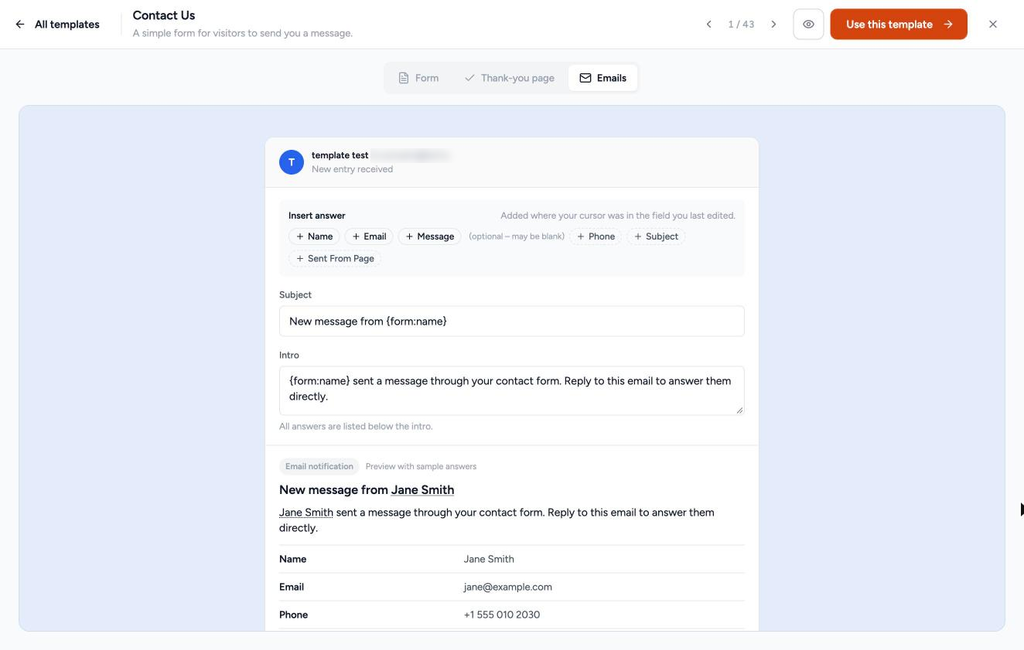
- Open the Emails tab to preview the email notifications included with the template.
- Edit the email subject and message when required.
Customizing the Template Design
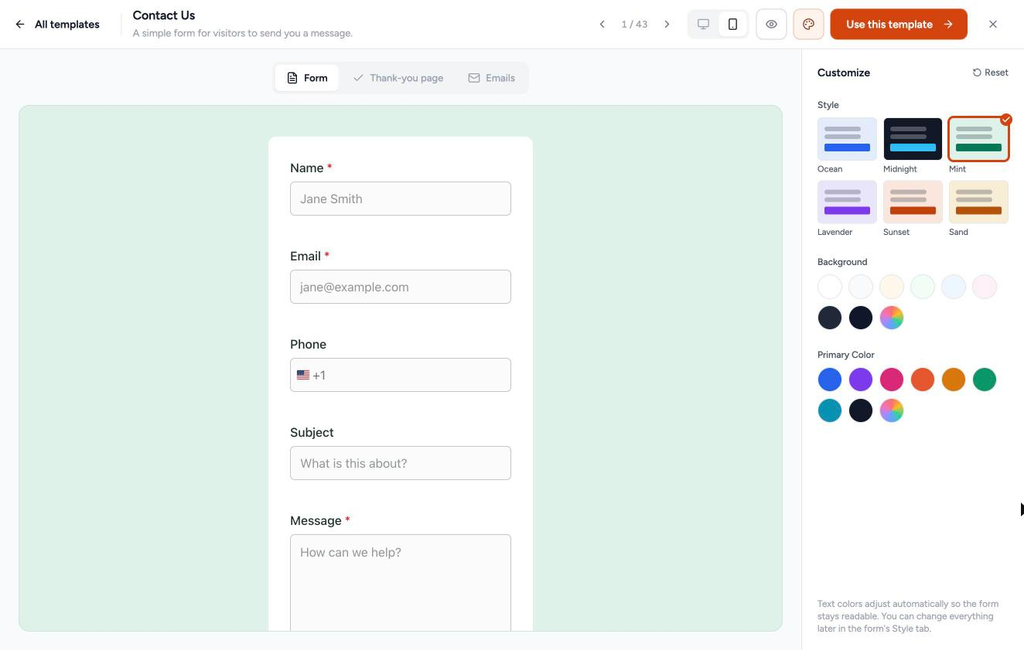
Use the Customize panel on the right to change the appearance of the template.
You can customize the following options:
- Style: Choose from the available style presets, such as Ocean, Midnight, Mint, Lavender, Sunset, or Sand.
- Background: Select a background color using the available color options.
- Primary Color: Select a color for the primary elements of the form.
- Reset: Restore the template’s original design.
You can also use the icons at the top of the preview to:
- Switch between desktop and mobile views.
- Open the form in a full-screen preview using the eye icon.
- Move to the previous or next template using the ‹ and › arrows.
- Use the Left Arrow and Right Arrow keys on your keyboard to navigate between templates.
Creating a Form Using a Template
Once you have found and customized the template you want to use:
- Click Use this template at the top-right of the preview.
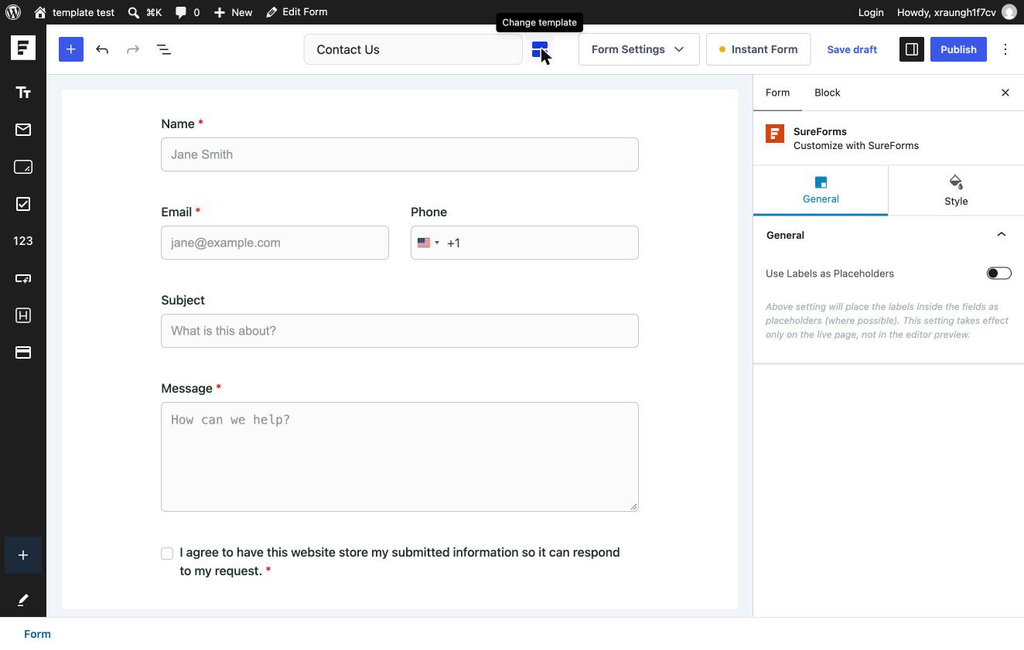
SureForms creates the form as a draft and opens it in the form editor.
The selected template’s fields, design, thank-you message, and email notifications are applied automatically.
- The form initially uses the template’s name, such as Contact Us.
- To rename the form, click its title in the top toolbar.
- Add, remove, or edit fields as required.
- Review the form settings before publishing.
Changing a Form’s Template
If you have already created a form and want to use a different template, you do not need to create a new form manually.
The Change template option lets you replace the existing form’s fields and design while keeping the same form and shortcode.
To change a form’s template:
- Go to SureForms → Forms.
- Open the form you want to edit.
- Click the Change template icon next to the form title in the top toolbar.

The Change template window opens.
- Browse, search, or filter templates using the same options available in the Template Library.
- Click a template to preview it.
- Customize the template if required.
- Click Use this template.
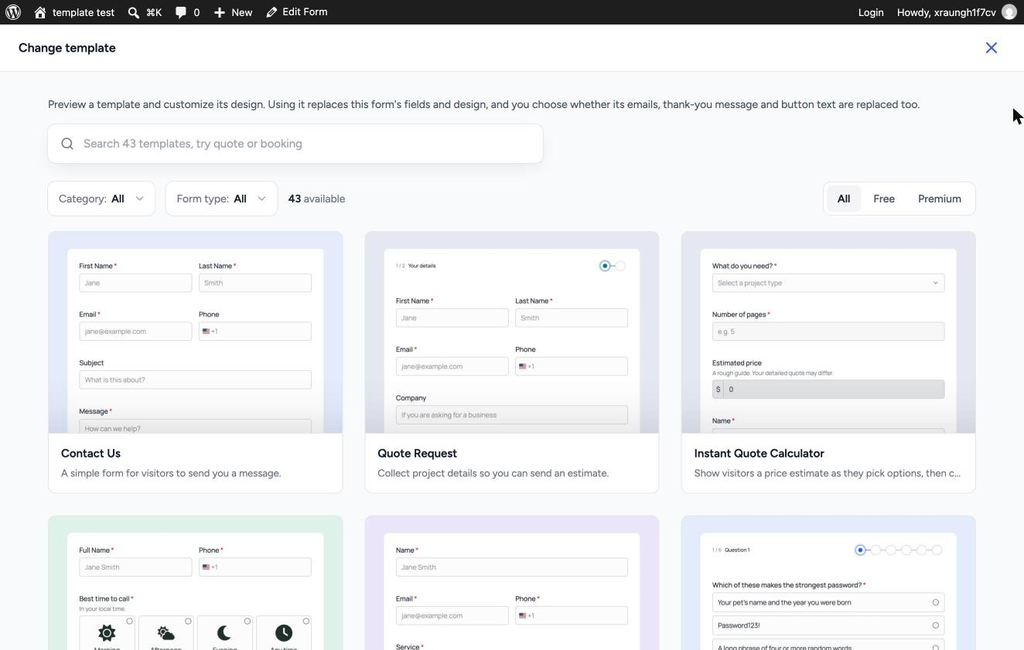
A confirmation window appears before the form is replaced.
Choosing What to Replace
You can choose whether the template should also replace your existing messages and button settings.
Also replace emails, thank-you message and button text with the template
When enabled, the form uses the template’s:
- Email notifications
- Thank-you message
- Submit button text
- Step names
When disabled, the form keeps its existing:
- Email notifications
- Thank-you message
- Submit button text
- Step names
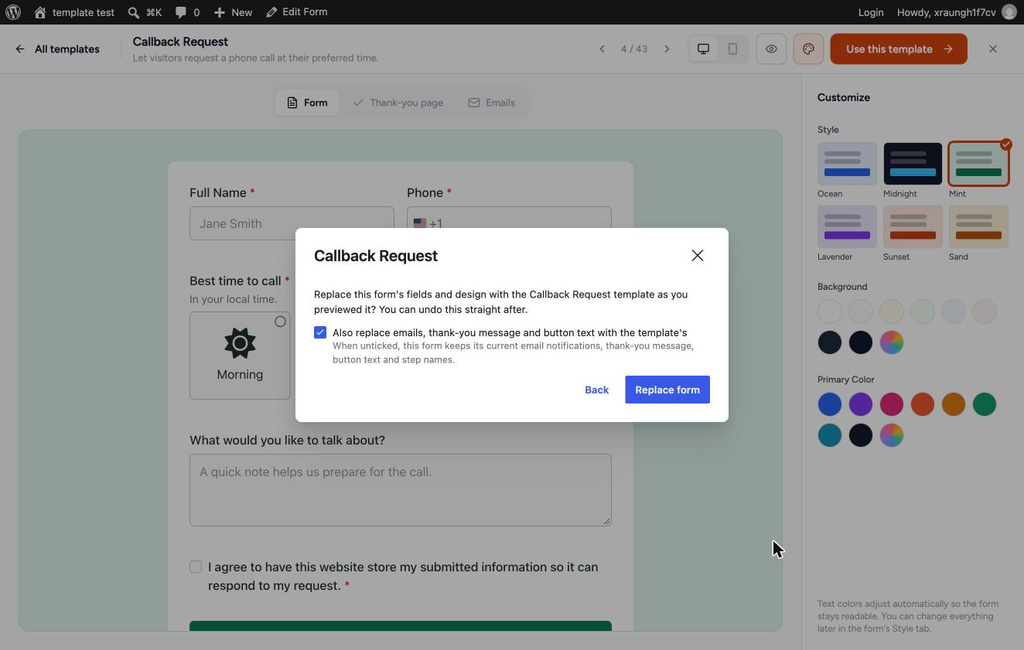
- Click Replace form to apply the template.
- Click Back if you want to return to the template preview without making changes.
- Review the updated form.
- Click Save draft, Save, or Publish to keep the changes.
If you keep your existing emails or thank-you message, check that they do not reference fields that are missing from the new template, such as { form:email}.
Undoing a Template Change
If you change a template and immediately decide to revert it, SureForms provides an Undo option.
After replacing the template, a message appears at the bottom of the editor:
Form replaced with the … template.
Click Undo in this message to restore your previous:
- Form fields
- Design
- Form title
- Messages
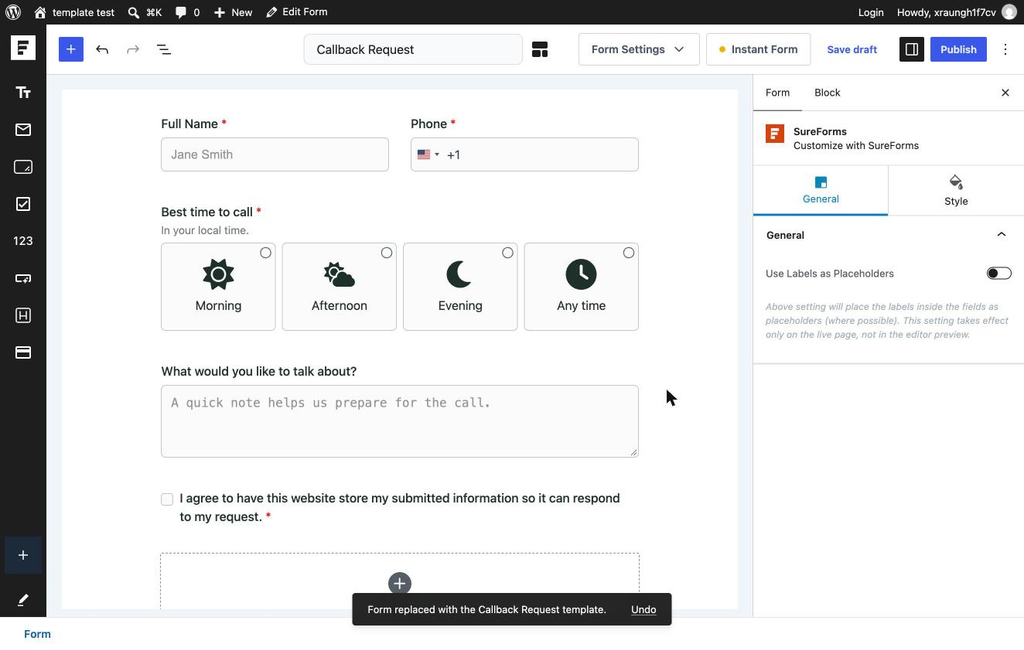
After the message disappears, you can still use the editor’s Undo button to step back through your changes. Depending on the number of changes, you may need to click Undo several times. The form title may not be restored through the editor’s undo history.
Alternatively, you can leave the editor without saving to keep the last saved version.
Forms That Already Have Entries
SureForms protects existing submissions when you try to change the template of a form that already contains entries.
Replacing the fields of a form with existing entries could disconnect those entries and related integrations from the new fields. For this reason, SureForms does not replace the fields of a form that already has entries.
If you click Use this template on a form that contains entries, SureForms displays a confirmation message.
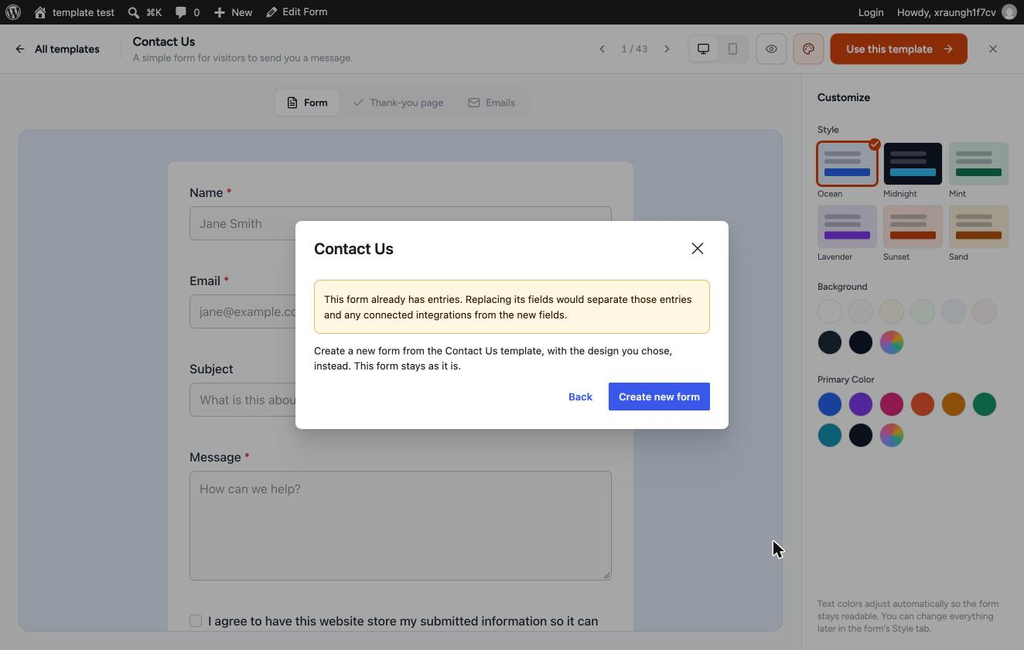
You can then choose:
- Create new form: Creates a separate form using the selected template and design. Your original form and its entries remain unchanged.
- Back: Returns to the template preview without making any changes.
Publishing Your Form
Once you have finished customizing and reviewing your form:
- Click Publish at the top-right of the form editor.
- Your form is now live and ready to use.
You can share the form’s link or add it to a page or post using its shortcode.
That’s it! You can now use SureForms templates to create forms faster and easily change the template of an existing form when your requirements change.
If you have any questions, feel free to reach out to our support team.
We don't respond to the article feedback, we use it to improve our support content.