
- Creating and Publishing a Form
- Conversational Form
- Create Multi Step Forms In WordPress
- Using Calculations in SureForms: A Step-by-Step Guide
- Calculation Formula Guide
- SureForms Login Block – Step-by-Step Guide
- SureForms Registration Block – Step-by-Step Guide
- SureForms – PDF Generation Feature
- GDPR Compliant Forms
- Create WordPress Forms With Conditional Logic
- How to Create Inline Forms in SureForms
- How to Add Smart Tags as Default Values in SureForms
- Adding Custom Posts Using SureForms
- Validate as Unique in SureForms
- How to Use Conditional Logic in SureForms
- How to Use OttoKit with Repeater Field in SureForms
- How to Duplicate a Form in SureForms
- Custom Lost Password and Reset Password Pages
- Quiz Feature in SureForms
- SureForms – Survey & Polls Feature
- Using the Google Maps API with SureForms
- How to Move a Published Form to Draft Mode
- Convert HTML Forms to SureForms
- Hide the Submit Button Using Conditional Logic
- Show Views and Conversion Rate
- How to Enable and Manage Form Abandonment in SureForms
- Creating Forms Using Templates and Changing a Form’s Template
- How to Create a Form from Scratch in SureForms
- Adjust Form Notification Emails
- Form Confirmation
- Entries Management Feature Guide
- How to Add Query Parameters to Form Redirects
- How to Fetch Query Parameters from URL
- Set the “From Email” in SureForms
- Setting Up “Reply-To” Email Using Form Input Tags – SureForms
- Restrict Form Entries in SureForms
- Form Scheduling in SureForms
- Conditional Confirmations in SureForms
- How to Connect Your Stripe Account with SureForms
- How to Connect PayPal in SureForms
- How to Create a Payment Form in SureForms
- SureForms Payments
- How Refunds Work in SureForms Payments
- Understanding Payment Processing Fees
- How to Display the Payment Dashboard on the Frontend (SureForms)
- Enable One-Time Payment and Subscription in a Single Form
- SureForms Integration with ActiveCampaign
- SureForms Integration with AgileCRM
- SureForms Integration with Airtable
- SureForms Integration with LatePoint
- SureForms Integration with FluentCRM
- Connect SureForms To Zapier
- WordPress Forms with the Custom App Builder
- SureForms Integration with Telegram
- SureForms Integration with Breeze
- SureForms Integration with Brevo
- Unable to Upload SureForms ZIP: File Unzipped On Download
- Browser Support for SureForms
- Not Getting Update Notifications
- How To Rollback to Previous SureForms Versions
- Publishing Failed: Invalid JSON Response
- Troubleshooting Email Sending In SureForms
- SureForm Submissions Marked as Spam – How to Fix
- API Request Failed – Nonce Verification Error
- Fixing the “Destination folder already exists” Error When Installing SureForms
- How to Set Up SureForms with Caching Plugins
- srfm_enable_redirect_activation
- sureforms_plugin_action_links
- srfm_quick_sidebar_allowed_blocks
- srfm_integrated_plugins
- srfm_suretriggers_integration_data_filter
- srfm_form_submit_response
- srfm_enable_gutenberg_post_types
- srfm_languages_directory
- srfm_form_template
- srfm_disable_nps_survey
Hide the Submit Button Using Conditional Logic
You can control when the Submit Button appears in your form by using Conditional Logic with a Custom Button. This allows users to submit the form only after specific conditions are met.
For example, you may want the submit button to appear only when a user selects a particular option in a multiple-choice field.
Configure the Submit Button Display Rules
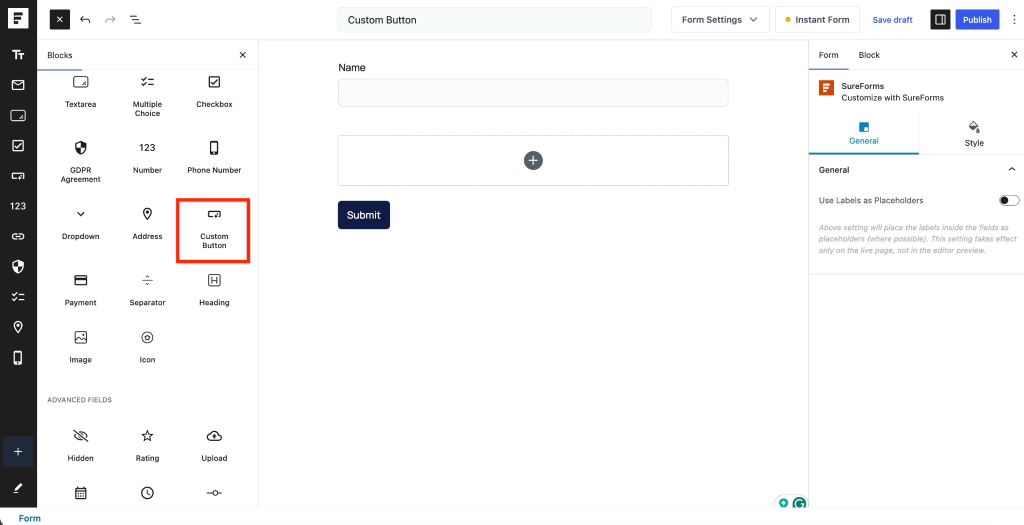
Step 1: Add a Custom Button to the Form
Open your form in the form builder.
Add a Custom Button field to the form.
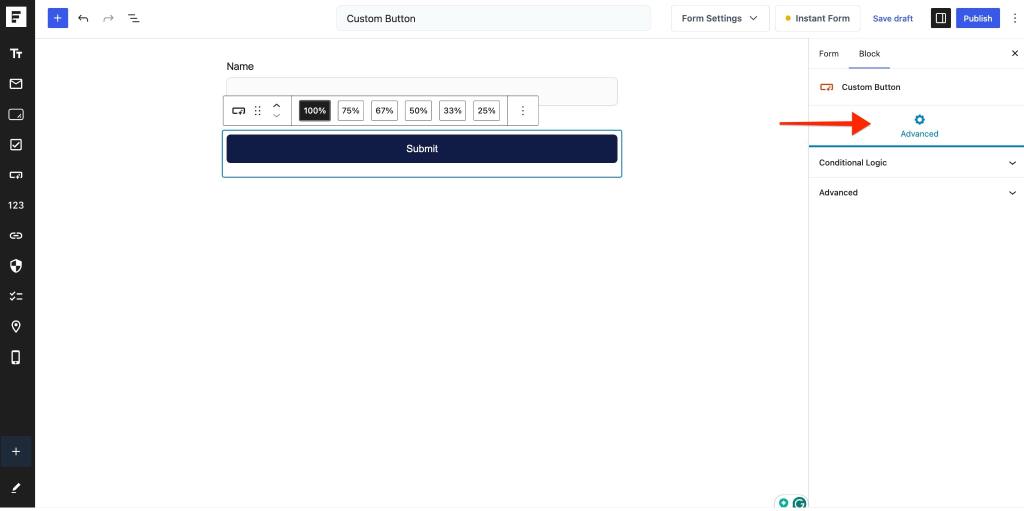
Step 2: Open Advanced Settings
Select the Custom Button.
From the right sidebar settings panel, Click Advanced Settings.
Step 3: Enable Conditional Logic
Inside Advanced Settings, locate Conditional Logic.
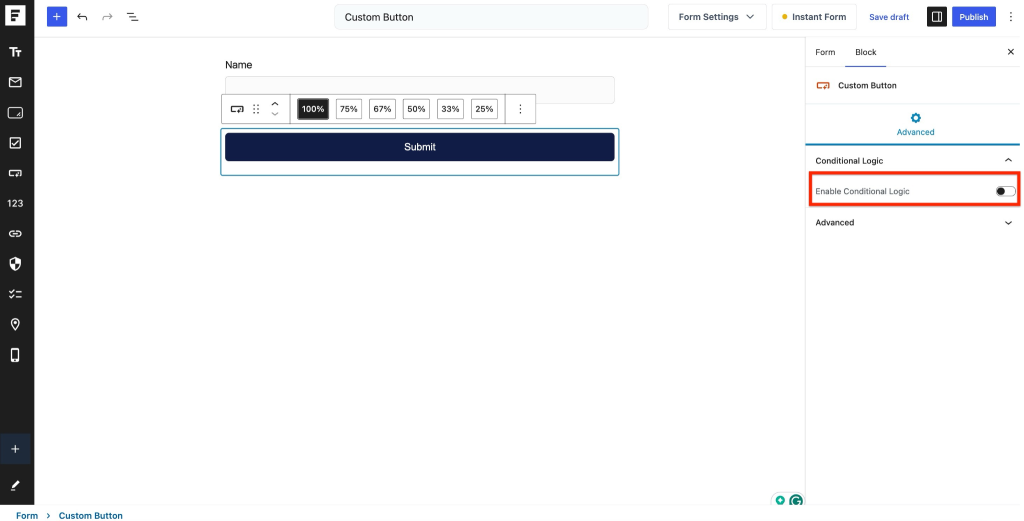
Enable the toggle to activate conditional display rules.
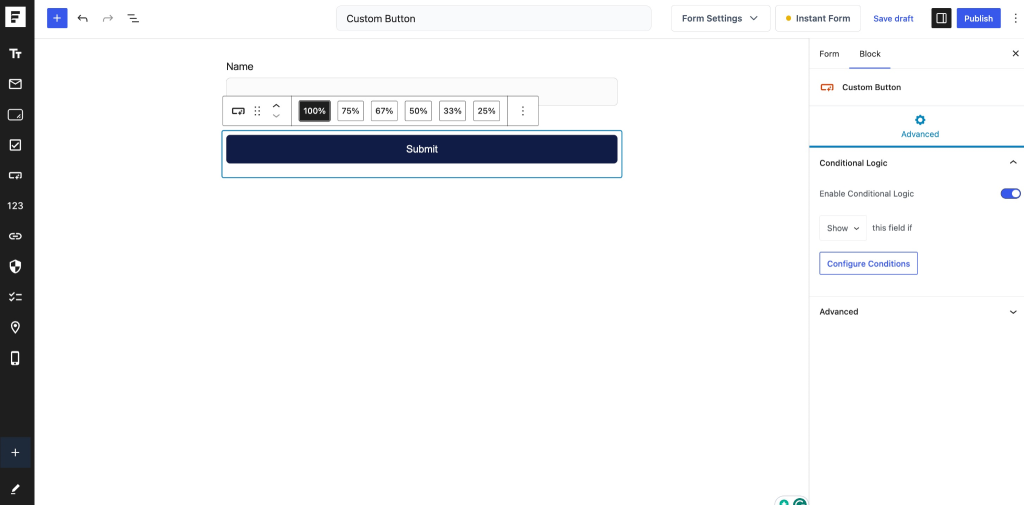
Click Configure.
Step 4: Configure the Condition
Set the condition based on your requirements:
- Select the field from the dropdown.
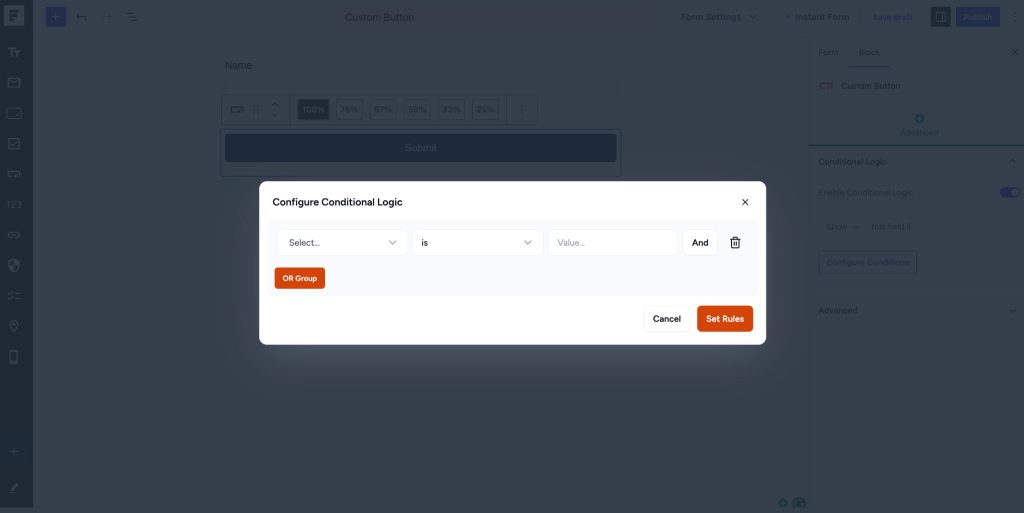
- Choose the condition operator:
- Is
- Is Not
- Is Empty
- Is Not Empty
- Contains
- Enter or select the required value.
- Configure additional rules if needed.
Step 5: Save and Publish the Form
Once the conditional rules are configured:
- Click Save
- Click Publish
Result
When users open the form:
- The Submit Button will remain hidden initially.
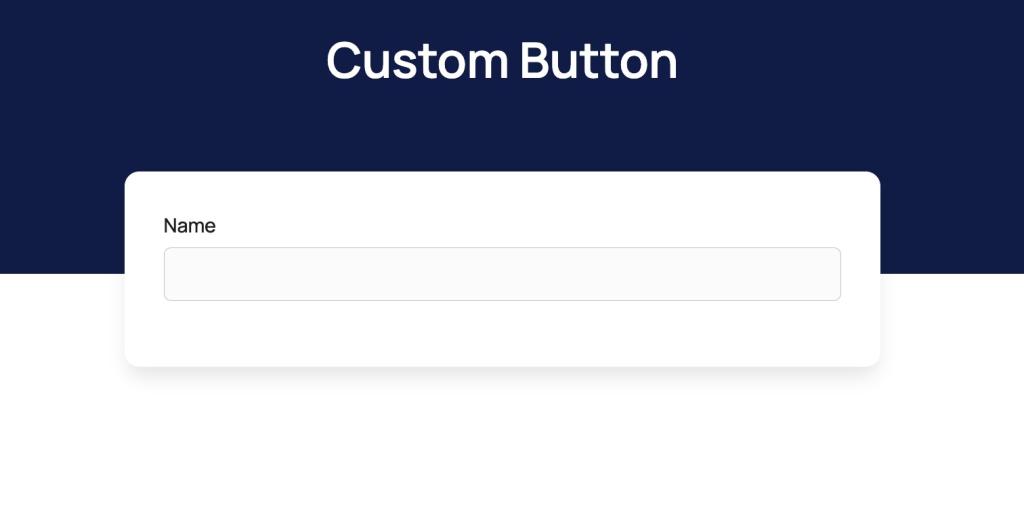
- As users fill in the form and meet the configured condition, the Submit Button becomes visible.
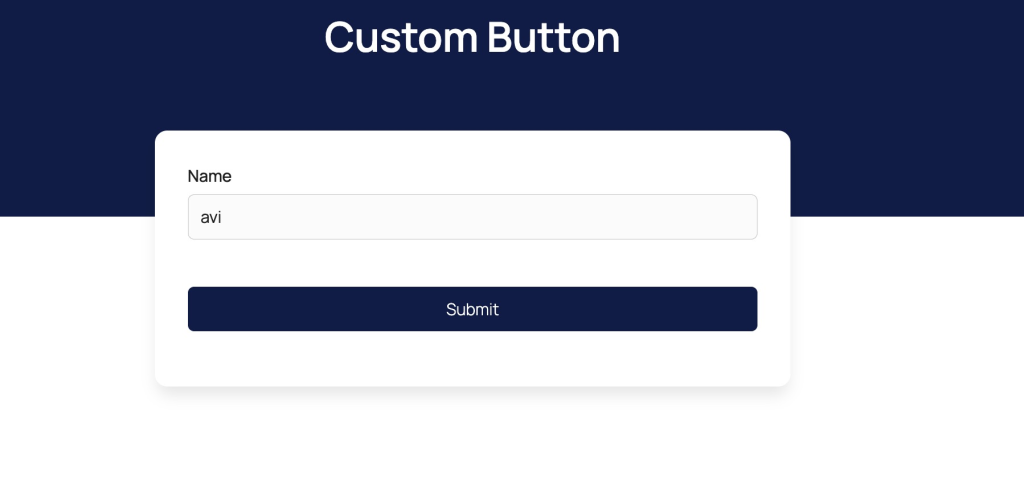
- Users can then submit the form.
Use Case Example
If you want users to confirm acceptance of terms before submission:
- Add a Multiple Choice or Checkbox field.
- Configure the Custom Button to appear only when the user selects Accept.
- The form becomes submittable only after the condition is satisfied.
This helps create guided form experiences and ensures required selections are completed before submission.
We don't respond to the article feedback, we use it to improve our support content.