
- Installing SureForms
- How To Upgrade Your SureForms Plan
- How to Activate License Key on WordPress Multisite
- Managing Forms
- Importing & Exporting Forms
- Quick Action Bar
- SureForms Fields Guide
- Input Patterns
- Manage SureForms Licenses
- Export Form Entries In SureForms
- Partial Entries in SureForms
- How to Send SureForms Events to Google Analytics 4 via GTM
- Creating and Publishing a Form
- Conversational Form
- Create Multi Step Forms In WordPress
- Using Calculations in SureForms: A Step-by-Step Guide
- Calculation Formula Guide
- SureForms Login Block – Step-by-Step Guide
- SureForms Registration Block – Step-by-Step Guide
- SureForms – PDF Generation Feature
- GDPR Compliant Forms
- Create WordPress Forms With Conditional Logic
- Adjust Form Notification Emails
- Form Confirmation
- Entries Management Feature Guide
- How to Add Query Parameters to Form Redirects
- How to Fetch Query Parameters from URL
- Set the “From Email” in SureForms
- Setting Up “Reply-To” Email Using Form Input Tags – SureForms
- Restrict Form Entries in SureForms
- Form Scheduling in SureForms
- Conditional Confirmations in SureForms
- How to Connect Your Stripe Account with SureForms
- How to Connect PayPal in SureForms
- How to Create a Payment Form in SureForms
- SureForms Payments
- How Refunds Work in SureForms Payments
- Understanding Payment Processing Fees
- How to Display the Payment Dashboard on the Frontend (SureForms)
- Enable One-Time Payment and Subscription in a Single Form
- SureForms Integration with ActiveCampaign
- SureForms Integration with AgileCRM
- SureForms Integration with Airtable
- SureForms Integration with LatePoint
- SureForms Integration with FluentCRM
- Connect SureForms To Zapier
- WordPress Forms with the Custom App Builder
- SureForms Integration with Telegram
- SureForms Integration with Breeze
- SureForms Integration with Brevo
- Unable to Upload SureForms ZIP: File Unzipped On Download
- Browser Support for SureForms
- Not Getting Update Notifications
- How To Rollback to Previous SureForms Versions
- Publishing Failed: Invalid JSON Response
- Troubleshooting Email Sending In SureForms
- SureForm Submissions Marked as Spam – How to Fix
- API Request Failed – Nonce Verification Error
- Fixing the “Destination folder already exists” Error When Installing SureForms
- How to Set Up SureForms with Caching Plugins
- srfm_enable_redirect_activation
- sureforms_plugin_action_links
- srfm_quick_sidebar_allowed_blocks
- srfm_integrated_plugins
- srfm_suretriggers_integration_data_filter
- srfm_form_submit_response
- srfm_enable_gutenberg_post_types
- srfm_languages_directory
- srfm_form_template
- srfm_disable_nps_survey
Partial Entries in SureForms
Overview
Partial Entries allows SureForms to capture and store form data while a visitor is still filling out the form, even if they never click the Submit button.
In most forms, if a visitor leaves midway, all entered data is lost. This can result in missed leads, incomplete inquiries, or lost user intent.
With Partial Entries enabled, SureForms ensures that:
- User input is saved automatically in the background
- You can view incomplete submissions from the admin panel
- You can understand where users drop off
- You can follow up with potential customers
- Users can resume filling out the form later
Why Use Partial Entries?
Partial Entries are especially useful when:
- Your form is long or multi-step
- You collect leads, inquiries, or applications
- Users may get distracted or leave midway
- You want better visibility into user behavior
Example Use Case
A visitor starts filling a contact or quote form but leaves after entering their email. Without Partial Entries → Data is lost
With Partial Entries → You can still see the email and follow up
Enabling Partial Entries
Partial Entries must be enabled individually for each form.
Steps to Enable
- Edit the form.
- Click the Form Settings
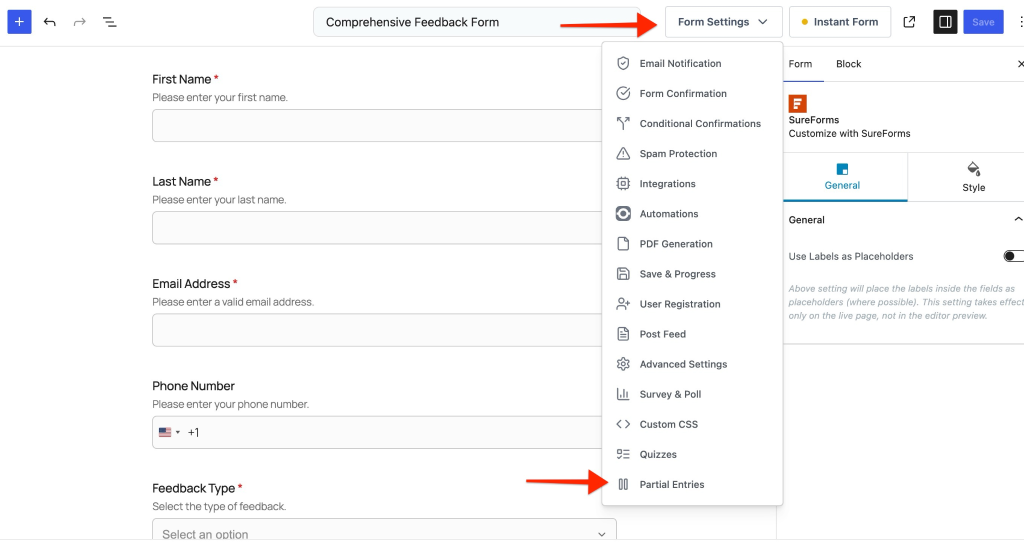
- Select the Partial Entries option from the From Settings.
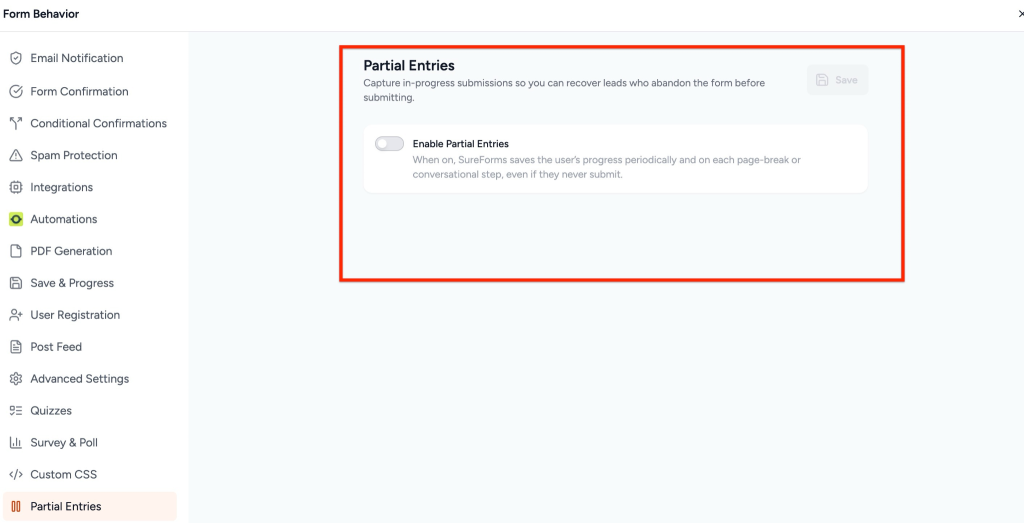
- Enable the toggle “Enable Partial Entries.”
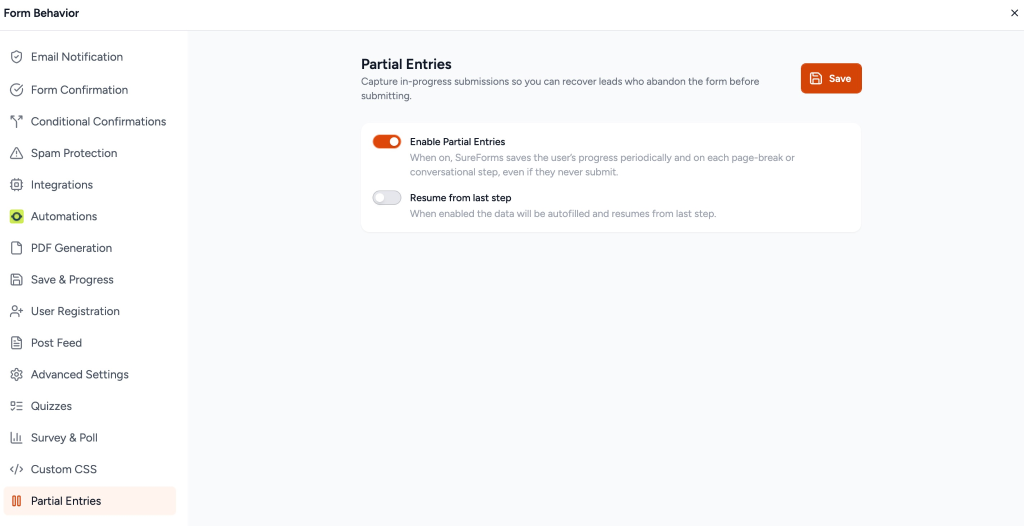
- (Optional) Enable “Resume from last step”
- Click Save to save changes
How Partial Entries Save Data
SureForms uses multiple triggers to ensure data is not lost.
1. Field Interaction (Blur Event)
When a user:
- Types into a field
- Clicks or tabs away
The data is saved automatically after a short delay.
This ensures even small inputs are captured.
2. Step Navigation (Multi-Step Forms)
When a user clicks Next:
- All data from the current step is saved
- Progress is updated
This works for:
- Page-break forms
- Conversational forms
3. Automatic Background Saving
- Runs approximately every 60 seconds
- Only triggers if the user has interacted with the form
Prevents unnecessary server requests while still keeping data safe.
4. Manual Save (User Action)
When the user clicks:
Save & Resume Later
- Data is saved immediately
- A resume session is created
5. Page Exit / Tab Close
If the user:
- Closes the tab
- Navigates away
SureForms attempts a final save before exit.
Visitor Experience
Partial Entries is designed to be invisible and non-intrusive.
- No popups
- No interruptions
- No visible saving indicators
The form behaves exactly like a normal form.
Accessing Partial Entries in Admin
To view saved entries:
Go to: WP Admin → SureForms → Partial Entries
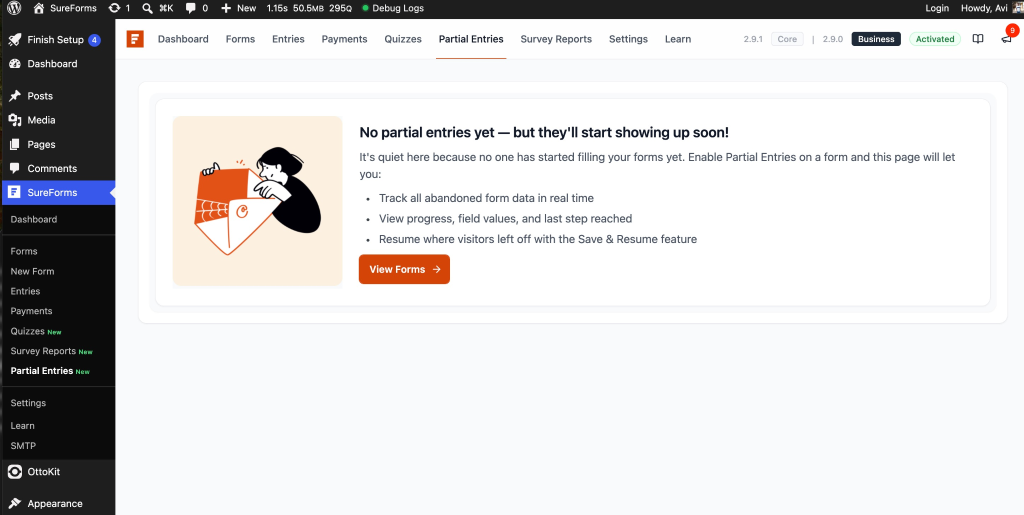
Partial Entries List View
This page shows all saved entries.
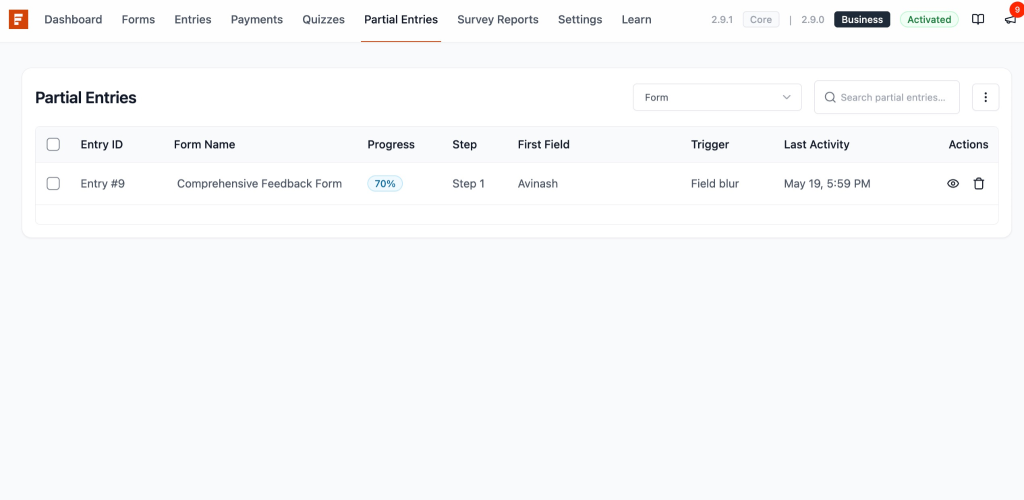
Column Breakdown
- Entry ID: Unique number assigned to each entry
- Form Name: The form where the entry was created
- First Value: Preview of the first field (usually name/email)
- Progress (%): How much of the form is completed
- Step: Current step reached (for multi-step forms)
- Last Activity: Last time the data was saved
Managing Entries
- Filtering: Filter entries by specific form
- Sorting: Sort by date, progress, or activity
- Bulk Actions
- Delete multiple entries
- Export selected entries
Entry Detail Page
Click any entry to open detailed information.
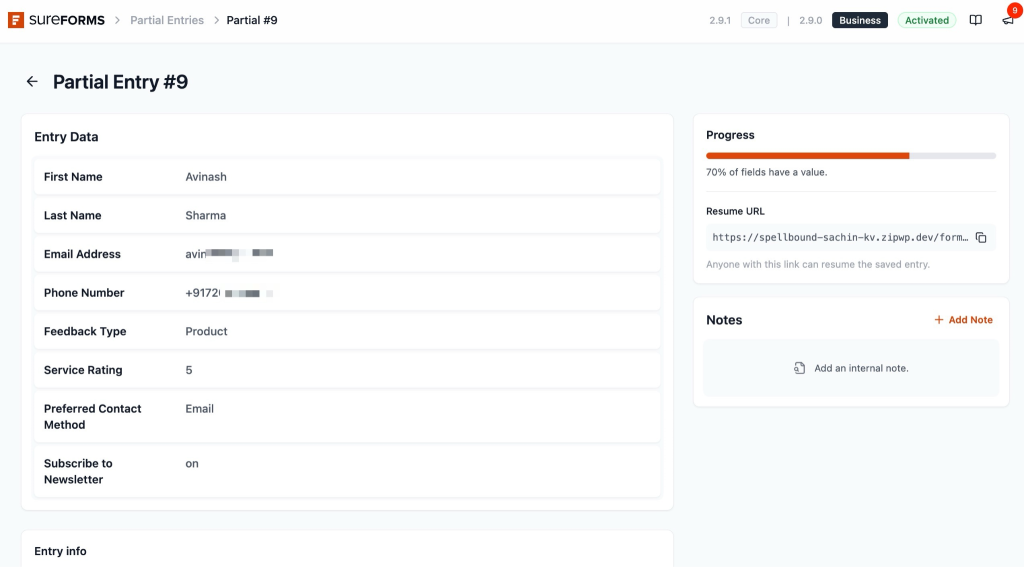
Entry Information Section
Displays:
- Form name
- Current step
- Last save trigger (input, step, heartbeat, etc.)
- User device/browser details
- Start time and last activity
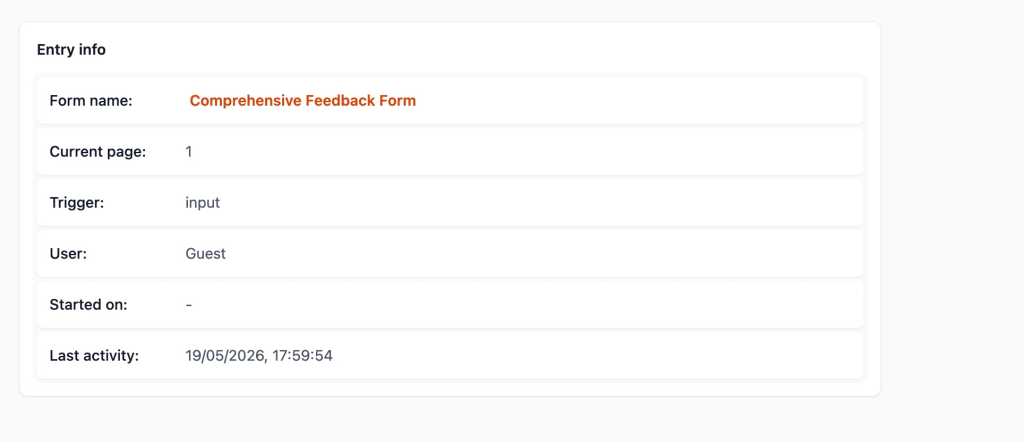
Entry Data Section
Shows:
- All fields filled by the user
- Only non-empty fields are displayed
- Repeater fields are grouped
This helps you quickly understand what the user has entered.
Progress Section
Displays completion percentage based on:
- Number of fields filled
- Steps completed
Even if fields are empty, step progression is considered.
Resume URL Section
Available only if the Resume feature is enabled.
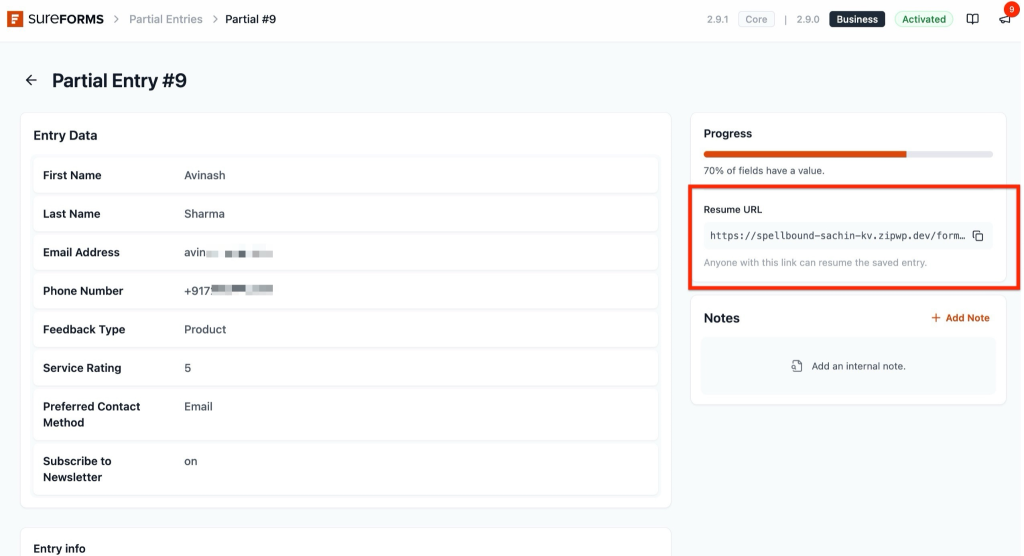
This link allows users to:
- Open the form again
- Continue from where they stopped
- See pre-filled values
Important: Anyone with this link can access the saved data.
Notes Feature
Each entry supports internal notes.
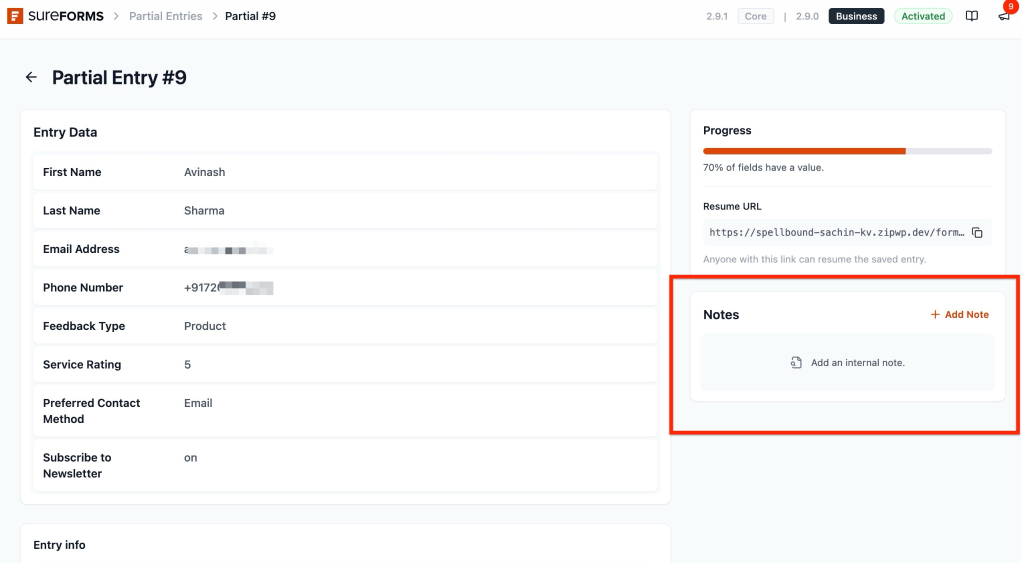
You can:
- Add notes
- Delete notes
- Track communication or follow-ups
Example Use
- “Called customer, no response.”
- “Interested, follow up tomorrow.”
Exporting Partial Entries
You can export entries for analysis or record-keeping.
Export Options
- Export selected entries
- Export all entries for a form
Output Format
- Single form → CSV file
- Multiple forms → ZIP file
Permissions
By default, only admins can:
- View entries
- Export data
- Manage notes
Permissions can be customized using developer filters.
Compatibility
Supported Form Types
- Single-page forms
- Multi-step forms
- Conversational forms
Supported Fields
- Text, Email, Textarea
- Dropdown, Radio, Checkbox
- Date, Number, Rating
- Repeater fields
Not Supported
- File Upload fields
- Signature fields
Troubleshooting
Partial Entries not visible
- Ensure the Pro Business plan is active
- Check user permissions
Entries not saving
- Confirm the feature is enabled
- Update the form after enabling
- Clear the cache and test again
Final Summary
Partial Entries helps you:
- Capture lost leads
- Improve conversion tracking
- Understand user drop-off
- Provide a better user experience
We don't respond to the article feedback, we use it to improve our support content.