
- Installing SureForms
- How To Upgrade Your SureForms Plan
- How to Activate License Key on WordPress Multisite
- Managing Forms
- Importing & Exporting Forms
- Quick Action Bar
- SureForms Fields Guide
- Input Patterns
- Manage SureForms Licenses
- Export Form Entries In SureForms
- Partial Entries in SureForms
- How to Send SureForms Events to Google Analytics 4 via GTM
- Creating and Publishing a Form
- Conversational Form
- Create Multi Step Forms In WordPress
- Using Calculations in SureForms: A Step-by-Step Guide
- Calculation Formula Guide
- SureForms Login Block – Step-by-Step Guide
- SureForms Registration Block – Step-by-Step Guide
- SureForms – PDF Generation Feature
- GDPR Compliant Forms
- Create WordPress Forms With Conditional Logic
- Adjust Form Notification Emails
- Form Confirmation
- Entries Management Feature Guide
- How to Add Query Parameters to Form Redirects
- How to Fetch Query Parameters from URL
- Set the “From Email” in SureForms
- Setting Up “Reply-To” Email Using Form Input Tags – SureForms
- Restrict Form Entries in SureForms
- Form Scheduling in SureForms
- Conditional Confirmations in SureForms
- How to Connect Your Stripe Account with SureForms
- How to Connect PayPal in SureForms
- How to Create a Payment Form in SureForms
- SureForms Payments
- How Refunds Work in SureForms Payments
- Understanding Payment Processing Fees
- How to Display the Payment Dashboard on the Frontend (SureForms)
- Enable One-Time Payment and Subscription in a Single Form
- SureForms Integration with ActiveCampaign
- SureForms Integration with AgileCRM
- SureForms Integration with Airtable
- SureForms Integration with LatePoint
- SureForms Integration with FluentCRM
- Connect SureForms To Zapier
- WordPress Forms with the Custom App Builder
- SureForms Integration with Telegram
- SureForms Integration with Breeze
- SureForms Integration with Brevo
- Unable to Upload SureForms ZIP: File Unzipped On Download
- Browser Support for SureForms
- Not Getting Update Notifications
- How To Rollback to Previous SureForms Versions
- Publishing Failed: Invalid JSON Response
- Troubleshooting Email Sending In SureForms
- SureForm Submissions Marked as Spam – How to Fix
- API Request Failed – Nonce Verification Error
- Fixing the “Destination folder already exists” Error When Installing SureForms
- How to Set Up SureForms with Caching Plugins
- srfm_enable_redirect_activation
- sureforms_plugin_action_links
- srfm_quick_sidebar_allowed_blocks
- srfm_integrated_plugins
- srfm_suretriggers_integration_data_filter
- srfm_form_submit_response
- srfm_enable_gutenberg_post_types
- srfm_languages_directory
- srfm_form_template
- srfm_disable_nps_survey
How to Send SureForms Events to Google Analytics 4 via GTM
Overview
This document explains how form activity from SureForms is tracked in Google Analytics 4 (GA4) using Google Tag Manager (GTM). When a visitor views or submits a SureForms form, a custom event is pushed into the browser dataLayer. Google Tag Manager listens for that event and forwards it to GA4 as a structured event with parameters such as the form ID and the action performed. This allows you to measure form views and form submissions directly inside GA4.
The integration has three moving parts: a small data-push script on the website that writes form activity into the dataLayer, a set of tags and a trigger inside Google Tag Manager, and a GA4 property that receives and reports the events.
Prerequisites
Before setting up the integration, you need a WordPress site with the SureForms plugin and at least one published form, a Google Tag Manager container installed on the site, and a GA4 property with a Web data stream and its Measurement ID. In this setup, the GTM container is GTM-TDTR988N and the GA4 Measurement ID is G-NCH6LVSEJT.
The SureForms Form
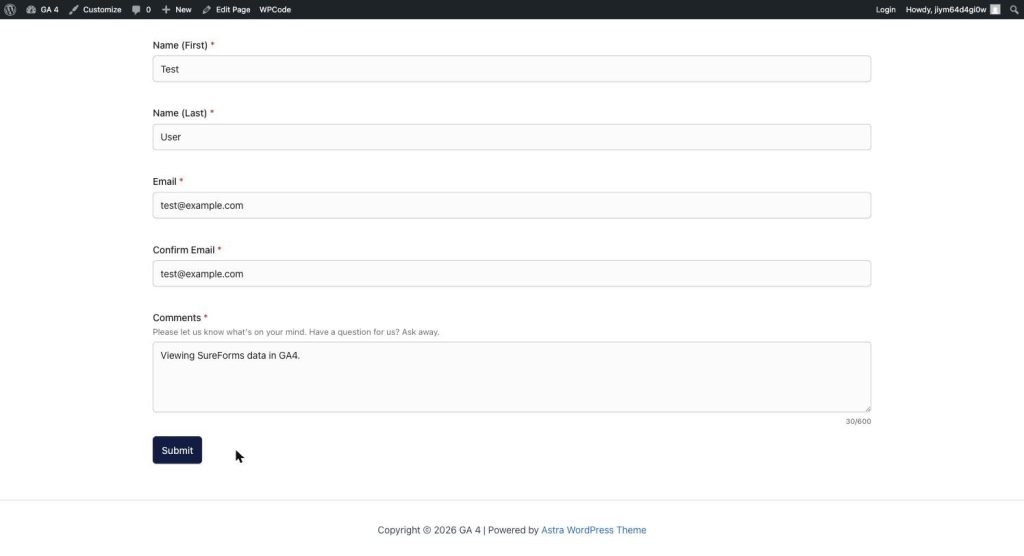
This is the form used in this guide, a standard SureForms contact form with First Name, Last Name, Email, Confirm Email, and Comments fields, plus a Submit button. Each time this page loads, a FormView activity is recorded, and each successful submission records a FormSubmitted activity.
Step 1 – The dataLayer Push Script
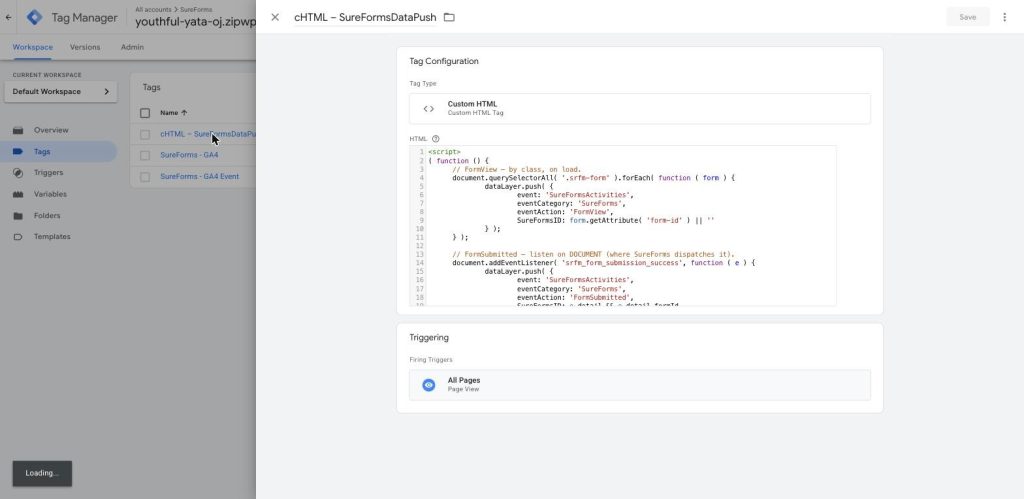
A small JavaScript snippet is added to the site (for example via a code-injection plugin such as WPCode). It writes SureForms activity into the dataLayer so that Google Tag Manager can pick it up. The script does two things: on page load, it pushes a FormView event for every form on the page, and it listens for SureForms’ successful-submission event and pushes a FormSubmitted event when a form is submitted.
Each push uses a common event name of SureFormsActivities, an eventCategory of SureForms, an eventAction of either FormView or FormSubmitted, and a SureFormsID holding the form’s numeric ID. The reference script is shown below.
<script>
( function () {

  // FormView - by class, on load.

  document.querySelectorAll( '.srfm-form' ).forEach( function ( form ) {
    dataLayer.push( {
      event: 'SureFormsActivities',
      eventCategory: 'SureForms',
      eventAction: 'FormView',
      SureFormsID: form.getAttribute( 'form-id' ) || ''

    } );
  } );

  // FormSubmitted - listen on DOCUMENT (where SureForms dispatches it).

  document.addEventListener( 'srfm_form_submission_success', function ( e ) {
    dataLayer.push( {
      event: 'SureFormsActivities',
      eventCategory: 'SureForms',
      eventAction: 'FormSubmitted',
      SureFormsID: e.detail && e.detail.formId ? String( e.detail.formId ).replace( 'srfm-form-', '' ) : ''

    } );

  } );

} )();
</script>Step 2 – Google Tag Manager Configuration
Inside the GTM container, three tags work together with a single custom event trigger. The screenshot below shows the configured tags.
The three tags and the trigger are described below the screenshot.
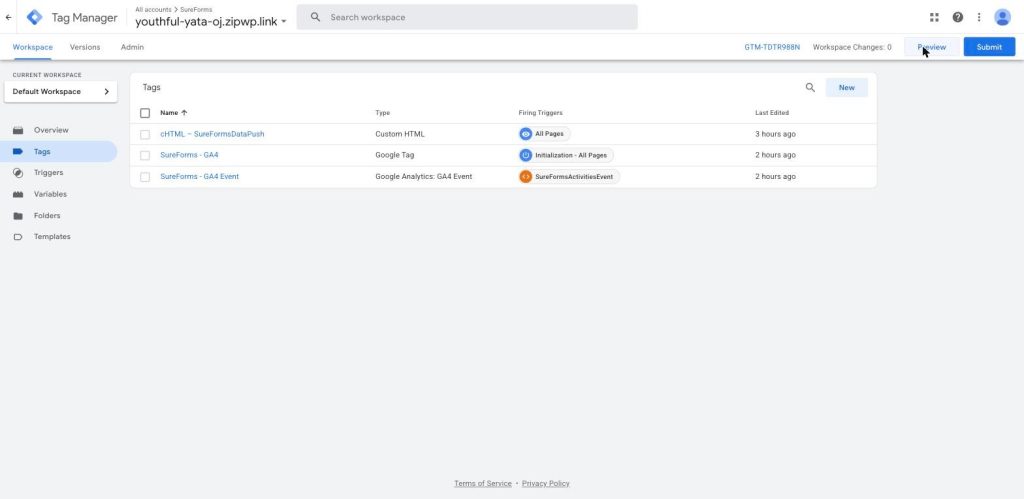
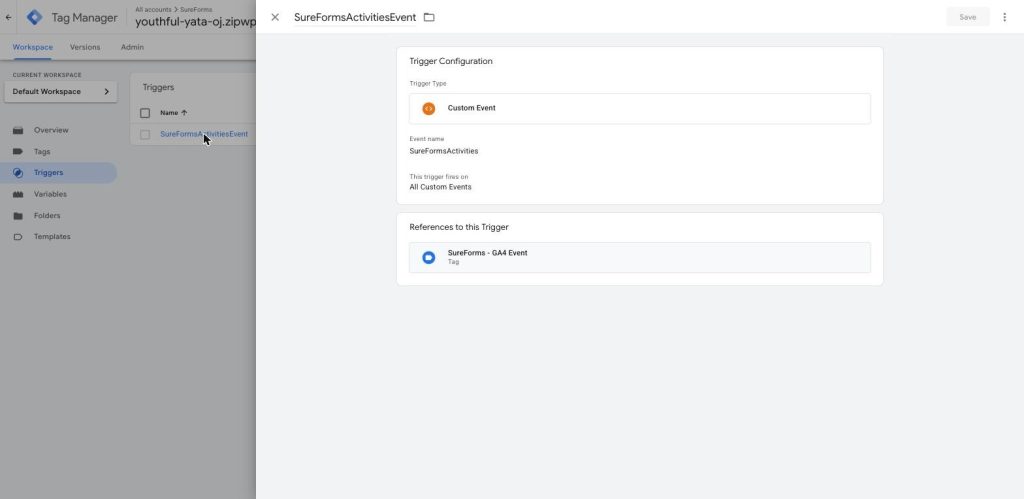
There is a Custom Event trigger named SureFormsActivitiesEvent that fires on the event name SureFormsActivities (the same name used in the dataLayer push). This trigger is what tells GTM that a SureForms activity has occurred.
The first tag, cHTML – SureFormsDataPush, is a Custom HTML tag that fires on All Pages. It holds the data-push script described in Step 1 so the dataLayer is populated on every page.
The second tag, SureForms – GA4, is the Google Tag (the base GA4 configuration tag) holding the Measurement ID G-NCH6LVSEJT. It is responsible for initializing GA4 on the site. Importantly, this tag fires on Initialization – All Pages so that GA4 is loaded on every page view (see the troubleshooting note below for why this matters).
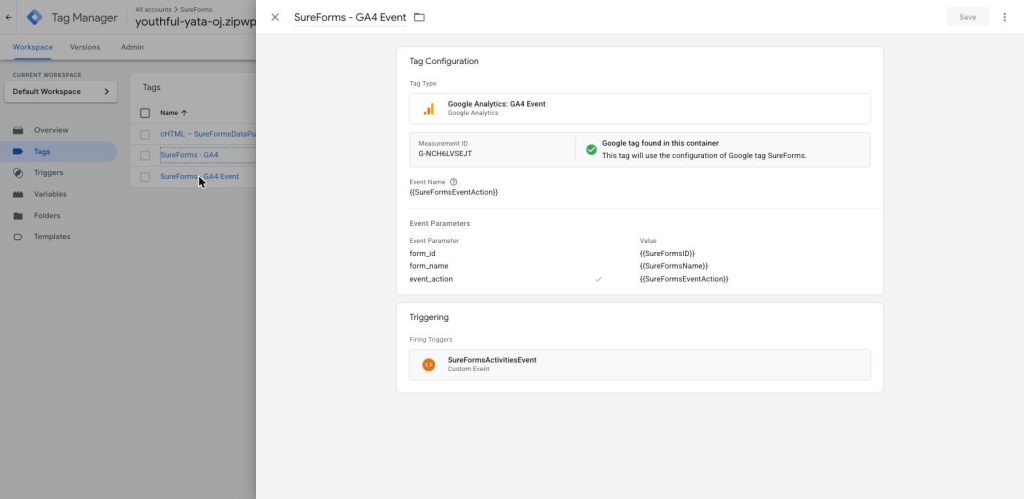
The third tag, SureForms – GA4 Event, is a GA4 Event tag that fires on the SureFormsActivitiesEvent trigger. It sends the actual SureForms activity to GA4, mapping the dataLayer values (form ID, event action, form name) into GA4 event parameters.
Each Tag and Trigger Confirmed
cHTML – SureFormsDataPush (Custom HTML tag). This tag holds the dataLayer push script from Step 1 and fires on every page via the All Pages trigger.
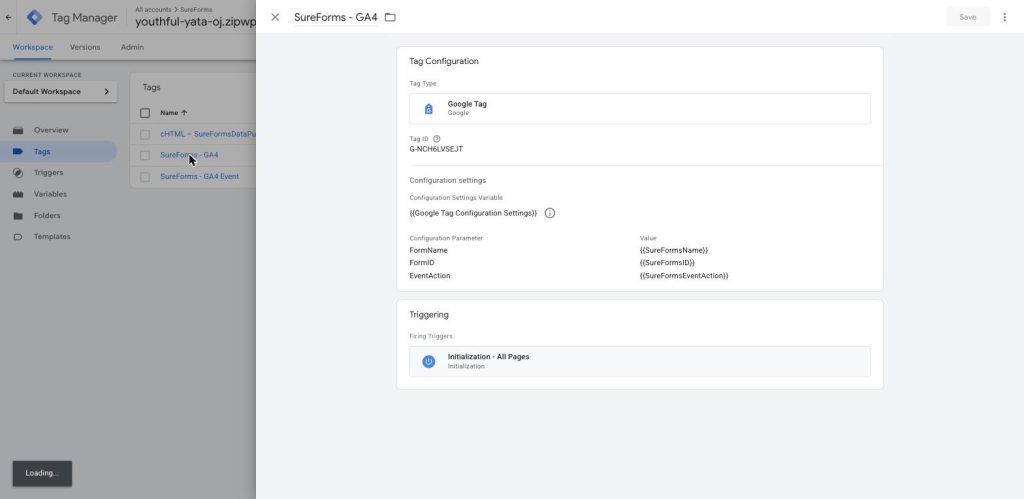
SureForms – GA4 (Google Tag). The base GA4 configuration tag holds Measurement ID G-NCH6LVSEJT. It was changed to fire on the Initialization – All Pages trigger so GA4 loads on every page view (this was the key fix).
SureForms – GA4 Event (GA4 Event tag). This sends the actual activity to GA4. The event name is taken from SureFormsEventAction and the event parameters form_id, form_name, and event_action are mapped from the dataLayer. It fires on the SureFormsActivitiesEvent trigger.
SureFormsActivitiesEvent (Custom Event trigger). This trigger fires on the custom event name SureFormsActivities – the same name used in the dataLayer push. It is what tells GTM that a SureForms activity has occurred, and it is referenced by the SureForms – GA4 Event tag above.
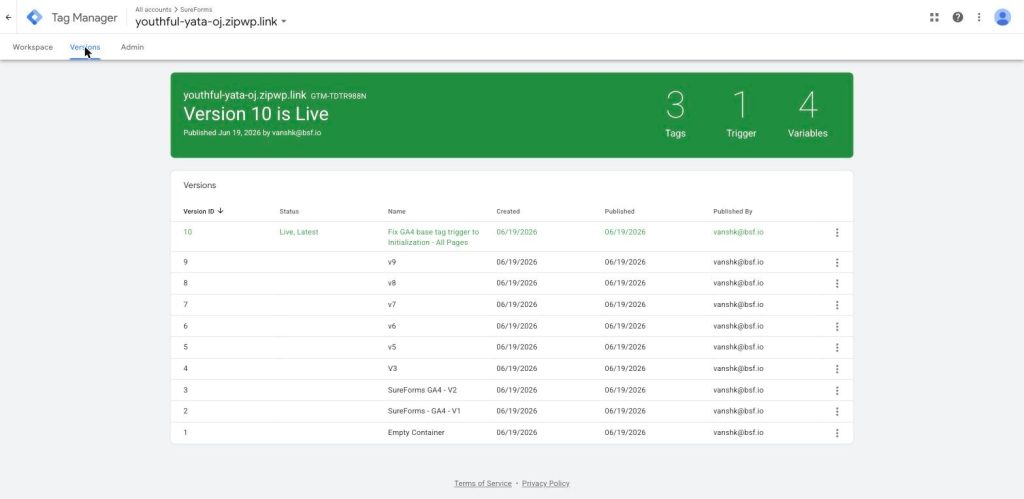
Publishing the container. After configuring the tags and trigger, the workspace was published as Version 10. The live version contains 3 tags, 1 trigger, and 4 variables, confirming the fix to the GA4 base tag is live on the site.
Step 3 – Verifying Tags with GTM Preview
Before relying on the data, verify that the tags fire correctly using GTM Preview mode. In Google Tag Manager, click Preview, enter the form page URL, and connect. Tag Assistant opens the site in a debug session. When you load the page and submit the form, Tag Assistant should show the tags firing: SureForms – GA4 (fired once), SureForms – GA4 Event (fired on each activity), and cHTML – SureFormsDataPush (fired once), with no tags listed under Tags Not Fired. The event timeline on the left shows the SureFormsActivities events alongside the standard page_view and form interaction events.
Step 4 – Viewing SureForms Data in GA4
There are three places to view the data, each with different timing.
Realtime: Go to Reports, then Realtime overview, and scroll to the Event count by Event name card. SureForms events such as FormView and FormSubmitted appear here within seconds of firing. This is the quickest way to confirm live activity.
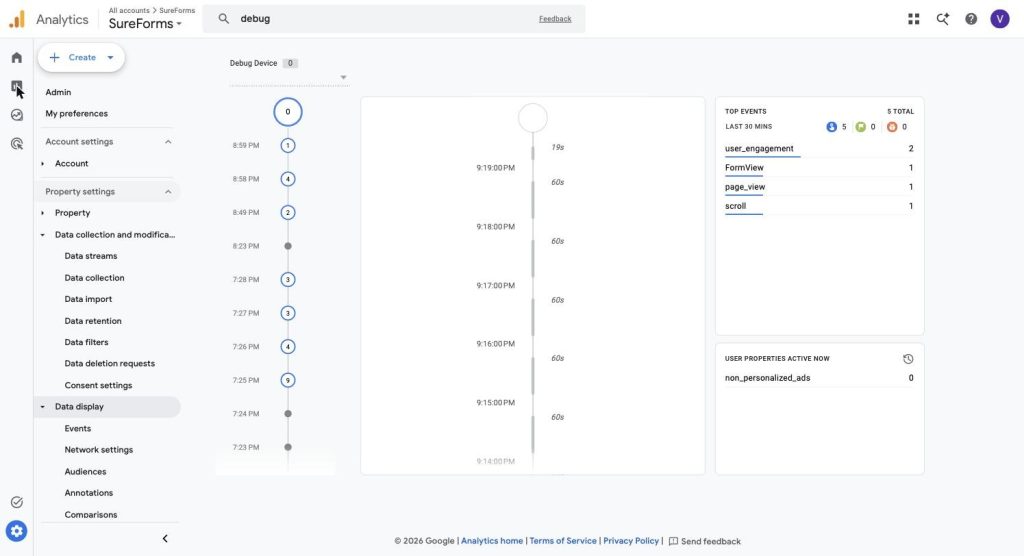
DebugView: Go to Admin, then Data display, then DebugView. With GTM Preview active, this shows a second-by-second timeline of each event and lets you click an event to inspect its parameters (form ID, event action, form name). The screenshot below shows SureForms events arriving in DebugView.
Engagement reports: For long-term reporting, go to Reports, then Engagement, then Events. SureForms events appear here after GA4 finishes processing (typically within 24–48 hours), where they can be used in standard reports and explorations. The screenshot below shows SureForms events (FormSubmitted, FormView, page_view) in GA4 DebugView.
Troubleshooting
No data appears in GA4 even though events fire in the dataLayer. The most common cause is the GA4 base Google Tag firing on the wrong trigger. The base Google Tag (SureForms – GA4) must fire on Initialization – All Pages, not on the SureForms custom event. If it only fires on the form event, GA4 is never initialized on normal page loads and no data, including page views, is recorded. Setting the trigger to Initialization – All Pages resolves this.
Event counts in GA4 are lower than the number of submissions. If you submit a form several times but GA4 shows fewer FormSubmitted events, check the HTTP response of the analytics requests. On some staging or preview hosts, outbound requests to google-analytics.com are intermittently throttled and return HTTP 503, which silently drops a portion of the hits. The tags still fire correctly in Tag Assistant, but only the hits that are not blocked reach GA4, so counts come out lower than expected. Testing on the production domain, where these requests are not throttled, makes the counts match the actual number of submissions.
Reports show no data, but Realtime does. This is expected. Realtime and DebugView are near-instant, while standard reports take up to 24 to 48 hours to process. Use Realtime and DebugView for testing and verification, and the Engagement reports for historical analysis once processing has completed.
Summary
With the data-push script in place, the three GTM tags configured, and the GA4 base tag firing on Initialization – All Pages, SureForms form views and submissions flow into GA4 as SureFormsActivities events. Verify with GTM Preview and DebugView, monitor live activity in Realtime, and use the Engagement reports for long-term reporting.
We don't respond to the article feedback, we use it to improve our support content.