
- Creating and Publishing a Form
- Conversational Form
- Create Multi Step Forms In WordPress
- Using Calculations in SureForms: A Step-by-Step Guide
- Calculation Formula Guide
- SureForms Login Block – Step-by-Step Guide
- SureForms Registration Block – Step-by-Step Guide
- SureForms – PDF Generation Feature
- GDPR Compliant Forms
- Create WordPress Forms With Conditional Logic
- Adjust Form Notification Emails
- Form Confirmation
- Entries Management Feature Guide
- How to Add Query Parameters to Form Redirects
- How to Fetch Query Parameters from URL
- Set the “From Email” in SureForms
- Setting Up “Reply-To” Email Using Form Input Tags – SureForms
- Restrict Form Entries in SureForms
- Form Scheduling in SureForms
- Conditional Confirmations in SureForms
- SureForms – Send Uploaded File as Email Attachment
- Show Entries in SureForms
- How to Connect Your Stripe Account with SureForms
- How to Connect PayPal in SureForms
- How to Create a Payment Form in SureForms
- SureForms Payments
- How Refunds Work in SureForms Payments
- Understanding Payment Processing Fees
- How to Display the Payment Dashboard on the Frontend (SureForms)
- Enable One-Time Payment and Subscription in a Single Form
- SureForms Integration with ActiveCampaign
- SureForms Integration with AgileCRM
- SureForms Integration with Airtable
- SureForms Integration with LatePoint
- SureForms Integration with FluentCRM
- Connect SureForms To Zapier
- WordPress Forms with the Custom App Builder
- SureForms Integration with Telegram
- SureForms Integration with Breeze
- SureForms Integration with Brevo
- Unable to Upload SureForms ZIP: File Unzipped On Download
- Browser Support for SureForms
- Not Getting Update Notifications
- How To Rollback to Previous SureForms Versions
- Publishing Failed: Invalid JSON Response
- Troubleshooting Email Sending In SureForms
- SureForm Submissions Marked as Spam – How to Fix
- API Request Failed – Nonce Verification Error
- Fixing the “Destination folder already exists” Error When Installing SureForms
- How to Set Up SureForms with Caching Plugins
- srfm_enable_redirect_activation
- sureforms_plugin_action_links
- srfm_quick_sidebar_allowed_blocks
- srfm_integrated_plugins
- srfm_suretriggers_integration_data_filter
- srfm_form_submit_response
- srfm_enable_gutenberg_post_types
- srfm_languages_directory
- srfm_form_template
- srfm_disable_nps_survey
SureForms – Send Uploaded File as Email Attachment
This guide explains how to send uploaded files as email attachments in SureForms. This is useful when you want to receive files (like documents, images, or PDFs) directly in your email after form submission.
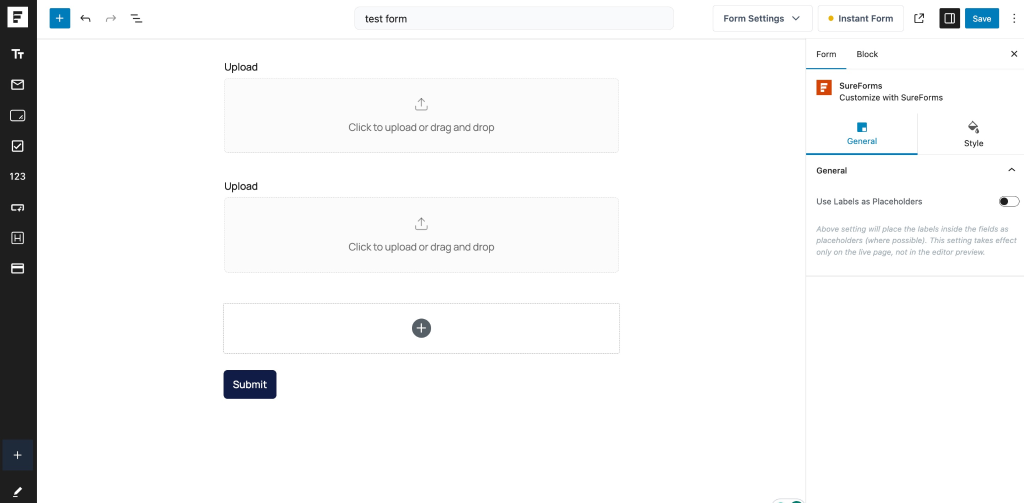
Step 1: Add a File Upload Field
To send files as attachments, your form must include a File Upload field.
- You can add:
- Single file upload, or
- Multiple file upload field
Make sure the upload field is properly configured before proceeding.
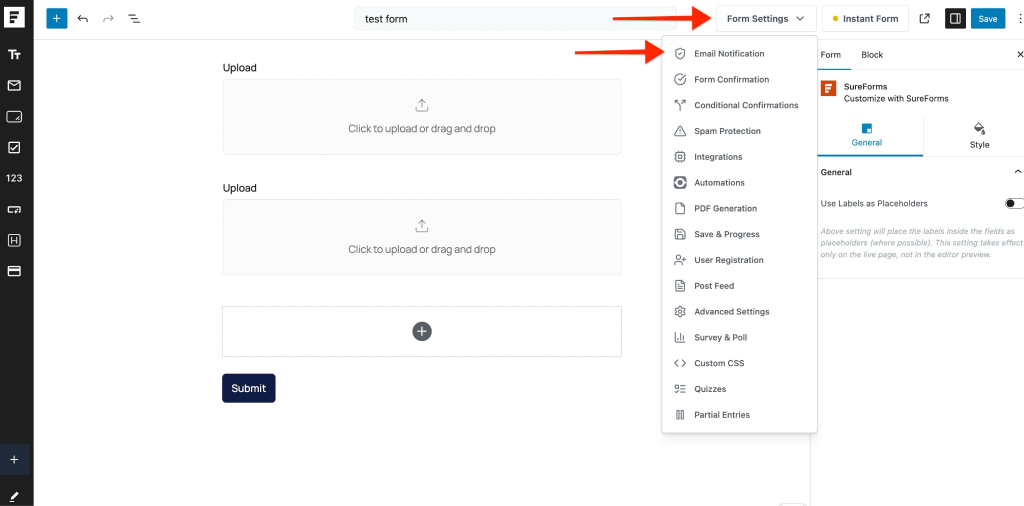
Step 2: Open Form Settings
- Go to your form dashboard
- Click on Form Settings
- Navigate to the Email Notification section
This is where you control how emails are sent after form submission.
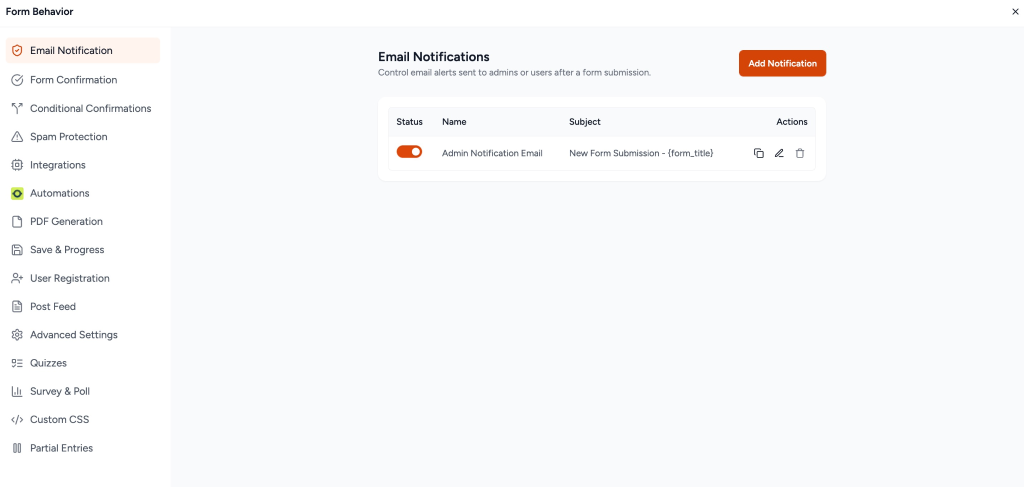
Step 3: Edit Email Notification
- Select the email notification you want to modify
- Click on Edit
This allows you to customize what gets sent in the email.
Step 4: Enable “Attach Upload File” Option
- Find the option Attach Upload File
- Enable the toggle
Once enabled, a new setting will appear to choose upload fields.
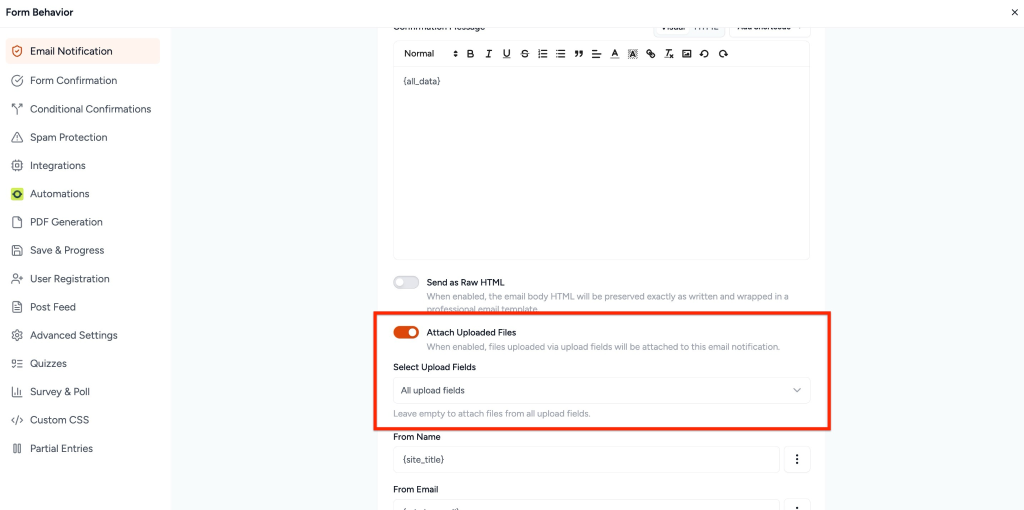
Step 5: Select Upload Field
- From the dropdown, select the upload field you want to attach
Important:
- If you select a specific field → Only that file will be attached
- If you don’t select any field → All uploaded files in the form will be attached
How It Works
Once everything is set up:
- A user submits the form
- Uploaded files are automatically attached to the email notification
- You receive the files directly in your inbox
Important Notes (Must Read)
- File Size Limit: Email attachments depend on your mail server limits (usually 10MB–25MB)
- If File Size Exceeds Limit: The attachment will not be sent
- Recommended Setup: Use an SMTP plugin to ensure reliable email delivery
- Multiple Files: Sending multiple large files may fail due to combined size limits
Troubleshooting Tips
If attachments are not received:
- Check file size limits on your server
- Confirm SMTP is properly configured
- Try uploading smaller files
- Test with a single file upload first
Was this doc helpful?
What went wrong?
We don't respond to the article feedback, we use it to improve our support content.