
- Creating and Publishing a Form
- Conversational Form
- Create Multi Step Forms In WordPress
- Using Calculations in SureForms: A Step-by-Step Guide
- Calculation Formula Guide
- SureForms Login Block – Step-by-Step Guide
- SureForms Registration Block – Step-by-Step Guide
- SureForms – PDF Generation Feature
- GDPR Compliant Forms
- Create WordPress Forms With Conditional Logic
- Adjust Form Notification Emails
- Form Confirmation
- Entries Management Feature Guide
- How to Add Query Parameters to Form Redirects
- How to Fetch Query Parameters from URL
- Set the “From Email” in SureForms
- Setting Up “Reply-To” Email Using Form Input Tags – SureForms
- Restrict Form Entries in SureForms
- Form Scheduling in SureForms
- Conditional Confirmations in SureForms
- How to Connect Your Stripe Account with SureForms
- How to Connect PayPal in SureForms
- How to Create a Payment Form in SureForms
- SureForms Payments
- How Refunds Work in SureForms Payments
- Understanding Payment Processing Fees
- How to Display the Payment Dashboard on the Frontend (SureForms)
- Enable One-Time Payment and Subscription in a Single Form
- SureForms Integration with ActiveCampaign
- SureForms Integration with AgileCRM
- SureForms Integration with Airtable
- SureForms Integration with LatePoint
- SureForms Integration with FluentCRM
- Connect SureForms To Zapier
- WordPress Forms with the Custom App Builder
- SureForms Integration with Telegram
- SureForms Integration with Breeze
- SureForms Integration with Brevo
- Unable to Upload SureForms ZIP: File Unzipped On Download
- Browser Support for SureForms
- Not Getting Update Notifications
- How To Rollback to Previous SureForms Versions
- Publishing Failed: Invalid JSON Response
- Troubleshooting Email Sending In SureForms
- SureForm Submissions Marked as Spam – How to Fix
- API Request Failed – Nonce Verification Error
- Fixing the “Destination folder already exists” Error When Installing SureForms
- How to Set Up SureForms with Caching Plugins
- How to Set Up SureForms with WP Rocket
- How to Set Up SureForms with W3 Total Cache
- How to Set Up SureForms with WP Fastest Cache
- How to Set Up SureForms with LiteSpeed Cache
- How to Set Up SureForms with SiteGround Optimizer
- How to Set Up SureForms with Autoptimize
- How to Enable Logs in SureForms
- srfm_enable_redirect_activation
- sureforms_plugin_action_links
- srfm_quick_sidebar_allowed_blocks
- srfm_integrated_plugins
- srfm_suretriggers_integration_data_filter
- srfm_form_submit_response
- srfm_enable_gutenberg_post_types
- srfm_languages_directory
- srfm_form_template
- srfm_disable_nps_survey
How to Set Up SureForms with LiteSpeed Cache
LiteSpeed Cache can speed up your website while keeping SureForms submissions, validation, and payments working. This guide explains which URLs and JavaScript files to exclude.
Before you begin
Install and activate SureForms and LiteSpeed Cache. If you use SureForms Business, keep it updated too. Save your current LiteSpeed settings before making changes.
With SureForms 2.6.0 or later, form pages generally do not need to be excluded from page caching. SureForms uses a time-based security token instead of a WordPress nonce. The token can remain valid for up to 48 hours; do not treat this as an unlimited cache lifetime.
For SureForms versions older than 2.6.0, update the plugin or exclude each page containing a form from page caching.
1. Exclude SureForms URLs
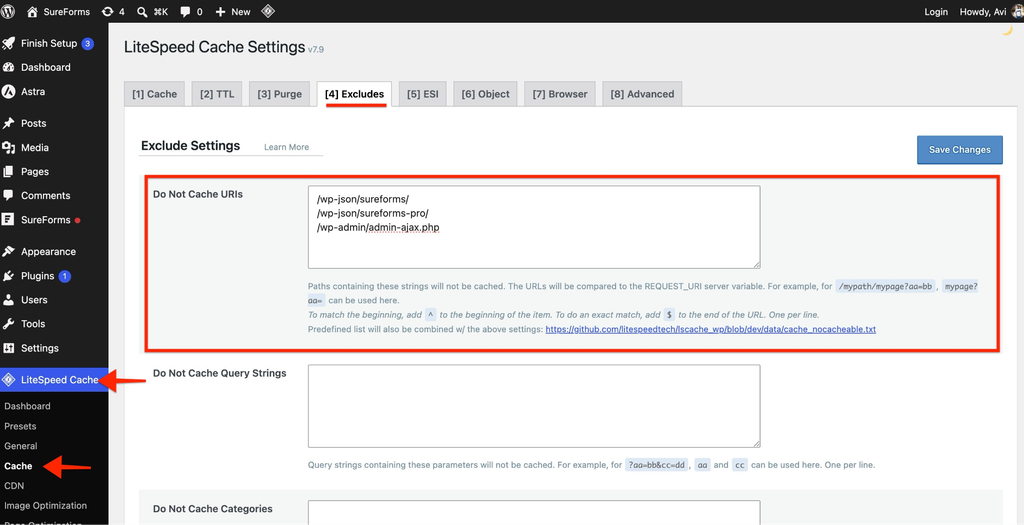
Open LiteSpeed Cache → Cache → Excludes. Add the following to Do Not Cache URIs, one per line, then click Save Changes. Keep any existing exclusions.
/wp-json/sureforms/
/wp-json/sureforms-pro/
/wp-admin/admin-ajax.phpThe first two paths cover the SureForms REST API and their nested Stripe and PayPal webhook URLs. The admin-ajax.php path covers requests such as payment intent creation and exports. Add the Pro path if you use SureForms Business.
2. Exclude SureForms JavaScript
Some JavaScript optimizations can affect form behavior. Use exclusions to keep SureForms scripts out of minification and combining.
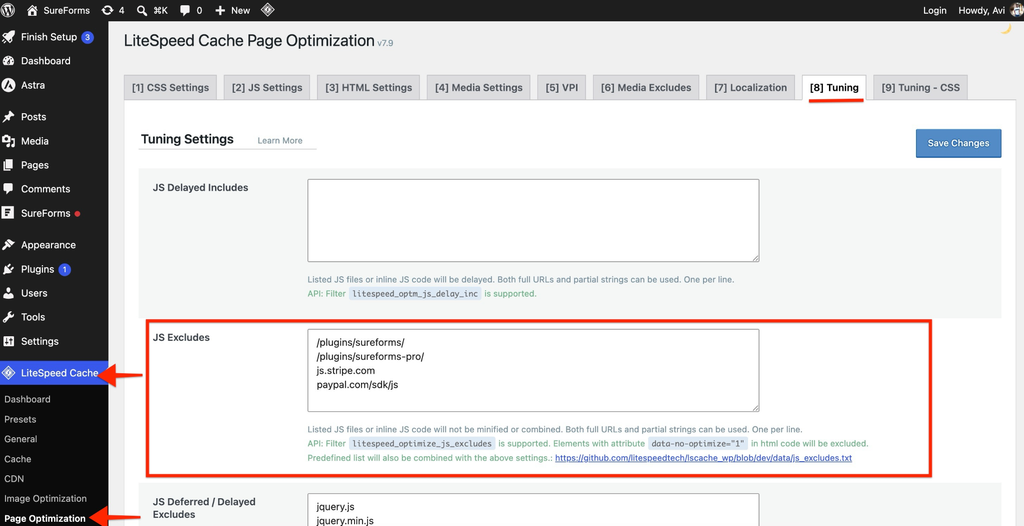
Open LiteSpeed Cache → Page Optimization → Tuning. In JS Excludes, add these partial paths on separate lines, then save. Do not remove existing entries.
/plugins/sureforms/
/plugins/sureforms-pro/
js.stripe.com
paypal.com/sdk/jsThe plugin paths provide broad coverage, including feature bundles whose filenames may change. Use the Pro and payment entries only where applicable. If your site rewrites asset URLs, use matching parts of the actual script URLs instead.
Which scripts does this cover?
Core forms: formSubmit.js and frontend.min.js handle submissions and frontend interactions.
Payments: stripe-payment.js and payment-manager.js handle Stripe fields and payment method switching.
Pro fields: pageBreak.js, datePicker.js, conditional-logic.min.js, file-upload.js, signature.js, signature_pad.umd.min.js, and repeater.js support their respective fields.
Save & Resume: the Pro plugin path also covers the feature’s bundle without requiring a specific filename.
If a feature loads a dependency from a different path, add that script’s URL or a matching partial path as well.
Reference: LiteSpeed JS Excludes
3. Check delayed and deferred scripts
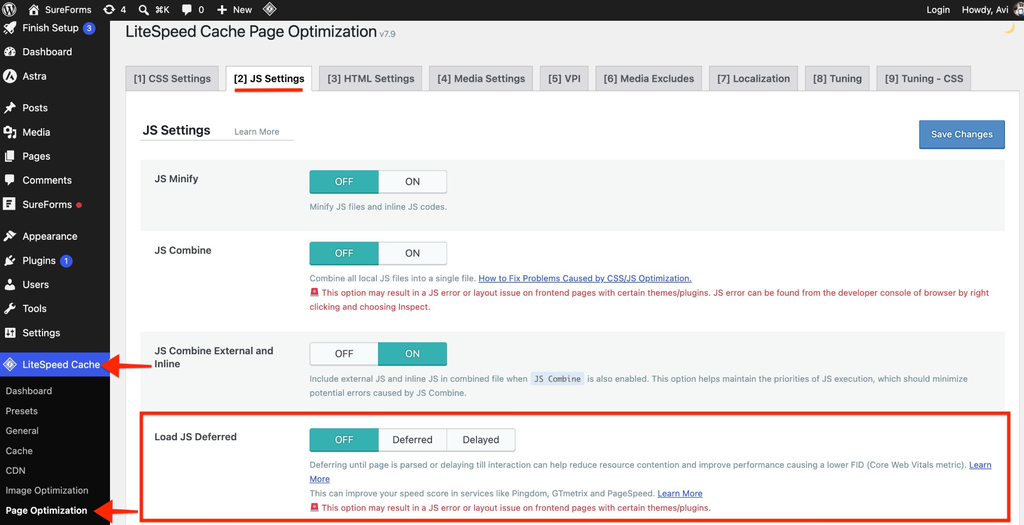
If Load JS Deferred is enabled under Page Optimization → JS Settings, add the same entries from Step 2 to Tuning → JS Deferred/Delayed Excludes and save.
/plugins/sureforms/
/plugins/sureforms-pro/
js.stripe.com
paypal.com/sdk/jsThis helps form and payment scripts load without waiting for a visitor interaction. If Guest Mode is enabled and problems affect first-time visitors, add these entries to Guest Mode JS Excludes too.
4. Keep payment scripts external
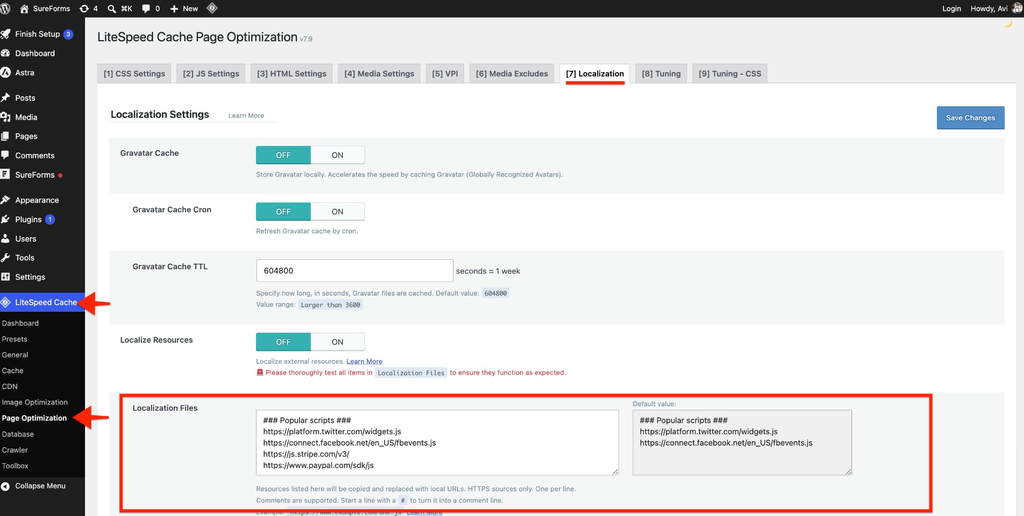
Stripe.js must load directly from Stripe, and the PayPal SDK should load directly from PayPal. Do not block these scripts or replace them with local copies.
https://js.stripe.com/v3/
https://www.paypal.com/sdk/jsIf Localize Resources is enabled under Page Optimization → Localization, remove Stripe and PayPal URLs from Localization Files, then save. Skip this step if your forms do not accept payments.
Reference: LiteSpeed tuning and localization settings
5. Clear the cache and test your form
After saving all changes, open LiteSpeed Cache → Toolbox → Purge and click Purge All. This also clears minified and combined CSS/JS files.
Reference: LiteSpeed purge controls
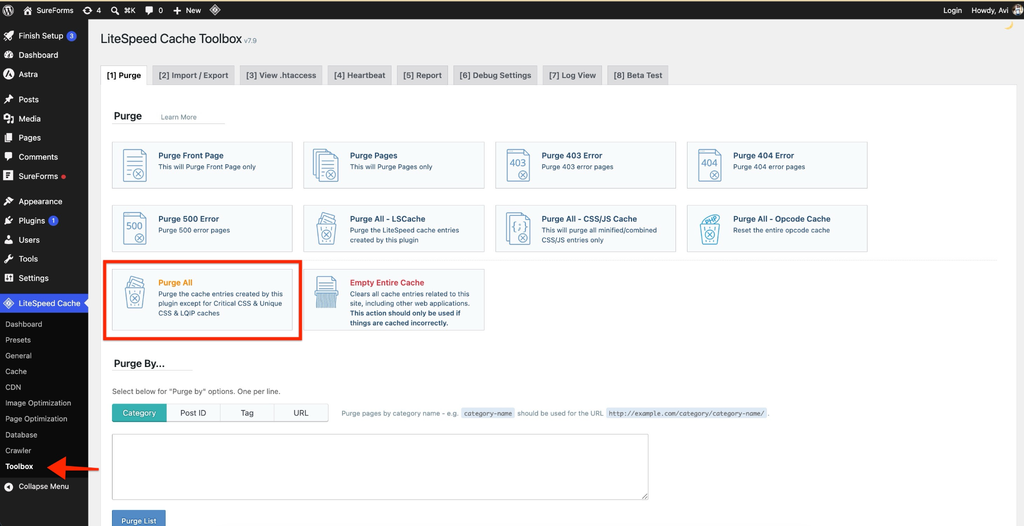
Open your form in a private or incognito window so you can test as a visitor. Reload and test again after the page has been cached.
Submit a test entry. Confirm the success message or redirect appears and the entry is saved under SureForms → Entries.
Check required-field validation and any active Pro fields, conditional logic, multi-step navigation, and Save & Resume.
For payment forms, use the gateway’s test or sandbox mode. Confirm the payment fields load and the payment status updates correctly.
Repeat the checks on desktop and mobile.
Troubleshooting
The form does not submit or show confirmation
Recheck the exclusions and purge the cache. In Developer Tools → Network, inspect the submission request to /wp-json/sureforms/v1/… for the expected JSON response.
An HTML response can indicate caching, a redirect, or a security block. Check its status and content before choosing a fix.
Payment fields fail to load or show an error
Check that payment scripts are not blocked, localized, combined, or delayed. Purge and retest.
The issue continues
Turn off JS Minify, JS Combine, and Load JS Deferred temporarily. Purge and retest, then re-enable them one at a time. Any other caching layer must also bypass the URLs in Step 1.
We don't respond to the article feedback, we use it to improve our support content.