
- Creating and Publishing a Form
- Conversational Form
- Create Multi Step Forms In WordPress
- Using Calculations in SureForms: A Step-by-Step Guide
- Calculation Formula Guide
- SureForms Login Block – Step-by-Step Guide
- SureForms Registration Block – Step-by-Step Guide
- SureForms – PDF Generation Feature
- GDPR Compliant Forms
- Create WordPress Forms With Conditional Logic
- Adjust Form Notification Emails
- Form Confirmation
- Entries Management Feature Guide
- How to Add Query Parameters to Form Redirects
- How to Fetch Query Parameters from URL
- Set the “From Email” in SureForms
- Setting Up “Reply-To” Email Using Form Input Tags – SureForms
- Restrict Form Entries in SureForms
- Form Scheduling in SureForms
- Conditional Confirmations in SureForms
- How to Connect Your Stripe Account with SureForms
- How to Connect PayPal in SureForms
- How to Create a Payment Form in SureForms
- SureForms Payments
- How Refunds Work in SureForms Payments
- Understanding Payment Processing Fees
- How to Display the Payment Dashboard on the Frontend (SureForms)
- Enable One-Time Payment and Subscription in a Single Form
- SureForms Integration with ActiveCampaign
- SureForms Integration with AgileCRM
- SureForms Integration with Airtable
- SureForms Integration with LatePoint
- SureForms Integration with FluentCRM
- Connect SureForms To Zapier
- WordPress Forms with the Custom App Builder
- SureForms Integration with Telegram
- SureForms Integration with Breeze
- SureForms Integration with Brevo
- Unable to Upload SureForms ZIP: File Unzipped On Download
- Browser Support for SureForms
- Not Getting Update Notifications
- How To Rollback to Previous SureForms Versions
- Publishing Failed: Invalid JSON Response
- Troubleshooting Email Sending In SureForms
- SureForm Submissions Marked as Spam – How to Fix
- API Request Failed – Nonce Verification Error
- Fixing the “Destination folder already exists” Error When Installing SureForms
- How to Set Up SureForms with Caching Plugins
- How to Set Up SureForms with WP Rocket
- How to Set Up SureForms with W3 Total Cache
- How to Set Up SureForms with WP Fastest Cache
- How to Set Up SureForms with LiteSpeed Cache
- How to Set Up SureForms with SiteGround Optimizer
- How to Set Up SureForms with Autoptimize
- How to Enable Logs in SureForms
- How to Fix “Unexpected Token” Errors in SureForms
- srfm_enable_redirect_activation
- sureforms_plugin_action_links
- srfm_quick_sidebar_allowed_blocks
- srfm_integrated_plugins
- srfm_suretriggers_integration_data_filter
- srfm_form_submit_response
- srfm_enable_gutenberg_post_types
- srfm_languages_directory
- srfm_form_template
- srfm_disable_nps_survey
How to Fix “Unexpected Token” Errors in SureForms
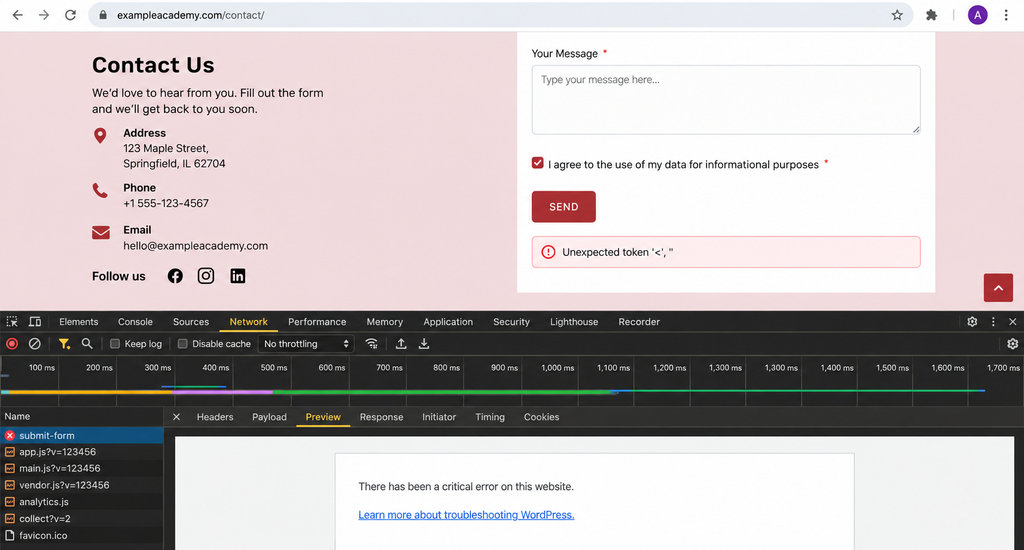
This guide explains why a SureForms submission may show the error “Unexpected token ‘<‘,” and how to identify the server issue causing it. The error normally means that the form expected a JSON response, but the server returned an HTML error page instead.
What the error means
SureForms sends the form data to your WordPress site through the REST API. It expects the server to return a JSON response. When WordPress encounters a fatal or critical error, it can return an HTML error page instead. Because HTML begins with “<”, the browser reports the message “Unexpected token ‘<‘,”.

Confirm the server response
You can confirm this through your browser developer tools:
- Open the page containing the form and submit it again.
- Right-click the page and select Inspect, then open the Network tab.
- Select the submit-form request and open the Preview or Response tab.
- If the response shows a WordPress critical error page rather than JSON, continue with the checks below.
Common causes
- Plugin conflict: Another plugin may trigger a PHP fatal error when the SureForms REST API request runs.
- PHP version incompatibility: Your site may be using a PHP version that does not support the syntax required by SureForms or another active plugin.
- Theme or custom code conflict: Custom functions, a child theme, or a code-snippets plugin can also run during the REST API request and cause a critical error.
Step 1: Run a plugin conflict test
Please temporarily deactivate all plugins except SureForms. If your form uses a payment gateway or another essential SureForms extension, keep only the components required for this test active.
- Go to Plugins > Installed Plugins in your WordPress dashboard.
- Temporarily deactivate every plugin except SureForms.
- Clear any page, server, or CDN cache.
- Open the form in a private or incognito browser window and submit a test entry.
Step 2: Identify the conflicting plugin
If the error disappears with only SureForms active, a plugin conflict is confirmed.
- Reactivate one plugin at a time.
- After each activation, submit the form again.
- When the error returns, note the last plugin you activated. This is likely the conflicting plugin.
- Share the plugin name, version, and any error details with SureForms support.
Step 3: Check your PHP version
If the error continues with only SureForms active, check the PHP version configured by your hosting provider. Update to a currently supported PHP version for your WordPress installation, then retest the form. If you are unsure which version to use, ask your host to check the WordPress and plugin requirements before making a change.
We don't respond to the article feedback, we use it to improve our support content.