
- Creating and Publishing a Form
- Conversational Form
- Create Multi Step Forms In WordPress
- Using Calculations in SureForms: A Step-by-Step Guide
- Calculation Formula Guide
- SureForms Login Block – Step-by-Step Guide
- SureForms Registration Block – Step-by-Step Guide
- SureForms – PDF Generation Feature
- GDPR Compliant Forms
- Create WordPress Forms With Conditional Logic
- Adjust Form Notification Emails
- Form Confirmation
- Entries Management Feature Guide
- How to Add Query Parameters to Form Redirects
- How to Fetch Query Parameters from URL
- Set the “From Email” in SureForms
- Setting Up “Reply-To” Email Using Form Input Tags – SureForms
- Restrict Form Entries in SureForms
- Form Scheduling in SureForms
- Conditional Confirmations in SureForms
- How to Connect Your Stripe Account with SureForms
- How to Connect PayPal in SureForms
- How to Create a Payment Form in SureForms
- SureForms Payments
- How Refunds Work in SureForms Payments
- Understanding Payment Processing Fees
- How to Display the Payment Dashboard on the Frontend (SureForms)
- Enable One-Time Payment and Subscription in a Single Form
- SureForms Integration with ActiveCampaign
- SureForms Integration with AgileCRM
- SureForms Integration with Airtable
- SureForms Integration with LatePoint
- SureForms Integration with FluentCRM
- Connect SureForms To Zapier
- WordPress Forms with the Custom App Builder
- SureForms Integration with Telegram
- SureForms Integration with Breeze
- SureForms Integration with Brevo
- SureForms Integration with GetResponse
- SureForms Integration with Drip
- Integrating SureForms with OttoKit
- Webhooks
- Webhook Conditional Logic
- SureForms Integration with Salesflare
- SureForms Integration with Hostinger Reach
- SureForms Integration with MailPoet
- SureForms Integration with Mailchimp
- Conditional Logic with Integrations
- SureForms Integration with Zoho CRM
- SureForms Integration with Keap
- SureForms Integration with MailerPress
- SureForms Integration with Google Sheets
- SureForms Integration with Notion
- SureForms Integration with WP Fusion
- SureForms Integration with Kit
- SureForms Integration with Mailjet
- SureForms Integration with MailerLite
- HubSpot Integration in SureForms
- SureForms Integration with Klaviyo
- SureForms Integration with Constant Contact
- SureForms Integration with Bigin by Zoho CRM
- How to Sell Membership Access Using a SureForms Payment Form
- Unable to Upload SureForms ZIP: File Unzipped On Download
- Browser Support for SureForms
- Not Getting Update Notifications
- How To Rollback to Previous SureForms Versions
- Publishing Failed: Invalid JSON Response
- Troubleshooting Email Sending In SureForms
- SureForm Submissions Marked as Spam – How to Fix
- API Request Failed – Nonce Verification Error
- Fixing the “Destination folder already exists” Error When Installing SureForms
- How to Set Up SureForms with Caching Plugins
- srfm_enable_redirect_activation
- sureforms_plugin_action_links
- srfm_quick_sidebar_allowed_blocks
- srfm_integrated_plugins
- srfm_suretriggers_integration_data_filter
- srfm_form_submit_response
- srfm_enable_gutenberg_post_types
- srfm_languages_directory
- srfm_form_template
- srfm_disable_nps_survey
SureForms Integration with Keap
This guide explains how to integrate SureForms with Keap at both the global and form levels.
Global Settings
Step 1: Access SureForms Settings
- From your WordPress dashboard, navigate to SureForms → Settings.
- Click on the Integrations tab.
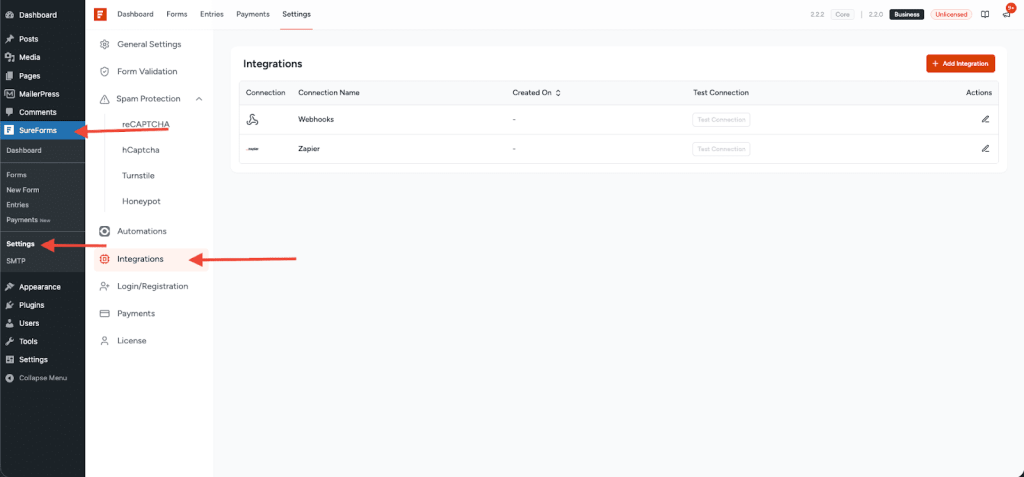
Step 2: Add Keap
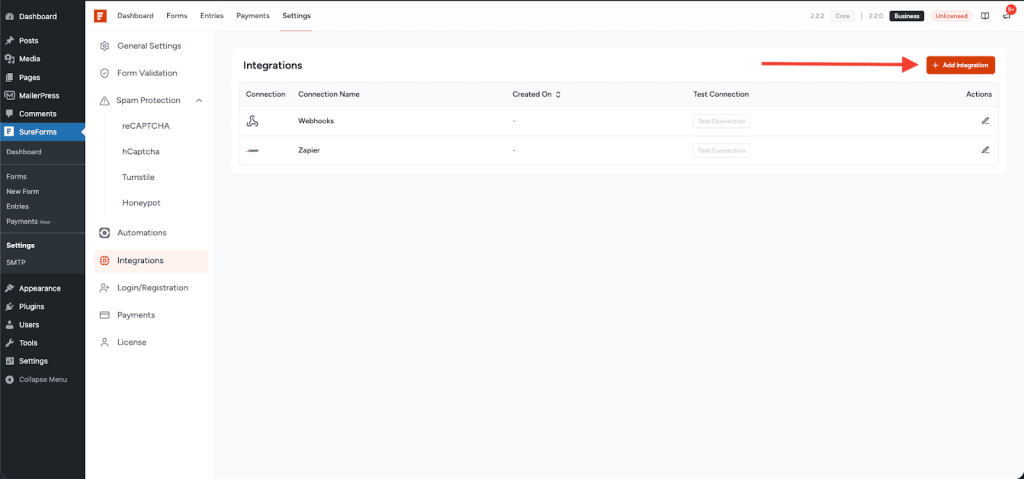
- Click the Add Integration button.
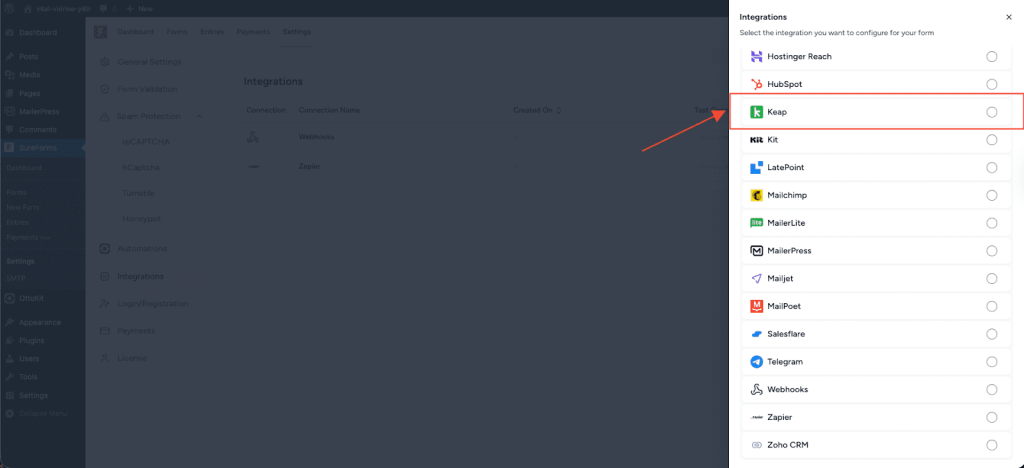
- From the list of available integrations, select Keap.
You can also use the search bar to find it quickly.
Step 3: Connect Keap
The Keap integration allows you to manage contacts, companies, products, and notes directly from SureForms form submissions.
To enable this integration:
- Click Connect Keap.
- You will be redirected to the Keap authorization screen.
- Log in to your Keap account and approve access for SureForms.
Once the connection is successful, you’ll see the confirmation message:
Integration configured successfully!
Keap will now appear in the list of global integrations.
Form Settings
Step 1: Open the Form Editor
- Go to SureForms → Forms from your WordPress dashboard.
- Open the form where you want to integrate Keap.
Step 2: Add Keap to the Form
- In the form editor, open the Integrations tab from the right-hand panel.
- Click Add Integration.
- Select Keap from the list of available global integrations.
Step 3: Configure Keap Integration
The Keap integration setup includes three tabs:
Select, Configure, and Test.
1. Select Tab
Provide the workflow details:
- Workflow Name – Required
- Action – Required
Available Actions:
- Create Contact
- Update Contact
- Create Note
- Create Product
- Create Company
After selecting the required action, click Continue.
2. Configure Tab
Configuration options vary based on the selected action.
Create Contact
- Map required fields such as:
- First Name
- Last Name
- Optionally map:
- Phone Number
- Address
- Custom Keap fields
Update Contact
- Map the Email or Contact ID to identify the contact.
- Map the fields you want to update.
Create Note
- Select or map the Contact or Company the note should be associated with.
- Map the Note Content field.
- Optionally map:
- Note Title
- Created By
Create Product
- Enable the Create Product checkbox.
- Map required product fields such as:
- Product Name
- Price
- Optionally map:
- Description
- SKU
Create Company
- Map required company details such as:
- Company Name
- Optionally map:
- Phone Number
- Address
Once all required fields are mapped, click Continue.
3. Test Tab
- Click Test Workflow to verify your setup.
- A success message such as:
WordPress plugin workflow “Keap – Create Contact” tested successfully!
confirms that the integration is working correctly. - Click Save Changes to complete the setup.
Integration Complete
Your form is now successfully connected to Keap.
Based on the action you selected, each form submission can now:
- Create or update contacts
- Create notes linked to contacts or companies
- Create products using the product checkbox option
- Create companies automatically
This enables seamless CRM and product data management in Keap using SureForms.
We don't respond to the article feedback, we use it to improve our support content.