
- Creating and Publishing a Form
- Conversational Form
- Create Multi Step Forms In WordPress
- Using Calculations in SureForms: A Step-by-Step Guide
- Calculation Formula Guide
- SureForms Login Block – Step-by-Step Guide
- SureForms Registration Block – Step-by-Step Guide
- SureForms – PDF Generation Feature
- GDPR Compliant Forms
- Create WordPress Forms With Conditional Logic
- How to Create Inline Forms in SureForms
- How to Add Smart Tags as Default Values in SureForms
- Adding Custom Posts Using SureForms
- Validate as Unique in SureForms
- How to Use Conditional Logic in SureForms
- How to Use OttoKit with Repeater Field in SureForms
- How to Duplicate a Form in SureForms
- Custom Lost Password and Reset Password Pages
- Quiz Feature in SureForms
- SureForms – Survey & Polls Feature
- Using the Google Maps API with SureForms
- How to Move a Published Form to Draft Mode
- Convert HTML Forms to SureForms
- Hide the Submit Button Using Conditional Logic
- Show Views and Conversion Rate
- How to Enable and Manage Form Abandonment in SureForms
- Adjust Form Notification Emails
- Form Confirmation
- Entries Management Feature Guide
- How to Add Query Parameters to Form Redirects
- How to Fetch Query Parameters from URL
- Set the “From Email” in SureForms
- Setting Up “Reply-To” Email Using Form Input Tags – SureForms
- Restrict Form Entries in SureForms
- Form Scheduling in SureForms
- Conditional Confirmations in SureForms
- How to Connect Your Stripe Account with SureForms
- How to Connect PayPal in SureForms
- How to Create a Payment Form in SureForms
- SureForms Payments
- How Refunds Work in SureForms Payments
- Understanding Payment Processing Fees
- How to Display the Payment Dashboard on the Frontend (SureForms)
- Enable One-Time Payment and Subscription in a Single Form
- SureForms Integration with ActiveCampaign
- SureForms Integration with AgileCRM
- SureForms Integration with Airtable
- SureForms Integration with LatePoint
- SureForms Integration with FluentCRM
- Connect SureForms To Zapier
- WordPress Forms with the Custom App Builder
- SureForms Integration with Telegram
- SureForms Integration with Breeze
- SureForms Integration with Brevo
- Unable to Upload SureForms ZIP: File Unzipped On Download
- Browser Support for SureForms
- Not Getting Update Notifications
- How To Rollback to Previous SureForms Versions
- Publishing Failed: Invalid JSON Response
- Troubleshooting Email Sending In SureForms
- SureForm Submissions Marked as Spam – How to Fix
- API Request Failed – Nonce Verification Error
- Fixing the “Destination folder already exists” Error When Installing SureForms
- How to Set Up SureForms with Caching Plugins
- srfm_enable_redirect_activation
- sureforms_plugin_action_links
- srfm_quick_sidebar_allowed_blocks
- srfm_integrated_plugins
- srfm_suretriggers_integration_data_filter
- srfm_form_submit_response
- srfm_enable_gutenberg_post_types
- srfm_languages_directory
- srfm_form_template
- srfm_disable_nps_survey
How to Enable and Manage Form Abandonment in SureForms
Have you ever had visitors start filling out a form but leave without submitting it?
With the Form Abandonment feature in SureForms, you can automatically save their progress, review incomplete submissions, and send email reminders to visitors who want to complete their forms later.
This is especially useful for longer forms, such as job applications, registration forms, surveys, and lead-generation forms.
In this guide, we’ll show you how to enable Form Abandonment, configure email reminders, and manage abandoned form entries.
What Is Form Abandonment in SureForms?
Form Abandonment works with the Partial Entries feature to capture information visitors enter before submitting a form.
For example, imagine someone filling out a job application. They enter their name, email address, and phone number but leave the page before completing the application.
Instead of losing the information, SureForms can save the visitor’s progress.
With Form Abandonment, you can:
- Automatically save form progress: Capture information as visitors fill out the form.
- Choose when to save entries: Start saving after any field is filled or only after an email address or phone number is entered.
- Allow visitors to continue: Restore saved answers when visitors return to the form.
- Send email reminders: Send a link to continue the form when visitors opt in.
How to Enable Form Abandonment in SureForms
Follow these steps to enable Form Abandonment for your form.
Step 1: Open Your Form Settings
- Log in to your WordPress dashboard.
- Navigate to SureForms → Forms.
- Open an existing form or create a new one.
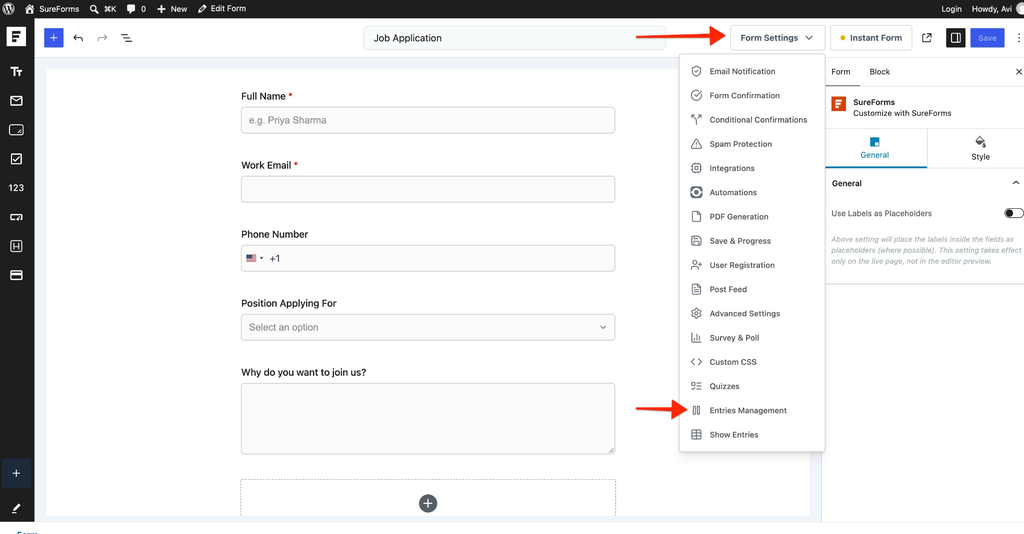
- Click Form Settings at the top of the form editor.
- Select Entries Management.
Step 2: Enable Partial Entries
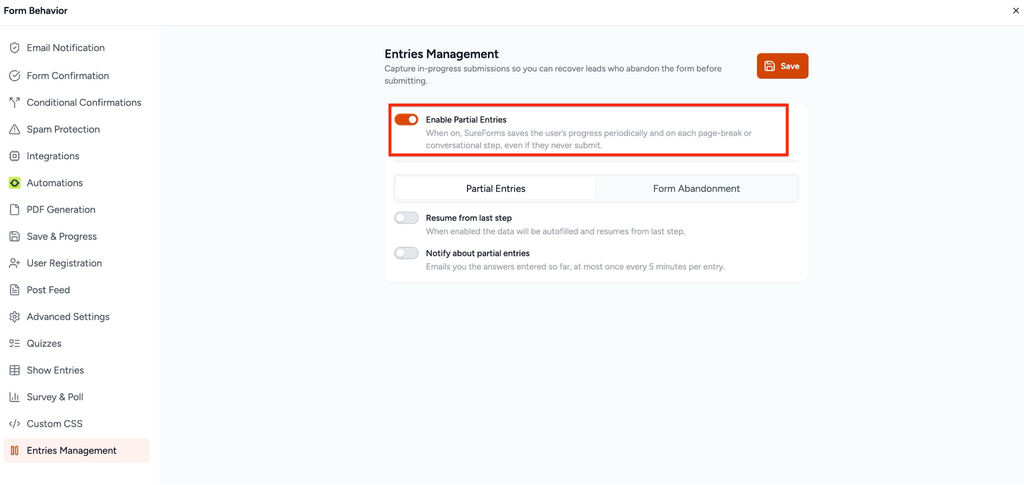
Form Abandonment requires Partial Entries to be enabled.
- Locate the Enable Partial Entries option.
- Turn on the toggle.
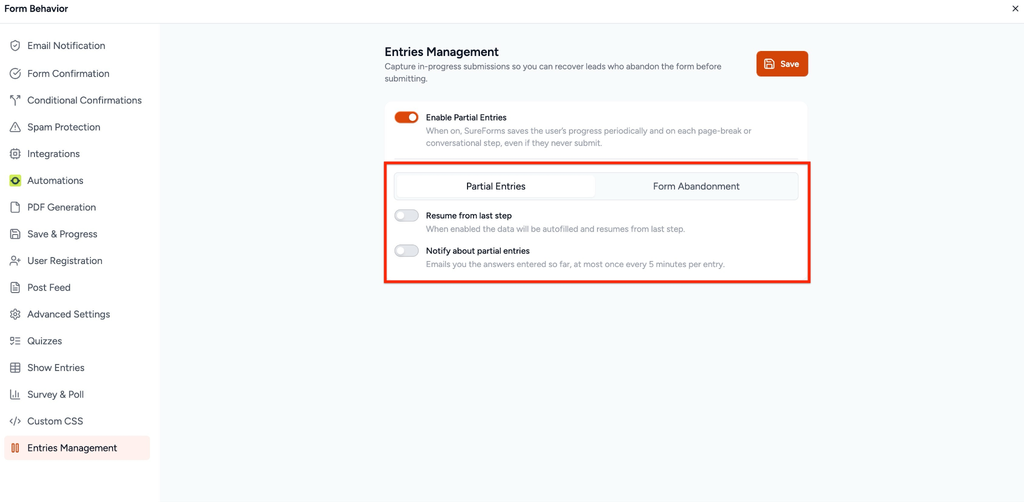
- Once enabled, two tabs will appear:
- Partial Entries
- Form Abandonment
Step 3: Configure Form Abandonment Settings
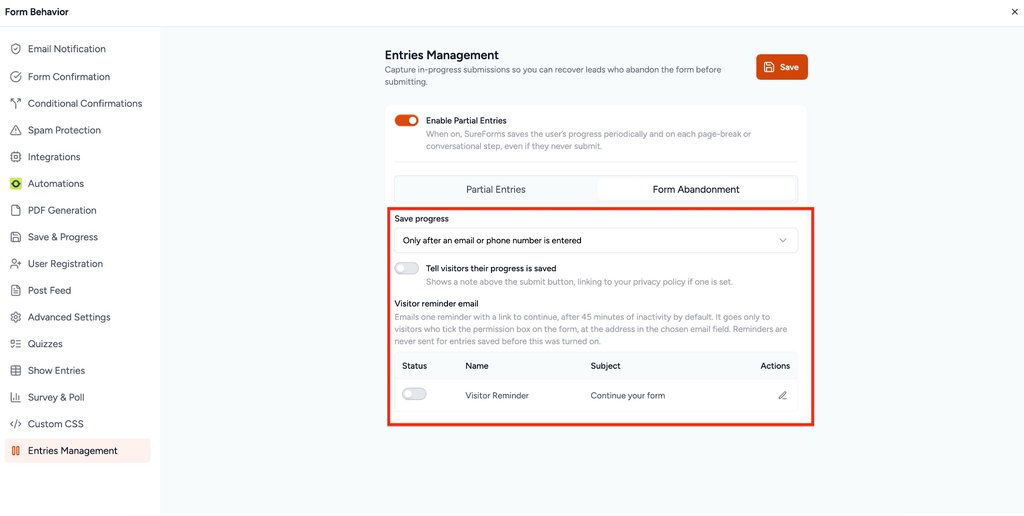
Next, click the Form Abandonment tab.
Under Save progress, you will find two options.
- As soon as any field is filled – SureForms starts saving the visitor’s information as soon as they begin filling out the form. This option is useful when you want to capture as many incomplete entries as possible.
- Only after an email or phone number is entered – SureForms starts saving progress only after the visitor provides a valid email address or phone number. This option is useful for lead-generation forms where contact information is important.
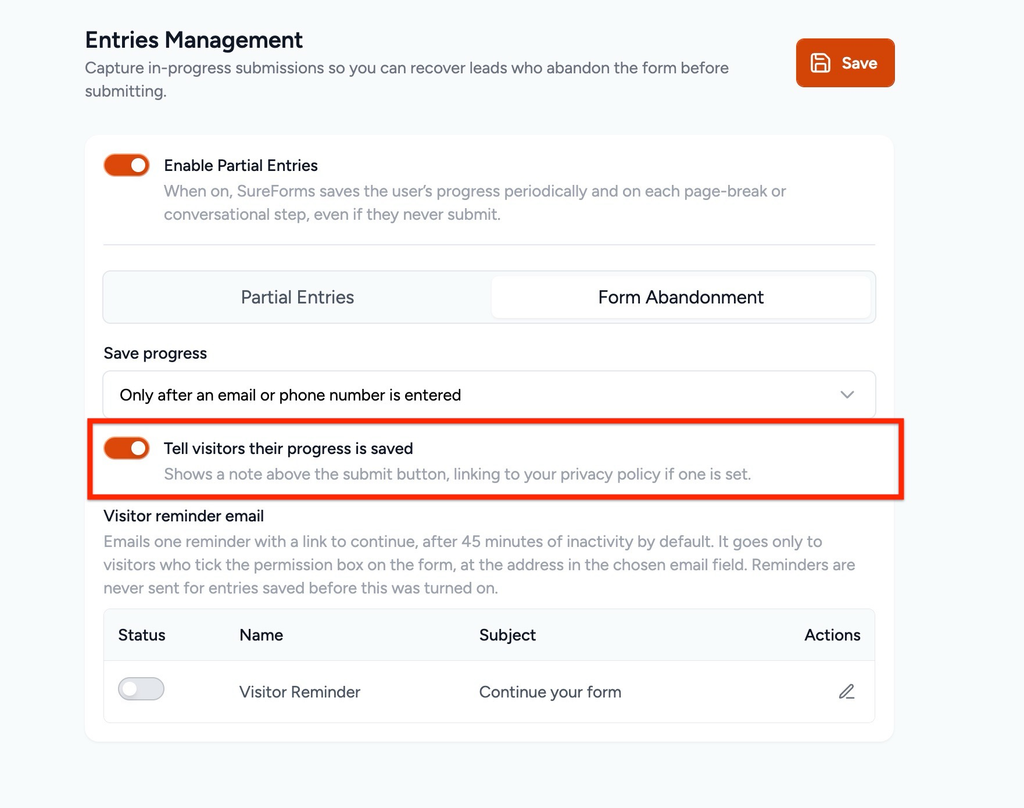
Step 4: Display a Progress Saved Message
SureForms also lets you inform visitors that their form progress is being saved.
- Locate Tell visitors their progress is saved.
- Enable the toggle.
Once enabled, visitors will see the following message above the Submit button:
“Your progress is saved as you fill out this form.”
This helps visitors understand that they can return and continue completing their form.
![Frontend form displaying the progress saved message]](https://sureforms.com/wp-content/uploads/2026/10/image-5-1024x523.png "How to Enable and Manage Form Abandonment in SureForms")
Step 5: Configure Visitor Reminder Emails
You can send an email reminder to visitors who leave a form without submitting it.
This email includes a link that allows them to continue completing their form.
To configure the reminder:
- Locate the Visitor reminder email section.
- Click the pencil icon next to Visitor Reminder.
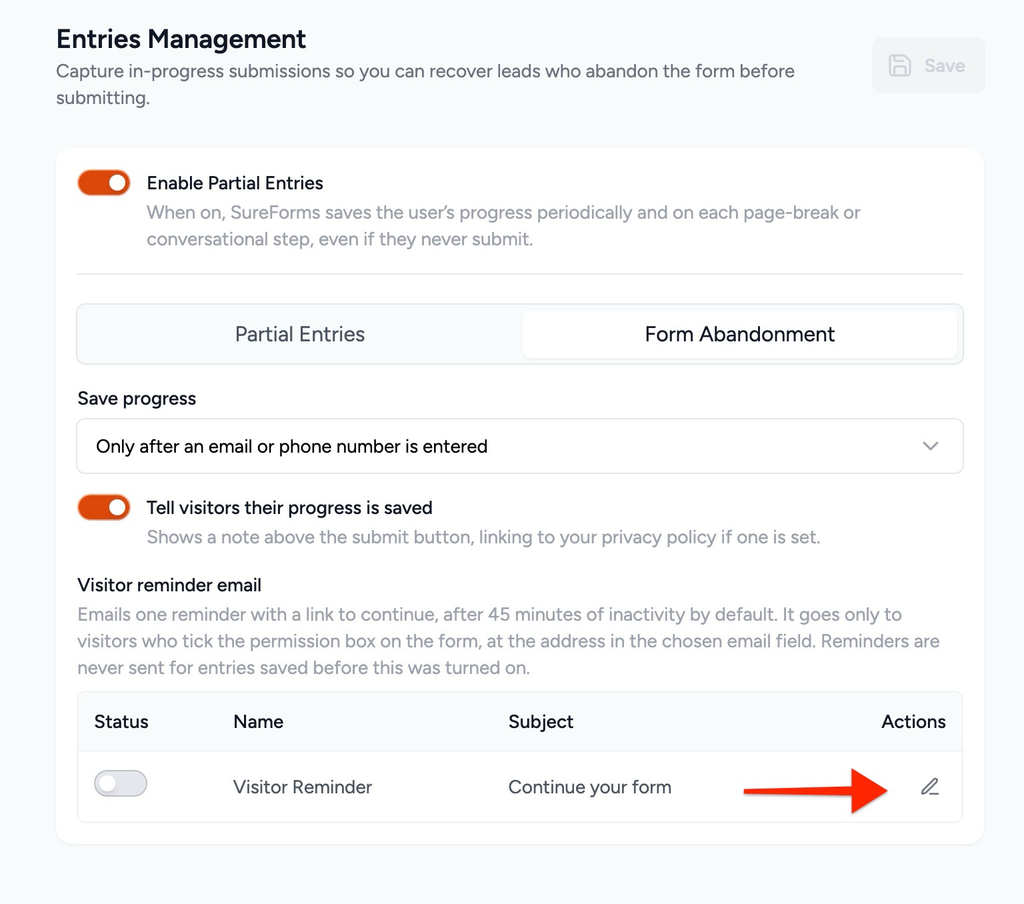
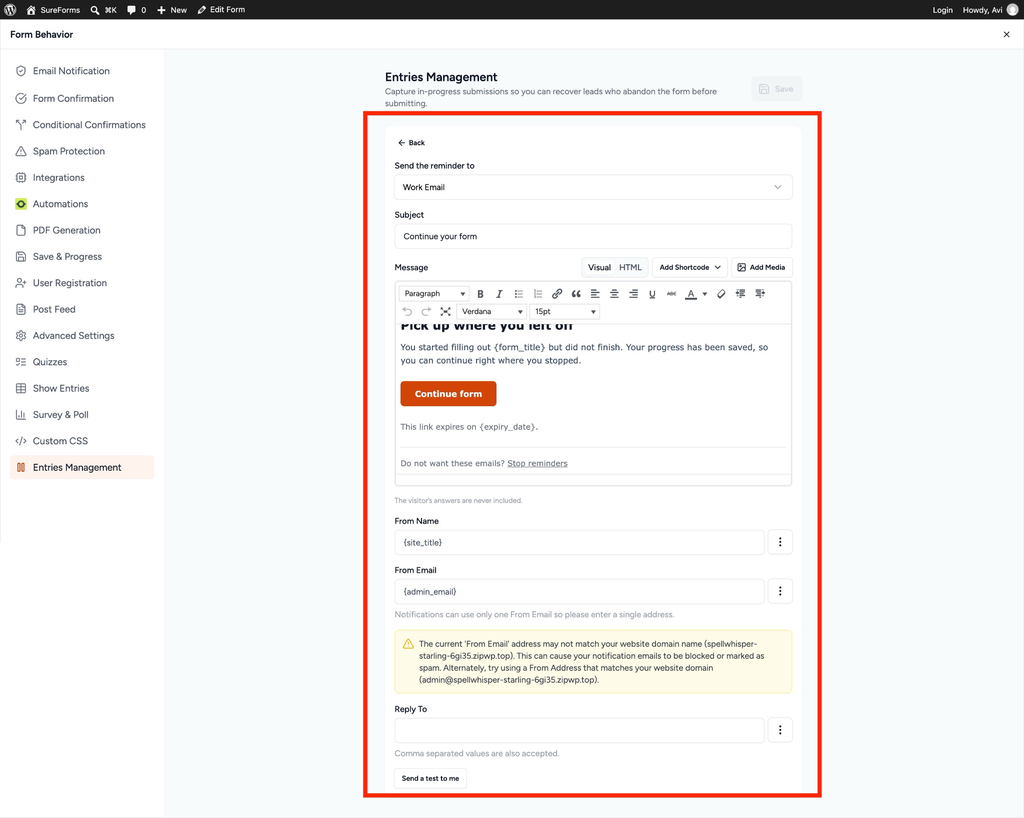
- The email notification editor will open.
- Configure the following settings:
| Setting | Description |
| Send the reminder to | Select the email field that contains the visitor’s email address. |
| Subject | Enter the subject line for the reminder email. |
| Message | Customize the email content. |
| From Name | Enter the sender name. |
| From Email | Enter the sender email address. |
| Reply To | Set the email address for replies. |
You can also use supported smart tags, such as { form_title} and { expiry_date}, in the email message.
After configuring the email:
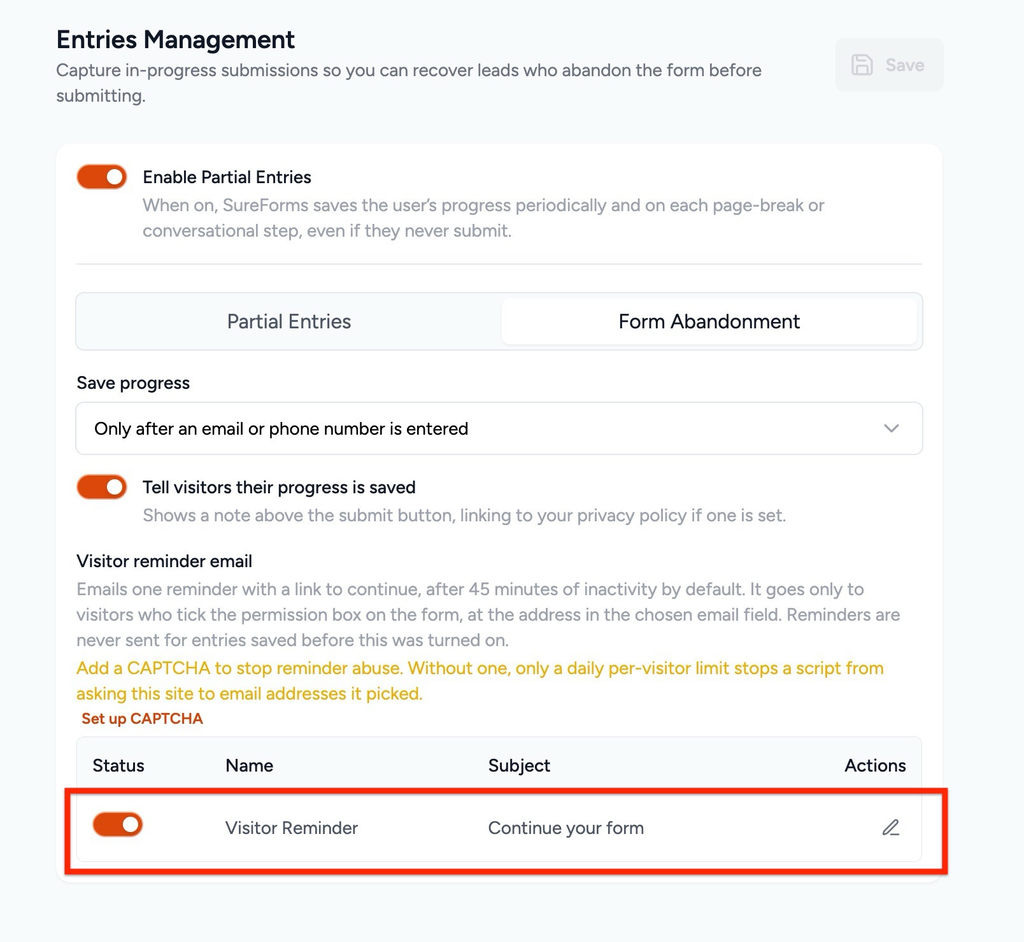
- Click Back to return to the Form Abandonment settings.
- Enable the Visitor Reminder toggle.
- Click Save to save your settings.
- Update or publish your form.
Step 6: Enable Spam Protection
Before using visitor reminders on a public form, we recommend enabling spam protection.
- Open Form Settings.
- Navigate to Spam Protection.
- Configure a supported CAPTCHA option.
- Save your changes.
If CAPTCHA is not configured, SureForms displays a warning in the Visitor Reminder settings.
How Form Abandonment Works for Visitors
Once Form Abandonment is enabled, SureForms saves information automatically in the background based on your selected settings.
Let’s understand this with an example.
Suppose you have created a Job Application form containing these fields:
- Full Name
- Work Email
- Phone Number
- Position Applying For
- Why do you want to join us?
A visitor opens the form and enters their name, email address, and phone number.
However, they leave the page without submitting the application.
Here’s what happens:
- SureForms saves the information based on your Save progress settings.
- The unfinished submission becomes available under SureForms → Partial Entries.
- If the visitor has opted in to receive a reminder, SureForms can send them an email with a link to continue.
- The visitor can return and complete the remaining fields.
- Once the form is submitted successfully, the completed submission becomes available under SureForms → Entries.
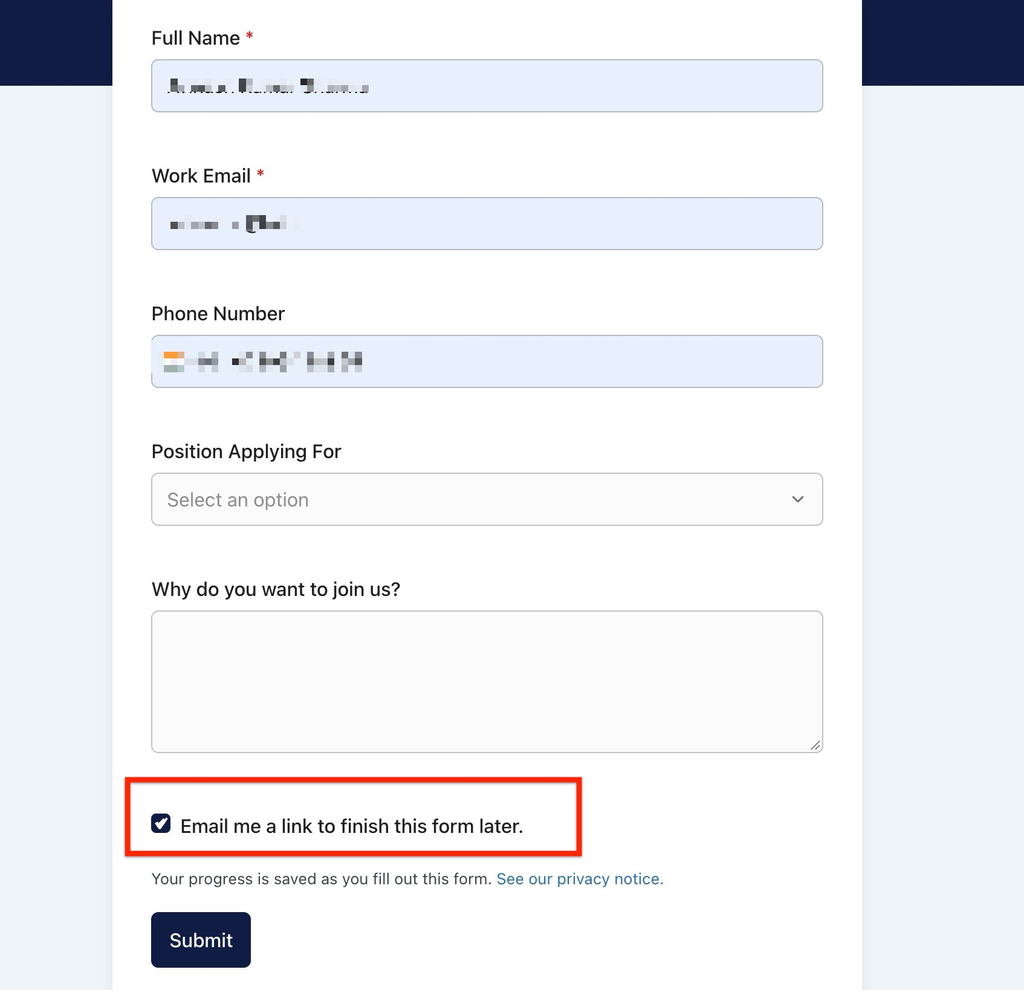
What Does the Visitor Reminder Checkbox Look Like?
When Visitor Reminder is enabled, SureForms displays an additional checkbox below the selected email field.
“Email me a link to finish this form later.”
Visitors must select this checkbox to receive a reminder.
How to View and Manage Abandoned Entries
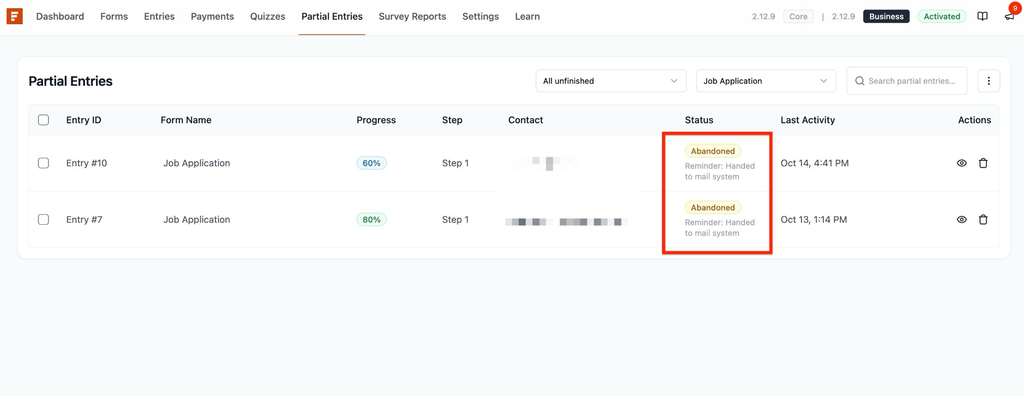
SureForms provides a dedicated screen for managing unfinished form submissions.
Step 1: Open Partial Entries
- Go to your WordPress dashboard.
- Navigate to SureForms → Partial Entries.
- You will see the available partial entries from your forms.
The entries table displays information such as:
- Entry ID
- Form Name
- Progress
- Step
- First Field
- Status
- Last Activity
Step 2: User Receives an Email Reminder
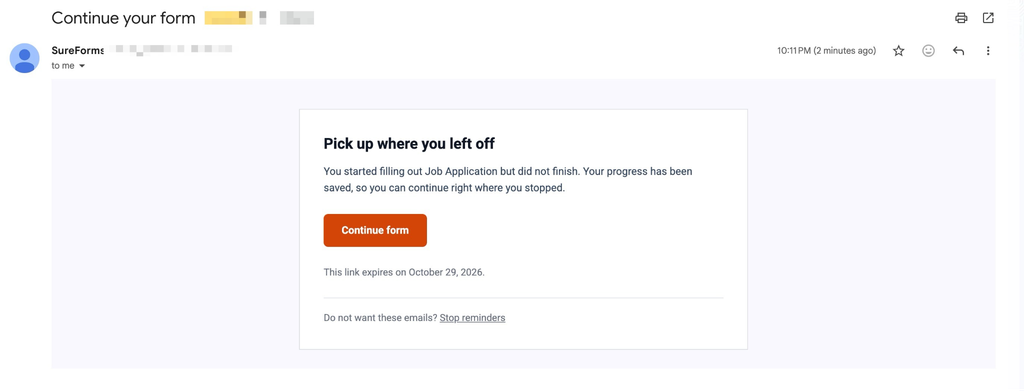
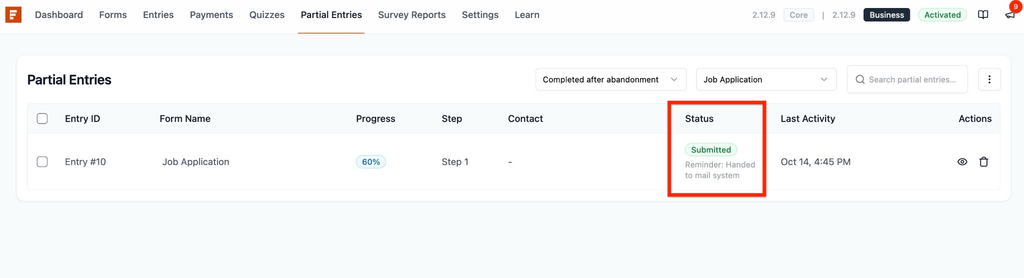
Once a user abandons the form, SureForms triggers an email reminder.
Reminder Status: Handed to the mail system.
An email is sent to the user with a link to return to the form and complete their submission.
Step 3: User Clicks the Continue Form Button
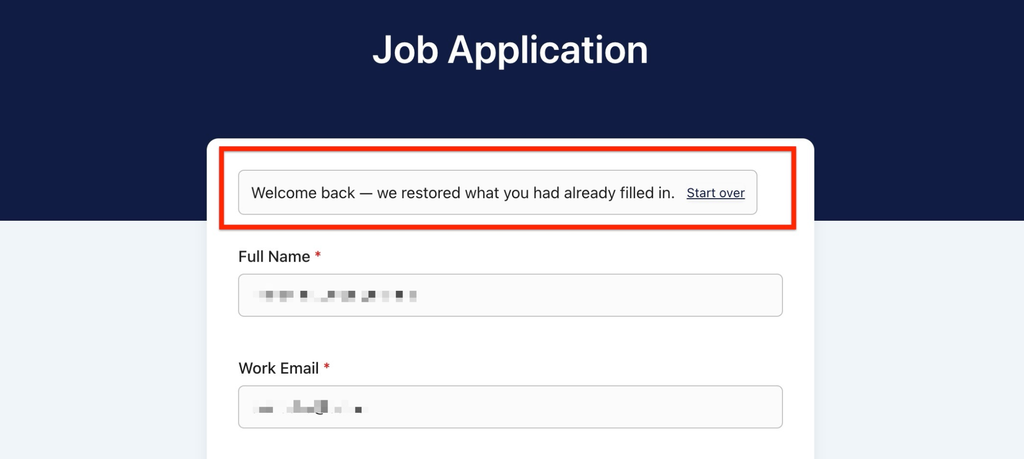
When the user clicks the Continue Form button in the reminder email, the form opens with a Welcome Back message.
The form automatically loads the previously entered data, allowing the user to continue from where they left off without starting again.
Once the user completes the remaining fields and submits the form, the abandonment status changes to Completed After Abandonment.
Best Practices for Using Form Abandonment
To get the most out of Form Abandonment, consider the following recommendations:
- Keep important fields near the beginning: Add the email address field early so visitors can provide their contact information before leaving.
- Enable visitor reminders: Allow visitors to receive a link to finish their forms later.
- Inform visitors about saved progress: Enable the progress notice to make the form experience clearer.
- Use spam protection: Protect your public forms from unwanted submissions.
- Review partial entries regularly: Check incomplete entries and remove information you no longer need.
- Update your privacy policy: Explain how unfinished form information is collected and stored.
Conclusion
The Form Abandonment feature in SureForms helps you capture unfinished form entries and gives visitors an easy way to complete their forms later.
By enabling Partial Entries, configuring when progress is saved, and setting up visitor reminder emails, you can reduce lost submissions and improve the form-filling experience.
Whether you’re collecting job applications, registrations, or leads, Form Abandonment helps you keep track of visitors who leave before submitting their forms.
We don't respond to the article feedback, we use it to improve our support content.